How to Enable or Disable Always Show Scrollbars in Windows 11

Always show scrollbars in Windows 11 keeps scrollbars on screen instead of hiding them a moment after you stop scrolling. Scrollbars are the vertical and horizontal tracks on the edge of a window. You use them to move through long web pages, folders and documents.
By default, Windows 11 uses thin overlay scrollbars that fade away when you aren’t using them. This keeps the interface clean, but it can make it harder to see how long a page is or where you are in it. If you want the scrollbars visible all the time, you can turn them on in the Settings app . It takes a few seconds, works on both Home and Pro editions, and doesn’t need a restart.
Press Win+I to open Settings , click Accessibility, select Visual effects, then turn On the Always show scrollbars switch. Scrollbars remain visible on all windows immediately without restart.
Why Change Your Scrollbar Settings?
This setting is about balancing screen space against ease of navigation. Permanent scrollbars give you a constant visual guide on long pages. They also give you a clear target to grab with the mouse, which helps if you find the thin hover-only bar hard to hit. Hidden scrollbars save a little space, which matters most on small or low-resolution displays.
Neither option is wrong. Pick whichever suits the way you work. You can change your mind at any time, because the setting is a simple on/off switch.
How to Turn On or Off Always Show Scrollbars (Easy Way)
The quickest way to make scrollbars always show is through the Settings app. The path is Settings Accessibility Visual effects, and the switch you want is Always show scrollbars. Here is the sequence:
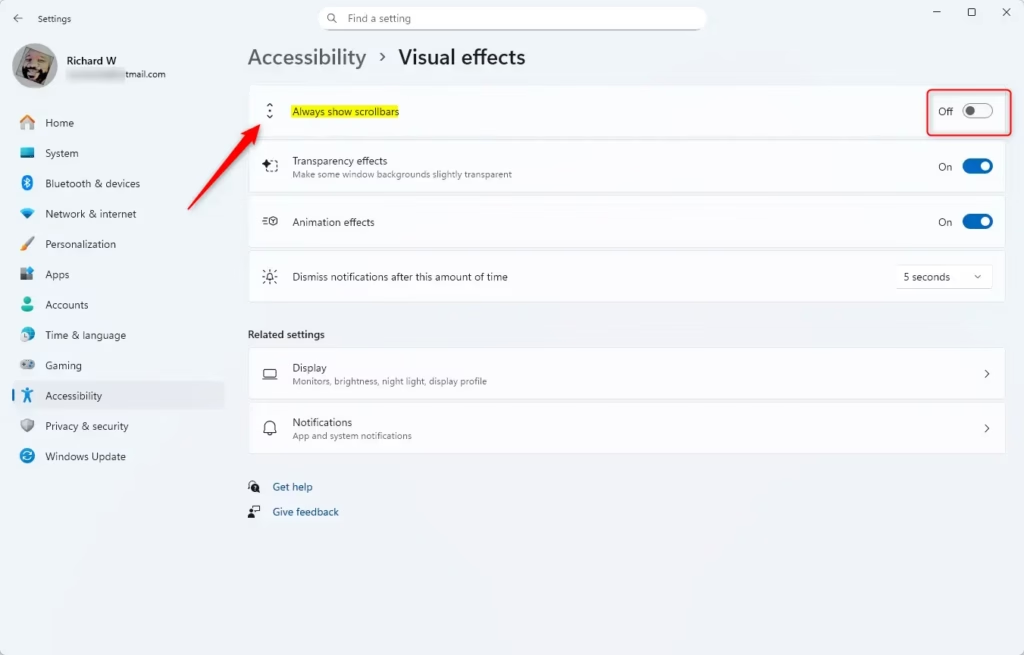
Press the Win+I to open Settings . Click Accessibility in the left menu, then select Visual effects on the right. Set the Always show scrollbars switch to On. The steps are shown below.
- Press the Windows key + I on your keyboard to open Settings.
- On the left side, click Accessibility.
- On the right side, click Visual effects.
- Look for the option called Always show scrollbars.
- Turn it On if you want scrollbars to always be visible, or Off to keep the default hiding behavior.
You can also jump straight to the Visual effects page by clicking this link. It opens the Settings app: Open Visual Effects Settings
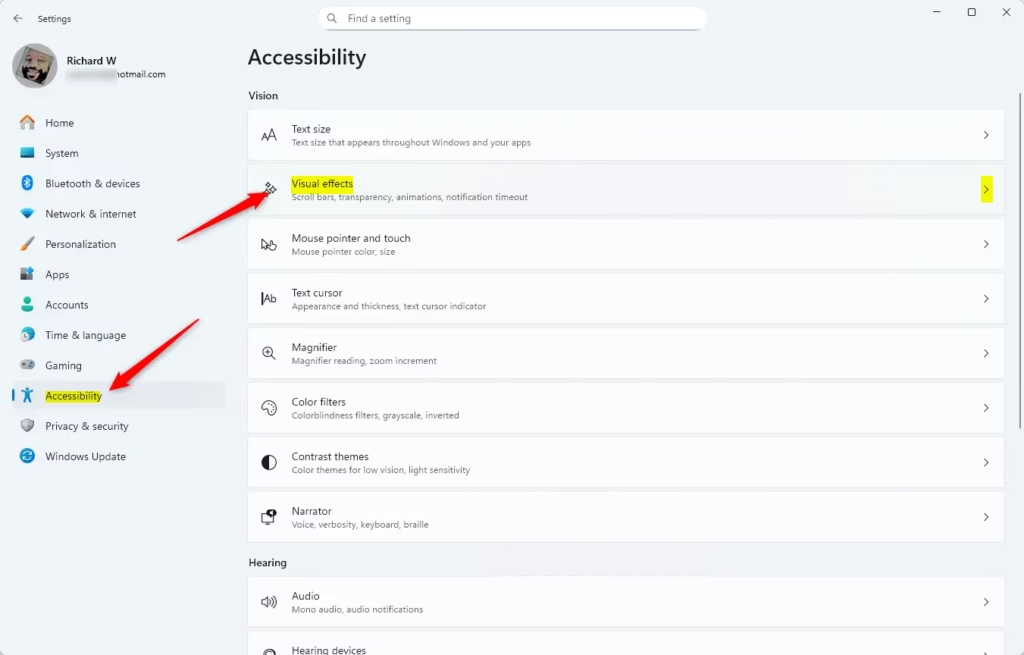
The change applies right away. Open File Explorer or a long web page and you should see the scrollbar sitting on the edge of the window even when you aren't scrolling. Apps that were already open may not update until you close and reopen them.
Some older desktop programs draw their own scrollbars and may ignore this setting. If a particular app still hides its scrollbar, check that app's own options.
Close the Settings window once the adjustment is complete.
How to Turn On or Off Always Show Scrollbars Using the Registry (Advanced)
It is more error-prone than the Settings app, so use it only if you have a reason to, such as scripting the change or the Settings page not being available to you.
To Turn On Always Show Scrollbars:
reg add "HKCU\Control Panel\Accessibility" /v DynamicScrollbars /t REG_DWORD /d 0 /f⚠️ Admin privileges required
To Turn Off Always Show Scrollbars (Default Setting):
To turn off always show scrollbars in Windows 11 and return to the default behavior, where scrollbars fade away until you hover over them, you can use either the Settings app or the Registry Editor. In Settings, go to Accessibility Visual effects and set Always show scrollbars to Off. Because mistakes in the registry can cause system problems, the Settings app is the safest choice for most people.
If you aren't sure about any step, stick with the Settings method. It does the same job and is easy to reverse. After you turn the setting off, reopen any apps that still show permanent scrollbars so they pick up the change.
Summary
- What happens: You control how scrollbars appear on your screen — always visible or only when you hover.
- Two ways to do it: Use Settings (easy) or Registry Editor (advanced).
- Why it matters: Make your PC experience comfortable by customizing scrollbars to your liking.
- Next steps: Try it out and see what works best for you!
Windows 11 lets you choose between constantly visible scrollbars and a cleaner, minimal workspace. You can manage the setting through the Settings app or the Registry Editor. For most people the Settings app is the better choice, since it is quick, safe and fully reversible.
Have a question about this guide?
Answered by AI from this guide. Good questions may be added to this page — please don't include personal details.
Did this guide fix your problem?

About the Author
Richard
Tech Writer, IT Professional
Richard is a writer at Geek Rewind who turns complex IT tasks into clear, step-by-step guides. He draws on years of hands-on experience in system administration and enterprise IT operations, focusing on Windows, Linux and WordPress: the problems people actually run into, and the fixes that work. His server and WordPress guides come from systems he runs himself. Richard builds and maintains the platform behind Geek Rewind, from its Ubuntu servers and Nginx configuration to its custom WordPress plugins. Many new tutorials start with readers' questions, and he's always glad to answer them in the comments.
No comments yet — be the first to share your thoughts!