
Do you use your keyboard a lot? Windows 11 has special keys that can help make typing easier. These are called Sticky Keys, Filter Keys, and Toggle Keys. You can turn on notifications so Windows tells you when these keys are active. Let’s learn how.
What Are Sticky, Filter, and Toggle Keys?
Sticky Keys let you press one key at a time instead of pressing multiple keys together. For example, you normally hold Shift and press another key. With Sticky Keys, you press Shift once, and it stays active until you press another key.
Filter Keys help by ignoring quick or repeated key presses that happen by accident when you type.
Toggle Keys make a sound when you press keys like Caps Lock, Num Lock, or Scroll Lock. This way you know if they are on or off.
Why use these features? They make typing easier for many people. What happens when you turn on notifications? Windows shows you a message whenever one of these keys turns on or off.
How to Enable Notifications for These Keys in Windows 11
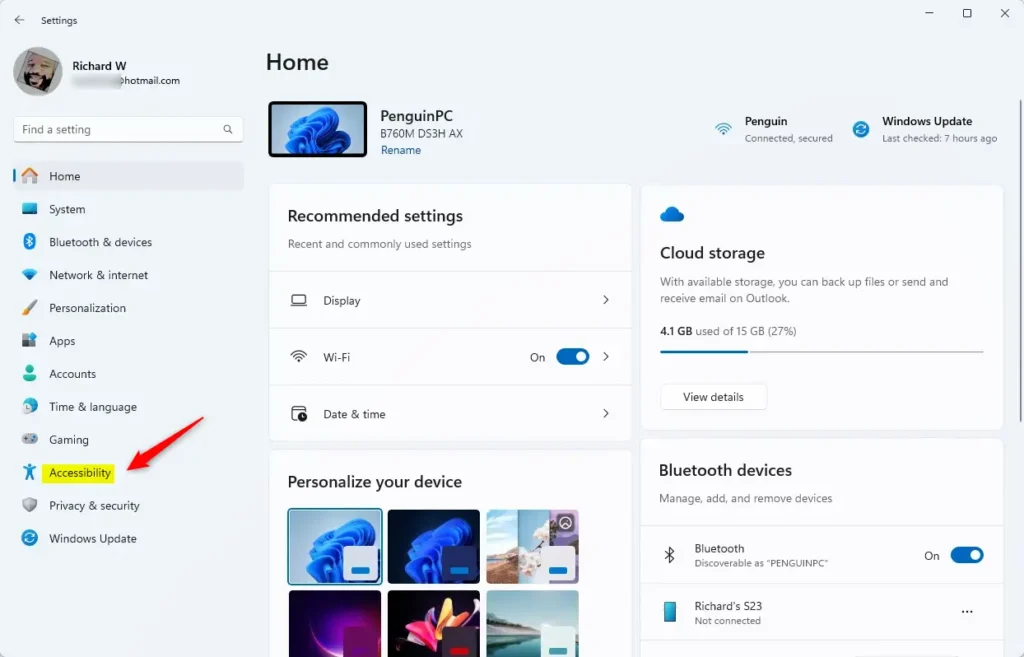
- Open the Settings app. Click the Start menu button (the Windows icon on the bottom-left), then click Settings. Or press
Windows key + Ion your keyboard to open Settings quickly. - In the Settings window, click Accessibility on the left side.
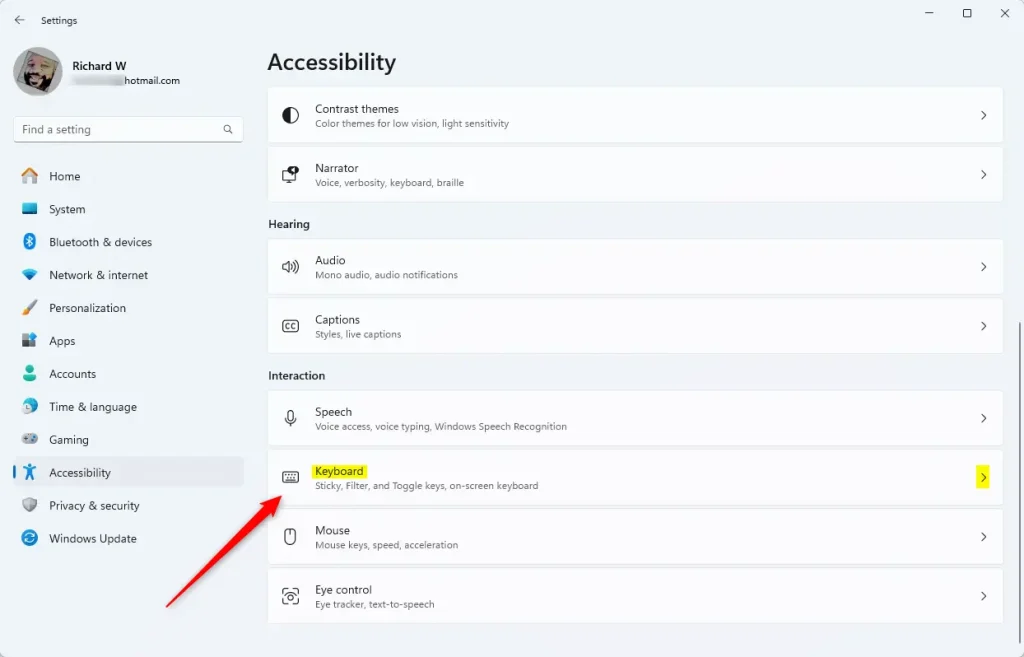
- On the right side, find and click the Keyboard option.
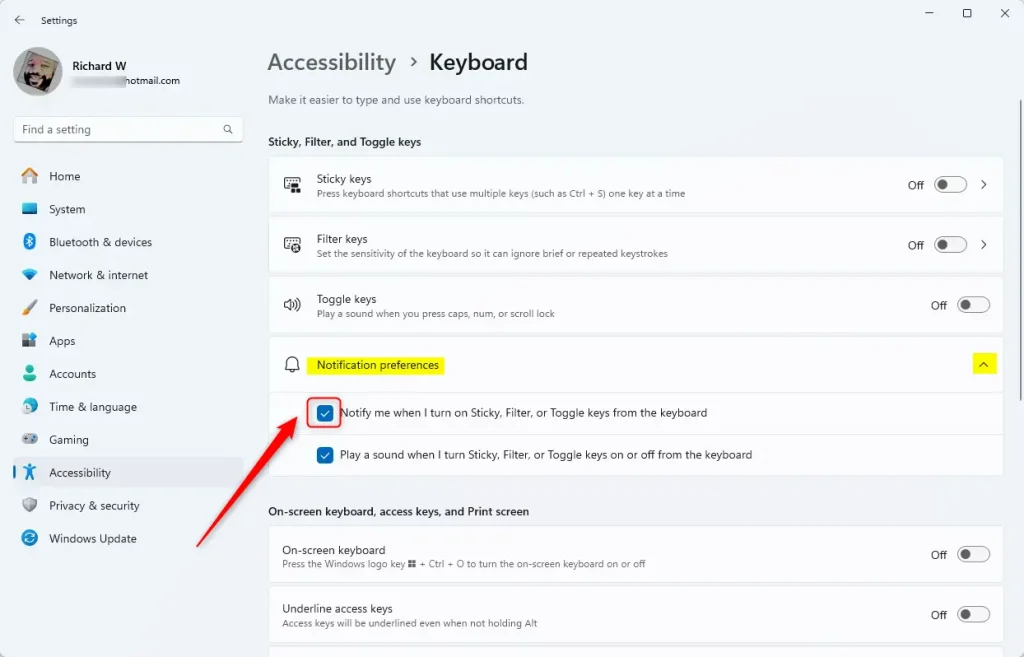
- Scroll down and click on Notification preferences.
- Check the box that says “Notify me when I turn on Sticky, Filter, or Toggle keys on or off from the keyboard.” To stop notifications, just uncheck the box.
- Close the Settings app when you’re done.
Now whenever you press keys that turn on Sticky, Filter, or Toggle Keys, Windows will show you a notification so you know what’s happening.
Summary
Sticky, Filter, and Toggle Keys are special keyboard features that help make typing easier. You can get notifications when these keys turn on or off. To enable notifications, open Settings, go to Accessibility, click Keyboard, and then click Notification preferences. Check the box to turn notifications on. If you want to learn more about each feature, check these helpful guides:
What are Sticky Keys and how to turn them off/on
If you have questions or tips, feel free to share them in the comments below!



Leave a Reply