How to Turn On DNS over HTTPS (DoH) in Windows 11

You turn on DNS over HTTPS (DoH) in Windows 11 to encrypt your DNS queries, making your internet activity more private and secure.
DNS over HTTPS is a protocol that encrypts your Domain Name System (DNS) traffic, preventing your ISP or others on your network from seeing or changing your online requests.
Microsoft introduced built-in DoH support starting with Windows 11 version 21H2, allowing you to enable it directly within your network settings.
This essential feature safeguards your online browsing from easy tracking and requires administrator privileges to configure.
Enable DNS over HTTPS (DoH) in Windows 11 by navigating to Settings > Network & internet, selecting your connection, and editing DNS server assignment to Manual. Choose your preferred DNS provider and set encryption to “Encrypted only (DNS over HTTPS).
What is DNS over HTTPS (DoH)?
DNS over HTTPS, or DoH, is a simple way to make your internet lookups private and secure by encrypting them.
DNS over HTTPS (DoH) fixes this problem. It sends these lookups through a secure, encrypted connection. It uses the same safe method your browser uses to talk to websites. This keeps your web activities private from spies and hackers.
How to Turn On DNS over HTTPS in 🪟 Windows 11
Turning on DNS over HTTPS in Windows 11 is straightforward and you can do it directly within your network settings.
- Open Settings: Click the Start button (Windows logo) at the bottom left of your screen. Then click the Settings gear icon.
- Go to Network settings: In the Settings window, click Network & internet from the left menu.
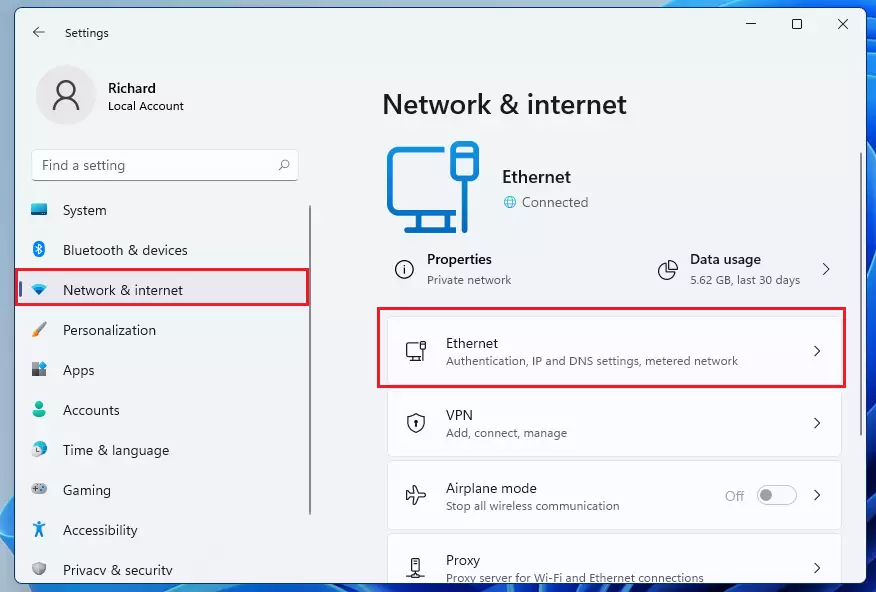
- Choose your connection: Click on the network you use. If you have a wired connection, click Ethernet. If you use Wi-Fi, click Wi-Fi instead.
- Find DNS settings: Scroll down until you see DNS server assignment. Click the Edit button next to it.
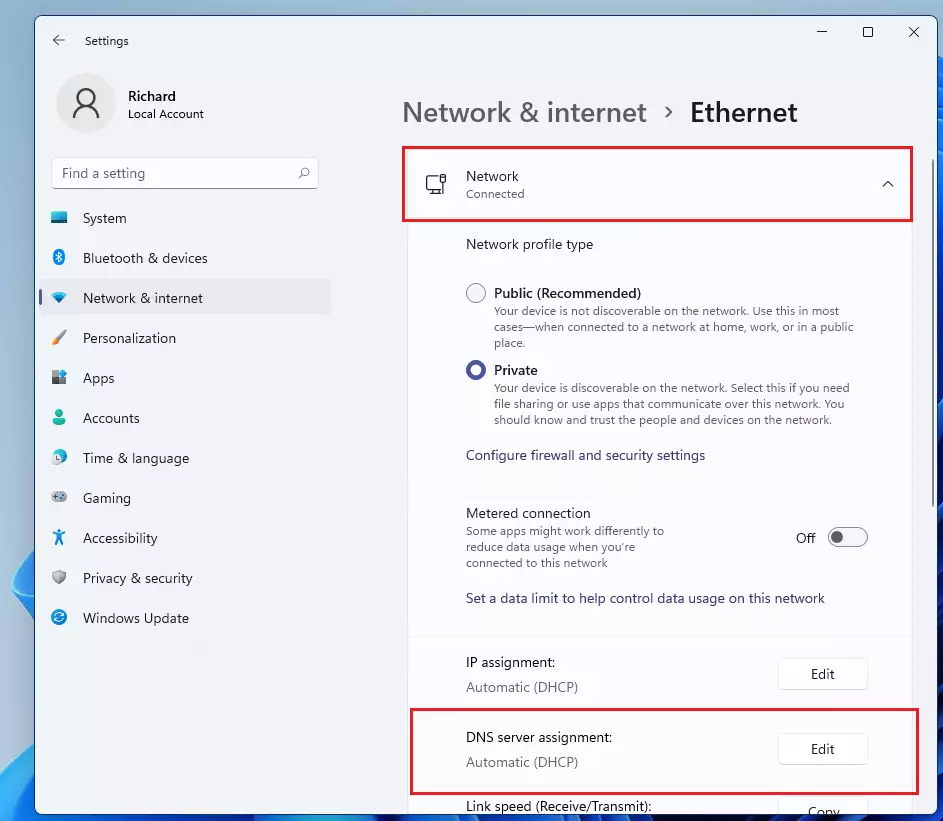
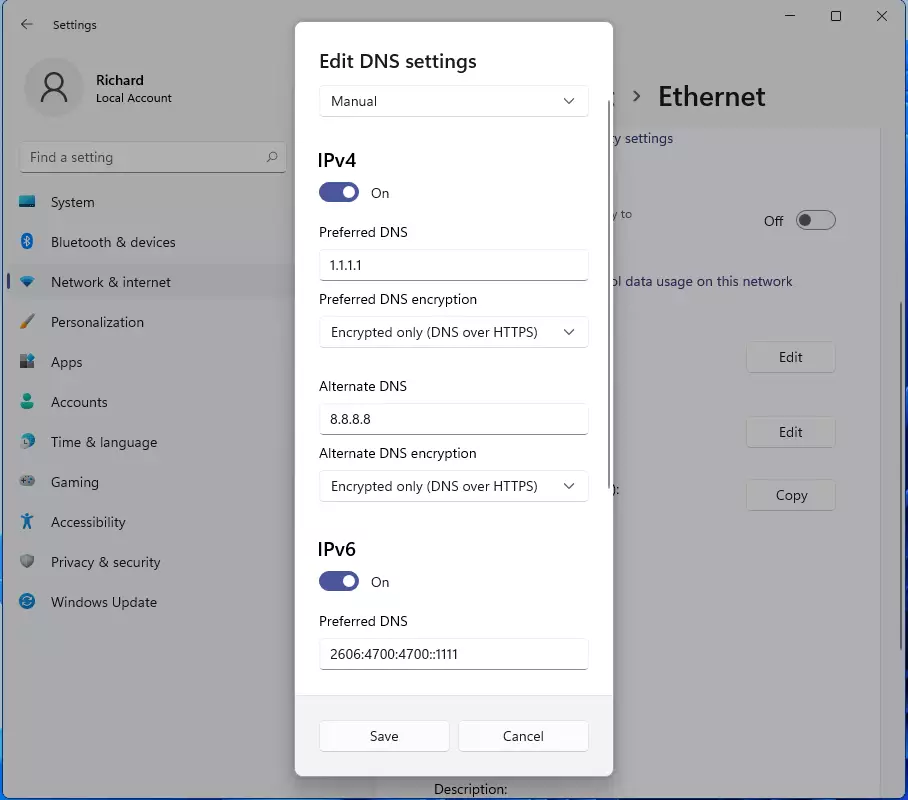
- Change to manual: In the Edit DNS settings window, click the dropdown menu. Change it from Automatic (DHCP) to Manual.
- Turn on IPv4 or IPv6: Turn on the switch for IPv4 or IPv6. You can turn on both if you want.
- Add DNS addresses: Type in the DNS addresses you want to use. See the list below for popular choices.
- Enable encryption: Under Encryption, select Encrypted only (DNS over HTTPS).
- Save your changes: Click Save to apply the settings.
Popular DNS Servers You Can Use
You can use trusted DNS providers that support DNS over HTTPS, such as Google Public DNS, Cloudflare, or Quad9, to boost your online privacy.
| DNS Provider | Type | Primary DNS | Secondary DNS |
|---|---|---|---|
| Google Public DNS (IPv4) | IPv4 | 8.8.8.8 | 8.8.4.4 |
| Cloudflare (IPv4) | IPv4 | 1.1.1.1 | 1.0.0.1 |
| Quad9 (IPv4) | IPv4 | 9.9.9.9 | 149.112.112.112 |
| Google Public DNS (IPv6) | IPv6 | 2001:4860:4860::8888 | 2001:4860:4860::8844 |
| Cloudflare (IPv6) | IPv6 | 2606:4700:4700::1111 | 2606:4700:4700::1001 |
| Quad9 (IPv6) | IPv6 | 2620:fe::fe | 2620:fe::fe:9 |
After you save, your DNS settings will look like this:
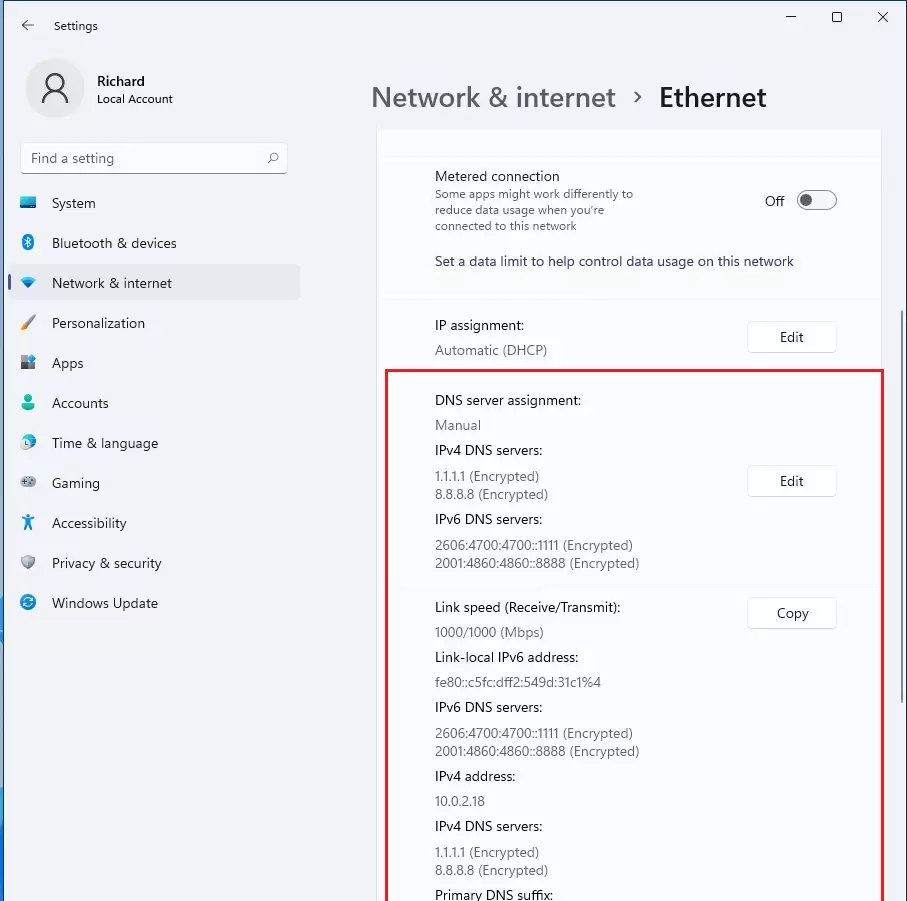
Tip: If you use Wi-Fi or have more than one network connection, repeat these steps for each one. This keeps all your internet traffic safe.
Summary
- Turning on DNS over HTTPS (DoH) makes your web browsing more private and secure.
- It stops others from spying on or changing the websites you visit.
- You can choose from trusted DNS services like Google, Cloudflare, or Quad9.
- The setup is quick and easy. You do it right inside Windows 11’s Network settings.
- Remember to update all your network connections for full protection.
- If you want to learn more about DNS over HTTPS, check out this simple Cloudflare explanation page.
Turning on DNS over HTTPS (DoH) makes your web browsing more private and secure by stopping others from spying on or changing the websites you visit.
Should I use DNS over HTTPS in 🪟 Windows 11?
Yes, you should use DNS over HTTPS in Windows 11 because it significantly boosts your web browsing privacy and security.
Was this guide helpful?

About the Author
Richard
Tech Writer, IT Professional
Richard, a writer for Geek Rewind, is a tech enthusiast who loves breaking down complex IT topics into simple, easy-to-understand ideas. With years of hands-on experience in system administration and enterprise IT operations, he’s developed a knack for offering practical tips and solutions. Richard aims to make technology more accessible and actionable. He's deeply committed to the Geek Rewind community, always ready to answer questions and engage in discussions.


No comments yet — be the first to share your thoughts!