How to Enable or Disable Live Captions in Windows 11

You can enable or disable Live Captions in Windows 11 to get real-time text transcriptions of any audio playing on your PC.
Live Captions is a built-in accessibility feature that automatically generates captions for all audio, including system sounds, apps, and websites. This functionality is particularly useful for users with hearing impairments or anyone who prefers to watch content without audio.
This feature became available starting with Windows 11 build 22557 and is designed to work across the entire operating system, not just within specific applications.
Quick Shortcut
You can instantly turn on live captions by pressing ⊞ Win+Ctrl+L on your keyboard. This is the fastest way to enable closed captions in Windows 11 without navigating through menus.
Why use live captions?
Live captions are essential for accessibility. They ensure that all audio content is inclusive for everyone. They are also useful when you are in a quiet environment, like a library or a shared office, where playing audio is not allowed. By using automatic speech recognition, Windows 11 provides a bridge for better communication.
What happens when you enable live captions?
When you turn on this feature, Windows 11 starts processing audio input from your system or microphone. A caption window will appear on your screen. It will display text as people speak. This happens locally on your device to protect your data privacy.
How to enable or disable live captions
- Press Windows key + I to open Settings.
- Click on Accessibility in the left menu.
- Select Captions on the right side of the screen.
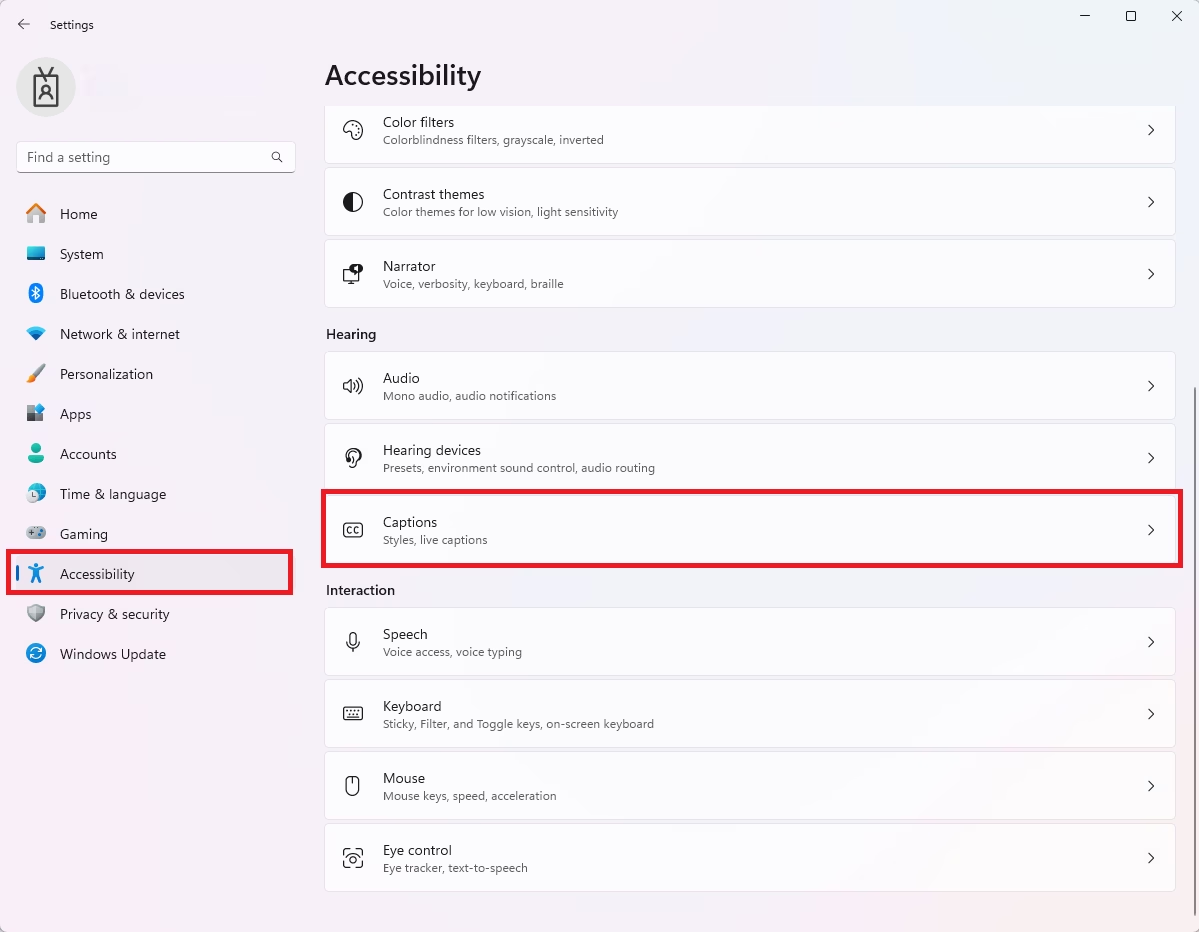
Captions tile Windows 11 - Use the toggle button to turn Live captions On or Off.
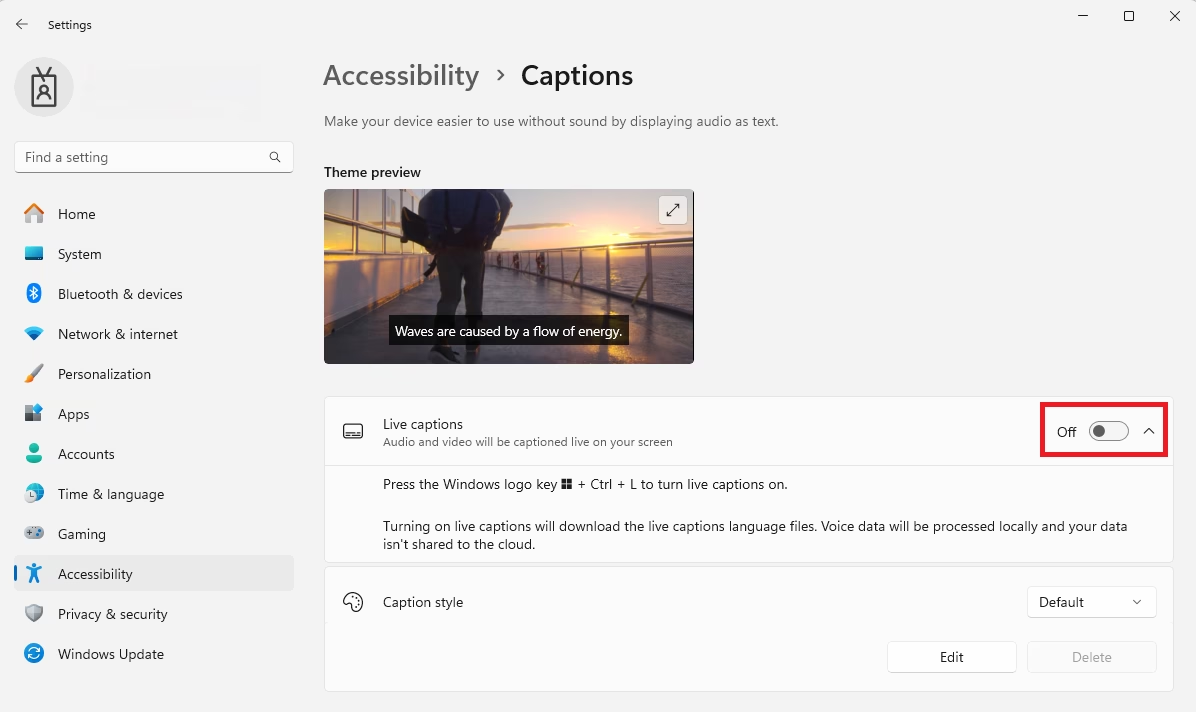
Captions button Windows 11
Customizing caption style
Windows 11 lets you change the font, color, and size of your captions so they are easier to read.
- Follow the steps above to reach the Captions menu.
- Click the Edit button next to Caption style.
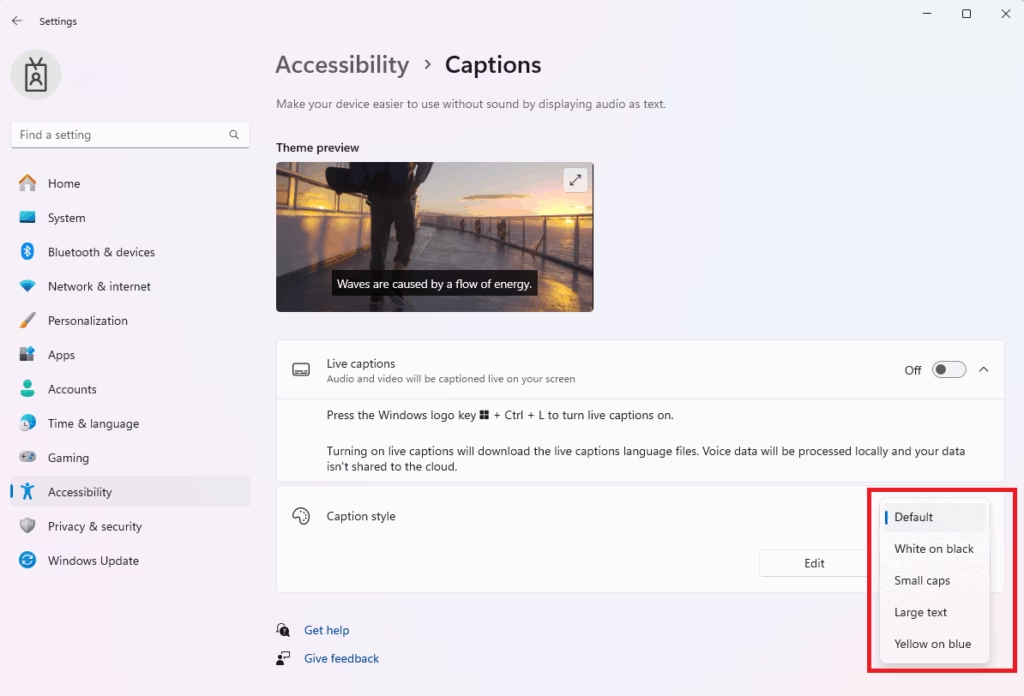
Captions style options - Adjust the text size, color, and background opacity to your liking.
Supported languages
Live captions currently support several languages for transcription. These include:
- English (US)
- Chinese (Simplified and Traditional)
- French
- German
- Italian
- Japanese
- Portuguese (Brazil)
- Spanish
Troubleshooting
If your captions are not appearing, check these items:
- Microphone Input: Ensure your microphone is selected in your system sound settings.
- Audio Source: Live captions only work if the app is currently playing audio.
- Language Packs: You may need to download the language pack for your specific language in Settings > Time & language > Language & region.
Summary
Live captions provide a powerful way to make your computer more accessible. By using the ⊞ Win+Ctrl+L shortcut, you can toggle this feature instantly. You can customize the look of your text in the Accessibility settings to ensure it is always easy to read. Whether you are in a quiet space or need extra help understanding audio, this tool is a vital part of the Windows 11 experience.
Does Live Captions work offline?
Yes, Live Captions in Windows 11 works entirely offline. The speech-to-text processing happens locally on your computer using your device’s hardware. This ensures that your audio data remains private and is not sent to the cloud for processing, making it safe for sensitive environments.
How does Live Captions affect system performance?
Live Captions uses your computer’s processor to convert audio to text. On modern PCs, especially those with a dedicated NPU like a Copilot+ PC, the impact is minimal. Older computers might notice a slight increase in CPU usage while the feature is active during heavy multitasking.
Was this guide helpful?

About the Author
Richard
Tech Writer, IT Professional
Richard, a writer for Geek Rewind, is a tech enthusiast who loves breaking down complex IT topics into simple, easy-to-understand ideas. With years of hands-on experience in system administration and enterprise IT operations, he’s developed a knack for offering practical tips and solutions. Richard aims to make technology more accessible and actionable. He's deeply committed to the Geek Rewind community, always ready to answer questions and engage in discussions.


cant turn off cap? it will pop up at all video media? i need to deactivate this app?
I can’t find how to turn this stupid thing off. Always comes on when you really don’t want to see it! Maybe delete some things in the registry might work.
I need to shut it off!!! i tried delete, however it failed they need a fix it ,and to post it after that …on how to fix the problem,. thanks shawn
I can not turn off the live caption on my windows 11
I guess it falls on deaf ears !
delete this post, it’s not right, fake help
I don’t understand what the hell is happening with Windows 11. This shitty Live Captions are keep coming as if we’re all deaf to need it. I can’t find turn-off/disable option. This is irritating, not sure whether Windows know this issue to look into….