
Do you want to know when your computer’s camera turns on or off? Windows 11 can show a small message on your screen every time the camera starts or stops working. This helps you stay safe and know when the camera is being used.
Why is this useful?
Most laptops have a little light next to the camera that turns on when the camera is active. But if you cover your camera with tape or stickers, you might not see that light. Sometimes, the camera might even record sound without you knowing.
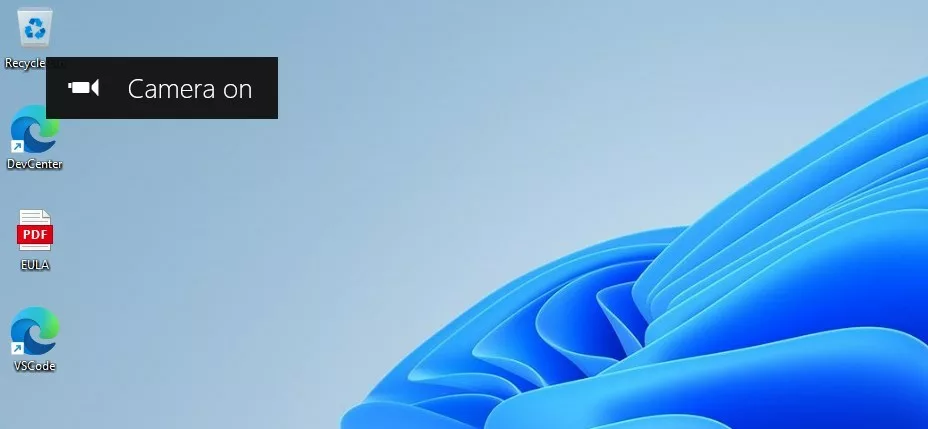
Turning on on-screen notifications means Windows will show a message telling you when the camera is on or off — even if the camera light is hidden.
How to Turn On or Off Camera Notifications in Windows 11
Follow these simple steps to set it up. You will use a tool called the Registry Editor, which controls many Windows settings.
Step 1: Open the Registry Editor
Press Windows key + R on your keyboard to open the Run box. Type regedit and press Enter.
If you want a detailed guide on this, check out this article: How to open the Registry in Windows 11.
Step 2: Go to the right folder
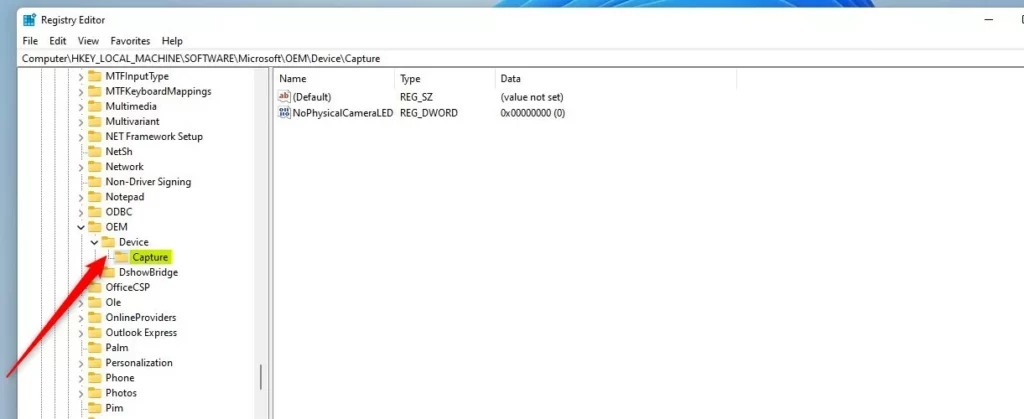
Once Registry Editor opens, use the left side panel to find this folder:
HKEY_LOCAL_MACHINE\SOFTWARE\Microsoft\OEM\Device\CaptureIf you don’t see the Capture folder:
- Right-click on the Device folder
- Select New > Key
- Name the new folder Capture
Step 3: Create a new setting
Click on the Capture folder. On the right side, right-click in an empty area and choose New > DWORD (32-bit) Value.
Name this new value NoPhysicalCameraLED.
Step 4: Change the value
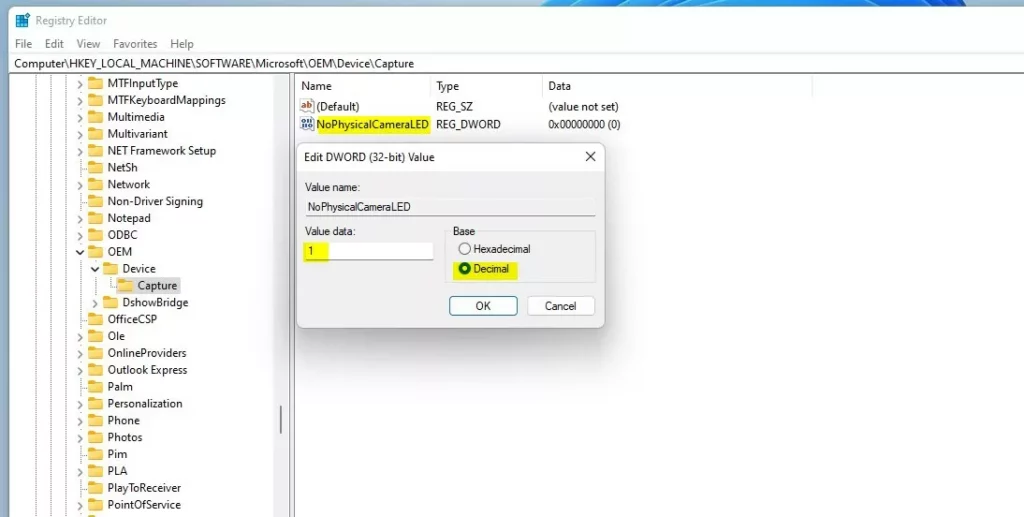
Double-click the NoPhysicalCameraLED value you created. A box will open.
To turn on the camera notifications, type 1 in the “Value data” box.
To turn off the camera notifications, type 0.
Click OK to save.
Step 5: Close Registry Editor
Close the Registry Editor. You might want to restart your computer to make sure the changes take effect.
What happens next?
Now, every time your camera turns on or off, you’ll see a message on your screen like this:
Summary
- Turning on these notifications helps you know exactly when your camera is being used.
- If you cover your camera lens, this is a helpful reminder that your camera might still be active.
- You can easily turn this feature on or off in the Registry Editor.
- If you want to be extra safe, always keep an eye on these notifications or use physical covers on your camera.



Leave a Reply