How to Enable Automatic Registry Backup in Windows 11

You can enable automatic registry backup in Windows 11 by configuring the Task Scheduler to run the RegSave utility.
The Windows Registry is a critical database containing crucial system settings and configurations for your operating system and installed applications. A backup ensures you can restore your system to a functional state if accidental changes or corruption occur.
This process helps prevent data loss and makes recovery from registry errors much simpler. By default, Windows 11 does not schedule automatic full registry backups beyond the system restore points that include registry data.
Enable automatic registry backups in Windows 11 by opening the Registry Editor, navigating to 🗝️HKEY_LOCAL_MACHINESYSTEMCurrentControlSetControlSession ManagerConfiguration Manager, creating a new DWORD value named EnablePeriodicBackup, and setting its data to 1. Restart your computer for the changes to take effect.
What Changed in 🪟 Windows 11?
Windows 11 doesn’t automatically back up your registry like older versions used to, which means the backup folder is often empty.
This change was made to save space on your hard drive.
Why Should You Turn It On?
If you want Windows 11 to automatically back up the registry again, you can turn this feature back on. It can help if your computer has registry problems and you need to restore it.
Note: It’s still a good idea to create System Restore Points as your main safety net.
How to Enable Automatic Registry Backup
Step 1Open the Registry Editor
- Press Windows key + R on your keyboard.
- Type
regeditand press Enter. - If asked by User Account Control, click Yes. %📂%SC0%%
Step 2Go to the Correct Folder Path
Navigate to this location:
HKEY_LOCAL_MACHINE\SYSTEM\CurrentControlSet\Control\Session Manager\Configuration ManagerIf you don’t see the Configuration Manager folder, follow these steps:
- Right-click on Session Manager.
- Choose New > Key.
- Name the new key Configuration Manager.
Step 3Create a New Setting
- Click on the Configuration Manager folder.
- Right-click on the right side and select New > DWORD (32-bit) Value.
- Name it EnablePeriodicBackup.
Step 4Set the Value
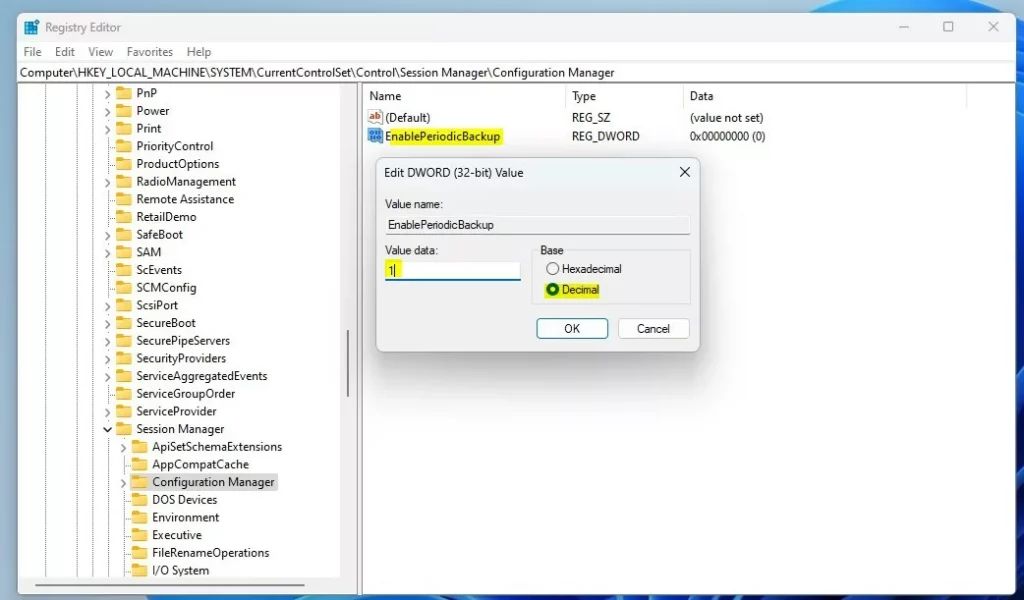
- Double-click EnablePeriodicBackup.
- Make sure Base is set to Decimal.
- In Value data, type
1to enable automatic backups. - Click OK.
Step 5 Restart Your Computer
Close the Registry Editor and restart your PC. After restarting, Windows will start making automatic registry backups again.
What Does This Look Like?
Here’s a screenshot showing the Configuration Manager folder inside the Registry Editor:
And here is how the new EnablePeriodicBackup value should look:
Once enabled and after a restart, your backup files will be saved again here:
C:\Windows\System32\config\RegBack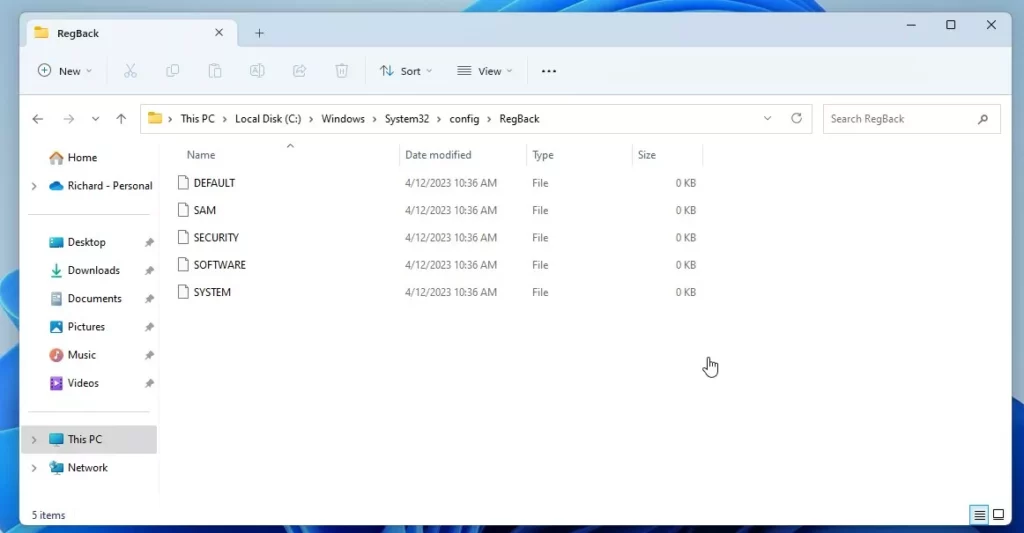
Summary
- Windows 11 does not automatically save registry backups when restarting by default.
- You can turn this feature back on by adding a setting in the Registry Editor.
- Automatic backups help protect your system if the registry gets corrupted.
- Always keep system restore points as your main backup method.
Want to Learn More?
Check out the official Microsoft explanation here: Microsoft Support: Registry not backed up in RegBack folder
Where is the registry backup stored in 🪟 Windows 11?
Windows backs up the registry to the RegBack folder when the computer restarts, and creates a RegIdleBackup task to manage subsequent backups. Windows stores the task information in the Scheduled Task Library, in the Microsoft\Windows\Registry folder.
Was this guide helpful?

About the Author
Richard
Tech Writer, IT Professional
Richard, a writer for Geek Rewind, is a tech enthusiast who loves breaking down complex IT topics into simple, easy-to-understand ideas. With years of hands-on experience in system administration and enterprise IT operations, he’s developed a knack for offering practical tips and solutions. Richard aims to make technology more accessible and actionable. He's deeply committed to the Geek Rewind community, always ready to answer questions and engage in discussions.




No comments yet — be the first to share your thoughts!