
Do you use the Touch keyboard on your Windows 11 touchscreen? You can turn on a feature that automatically capitalizes the first letter of every sentence. This makes typing easier and faster on touchscreen devices.
Windows 11 shows a virtual keyboard called the Touch keyboard on devices without a physical keyboard. It appears automatically when you tap on a place to type, like a search box or message field.
Why use this feature? Auto-capitalization saves you time and effort. You don’t have to manually press Shift for every new sentence.
What happens when you turn it on? The first letter of each sentence will automatically be capitalized as you type.
How to Turn On or Off Auto-Capitalization Using Windows Settings
This is the easiest way to change the setting. Follow these steps:
- Open the Settings app:
- Click the Start menu and select Settings, or
- Press Windows key + I on your keyboard.
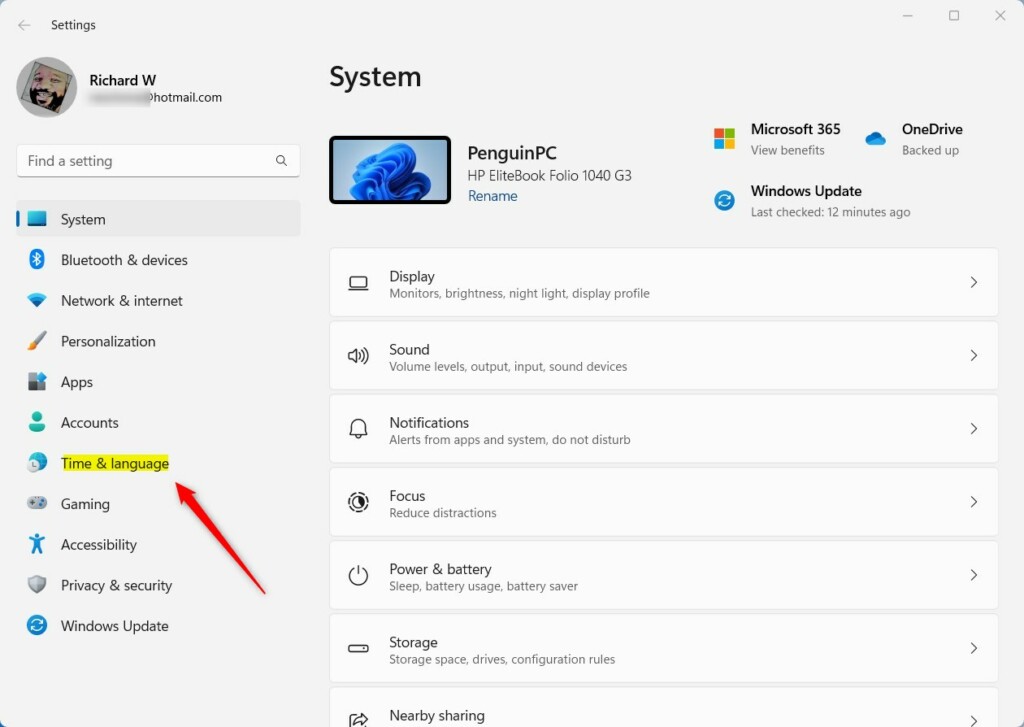
- In the Settings window, click Time & language on the left side.
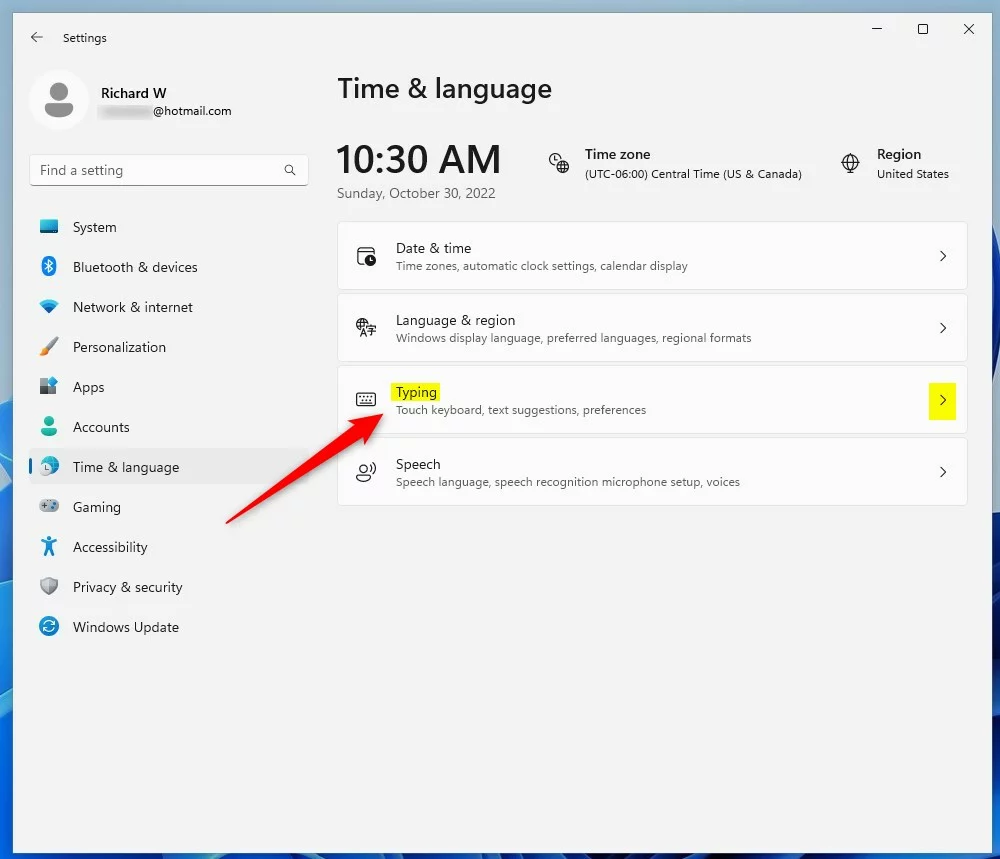
- On the right, click the Typing section to open it.
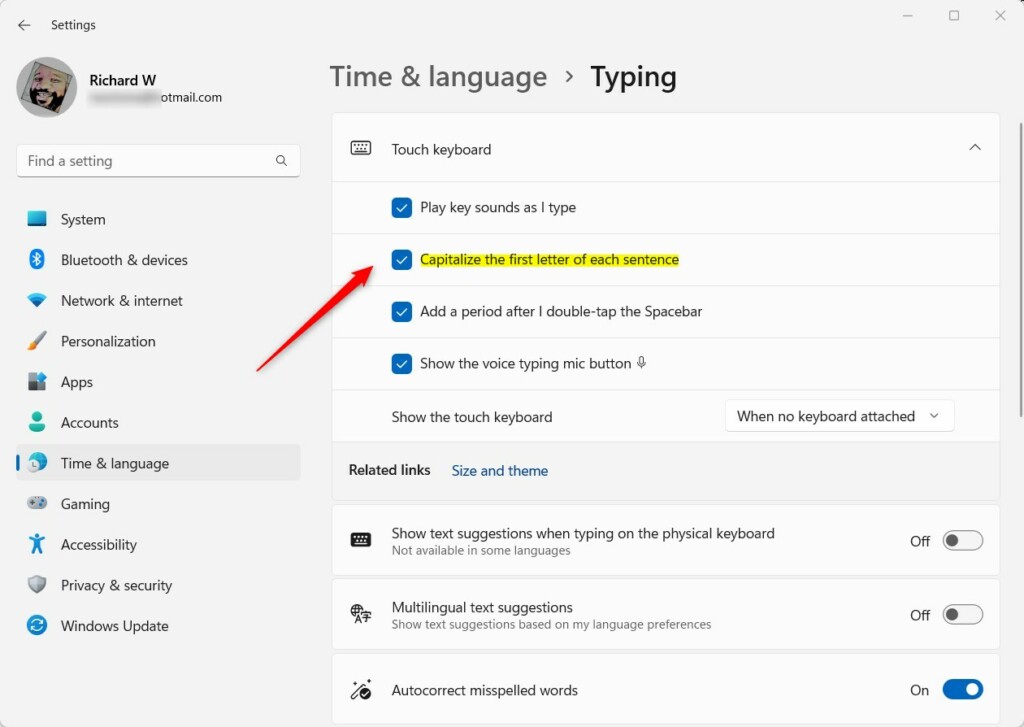
- Scroll down and find the Touch keyboard section. Click to expand it.
- Look for the option labeled “Capitalize the first letter of each sentence” and check the box to turn it on. Uncheck the box if you want to turn it off.
- Close the Settings app when you’re done. Your changes will apply right away.
How to Enable or Disable Auto-Capitalization Using the Windows Registry (Advanced)
If you are comfortable using the Windows Registry, you can also change this setting there. This method is for advanced users only.
Warning: Be careful when editing the Registry. Changing the wrong settings can cause problems with your PC.
- [Admin Required] Open the Registry Editor:
- Press Windows key + R, type
regedit, and press Enter.
- Press Windows key + R, type
- Navigate to this folder (key):
HKEY_CURRENT_USER\Software\Microsoft\TabletTip1.7
- If you don’t see the 1.7 folder, right-click on TabletTip, select New > Key, and name it 1.7.
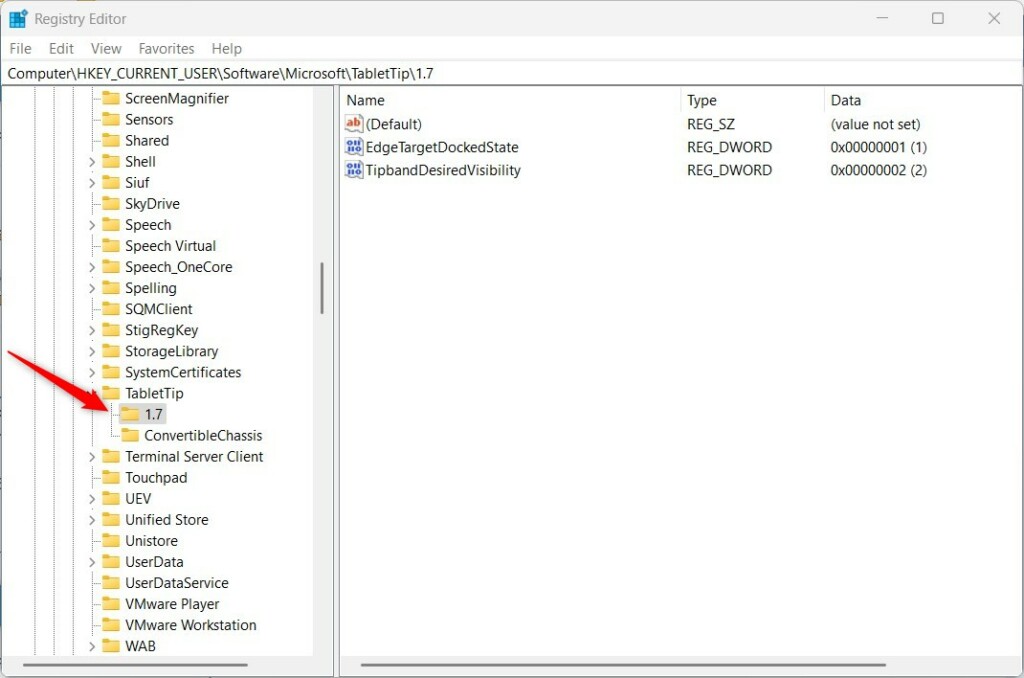
- Inside the 1.7 folder, right-click on an empty area in the right pane. Select New > DWORD (32-bit) Value.
- Name the new entry:
EnableAutoShiftEngage - Double-click
EnableAutoShiftEngageand set the value:1to turn on auto-capitalization0to turn it off
Make sure the base is set to Decimal.
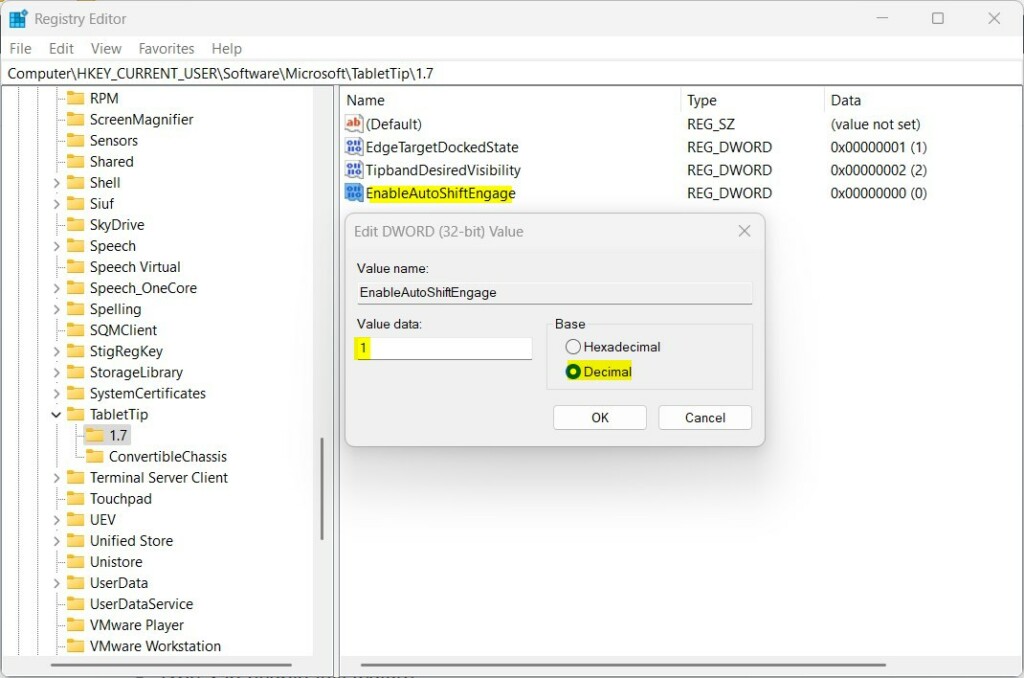
- Click OK, close the Registry Editor, and restart your PC for changes to take effect.
Summary
Auto-capitalization makes typing on the Touch keyboard easier by automatically starting sentences with a capital letter. You can change this setting anytime from the Windows Settings app or the Registry Editor for advanced users. This helps you type faster and more accurately on your Windows 11 touchscreen device. Enjoy easier typing!
Leave a Reply