How to Auto-Launch Telegram on Windows 11

This guide explains how to control if Telegram starts automatically when you turn on your Windows 11 computer.
Why enable auto-launch?
If you use Telegram every day for work or chatting with friends, having it open automatically saves you the step of opening it manually. It also makes sure you never miss a new message notification.
What happens when done?
Once you change these settings, Telegram will either open as soon as you log in to Windows or stay closed until you decide to click on the app icon yourself.
How to change the auto-launch setting
You can adjust this inside the Telegram app settings. You do not need admin privileges to change these specific preferences.
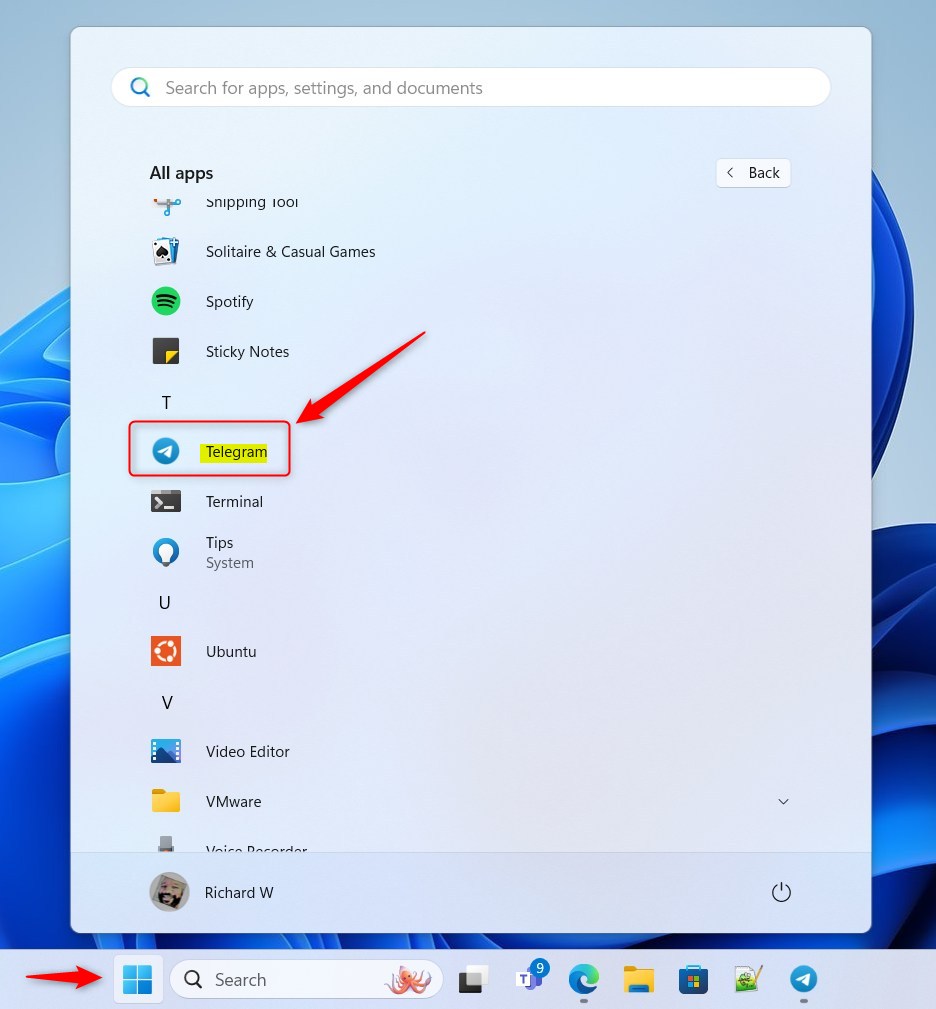
- Open Telegram by clicking the Start menu and finding it in your app list.
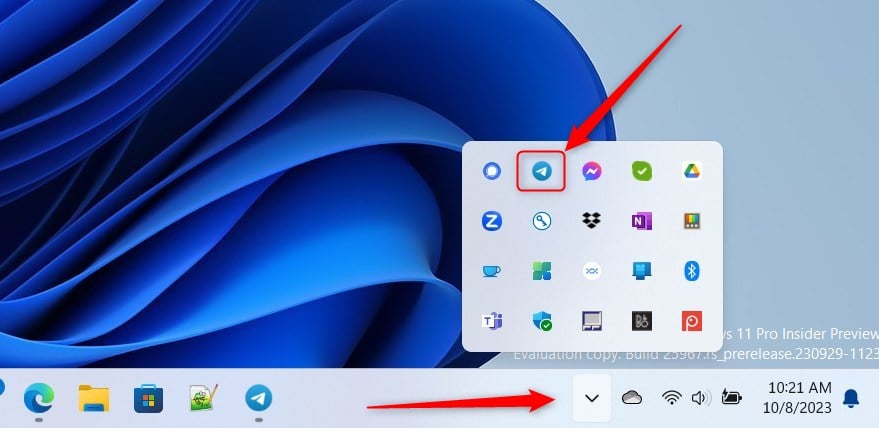
- You can also open the app using the Taskbar or the Taskbar overflow.
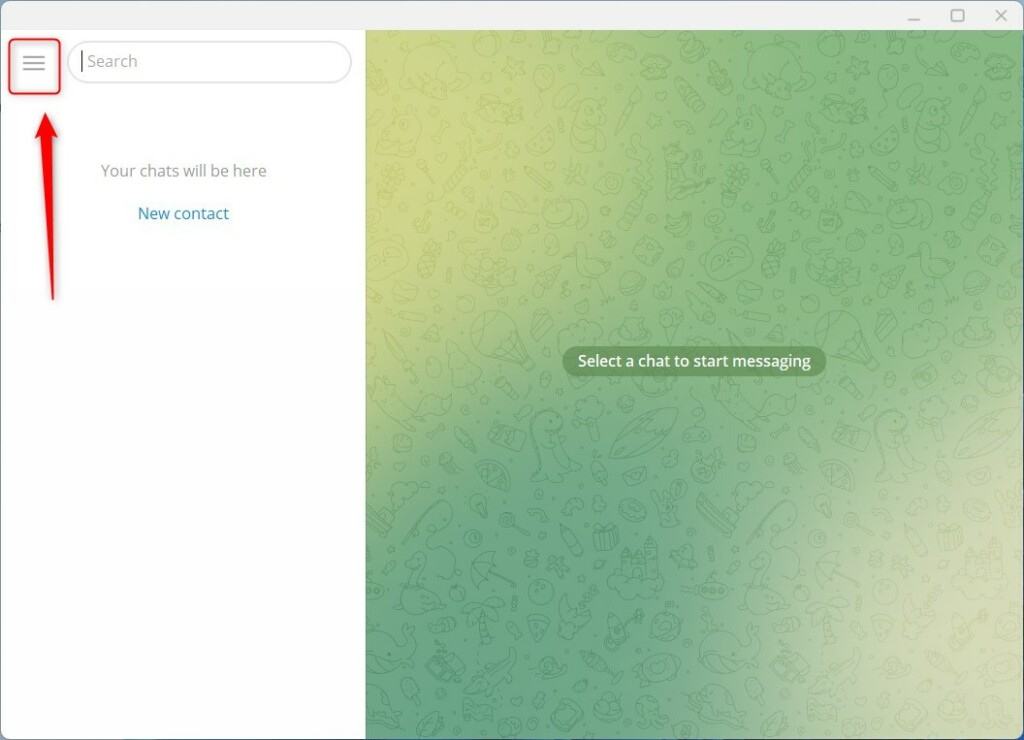
- Click the Menu button (three horizontal lines) in the top-left corner.
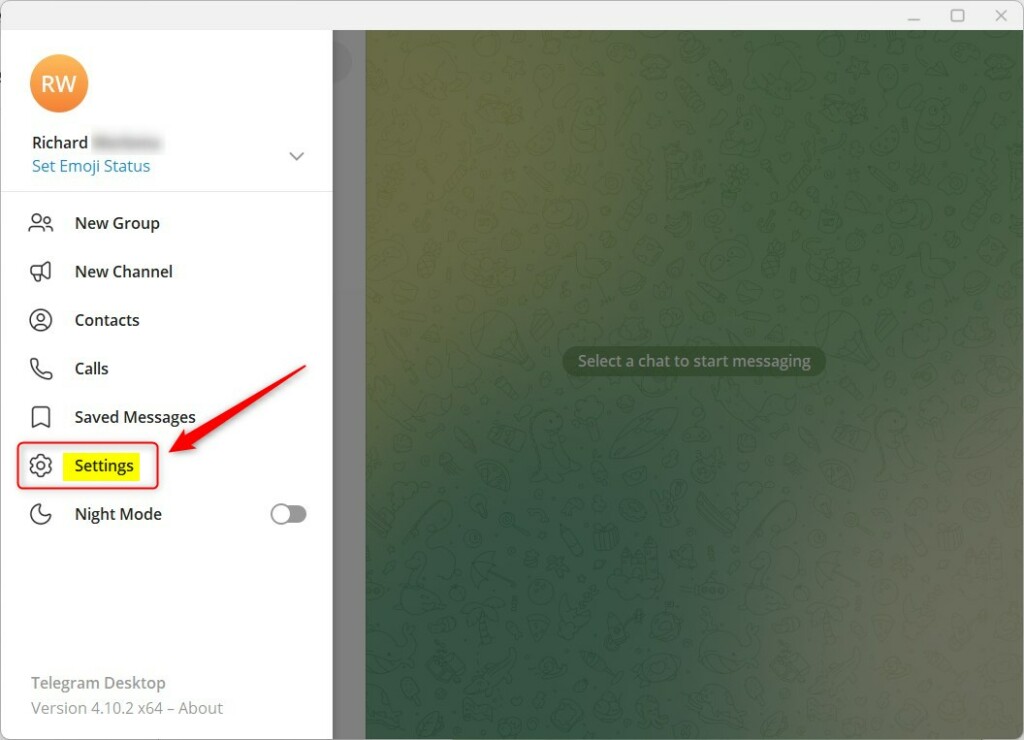
- Select Settings (the gear icon).
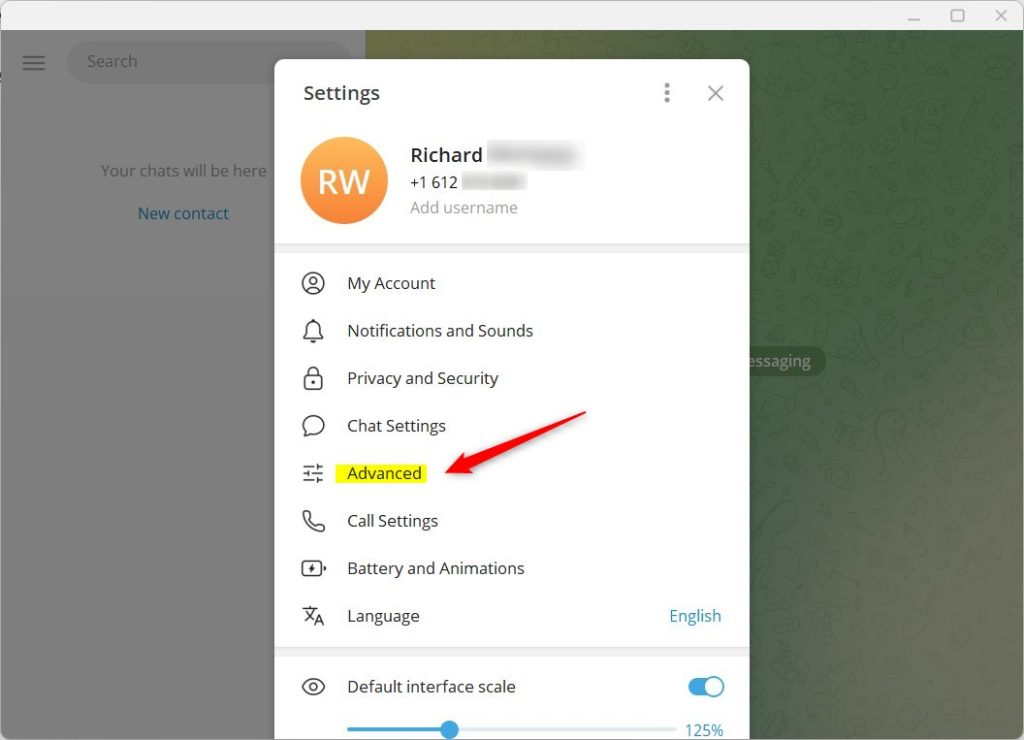
- Click on Advanced to show more options.
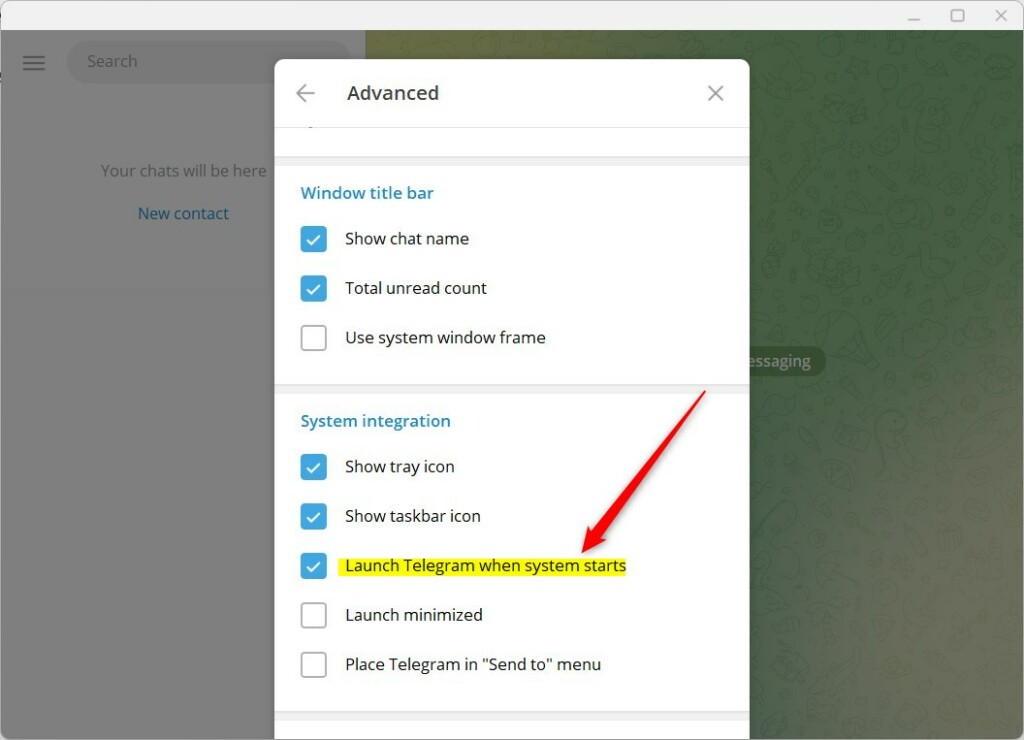
- Under the System integration section, click the box next to Launch Telegram when system starts to turn it on. To turn it off, click the box again to uncheck it.
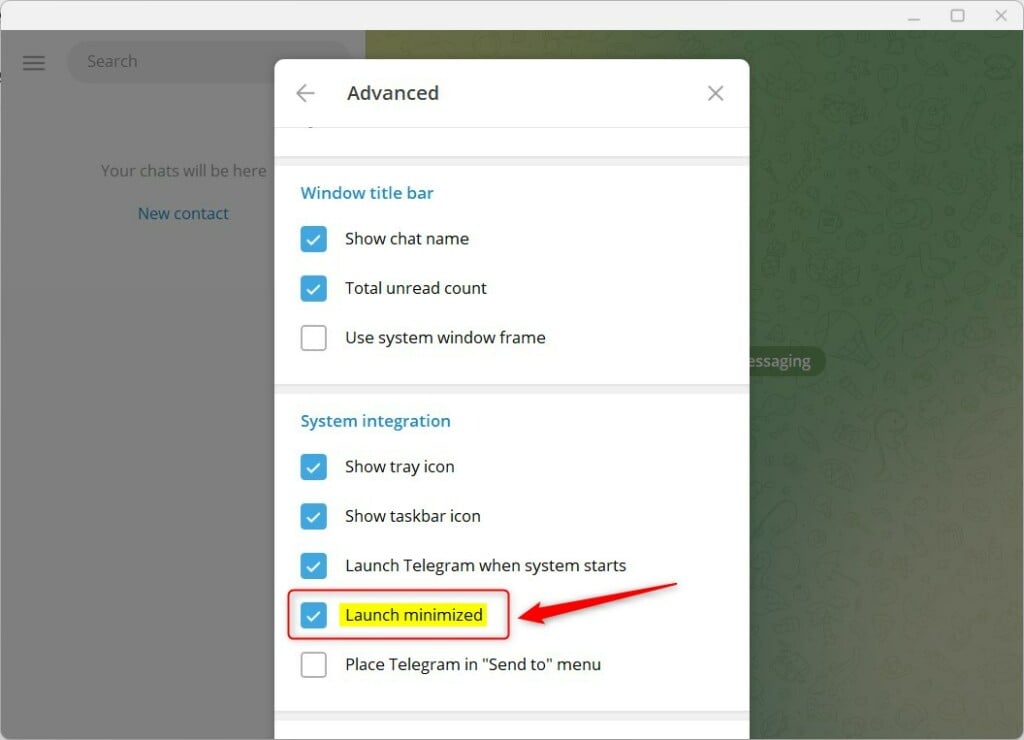
- If you want the app to start without showing the window, check the box for Launch minimized.
- If you choose Launch minimized, the app will start silently in the Taskbar app overflow pane.
Summary
Setting Telegram to launch automatically helps you stay connected without extra effort. If your computer feels slow at startup, or if you prefer a clean desktop, you can easily disable this feature or choose to have it launch in a minimized state to keep your workspace tidy.
Was this guide helpful?

[…] you install and set up Telegram on Windows, you can start it up automatically when signing into Windows, turn the spell checker on or off, change media download paths, turn disable […]
[…] you install and set up Telegram on Windows, you can start it up automatically when signing into Windows, turn the spell checker on or off, change media download paths, turn disable […]
[…] you install and set up Telegram on Windows, you can start it up automatically when signing into Windows, turn the spell checker on or off, change media download paths, turn disable filtering on or […]
[…] you install and set up Telegram on Windows, you can start it up automatically when signing into Windows, turn spell checker on or off, turn automatic media download on or off, turn […]
[…] you install and set up Telegram on Windows, you can start it up automatically when signing into Windows, turn the spell checker on or off, change media download paths, turn disable […]
[…] you install and set up Telegram on Windows, you can start it up automatically when signing into Windows, turn the spell checker on or off, change media download paths, turn disable […]
[…] you install and set up Telegram on Windows, you can choose to start it up automatically when signing into Windows, turn spell checker on or off, and […]
[…] you install and set up Telegram on Windows, you can start it up automatically when signing into Windows, turn the spell checker on or off, change media download paths, turn disable filtering on or […]
[…] you install and set up Telegram on Windows, you can choose to start it up automatically when signing into Windows. Another setting you can configure in the Telegram app is turning the “Spell checker” […]