How to Enable Energy Saver in Google Chrome

Google Chrome is a popular web browser made by Google. It is very similar to Microsoft Edge in how it works. This guide shows you how to use the Energy Saver feature.
Why use Energy Saver?
Computers often run out of power quickly when many programs are open. Energy Saver helps your laptop battery last longer by limiting background activity. It automatically turns on when your battery is low.
What happens when done?
Once enabled, Chrome will use less power when your battery is low. This might slightly slow down animations or background tasks to save energy.
How to turn Energy Saver on or off in Chrome
You can change this setting quickly through the browser menu.
- Open the Google Chrome browser.
- Click the three vertical dots in the top right corner and choose Settings.
- Click on Performance in the menu on the left side of your screen.
- Find the Energy Saver option on the right.
- Use the toggle switch to turn it On or Off.
You can also type chrome://settings/performance into your address bar to go there directly.
Advanced: Enable or Disable using the Registry
Note: This method requires admin privileges.
You can also use the Registry Editor to manage this setting. Please back up your registry your registry first or create a System Restore point as a precaution before starting.
You may need to restart your computer for these changes to take effect.
Summary
The Energy Saver feature is a simple way to get more life out of your battery. You can toggle it on or off through the Chrome performance settings or use the Windows Registry for system-wide control. Keeping your browser updated ensures these tools work correctly. For more info, check out Chrome Enterprise Policy.
Was this guide helpful?

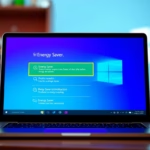
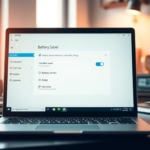


[…] can turn Energy saver on or off laptops and desktops anytime. This feature can be toggled via Quick Settings in the system tray, even for PCs plugged in to […]
[…] can turn Energy saver on or off laptops and desktops anytime. This feature can be toggled via Quick Settings in the system tray, even for PCs plugged […]