How to Check When Windows Was Installed on Your PC

You can check when Windows was installed on your PC by looking at the system uptime or event logs.
This installation date is crucial for understanding your operating system’s age and is particularly helpful when troubleshooting performance problems or verifying if you’re running an up-to-date version like Windows 11 or the latest Windows 10 builds.
Older Windows installations tend to accumulate clutter, potentially slowing down your system.
The simplest method involves checking your system’s uptime via the Task Manager, which resets upon a fresh Windows install. Alternatively, you can delve into the Event Viewer, specifically the System log, to pinpoint the exact time your operating system first booted after installation.
Open Command Prompt or PowerShell and type `wmic os get installdate` or `([WMI]”).ConvertToDateTime((Get-WmiObject Win32_OperatingSystem).InstallDate`) respectively. This will display the original installation date of your Windows operating system.
What happens when you are done?
Once you finish, you will see a specific date and time. This confirms when your current Windows OS build was deployed. What happens? You gain a clear baseline for your system’s maintenance history, allowing you to decide if a clean install is needed.
Method 1Using Command Prompt
You can find your Windows installation date using the Command Prompt by typing a simple command. Open Command Prompt, type ‘wmic os get installdate’, and press Enter to see when Windows was first put on your computer.
- Click the Start menu.
- Type Command Prompt in the search bar.
- Select the app from the list.
When the black window opens, type this command and press Enter:
wmic os get installdate
You will see a line that looks like this:
Original Install Date: 20210629200901.000000+000

If you want to see more details, simply type the following and press Enter:
systeminfo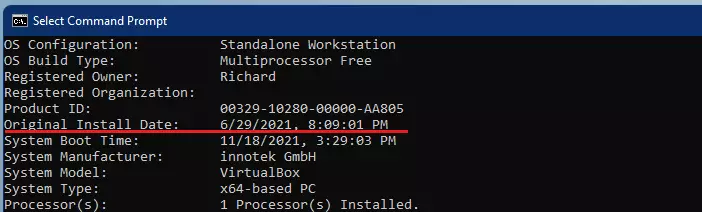
For more details, visit the official Microsoft documentation on systeminfo.
Method 2Using PowerShell
PowerShell can also show you your Windows installation date with a quick command. Right-click the Start button, choose PowerShell or Terminal, type the specific command to get the date, and press Enter to see when Windows was installed.
- Right-click the Start button and select Terminal or PowerShell.
- Type the following command and press Enter:
([WMI]'').ConvertToDateTime((Get-WmiObject Win32_OperatingSystem).InstallDate)
This command translates the raw system data into a human-readable format immediately.
Method 3Using the Registry Editor
Your Windows installation date is stored in the Registry Editor, but you’ll need administrator access to check it. Open the Registry Editor, go to a specific path, and look for the ‘InstallDate’ value to see when Windows was installed.
First, open Registry Editor by typing regedit in the Start menu search.
Navigate to this path:
HKEY_LOCAL_MACHINE\SOFTWARE\Microsoft\Windows NT\CurrentVersion
Find the file named InstallDate. The value you see is in “epoch time.” To make sense of it, copy that number and use an epoch converter website to turn it into a normal date.
Summary
Finding your Windows installation date is simple. You can use the Command Prompt, PowerShell, or the Registry Editor. Remember that if you upgraded your OS, the date reflects that upgrade. Always check your OS build version to ensure your system is fully up to date.
Does a Windows update change the original installation date?
Generally, no. Standard Windows updates do not change the original installation date. However, performing a major “feature update” or a “repair install” of the operating system can sometimes reset this timestamp to the date the new files were deployed to your hard drive.
Why does the Registry show a different date than the Windows folder?
The Windows folder creation date reflects when the directory was first placed on the drive. The Registry InstallDate reflects when the OS configuration was finalized. If you moved your drive or performed a major upgrade, these dates may differ due to how Windows tracks system deployment.
Was this guide helpful?

About the Author
Richard
Tech Writer, IT Professional
Richard, a writer for Geek Rewind, is a tech enthusiast who loves breaking down complex IT topics into simple, easy-to-understand ideas. With years of hands-on experience in system administration and enterprise IT operations, he’s developed a knack for offering practical tips and solutions. Richard aims to make technology more accessible and actionable. He's deeply committed to the Geek Rewind community, always ready to answer questions and engage in discussions.


No comments yet — be the first to share your thoughts!