
This guide will help you turn on or off the picture that appears behind the sign-in box on your Windows 11 PC. You can do this for just your user account or for everyone who uses the computer.
What Is the Lock Screen?
The lock screen is the first screen you see when you start your PC or press Win + L to lock it. You need to click or press a key to go from the lock screen to the sign-in screen, where you enter your password or PIN.
By default, the lock screen picture also shows behind the sign-in box. If you want, you can turn this background picture on or off.
Option 1: Turn On or Off the Lock Screen Background for Your Account Using Settings
- Press Win + I on your keyboard to open Settings.
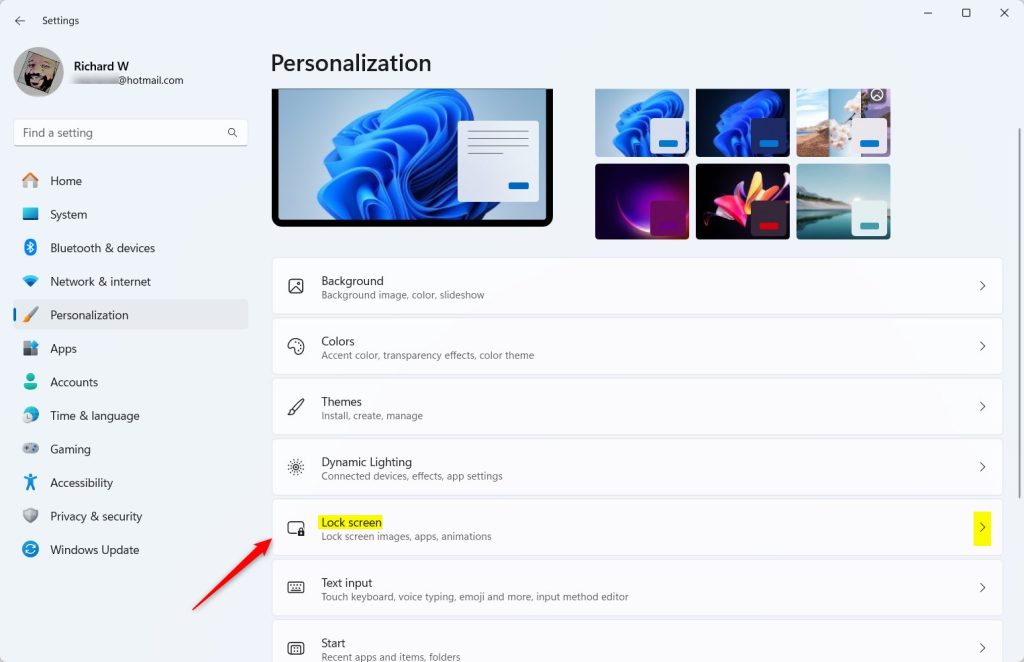
- Click on Personalization on the left side.
- Click Lock screen on the right side.
- Look for the setting called “Show the lock screen background picture on the sign-in screen”.
- Turn it On to show the picture, or Off to hide it.
- You can now close the Settings window.
You can quickly open Lock screen settings by clicking this link (it will open Settings directly): Open Lock screen settings
Option 2: Use Windows Terminal and Registry Editor (For Advanced Users)
If you want more control or can’t use Settings, you can use this method. It’s a bit more technical but still doable.
- Open Windows Terminal by right-clicking the Start button and selecting it, then choose Command Prompt or PowerShell.
- Type this command and press Enter to see the list of user accounts and their SID (Security Identifier):
wmic useraccount get domain,name,sid
- Find your user name in the list and copy the SID next to it. It looks like a long number starting with “S-1-5-21-…”.
- Press Win + R, type
regedit, and press Enter to open the Registry Editor. - In Registry Editor, navigate to this path (replace
<SID>with your actual SID):
HKEY_LOCAL_MACHINE\SOFTWARE\Microsoft\Windows\CurrentVersion\System\ProtectedUserData\<SID>\AnyoneRead\LockScreen - In the right pane, double-click HideLogonBackgroundImage.
- Change the value to:
- 0 to show the lock screen background (default)
- 1 to hide the background
Click OK.
- Close the Registry Editor and Windows Terminal when done.
Option 3: Turn On or Off the Lock Screen Background for All Users (Administrator Only)
If you manage a PC used by many people, you can set this for everyone using the Registry. You must be signed in as an administrator to do this.
To Enable the Lock Screen Background for Everyone (Default)
reg delete "HKEY_LOCAL_MACHINE\SOFTWARE\Policies\Microsoft\Windows\System" /v DisableLogonBackgroundImage /f
To Disable the Lock Screen Background for Everyone
reg add "HKEY_LOCAL_MACHINE\SOFTWARE\Policies\Microsoft\Windows\System" /v DisableLogonBackgroundImage /t REG_DWORD /d 1 /fSummary
- You decide: You can turn the lock screen background picture on or off based on what you like.
- Multiple ways: Use Settings for easiest control, or Windows Terminal and Registry Editor for more options.
- Admin control: If you manage a computer with many users, you can set this for everyone.
- Default setting: Windows shows the lock screen background by default, but you can change it anytime.
- Look and feel: Showing the background picture makes signing in look nicer and more personal.
Follow these simple steps to make your Windows 11 sign-in screen look just how you want it!


Leave a Reply