
If you want to make your File Explorer look cleaner or more detailed, you can choose to hide or show drive letters (like C:, D:, E:) next to your drives. This guide will help you easily change this setting on your Windows 11 PC.
What Are Drive Letters?
In Windows, each storage drive (like your hard drive, USB sticks, or external drives) gets a letter from A to Z. For example, your main drive is usually C:. These letters help Windows and you identify the drives.
Where Do You See Drive Letters?
When you open File Explorer (the window where you browse your files), you usually see drive letters next to your drives under This PC. But sometimes, Windows can hide them to make things look simpler.
How to Show or Hide Drive Letters Using File Explorer Settings
- Open File Explorer Options:
– Press Windows + S on your keyboard.
– Type File Explorer Options and click on it when it appears.
Learn more about opening File Explorer Options
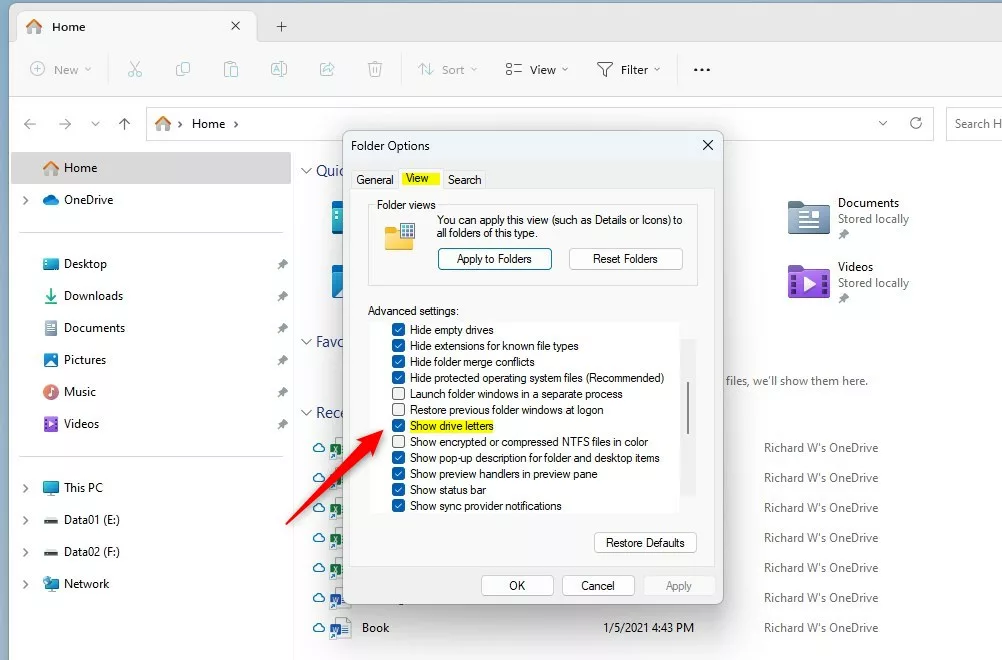
- In the File Explorer Options window, click the View tab at the top.
- Look for “Show drive letters” in the list.
- To show drive letters, check the box.
To hide drive letters, uncheck the box. - Click OK to save your changes.
Here’s what the setting looks like:
How to Show or Hide Drive Letters Using the Windows Registry (Advanced)
Note: Editing the Windows Registry is for more advanced users. Be careful and follow the steps exactly. You might want to back up your registry first.
- Press Windows + R to open the Run box.
- Type
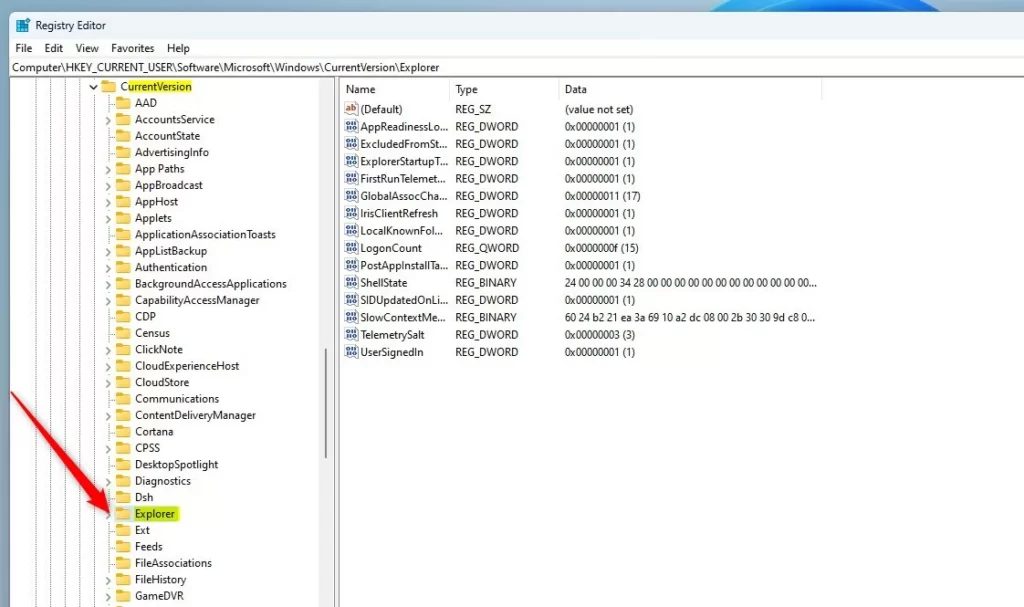
regeditand press Enter to open the Registry Editor. - In the Registry Editor, go to this folder path:
HKEY_CURRENT_USER\Software\Microsoft\Windows\CurrentVersion\Explorer
- If you don’t see the Explorer folder, right-click on CurrentVersion, choose New > Key, and name it Explorer.
- Click on the Explorer folder.
- In the right pane, right-click and select New > DWORD (32-bit) Value.
- Name the new value ShowDriveLettersFirst.
- Double-click ShowDriveLettersFirst and set its value:
– Enter 0 to show drive letters.
– Enter 2 to hide drive letters.
- Click OK and close the Registry Editor.
- Restart your computer to apply the changes.
Example of the Registry Editor window:
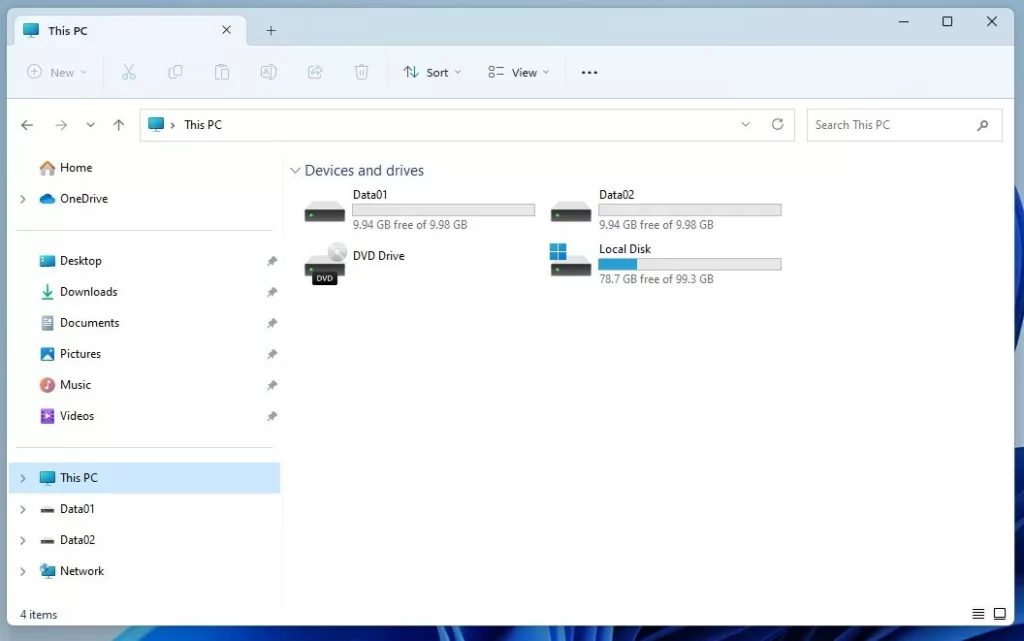
What It Looks Like Without Drive Letters
Summary
- You can easily show or hide drive letters in Windows 11 File Explorer to make it look how you like.
- The simplest way is through File Explorer Options under the View tab.
- For more control, you can use the Registry Editor, but be careful when making changes.
- After changing settings, restart your PC if the changes don’t appear right away.
Now you know how to customize your drive letters display! If you want to explore more tips about Windows 11, check out this page.



Leave a Reply