How to Enable or Disable Microsoft Edge Desktop Search Bar in Windows 11

The Microsoft Edge desktop search bar is a floating widget on your Windows 11 screen that lets you search the web or open websites without launching the full browser. You can turn this search bar on or off in Microsoft Edge version 94 and later, depending on whether you want quick desktop access to web searches.
When you keep the bar active, you can drag it anywhere on your desktop, and Windows remembers its last position even after you restart your computer. You also have the option to pin the bar so it stays visible on your screen even after you close Microsoft Edge.
Right-click an empty space on your desktop, select “Show more options,” then click “Show search” to toggle it on or off. This feature is currently limited to the Windows Insider Preview program.
How to Enable or Disable Microsoft Edge Desktop Search Bar
Let’s get started with the steps for the action you’d like to take: enabling or disabling the search bar.
Enable Microsoft Edge Desktop Search Bar
You can enable the Microsoft Edge desktop search bar in Windows 11 by editing the Windows Registry to add a new DWORD value. Open Registry Editor and go to 🗝️HKEY_LOCAL_MACHINE\
To manually change the Microsoft Edge desktop search bar setting, you must edit the Windows Registry (a database of configuration settings for Windows). This registry editing process requires administrator privileges to make changes to the system settings.
A quick warning: Messing up the registry can lead to significant issues. Back up your registry before you begin.
Follow these steps:
- Press the Windows key + R to open the Run dialog box.
- Type
regeditand press Enter. Click Yes if prompted by User Account Control. - Navigate to the following key in the Registry Editor:
HKEY_LOCAL_MACHINE\SOFTWARE\Policies\Microsoft\Edge
If theEdgeUpdatekey doesn't exist, you'll need to create it. Right-click on theMicrosoftkey, select New, then Key, and name itEdge. - Right-click on the
Edgekey in the left pane. - Select New, then DWORD (32-bit) Value.
- Name the new value
SearchbarAllowed. - Double-click on
SearchbarAllowed. - To enable the search bar, set the Value data to
1. - Click OK.
- Close the Registry Editor.
- Restart Microsoft Edge for the changes to take effect.
Disable Microsoft Edge Desktop Search Bar
You can disable the Microsoft Edge desktop search bar in Windows 11 if you want to remove the search widget and free up screen space. Open Registry Editor, go to HKEY_LOCAL_MACHINE\SOFTWARE\Policies\Microsoft\Edge, and change the SearchbarAllowed value to 0. Restart your browser after updating the registry to make the search bar disappear from your screen completely.
This process requires administrator privileges to make changes within the registry.
A quick warning: Messing up the registry can lead to significant issues. Back up your registry before you begin.
Follow these steps:
- Press the Windows key + R to open the Run dialog box.
- Type
regeditand press Enter. Click Yes if prompted by User Account Control. - Navigate to the following key in the Registry Editor:
HKEY_LOCAL_MACHINE\SOFTWARE\Policies\Microsoft\Edge
If theEdgekey doesn't exist, you'll need to create it. Right-click on theMicrosoftkey, select New, then Key, and name itEdge. - Right-click on the
Edgekey in the left pane. - Select New, then DWORD (32-bit) Value.
- Name the new value
SearchbarAllowed. - Double-click on
SearchbarAllowed. - To disable the search bar, set the Value data to
0. - Click OK.
- Close the Registry Editor.
- Restart Microsoft Edge for the changes to take effect.
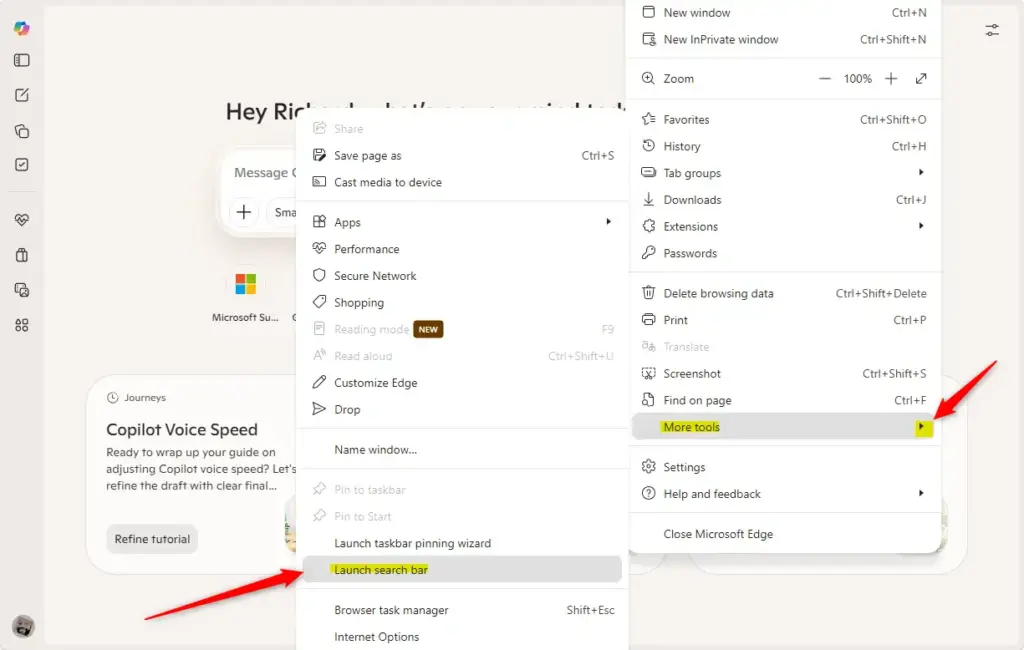
Close Microsoft Edge for the desktop search bar changes to apply. Reopening Microsoft Edge ensures the new settings are active, which is important for the visual appearance of your desktop.
References:
https://learn.microsoft.com/en-us/DeployEdge/microsoft-edge-policies#searchbarallowed
Summary
Controlling the Windows 11 desktop search bar feature requires changing specific keys inside the Windows Registry using an administrator account. Setting the SearchbarAllowed registry value to 1 turns the search bar on, while setting it to 0 turns it off. You must restart Microsoft Edge after making either change for the new desktop search settings to take effect.
Was this guide helpful?
0% of readers found this helpful (2 votes)

About the Author
Richard
Tech Writer, IT Professional
Richard is a writer at Geek Rewind who turns complex IT tasks into clear, step-by-step guides. He draws on years of hands-on experience in system administration and enterprise IT operations, focusing on Windows, Linux and WordPress: the problems people actually run into, and the fixes that work. His server and WordPress guides come from systems he runs himself. Richard builds and maintains the platform behind Geek Rewind, from its Ubuntu servers and Nginx configuration to its custom WordPress plugins. Many new tutorials start with readers' questions, and he's always glad to answer them in the comments.




No comments yet — be the first to share your thoughts!