
Bluetooth PAN (Personal Area Network) lets you share internet between devices without Wi-Fi. Instead, it uses Bluetooth to connect your Windows 11 PC to another device like a phone or computer that has internet.
Why Use Bluetooth PAN?
This is useful if:
- You don’t have Wi-Fi but want to get online.
- You want a safer connection than public Wi-Fi.
- You want to share your computer’s internet with other devices using Bluetooth.
What You Need
- A Windows 11 PC with Bluetooth
- Another Bluetooth device (like a phone) that can share internet via hotspot
- Both devices paired via Bluetooth
How to Connect to a Bluetooth PAN
- Turn on Bluetooth on both your computer and the other device. How to pair Bluetooth devices on Windows 11
- Open the Windows Settings app:
- Click the Start menu and choose Settings, or
- Press Windows key + I on your keyboard.
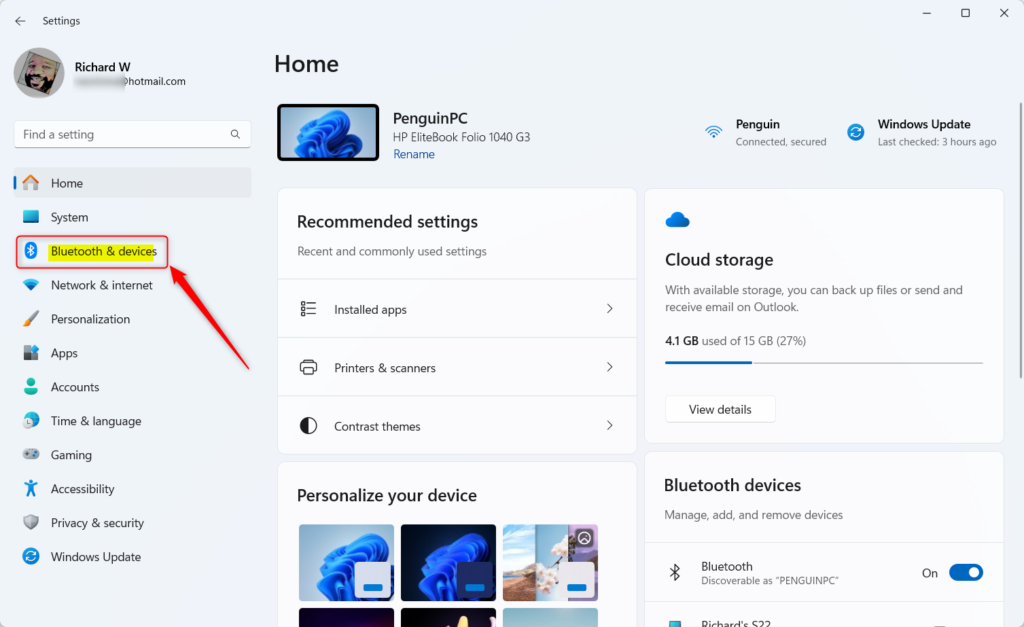
- In Settings, click Bluetooth & devices on the left side.
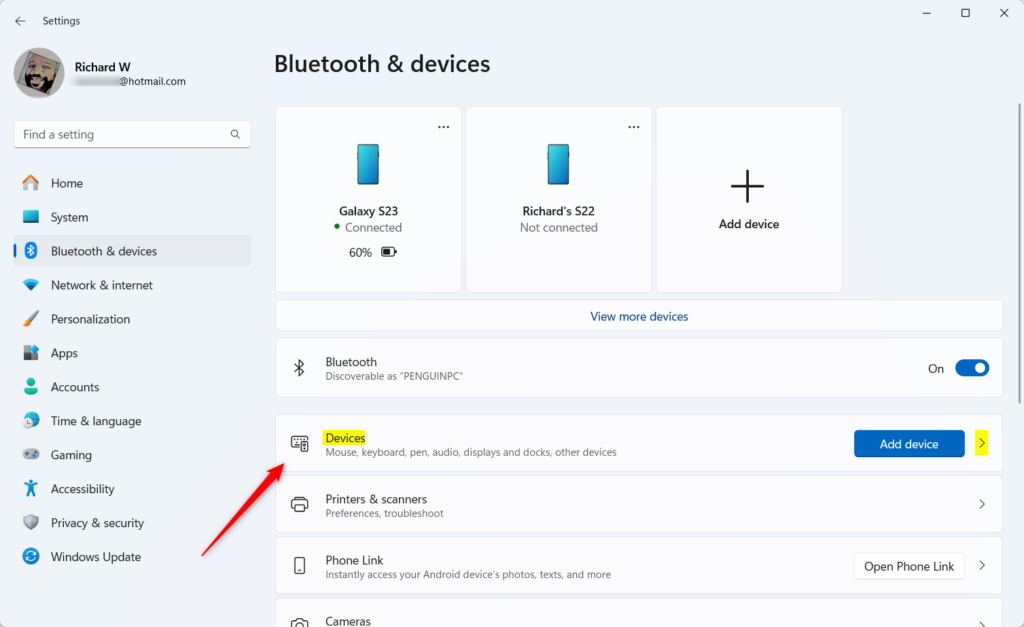
- Find the device you paired with and click on the Devices tile to open it.
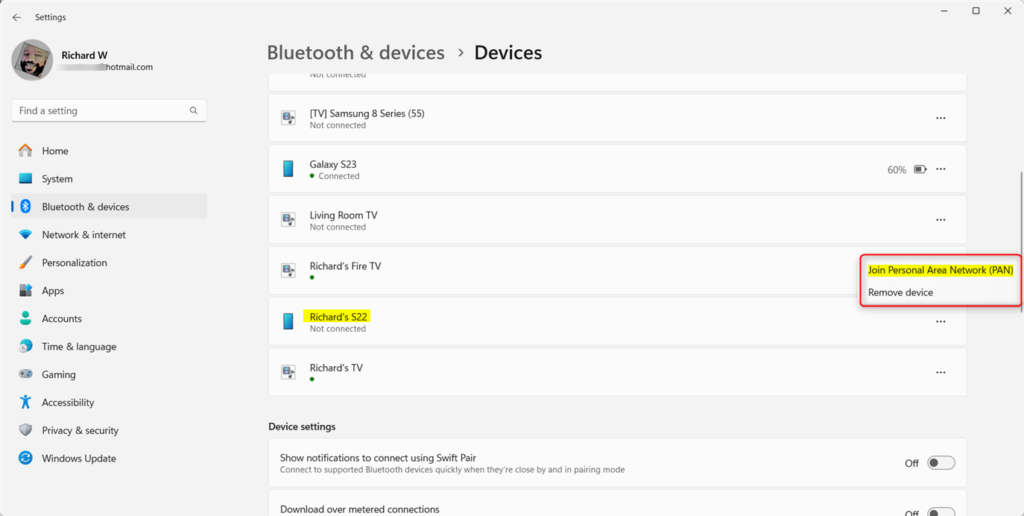
- Click the More settings icon (the three dots) next to the paired device.
- Select Join Personal Area Network (PAN).
- If asked, choose the connection type:
- Access Point (connect through the other device’s internet)
- Direct connection (connect directly between devices)
- Click Connect.
- You should see the connection status on the Devices page once connected.
How to Disconnect
To disconnect, go back to Bluetooth > Devices. Select your device and click the three dots again. Then choose Disconnect PAN.
Need More Help?
For official information, see Microsoft’s guide: Connect to a Bluetooth network in Windows
Summary
- Bluetooth PAN lets you share internet wirelessly without Wi-Fi.
- It’s safer than public Wi-Fi because it connects devices directly.
- You can use it to share your Windows 11 PC’s internet with other devices via Bluetooth.
- If you have problems, check the Microsoft link above or ask for help.



Leave a Reply