
Do you have multiple speakers or headphones connected to your Windows 11 computer? Want to pick which one plays your music and videos? This guide shows you how to set a default audio device in just a few clicks. You’ll learn why this matters and what happens when you change your settings.
Why would you need to change your default speakers? If you use headphones sometimes and speakers other times, you can switch between them easily. Windows 11 lets you pick one main device for all your sound. Some apps can use their own device too, but we’ll focus on the main settings.
Select Default Speakers in Windows 11
Here’s how to set your main speakers. This makes sure all apps use the same sound device by default.
Step 1: Open Windows Settings
Press the Windows key + i on your keyboard to open Settings. Or click the Start button, then select Settings from the menu.

You can also click the search box next to the Start button, type Settings, and press Enter.
Step 2: Go to Sound Settings
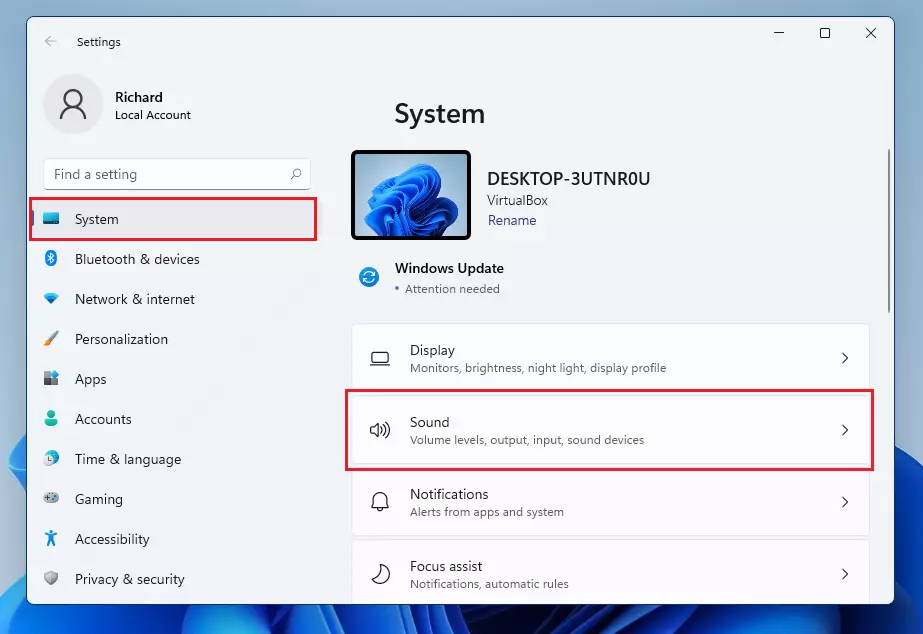
In the Settings window, click System in the left menu. Then select Sound on the right side.
Step 3: Choose Your Output Device
Look for the section labeled Output. Find the option that says Choose your output device. Click the drop-down menu and pick the speakers or headphones you want to use as your default sound device.
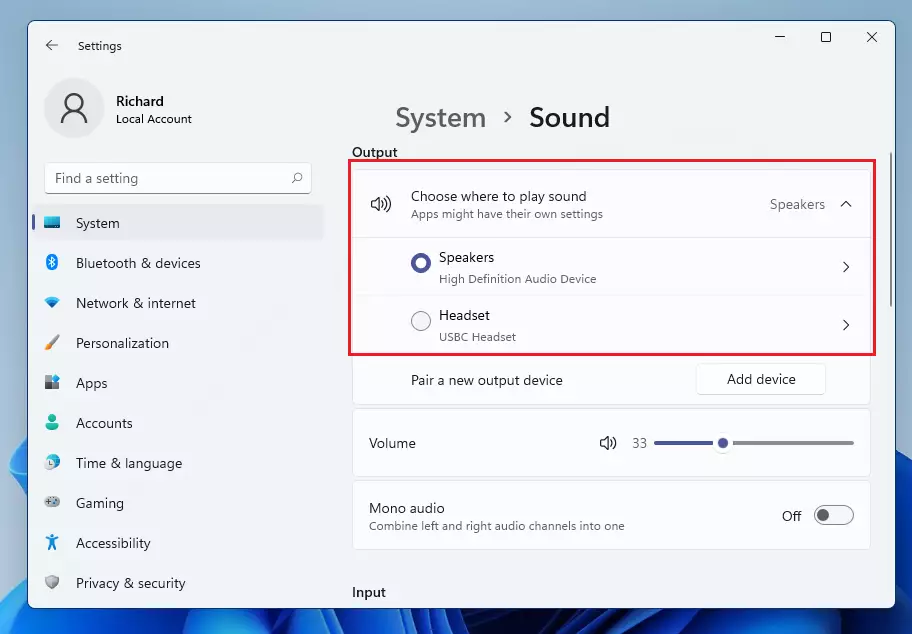
What happens next? Once you select your preferred device, Windows will use it for all sounds. Apps will play sound through this device unless they have their own settings.
Quickly Switch Sound Devices from the Taskbar
Want to change speakers fast without opening Settings? You can do it right from the taskbar at the bottom of your screen.
Step 1: Click the Speaker Icon
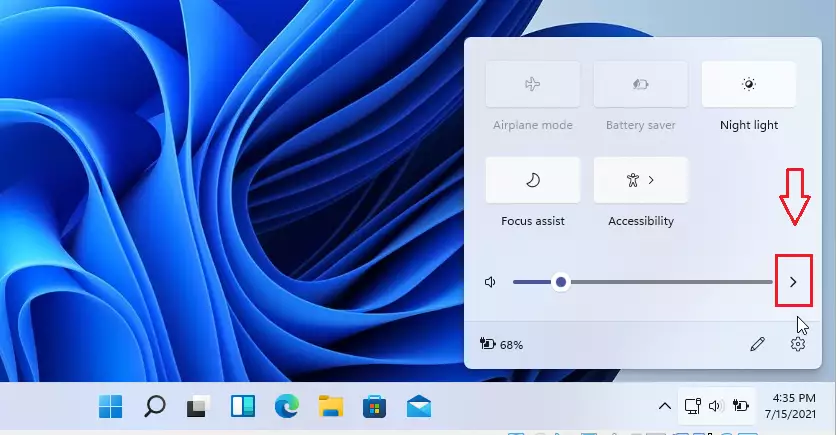
Look for the speaker icon on the right side of the taskbar. Click it.

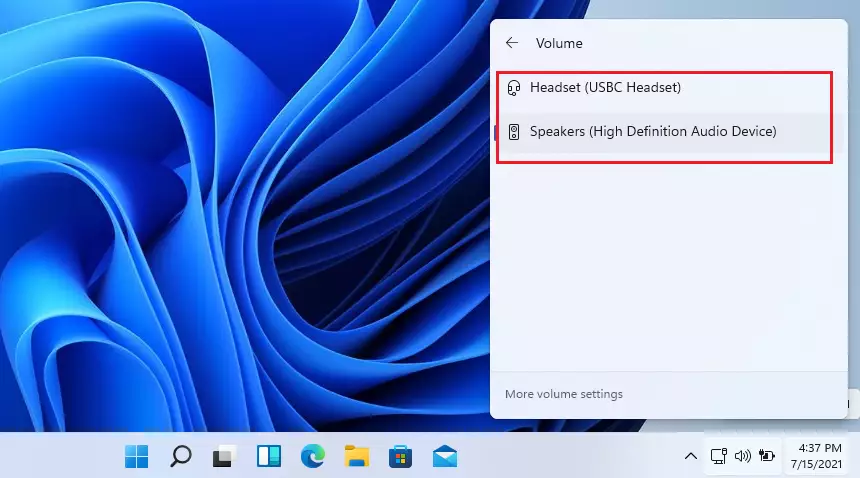
Step 2: See All Sound Devices
Click the right arrow next to the volume slider. This shows you all your sound devices.
Step 3: Pick Your Device
Select the device you want to use. Windows will switch sound output to that device right away.
Troubleshooting Tip: If you don’t see your speakers or headphones listed, make sure they are properly connected and turned on. Sometimes Windows needs a moment to recognize new devices.
Summary
- Setting a default speaker in Windows 11 makes sure your sound comes from the device you want.
- You can change your audio device anytime using the Settings app.
- You can also quickly switch devices from the taskbar without opening Settings.
- Some apps can use their own sound device, so check app settings if you hear sound from the wrong speakers.
- Keep your audio devices connected and turned on so Windows recognizes them.
- For more help with Windows 11, visit the official Microsoft support page: https://support.microsoft.com/windows



Leave a Reply