How to Set Active Hours for Windows Update in Windows 11

Windows 11 automatically updates your computer to keep it secure and running well. Sometimes, these updates require a restart. If your computer restarts while you are working, it can be frustrating. You can use “Active Hours” to tell Windows when you are usually using your computer so it avoids restarting during those times.
Why use Active Hours?
Setting active hours ensures your computer does not reboot in the middle of an important project or task. It keeps your workflow smooth while still ensuring your system stays up to date.
What happens when done?
Once you set these hours, Windows will treat that time as “busy.” It will wait until outside of those hours to perform any necessary restarts for updates.
Reference: Keep your PC up to date with active hours – Microsoft Support
Option One: Set Active Hours in Settings
- Open Settings (press Win+I).
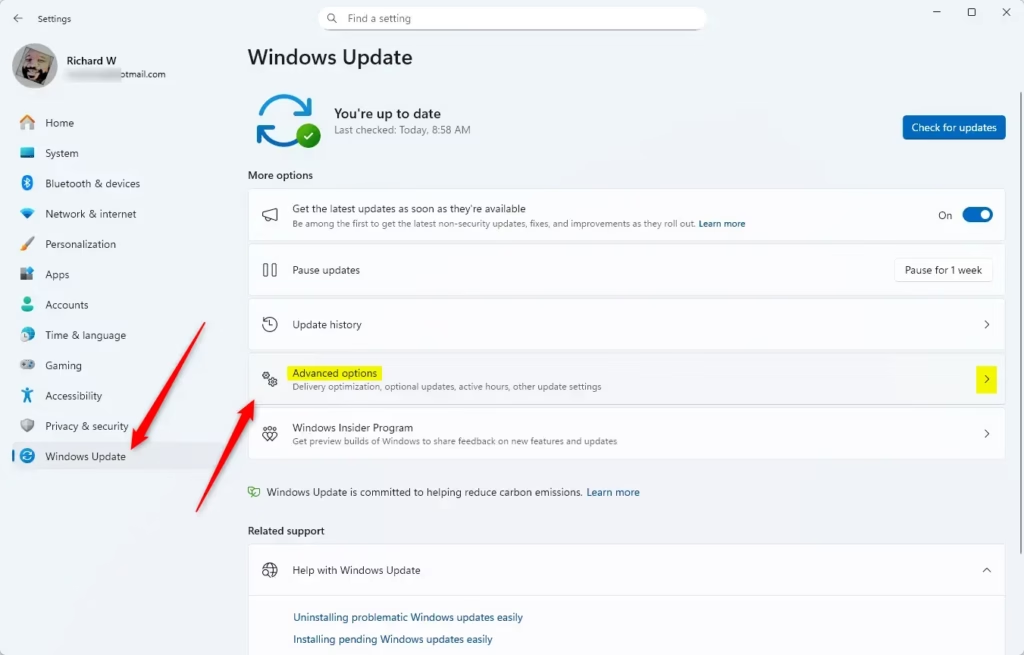
- Click Windows Update on the left, then click Advanced options on the right. Open Advanced options settings
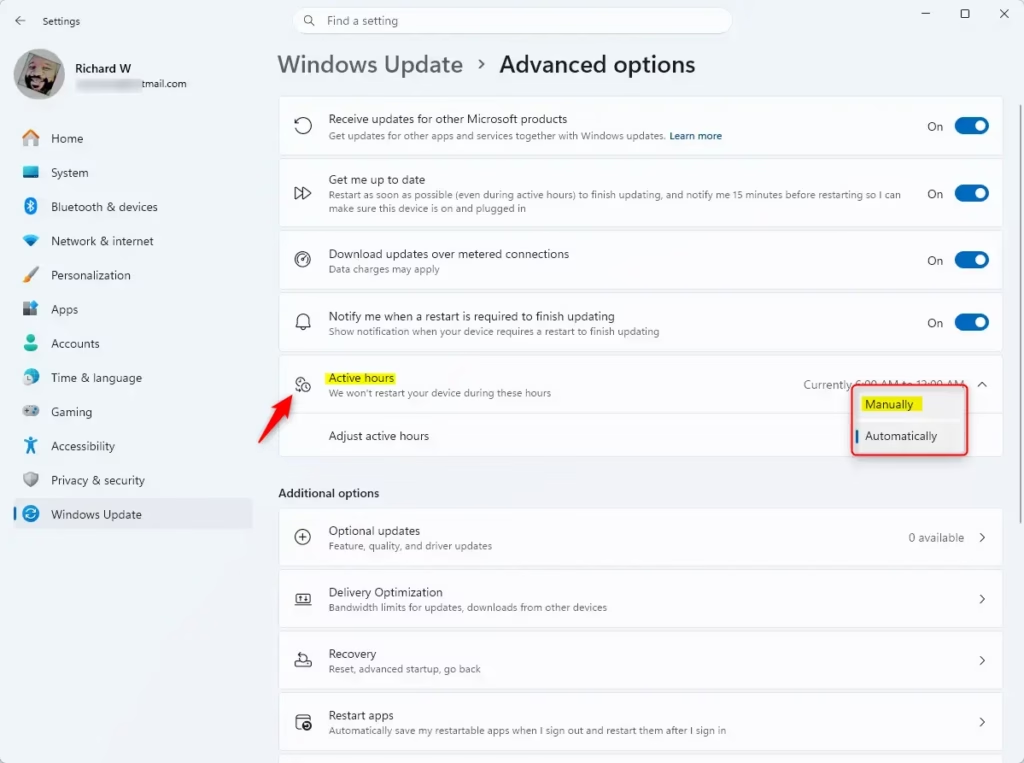
- Click Active hours to expand the menu.
- Choose Automatically or Manually from the drop-down menu.
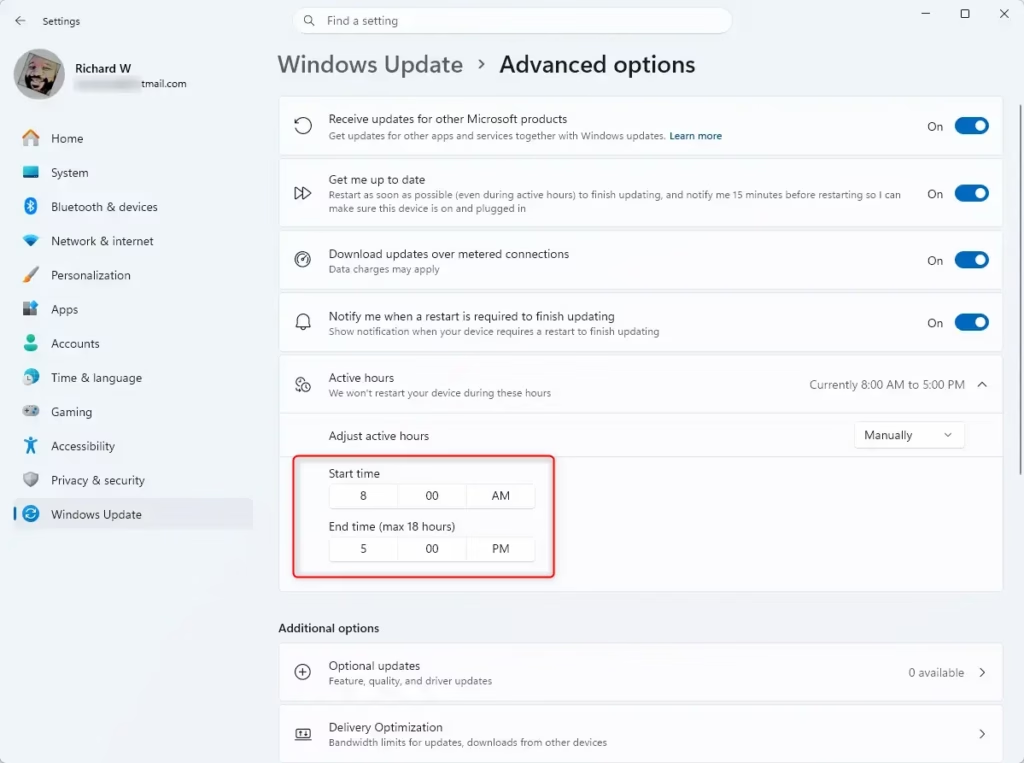
- If you choose Manually, pick your preferred start and end times, then click the check mark to save each setting.
- Close the Settings window when finished.
Option Two: Set Active Hours in Registry Editor
Note: You must be an administrator to perform this task.
- Open Registry Editor (regedit.exe).
- Go to this path:
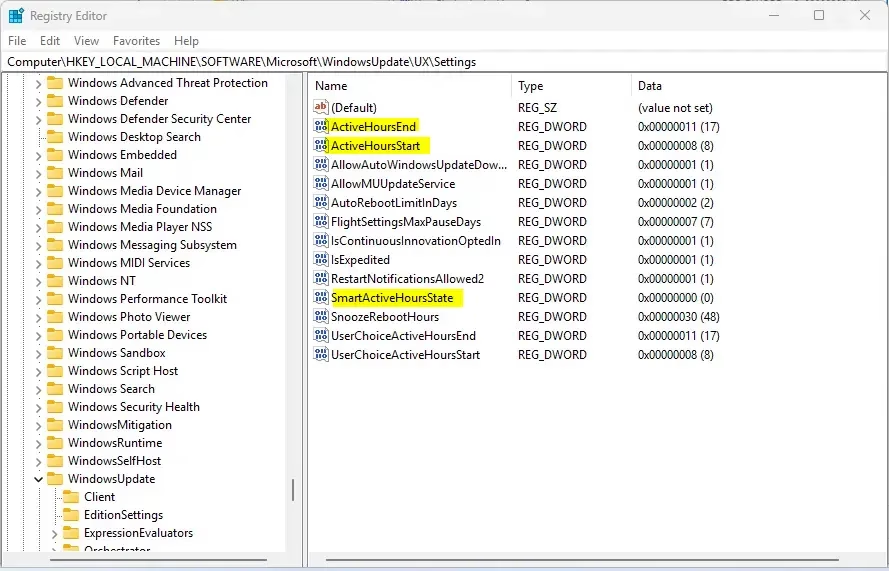
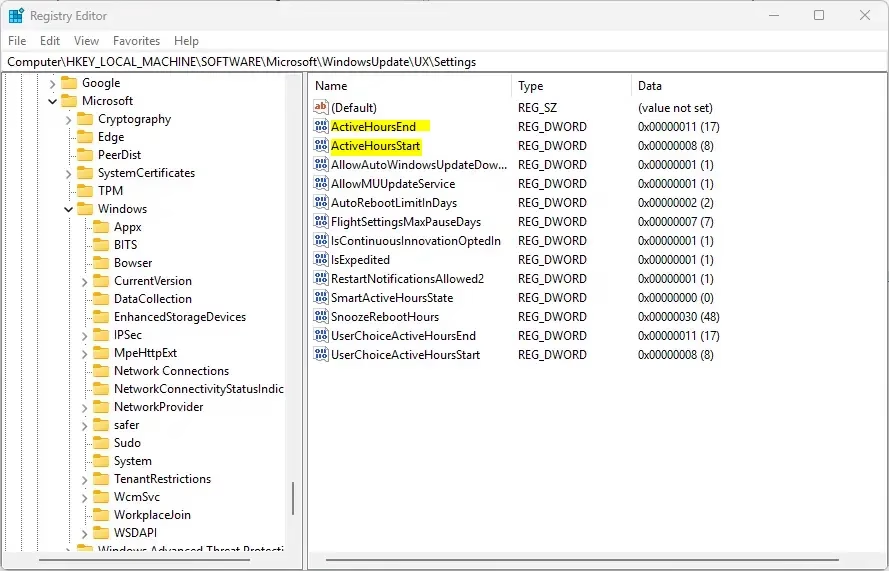
HKEY_LOCAL_MACHINE\SOFTWARE\Microsoft\WindowsUpdate\UX\Settings
To adjust automatically: Double-click SmartActiveHoursState and set the value to 1.
To adjust manually: Double-click SmartActiveHoursState and set the value to 0.
Next, modify ActiveHoursStart and ActiveHoursEnd. Set them to Decimal and enter your times using the 24-hour clock format.
Option Three: Set Active Hours via Local Group Policy
Note: This requires administrator privileges and is only available on Windows 11 Pro, Enterprise, or Education editions.
- Open Local Group Policy Editor (gpedit.msc).
- Navigate to:
Computer Configuration\Administrative Templates\Windows Components\Windows Update\Manage end user experience
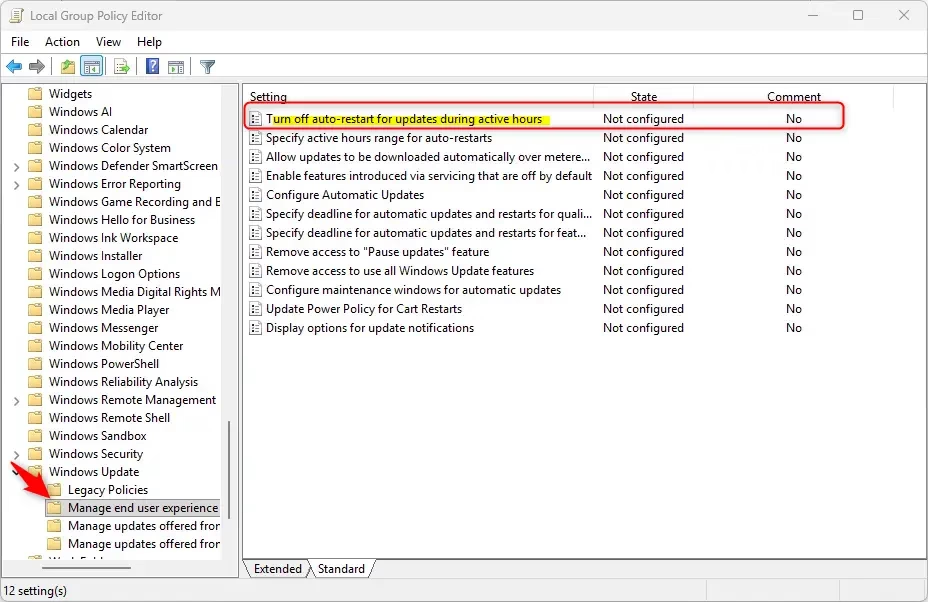
- Double-click the policy Turn off auto-restart for updates during active hours.
- Select Not Configured to use default settings, or select Enabled to manually specify your active hours.
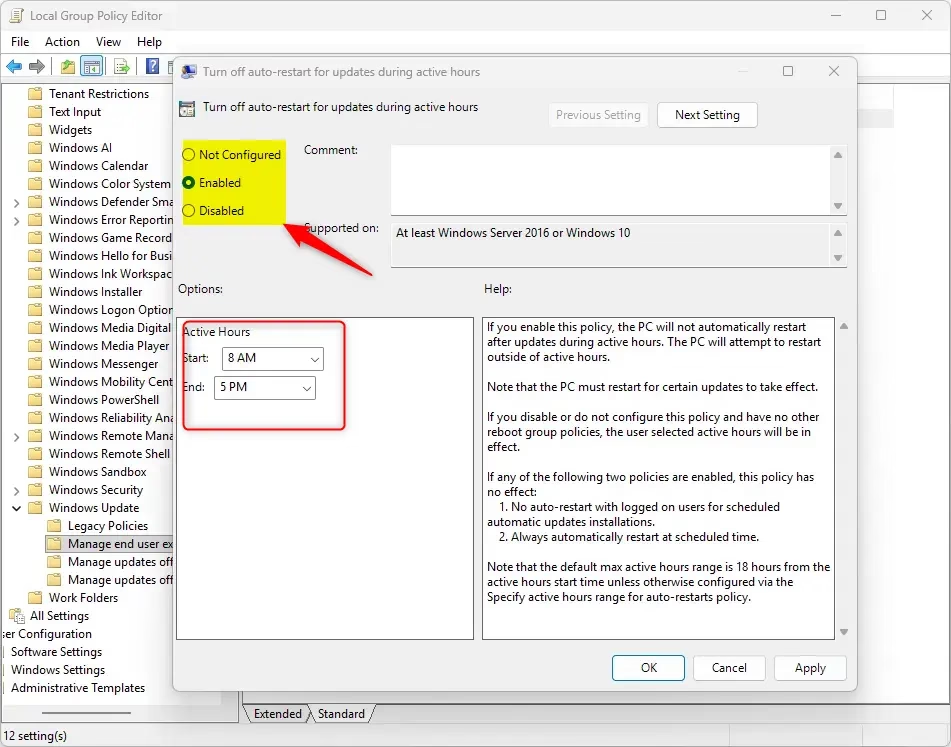
- Close the editor and restart your computer to apply the changes.
Option Four: Set Policy via Registry Editor
Note: You must be an administrator to perform this task. This achieves the same result as Option Three.
- Navigate to:
HKEY_LOCAL_MACHINE\SOFTWARE\Policies\Microsoft\Windows\WindowsUpdate
- Modify the ActiveHoursStart and ActiveHoursEnd values using Decimal format and the 24-hour clock. No auto-restart with logged on users for scheduled automatic updates installations 24 hour clock 24 hour clock.
Summary
Active hours prevent your Windows 11 PC from restarting while you are busy. You can configure this easily through the Settings menu for most users, or use the Registry or Group Policy for more advanced control. By setting a schedule, you ensure updates happen on your terms, not during your work day.
How do I change the active hours on Windows Update?
To change your active hours, open Settings by pressing Win+I, navigate to Windows Update, and select Advanced options. Click on Active hours to expand the menu. Switch the setting to Manually, adjust your preferred start and end times, and click the check mark to save your new schedule.
Do Windows updates download during active hours?
Yes, Windows continues to download and install updates during active hours to ensure your system remains secure. However, the operating system will not automatically restart your computer to finish the installation process while you are within your designated active hours, preventing unexpected interruptions to your current work or tasks.
Is Microsoft forcing 24H2?
Microsoft is not forcing the 24H2 update on all users immediately. While Windows 11 updates are designed to keep systems secure and current, you generally have control over when these major feature updates are installed. You can manage update behavior through Windows Update settings to delay or schedule installations accordingly.
How do I disable active hours on Windows 11?
You cannot completely disable active hours, but you can set them to 'Automatically' so Windows manages them based on your device activity. To do this, go to Settings, select Windows Update, click Advanced options, expand Active hours, and choose Automatically from the drop-down menu to let Windows handle the scheduling.
Was this guide helpful?



Leave a Reply Cancel reply