
This article shows you how to find and install updates-using-windows-update-in-windows-11/” class=”sal-link” rel=”noopener” target=”_blank” data-sal-id=”634″>Optional Updates in Windows 11.
Why Install Optional Updates?
By default, Windows Update automatically connects to Microsoft’s servers. It searches for and installs the latest fixes and security patches. This keeps your computer running smoothly and safely.
Windows 11 also has an Optional Updates feature. Some Windows features, device drivers, and apps cannot install automatically through Windows Update. These are kept in Optional Updates instead.
What Happens When You Install Updates?
In most cases, your device will restart to finish the update. Before restarting, keep your device plugged in. Or make sure your battery has enough charge to complete the update.
How to Find and Install Optional Updates in Windows 11
Step 1: Open the Settings App
Click on the Start menu. Then select the Settings app.

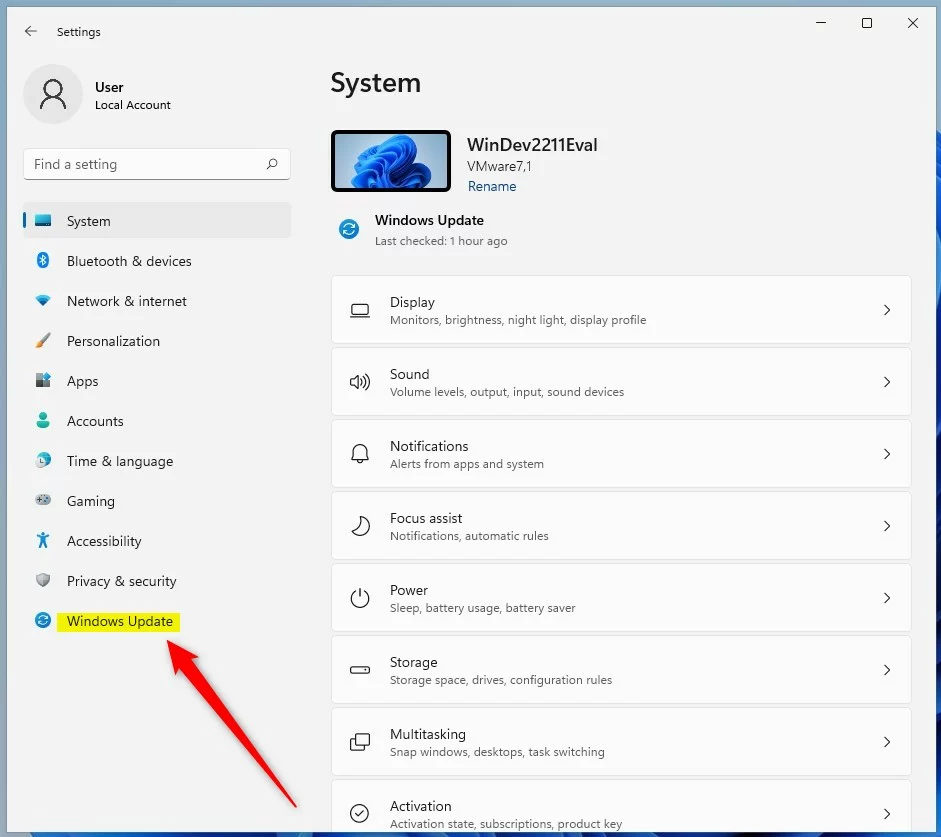
Step 2: Go to Windows Update
In the Settings app, click the Windows Update button on the left side.
Step 3: Open Advanced Options
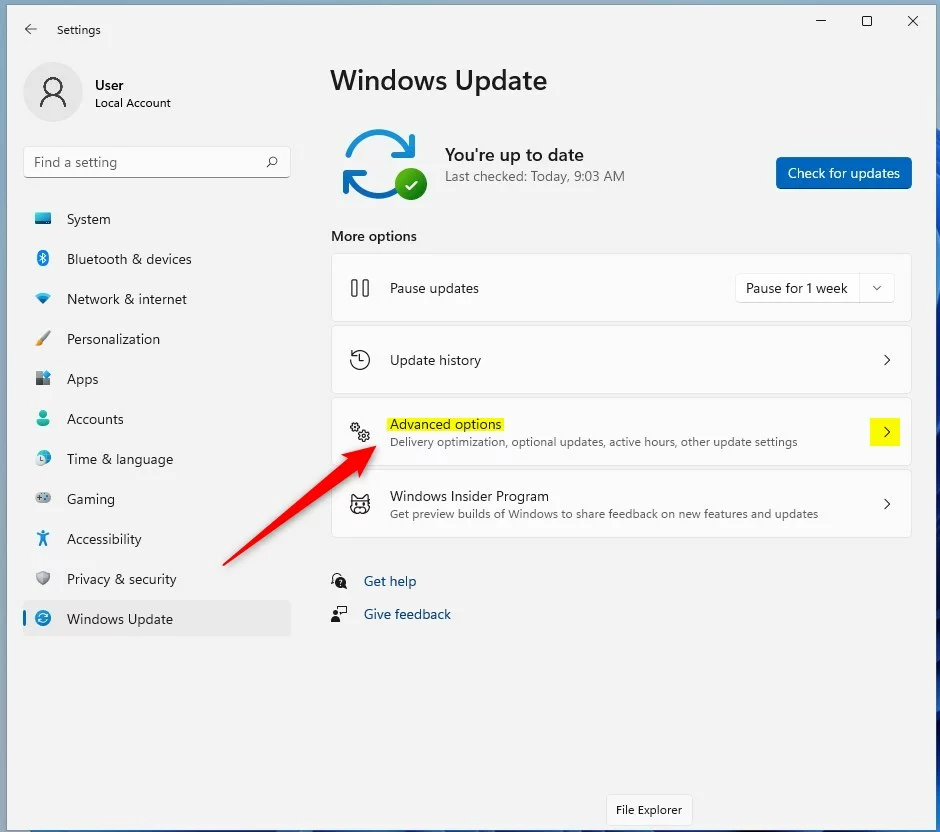
On the right, select the Advanced options tile to expand it.
Step 4: Find Optional Updates
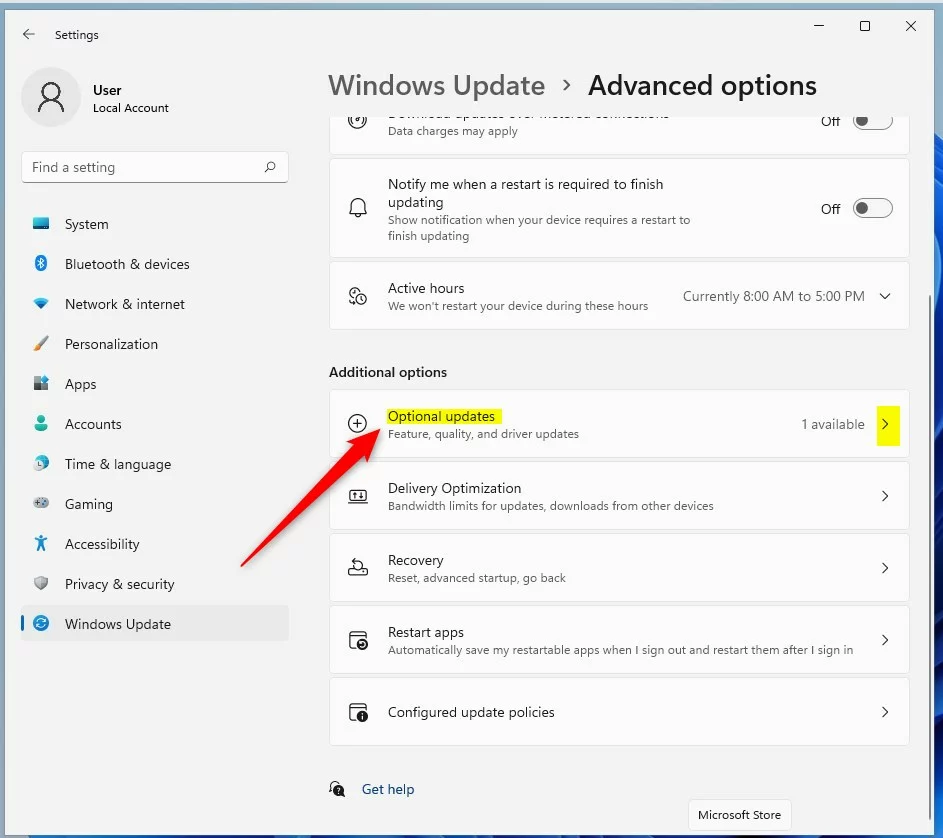
Under Additional options, select the Optional updates tile to expand it.
Step 5: Choose Your Updates
Expand the category tiles for Driver updates or Other updates. Check the box next to the driver or update you want to install. Once you select a box, the Download & Install button will light up.
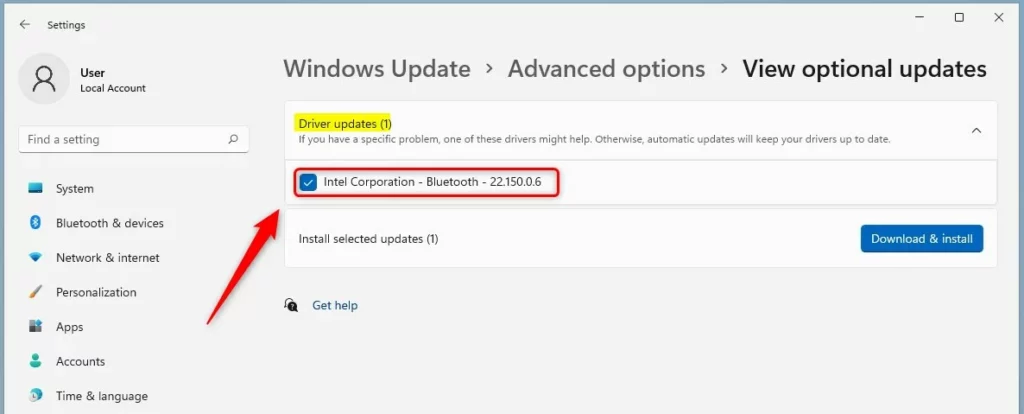
Step 6: Download and Install
Click the Download & Install button. Your device will go back to the Windows Update pane and begin downloading your selected updates.
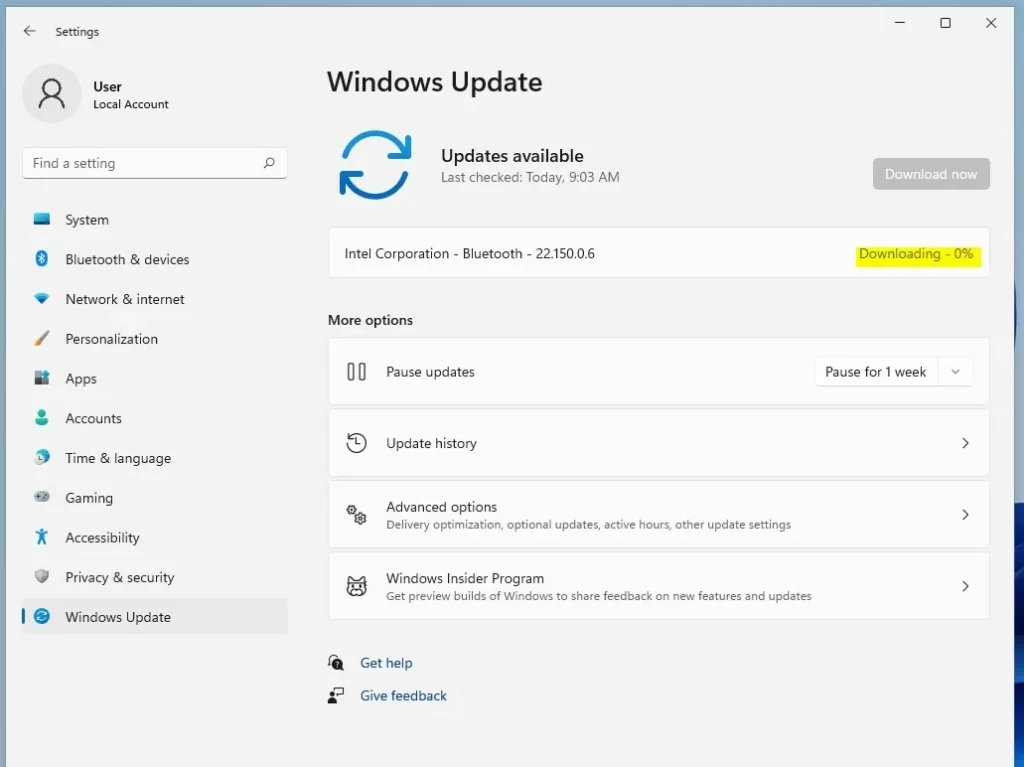
The device drivers and other updates you chose will download and install. If your device needs to restart, you will see a prompt.
Alternatively, you can schedule a restart at a later time.
Reference
Summary
Optional Updates in Windows 11 let you install extra features, device drivers, and apps that do not install automatically. To install them, open Settings, go to Windows Update, select Advanced options, then Optional updates. Choose the drivers or updates you need and click Download & Install. Your device may restart to finish the installation. This helps you keep your computer up to date with the latest drivers and features.

Leave a Reply Cancel reply