How to Change Screen Saver Grace Period to Require Sign-in in Windows 11

This tutorial shows you how to change the screen saver grace period in Windows 10 and Windows 11. You can set how many seconds you want before password protection kicks in.
You can change the screen saver grace period in Windows 11 by editing the Registry. Open Registry Editor, navigate to 🗝️HKEY_LOCAL_MACHINESOFTWAREMicrosoftWindows NTCurrentVersionWinlogon, and modify or create the ScreenSaverGracePeriod value. Set this to 0 for immediate password protection.
Why Change the Screen Saver Grace Period?
The screen saver grace period is a short delay Windows uses after your screen saver starts before it asks for your password. You might want to change this if you feel the default five-second wait isn’t secure enough for your computer.
However, there’s a built-in delay. By default, Windows waits 5 seconds after the screen saver locks your computer before it requires a password. This is called the grace period. During these 5 seconds, you can move your mouse, touch the screen, or press a key to unlock your computer without signing in.
This grace period exists to prevent annoyance. For example, you might be reading something on your screen without typing. The screen saver kicks in because you haven’t been active. But you want to continue working right away without entering your password.
What Happens When You Change It?
You can change the grace period to any number of seconds you want. Setting it to 0 seconds means your computer requires a password immediately when the screen saver starts. This increases security. Setting it higher gives you more time to resume work without signing in.
How to Change the Screen Saver Grace Period
Changing the screen saver grace period involves editing a special Windows file called the Registry, so you’ll need to be an administrator. First, open the Registry Editor by typing ‘regedit’ in your Windows search bar and pressing Enter.
- Open Registry Editor by typing
regedit.exein your search bar and pressing Enter. - In the left pane, navigate to this location:
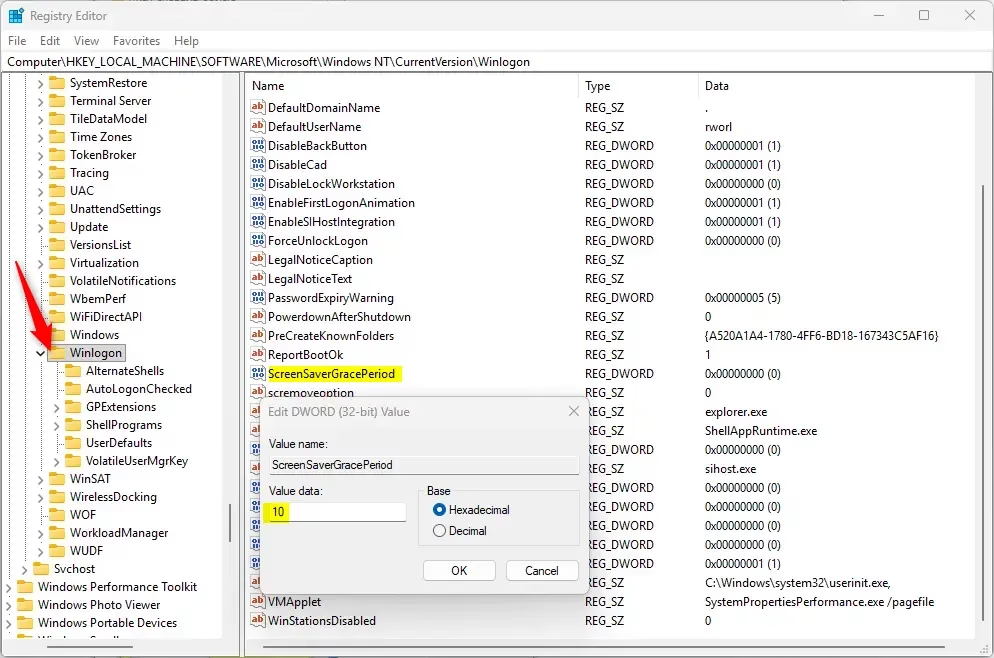
HKEY_LOCAL_MACHINE\SOFTWARE\Microsoft\Windows NT\CurrentVersion\Winlogon - In the right pane, look for an entry called
ScreenSaverGracePeriod. If it doesn’t exist, you need to create it:- Right-click on an empty area in the right pane.
- Select New, then DWORD (32-bit) Value.
- Type
ScreenSaverGracePeriodas the name. - Press Enter to create it.
- ⚠️ Admin privileges required: Double-click the
ScreenSaverGracePeriodentry to open it.- Make sure Decimal is selected at the bottom.
- Enter a number between 0 and 2147483. This is how many seconds the grace period will last.
- Use 0 for immediate password protection with no delay.
- Click OK to save.
- Close Registry Editor. You’re done!
Summary
The screen saver grace period is the short time Windows waits after your screen saver locks before asking for your password, with the default being five seconds. You can adjust this security setting by editing the Windows Registry, specifically the ‘ScreenSaverGracePeriod’ value.
What is the screensaver grace period?
The screensaver grace period is a short, built-in delay in Windows, usually five seconds, that happens after your screensaver starts. This brief window lets you quickly wake your computer by moving the mouse or pressing a key without needing to type your password again.
How to bypass screensaver timeout policy?
You can bypass the screensaver timeout policy by changing a setting in the Windows Registry. By adjusting the ‘ScreenSaverGracePeriod’ value to zero, you remove the default delay, making Windows ask for your password immediately when the screensaver activates.
What does screensaver wait time mean?
Screensaver wait time is simply how long your computer stays idle before the screensaver pops up. You can choose this time yourself in the Screen Saver Settings. Once that time passes without you using the computer, the screensaver will start.
How many minutes of inactivity shall activate screensavers?
You can set your screensaver to activate after any amount of inactivity you choose, as there’s no fixed time. Many people set it between five and fifteen minutes to keep their computer secure without being too annoying.
Was this guide helpful?

About the Author
Richard
Tech Writer, IT Professional
Richard, a writer for Geek Rewind, is a tech enthusiast who loves breaking down complex IT topics into simple, easy-to-understand ideas. With years of hands-on experience in system administration and enterprise IT operations, he’s developed a knack for offering practical tips and solutions. Richard aims to make technology more accessible and actionable. He's deeply committed to the Geek Rewind community, always ready to answer questions and engage in discussions.



No comments yet — be the first to share your thoughts!