How to Schedule Automatic Shutdown on Windows 11

You can schedule an automatic shutdown on Windows 11 to make your PC turn itself off at a set time, saving you energy and potentially lowering your electricity bill.
This feature lets you automate your computer’s power management, ensuring it shuts down daily at your chosen hour.
For instance, you can set your Windows 11 PC to automatically shut down every night at 11:00 PM, perfect for busy schedules or to build a consistent power-off habit.
Just remember to save any open work before the scheduled time, as an automatic shutdown will close all programs without saving.
Schedule automatic shutdowns on Windows 11 using Task Scheduler. Open Task Scheduler, create a new task, set a daily trigger for your desired shutdown time, and configure the action to run shutdown.exe with the /s argument. Ensure you wake the computer if needed.
Method 1Using the Run Dialog (Quick Shutdown Timer)
Need a quick shutdown timer? The Run dialog is your best bet.
- Press Windows Key + R on your keyboard.
- Type
shutdown -s -t 3600and press Enter. (3600 represents seconds, so this will shut down in one hour). - A notification will appear telling you when the PC will turn off .
How to cancel a scheduled shutdown
If you change your mind, you can stop the timer instantly.
- Press Windows Key + R.
- Type
shutdown /aand press Enter. - The scheduled shutdown will be aborted immediately.
Method 2Using Task Scheduler for Daily Automation
Windows 11 lets you schedule an automatic shutdown every day using the Task Scheduler, a tool built right into your computer.
First, click your Start menu and search for “Task Scheduler.”
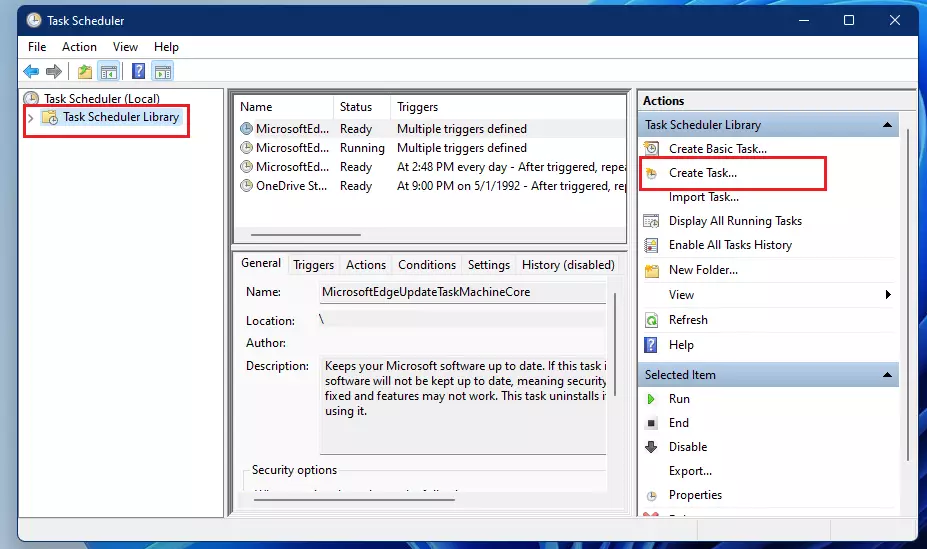
When the app opens, select “Task Scheduler Library” on the left. Then, on the right side of the window, click “Create Task.”
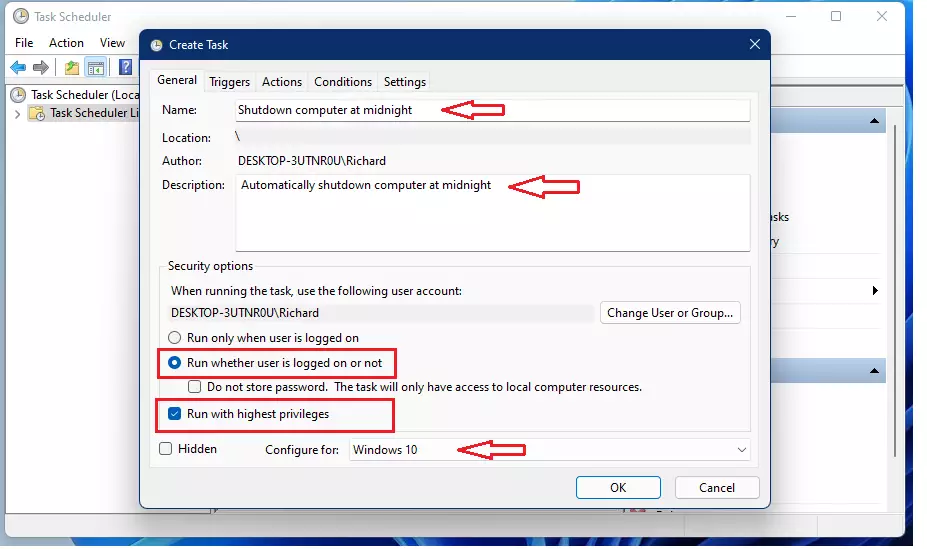
A new window will appear. Follow these steps:
- On the General tab, type a name for your task.
- Select “Run whether the user is logged on or not.”
- Check the box for “Run with highest privileges” (This step requires admin privileges).
- Set “Configure for” to “Windows 10 or Windows 11.”
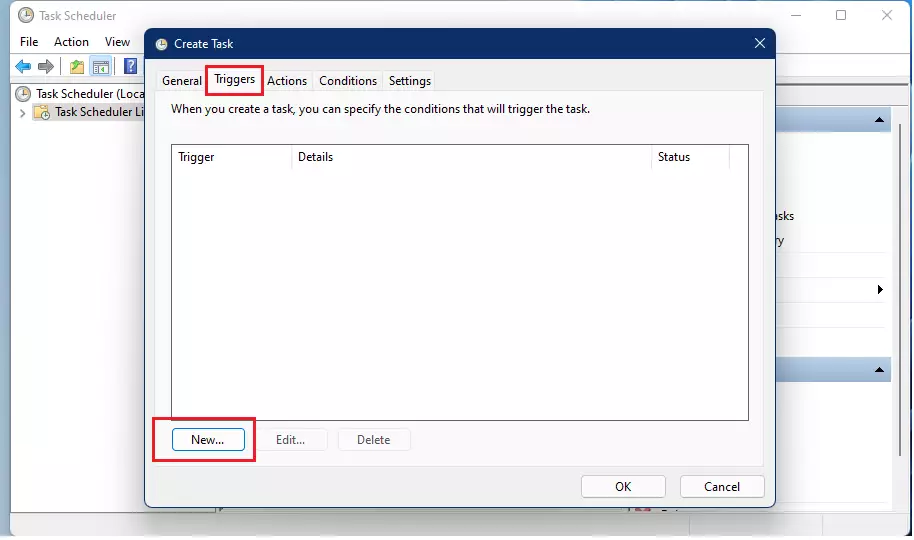
Next, click the Triggers tab and click the “New” button.
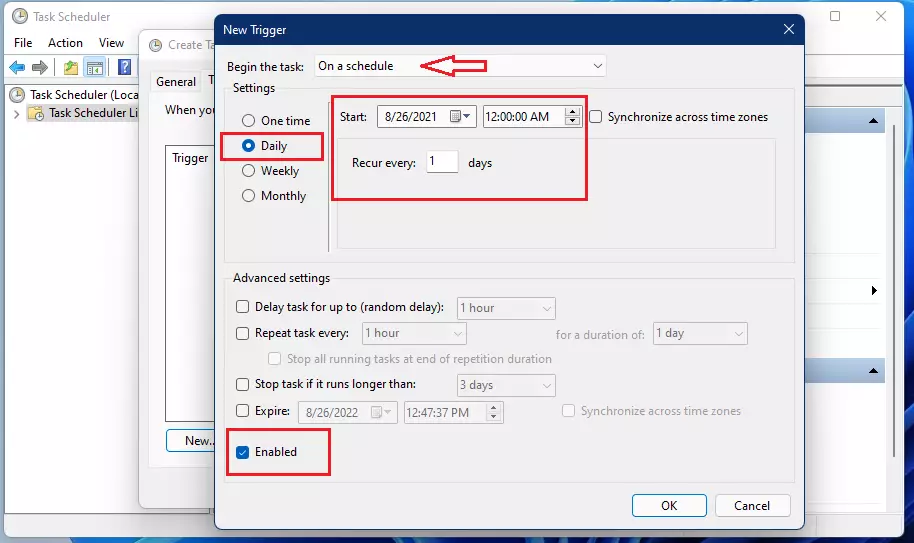
In the new window:
- Set the task to begin “On a schedule.”
- Select “Daily.”
- Pick your preferred time.
- Make sure the “Enabled” box at the bottom is checked.
- Click OK.
Now, click the Actions tab and click “New.”
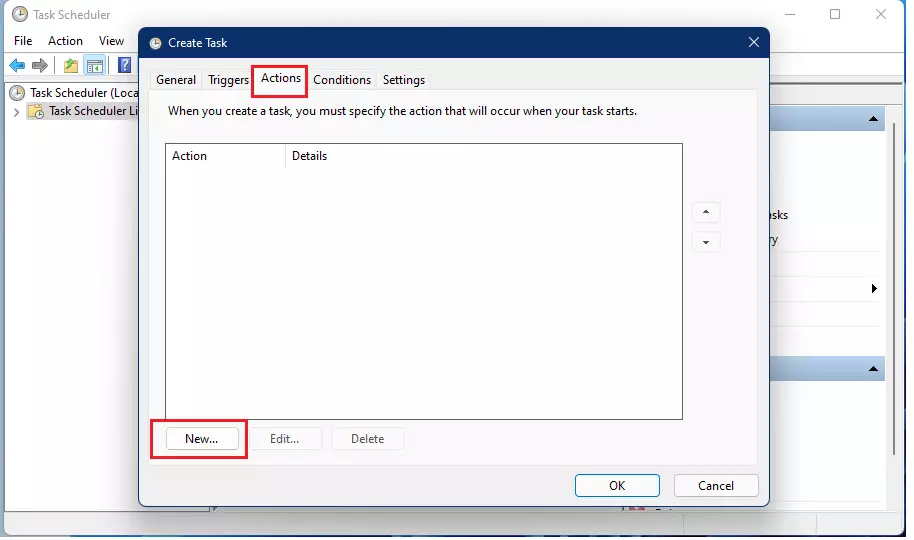
In the action window:
- Keep “Start a program” selected.
- In the “Program/script” box, type:
shutdown.exe - In the “Add arguments” box, type:
/s /t 60 /c "Computer will shutdown in 60 seconds" - Click OK.
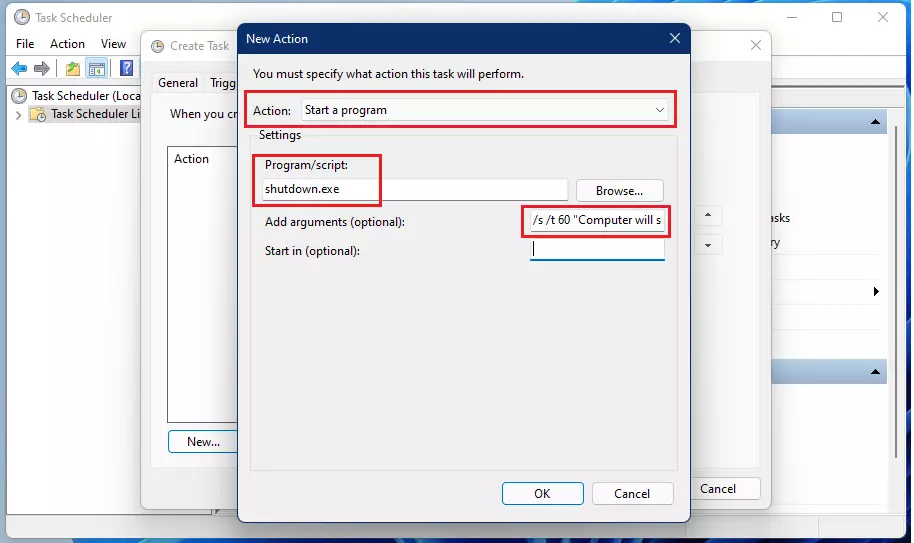
Next, go to the Conditions tab. Uncheck “Start the task only if the computer is on AC power” and check “Wake the computer to run this task.” Click OK.
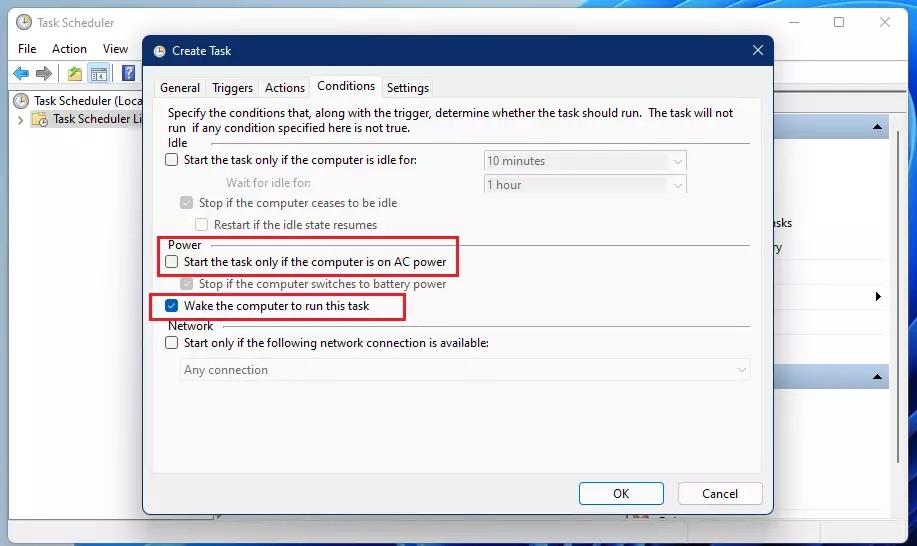
You will be asked to enter your user account password to save these changes. You’ll need administrator permissions for this.
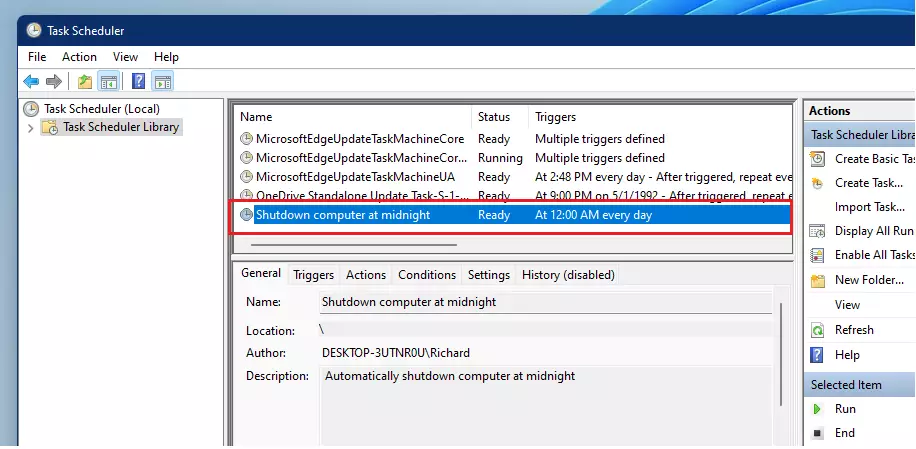
Your task is now active! You will see it listed in the Task Scheduler library.
Summary
Setting up an automatic shutdown on Windows 11 is a smart way to save power and ensure your computer turns off when you want it to.
Can I restart instead of shutting down?
Yes. In the Task Scheduler Action settings, change the argument from /s to /r. This flag tells Windows to restart instead of shutting down completely. This is useful for clearing system memory or applying updates automatically.
Was this guide helpful?

About the Author
Richard
Tech Writer, IT Professional
Richard, a writer for Geek Rewind, is a tech enthusiast who loves breaking down complex IT topics into simple, easy-to-understand ideas. With years of hands-on experience in system administration and enterprise IT operations, he’s developed a knack for offering practical tips and solutions. Richard aims to make technology more accessible and actionable. He's deeply committed to the Geek Rewind community, always ready to answer questions and engage in discussions.



[…] Windows, which uses an app called Task Scheduler, Ubuntu Linux uses a job scheduler called […]
[…] on your hard drive before turning off the computer. On most PCs, one can resume using the power button. Sometimes, pressing any key on the keyboard or opening a lid on the laptop may wake the PC […]
[…] from where you left off without losing your work or sessions. On most PCs, one can resume using the power button. Pressing any key on the keyboard or opening a lid on the laptop may wake the PC from […]
[…] open the Task Scheduler in Windows. In Windows 11, go to the Start Menu, then search for and open the Task Scheduler […]
[…] most PCs, one can resume using the power button. However, in many cases, pressing any key on the keyboard or opening a lid on the […]