How Do I Let a Device Wake My Computer in Windows 11?

This tutorial shows you how to enable or disable allowing a device to wake your computer in Windows 11.
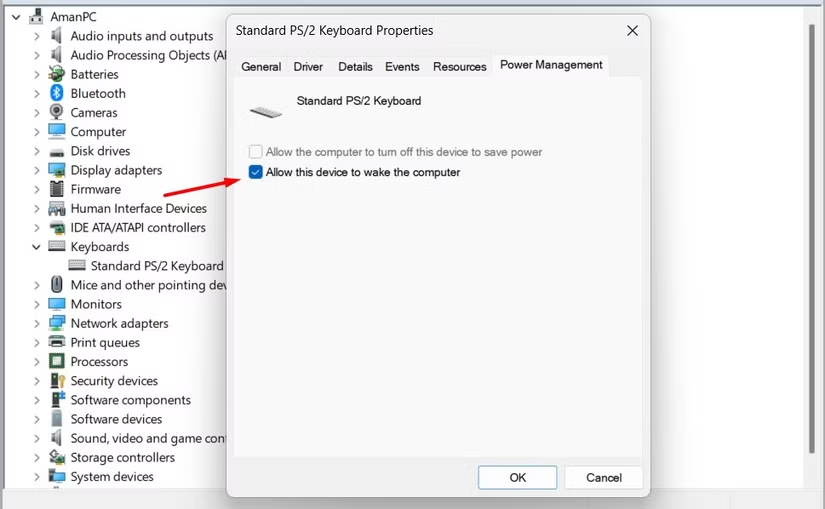
Open Device Manager by typing devmgmt.msc in search. Find your device, open its Properties, go to the Power Management tab, and check “Allow this device to wake the computer.” Click OK. You must be an administrator to make this change.
Why This Matters
Some devices can automatically wake your computer when it’s in sleep mode, but only if they’re set up to do so.
You can use the powercfg.exe tool to manage power plans. This tool manages how your computer uses power and decides which devices can wake it up.
Important: You must be signed in as an administrator to change these settings.
Option 1Using Device Manager
You can let a device wake your computer in Windows 11 using Device Manager by changing its power settings.
- Open Device Manager by typing
devmgmt.mscin your search bar and pressing Enter. - Find and expand the device category your device is listed under. For example, expand “Network adapters” if you’re looking for a network device.
- Double-click the device you want to enable or disable for waking your computer.
- Click the Power Management tab.
- Check the box next to “Allow this device to wake the computer” to enable it . Uncheck the box to disable it .
- Click OK to save your changes.
- Close Device Manager when finished.
Option 2Enable a Device Using Command Line
You can turn on a device’s ability to wake your computer in Windows 11 using command-line instructions with administrator privileges.
What this does: This method lets you turn on a device’s ability to wake your computer using command-line instructions.
- Open Windows Terminal as Administrator. Search for “Terminal” and right-click it, then select “Run as administrator.”
- Select either Windows PowerShell or Command Prompt from the dropdown menu.
- Copy and paste this command, then press Enter to see all devices that can be set to wake your computer:
powercfg -devicequery wake_programmable - Find and write down the exact name of the device you want to enable.
- Type this command and press Enter. Replace “Device name” with the actual device name from step 4:
powercfg -deviceenablewake "Device name"Example:
powercfg -deviceenablewake "Intel(R) Ethernet Connection (7) I219-V" - Close Windows Terminal when finished.
Option 3Disable a Device Using Command Line
This command-line method lets you turn off a specific device’s ability to wake your computer in Windows 11, requiring administrator access.
What this does: This method turns off a device’s ability to wake your computer, based on the device you choose.
- Select either Windows PowerShell or Command Prompt.
- Copy and paste this command, then press Enter to see all devices currently set to wake your computer:
powercfg -devicequery wake_armed - Write down the exact name of the device you want to disable.
- Type this command and press Enter. Replace “Device name” with the actual device name from step 4:
powercfg -devicedisablewake "Device name"Example:
powercfg -devicedisablewake "Intel(R) Ethernet Connection (7) I219-V" - Close Windows Terminal when finished.
Summary
You can control which devices wake your computer from sleep in Windows 11 using Device Manager or command-line tools.
How do I allow this device to wake up the computer 🪟 Windows 11?
Search for “Terminal,” right-click the result, and then select “Run as administrator.” Copy and paste this command, then press Enter to see a list of all devices that can be configured to wake your computer:
What is replacing 🪟 Windows 10?
To enable wake-up, check the box next to “Allow this device to wake the computer.” To disable it , uncheck the box . Click OK to save your changes, then close Device Manager when you’re finished.
How to wake up a computer stuck in sleep mode?
Windows 11 is the official successor to Windows 10. Microsoft released Windows 11 as a free upgrade for eligible Windows 10 devices, offering a modernized interface, improved multitasking features, and enhanced performance. While Windows 10 remains supported until October 2025, Windows 11 is the current standard for new PC operating systems.
How to wake up a 🪟 Windows 11 PC?
You can wake up a Windows 11 PC from sleep by pressing a key, clicking your mouse, or pressing the power button.
Was this guide helpful?

About the Author
Richard
Tech Writer, IT Professional
Richard, a writer for Geek Rewind, is a tech enthusiast who loves breaking down complex IT topics into simple, easy-to-understand ideas. With years of hands-on experience in system administration and enterprise IT operations, he’s developed a knack for offering practical tips and solutions. Richard aims to make technology more accessible and actionable. He's deeply committed to the Geek Rewind community, always ready to answer questions and engage in discussions.




No comments yet — be the first to share your thoughts!