
If an app on your Windows 11 computer isn’t working properly—like it crashes, won’t open, or behaves strangely—you can reset it to fix the problem. Resetting an app will erase its settings and data, so it’s like starting fresh with that app.
What Does Resetting or Repairing an App Mean?
- Repair: This tries to fix the app without deleting your data or settings. It’s a good first step if the app is acting up.
- Reset: This deletes all the app’s data and settings, returning it to how it was when first installed. Use this if repairing doesn’t help.
Note: Resetting an app will also remove it from your taskbar if you had it pinned there. You’ll need to pin it again after resetting if you want.
How to Reset an App in Windows 11
Option 1: Reset App Using Settings
- Open the Settings app by pressing Win + I on your keyboard.
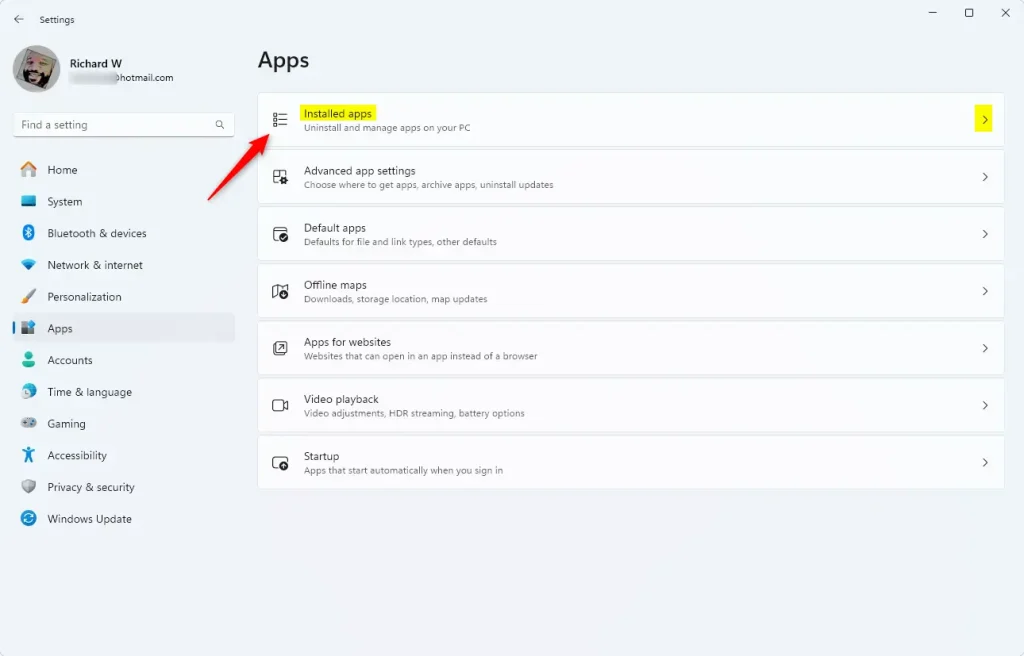
- Click Apps on the left menu, then click Installed apps on the right.
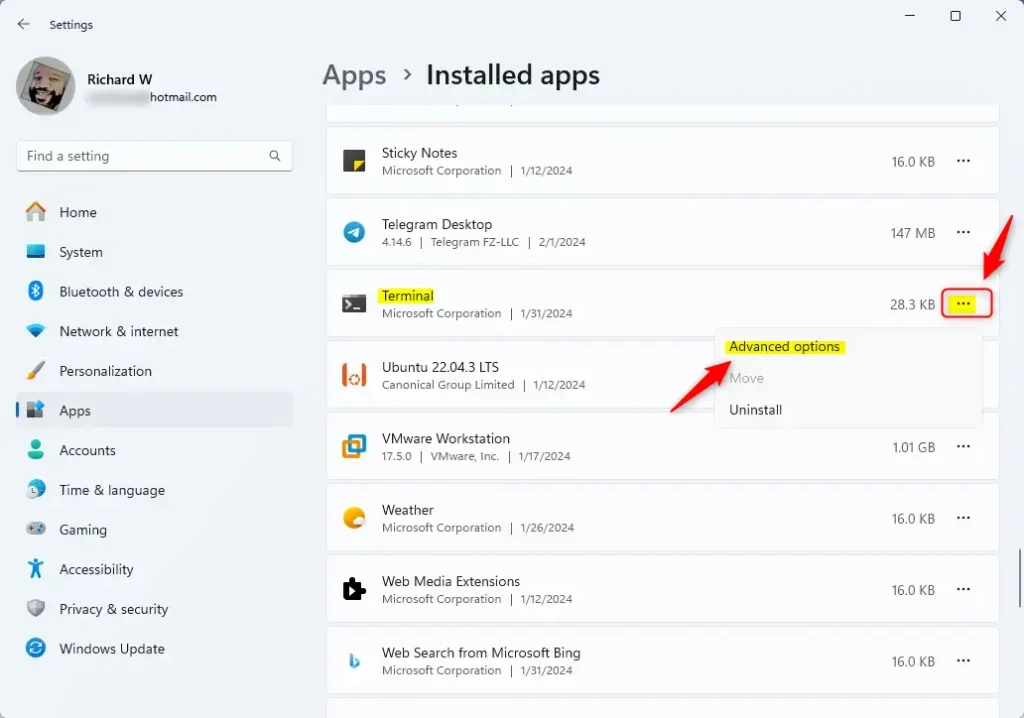
- Find the app you want to reset (for example, “Microsoft Store”) in the list.
- Click the three dots (︙) next to the app, then select Advanced options.
- Click Terminate to stop the app from running.
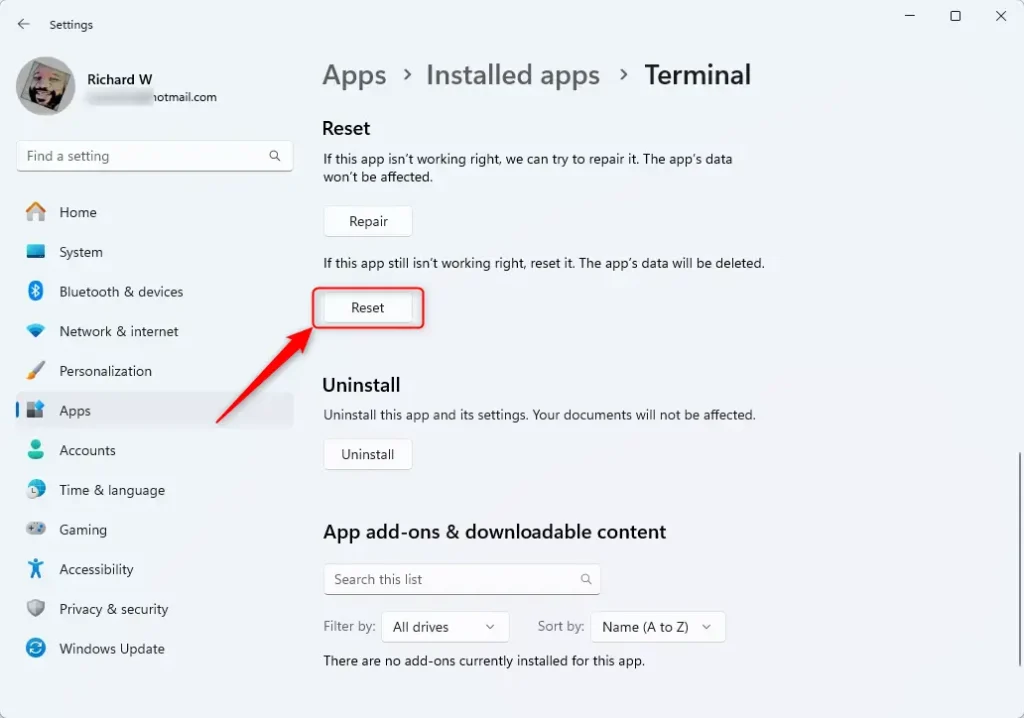
- Scroll down and click Reset.
- Confirm by clicking Reset again when prompted.
- The app will be reset to its default settings. You can now close Settings.
Here are some images to help you:
Option 2: Reset App from the Start Menu
If the app isn’t listed in Settings, you can reset it from the Start menu:
- Open the Start menu.
- Click All apps to see a list of your apps.
- Right-click the app you want to reset (for example, “Microsoft Store”).
- Hover over More, then click App settings.
- Follow the same reset steps as in Option 1.

Option 3: Reset App Using PowerShell (For Advanced Users)
If you’re comfortable using command lines, you can reset apps with PowerShell:
- Open Windows Terminal or PowerShell (search “PowerShell” in Start, then open it).
- Type this command and press Enter to see all installed apps:
Get-AppxPackage | Select Name- Look through the list to find the exact name of the app you want to reset (e.g.,
Microsoft.WindowsStorefor Microsoft Store). - Type the command below, replacing
*AppName*with the actual app name, and press Enter: Get-AppxPackage *AppName* | Reset-AppxPackage- Example for Microsoft Store:
Get-AppxPackage *Microsoft.WindowsStore* | Reset-AppxPackage- Close PowerShell when you’re done.
Option 4: Use Pre-made PowerShell Commands for Popular Apps
Here are commands you can copy and paste into PowerShell to reset common apps quickly:
| App | PowerShell Command |
|---|---|
| Calculator | Get-AppxPackage *Microsoft.WindowsCalculator* | Reset-AppxPackage |
| Microsoft Store | Get-AppxPackage *Microsoft.WindowsStore* | Reset-AppxPackage |
| Photos | Get-AppxPackage *Microsoft.Windows.Photos* | Reset-AppxPackage |
| Settings | Get-AppxPackage *windows.immersivecontrolpanel* | Reset-AppxPackage |
| Snipping Tool | Get-AppxPackage *Microsoft.ScreenSketch* | Reset-AppxPackage |
| Sticky Notes | Get-AppxPackage *Microsoft.MicrosoftStickyNotes* | Reset-AppxPackage |
Summary
- You can reset apps in Windows 11 using Settings, the Start menu, or PowerShell.
- Try Repair first if your app has problems; it won’t erase your data.
- Reset will erase app data and settings, so only use it if repair doesn’t work.
- After resetting, you might need to pin the app back to your taskbar if you had it there.
- PowerShell is a powerful tool if you want to reset apps quickly using commands.
By following these easy steps, you can fix most app problems and get everything working again in Windows 11!
For more help, see the official Microsoft guide on Repair apps and programs in Windows.



Leave a Reply