How to Remove Devices from Your Microsoft Account

Do you use the Microsoft Store to download apps and games on your Windows devices? Sometimes you might get a message saying you can’t download anything new. This happens because Microsoft only lets you connect up to 10 devices to your account. Once you hit this limit, you need to remove some devices before you can add new ones.
The good news? It’s easy to do. This guide will show you exactly how to remove devices from your Microsoft account so you can keep using the Microsoft Store without any problems.
What is the Microsoft Store?
Think of the Microsoft Store as an app shop for your Windows computer or tablet. You can find apps, games, and software there. But here’s the catch: Microsoft limits you to 10 devices connected to your account at one time.
How to Remove a Device from Your Microsoft Account
- Go to the Microsoft Store device page: Open this link in your web browser: https://account.microsoft.com/devices/content
- Sign in to your Microsoft account: Use the email and password you normally use for the Microsoft Store.
- See your list of devices: You will see all the devices linked to your Microsoft Store account.
- Find the device you want to remove: Look for the device in the list and click the Unlink button next to it.
- Confirm the removal: A message will appear asking if you’re sure. Click Unlink again to confirm.
Here is what the device list looks like:
After you click Unlink, you will see a confirmation message:
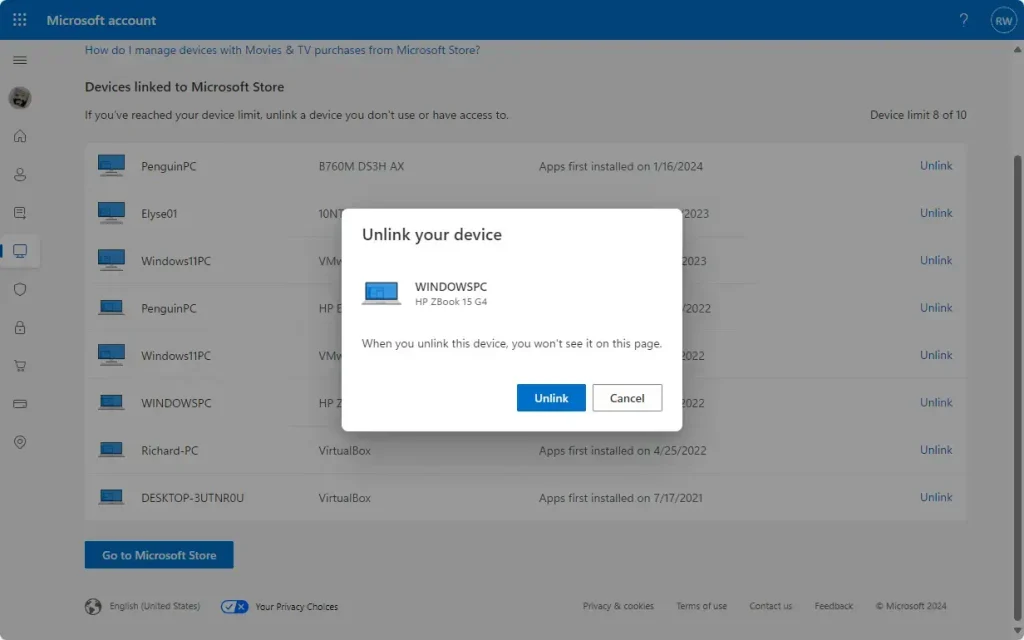
Done! The device is now removed from your account. You can now download apps on your other devices without hitting the 10-device limit.
Why This Matters
- Keeping your device list clean means you can always add new devices to the Microsoft Store.
- Removing old or unused devices frees up space for your current devices to download apps.
- If you ever need to do this again, just follow these simple steps.
Have questions or want to share how this worked for you? Leave a comment below!
Summary
Microsoft limits you to 10 devices on your account. When you reach this limit, you can’t download new apps. To fix this, visit the Microsoft Store device management page, sign in, find the device you want to remove, and click Unlink. Confirm your choice, and that’s it. The device is removed, and you can now add new devices or download apps on your remaining devices.
Was this guide helpful?
No comments yet — be the first to share your thoughts!