How to Open HEIC Files in Windows 11

You can open HEIC files in Windows 11 by installing the HEIF Image Extensions from the Microsoft Store.
HEIC is a high-efficiency image container format, commonly used by Apple devices like iPhones and iPads, which allows for smaller file sizes without sacrificing image quality. Windows 11, unlike macOS, does not natively support viewing these files out-of-the-box, requiring a specific software component.
Installing the HEIF Image Extensions (version 1.0 or later) enables your Windows 11 PC to recognize and display HEIC photos directly within the built-in Photos app.
Once installed, you can simply double-click any HEIC file, and it will open just like any other JPEG or PNG image on your computer.
Install the HEIF Image Extensions from the Microsoft Store. After installation, HEIC files will open automatically in the Photos app. Alternatively, use a third-party viewer by selecting “Open with” and choosing your preferred app.
Using the Microsoft Photos App
This is the easiest way to view your images.
- Open your folder in File Explorer.
- Right-click your HEIC image.
- Select Open with and then click Photos.
You will see a message saying: “The HEVC Extension is required to display this file.” Click the link that says “Download and install it now.”
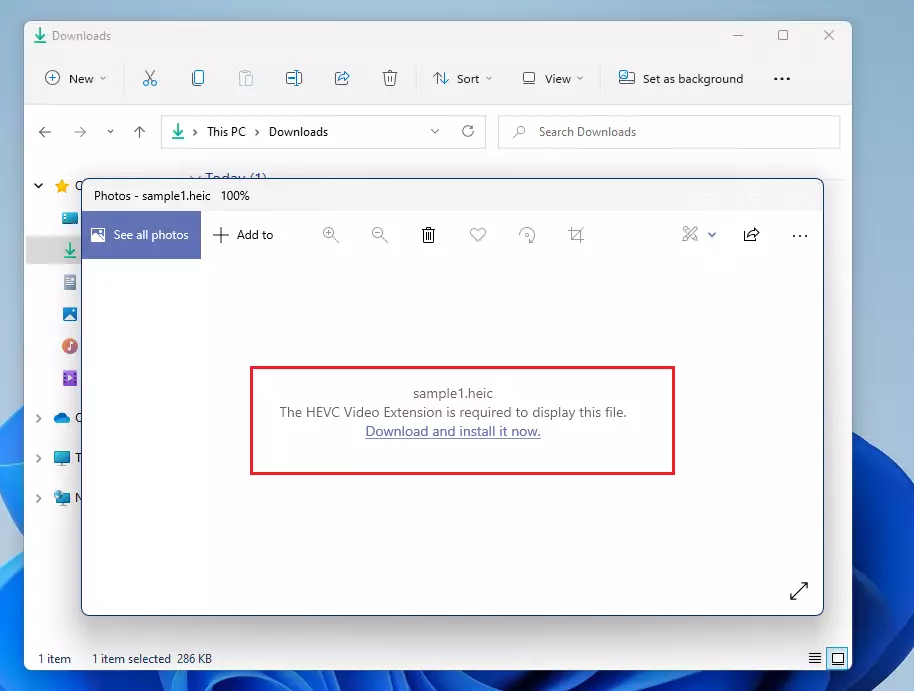
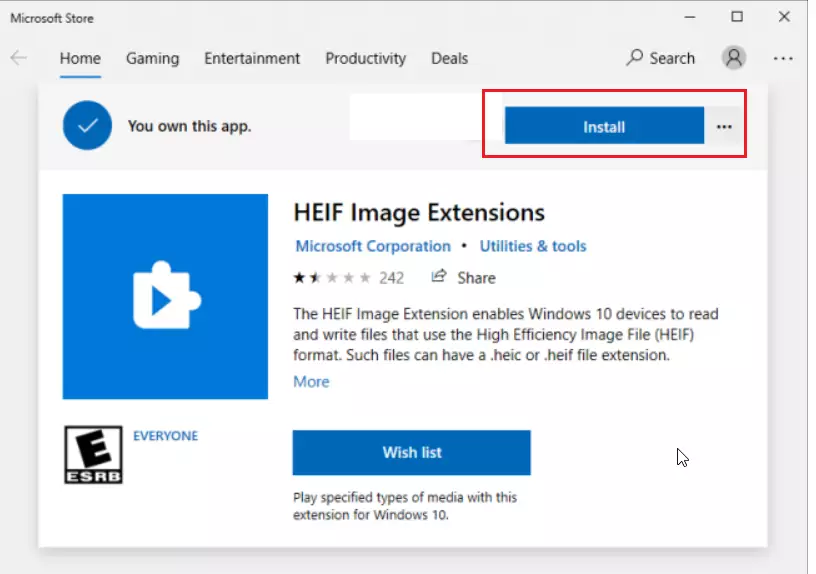
The Microsoft Store will open. Click the Install button to add the extension to your computer. Note: This process may require admin privileges depending on your system settings.
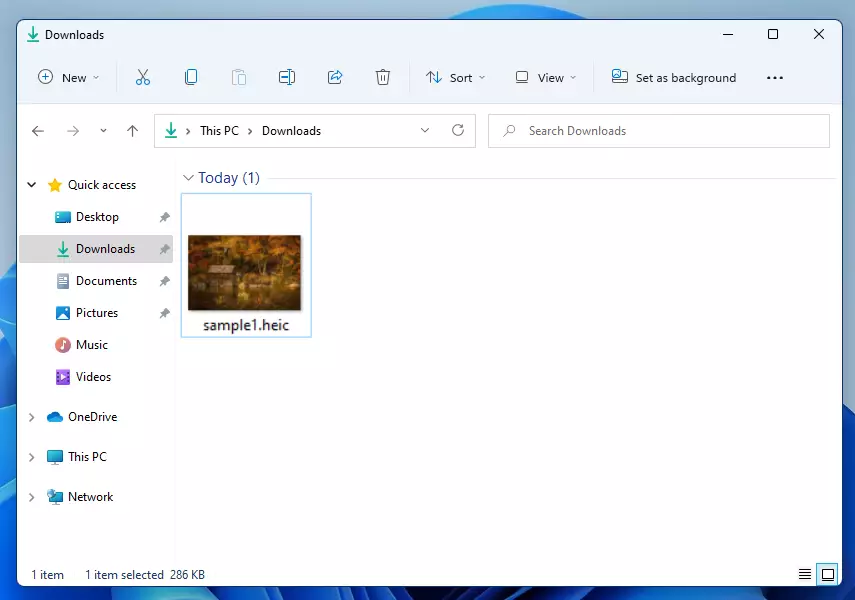
Once the download finishes, your HEIC images will open automatically in the Photos app.
Using a Third-Party App
If you prefer a different app or cannot use the Microsoft Store, you can use a third-party viewer. You can find one at this location: Open HEIC files on Windows (copytrans.net)
- Download and install the app from the link above. Note: This process may require admin privileges.
- Right-click your image file.
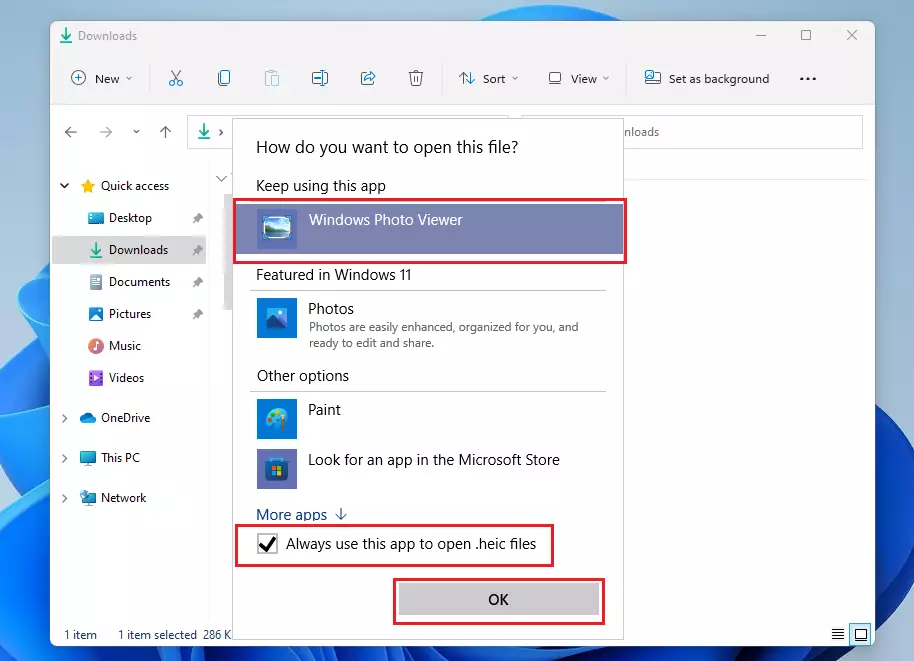
- Select Open with and then Choose another app.

Select your new viewer from the list. Check the box that says “Always use this app to open .heic files” and click OK.
Summary
Windows 11 cannot open Apple HEIC files out of the box. You can solve this by downloading the HEVC Extension through the Microsoft Store or by installing a third-party photo viewer. Both methods allow your computer to recognize and display your mobile photos easily.
Was this guide helpful?

About the Author
Richard
Tech Writer, IT Professional
Richard, a writer for Geek Rewind, is a tech enthusiast who loves breaking down complex IT topics into simple, easy-to-understand ideas. With years of hands-on experience in system administration and enterprise IT operations, he’s developed a knack for offering practical tips and solutions. Richard aims to make technology more accessible and actionable. He's deeply committed to the Geek Rewind community, always ready to answer questions and engage in discussions.




[…] can install High-Efficiency Image Format (HEIF) support from the Microsoft Store. This image format is also becoming popular. iPhones now take […]