How to Install ownCloud with WSL on Windows 11

You install ownCloud on Windows 11 using the Windows Subsystem for Linux (WSL) by setting up a Linux distribution within Windows itself.
ownCloud is your personal, self-hosted cloud storage solution, giving you control over your data without relying on third-party providers.
This approach bypasses the need for a separate virtual machine or dual-booting, leveraging WSL, which first launched in 2017, to run Linux applications natively.
Using WSL2, the current iteration, you gain enhanced performance and compatibility directly on your Windows 11 machine. This tutorial guides you through enabling WSL and then installing ownCloud.
Install ownCloud on Windows 11 by first enabling WSL through Command Prompt with “wsl –install” and restarting. Then, install a Linux distribution like Ubuntu using “wsl –install -d ubuntu-20.04”. Finally, set up Apache and ownCloud within the Linux environment.
Install Windows Subsystem for Linux in 🪟 Windows 11
Installing the Windows Subsystem for Linux (WSL) on Windows 11 lets you run Linux environments directly on your PC. You’ll start by opening the Command Prompt as an administrator to run the necessary installation commands.
Next, right-click the Command Prompt app and choose to Run as administrator.
When the console opens, run the commands below to install Windows Subsystem for Linux (WSL):
wsl --install
Wait for WSL to be installed.
After installing, you should get a success message similar to the lines below:
Installing: Virtual Machine Platform
Virtual Machine Platform has been installed.
Installing: Windows Subsystem for Linux
Windows Subsystem for Linux has been installed.
Downloading: WSL Kernel
Installing: WSL Kernel
WSL Kernel has been installed.
Downloading: GUI App Support
Installing: GUI App Support
GUI App Support has been installed.
Downloading: Ubuntu
The requested operation is successful. Changes will not be effective until the system is rebooted.
Restart your computer.
WSL should be installed and ready to use. When you want to update, simply run the commands below:
wsl --update
Install Specific Linux distro on 🪟 Windows 11
After installing WSL, you can choose and install a specific Linux distribution like Ubuntu or Debian. To see which Linux distros are available for your WSL setup, you can run a simple command in your Command Prompt.
wsl --list --online
You should then see all available distributions that can be installed on WSL.
NAME            FRIENDLY NAME
Ubuntu          Ubuntu
Debian          Debian GNU/Linux
kali-linux      Kali Linux Rolling
openSUSE-42     openSUSE Leap 42
SLES-12         SUSE Linux Enterprise Server v12
Ubuntu-16.04    Ubuntu 16.04 LTS
Ubuntu-18.04    Ubuntu 18.04 LTS
Ubuntu-20.04    Ubuntu 20.04 LTS
To install a Linux distribution from the list above, simply run the commands below using the distribution name. For example, to install Ubuntu 20.04, run the commands below:
wsl --install -d ubuntu-20.04You should then get a message that the distribution is installed.
Downloading: Ubuntu 20.04 LTS
Installing: Ubuntu 20.04 LTS
Ubuntu 20.04 LTS has been installed.
Launching Ubuntu 20.04 LTS.
After installing, you should get a Ubuntu command console with setup details.
Installing, this may take a few minutes.
Please create a default UNIX user account. The username does not need to match your Windows username.
For more information visit: https://aka.ms/wslusers
Enter new UNIX username: Richard
New password:
Retype new password:
passwd: password updated successfully
Installation successful!
To run a command as administrator (user "root"), use "sudo <command>".
See "man sudo_root" for details.

Welcome to Ubuntu 20.04 LTS (GNU/Linux 4.4.0-22000-Microsoft x86_64)
Some troubleshooting commands to run when you run into issues.
wsl --set-default-version 1
bcdedit /set hypervisorlaunchtype auto start
Install Apache HTTP Server
Apache is a very popular web server that ownCloud needs to work. To install Apache on your Ubuntu system within WSL, you’ll use a couple of simple commands in the terminal.
To install Apache on Ubuntu, run the commands below:
sudo apt update
sudo apt install apache2
After installing Apache2, the commands below can be used to stop, start and restart Apache2 services.
sudo service apache2 stop
sudo service apache2 start
sudo service apache2 restart
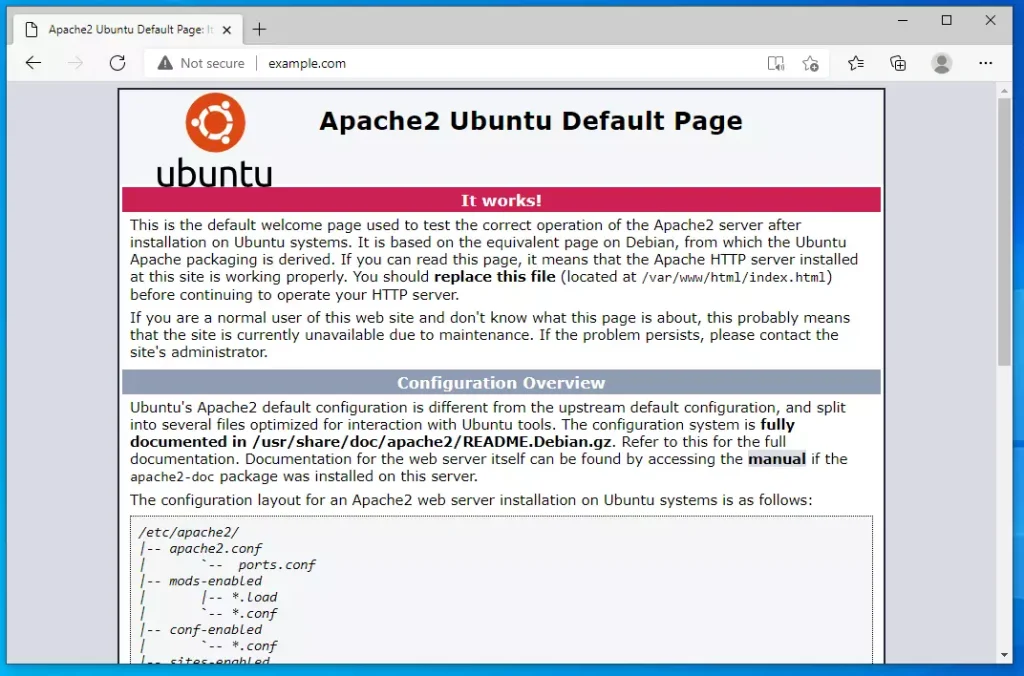
To validate that Apache is installed and functioning, open your web browser and browse to the server’s hostname or IP address.
You should get a test page if every work.
http://localhost
Install MariaDB Database Server
ownCloud requires a database to store its data, and MariaDB is a fast and secure choice. Installing MariaDB on your Ubuntu system is straightforward using the apt package manager and a simple command.
MariaDB is a truly open-source database server you can run with your projects. It is fast, secure, and the default server for almost all Linux.
To install MariaDB, run the commands below:
sudo apt-get install mariadb-server mariadb-client
After installing MariaDB, the commands below can be used to stop, start and restart MariaDB services.
sudo service mysql stop
sudo service mysql start
sudo service mysql restart
Next, run the commands below to secure the database server with a root password if you were not prompted to do so during the installation.
sudo mysql_secure_installation
When prompted, answer the questions below by following the guide.
- Enter current password for root (enter for none): Press the Enter
- Set root password? [Y/n]: Y
- New password: Enter password
- Re-enter new password: Repeat password
- Remove anonymous users? [Y/n]: Y
- Disallow root login remotely? [Y/n]: Y
- Remove test database and access to it? [Y/n]: Y
- Reload privilege tables now? [Y/n]: Y
To verify and validate that MariaDB is installed and working, log in to the database console using the commands below:
sudo mysql -u root -p
Type the root password when prompted.
Welcome to the MariaDB monitor.  Commands end with ; or g.
Your MariaDB connection id is 46
Server version: 10.3.29-MariaDB-0ubuntu0.20.04.1 Ubuntu 20.04
Copyright (c) 2000, 2018, Oracle, MariaDB Corporation Ab and others.
Type 'help;' or 'h' for help. Type 'c' to clear the current input statement.
MariaDB [(none)]>
The server was successfully installed if you see a similar screen.
PHP and Related Modules
PHP is the programming language that ownCloud is built with, so you need to install it along with several essential modules. These modules help ownCloud communicate with other services and function correctly on your server.
To install PHP and recommended modules, run the commands below.
sudo apt install php libapache2-mod-php php-imagick php-imap php-json php-ldap php-common php-pgsql php-ssh2 php-sqlite3 php-xml php-mysql php-gmp php-curl php-intl php7.4-mbstring php-xmlrpc php-gd php-xml php-cli php-zip
That should get PHP installed with recommended PHP modules that you can run with many PHP-based applications.
To validate that PHP is installed, run the commands below:
php -v
You should see an output like the one below:
PHP 7.4.3 (cli) (built: Oct  6 2020 15:47:56) ( NTS )
Copyright (c) The PHP Group
Zend Engine v3.4.0, Copyright (c) Zend Technologies
with Zend OPcache v7.4.3, Copyright (c), by Zend Technologies
You can also test with a test PHP script that displays the installed version and related modules that are enabled or disabled.
To do that, run the commands below to create a PHP test file called phpinfo.php
sudo nano /var/www/html/phpinfo.php
Then type the content below and save the file.
<?php phpinfo( ); ?>
Save the file.
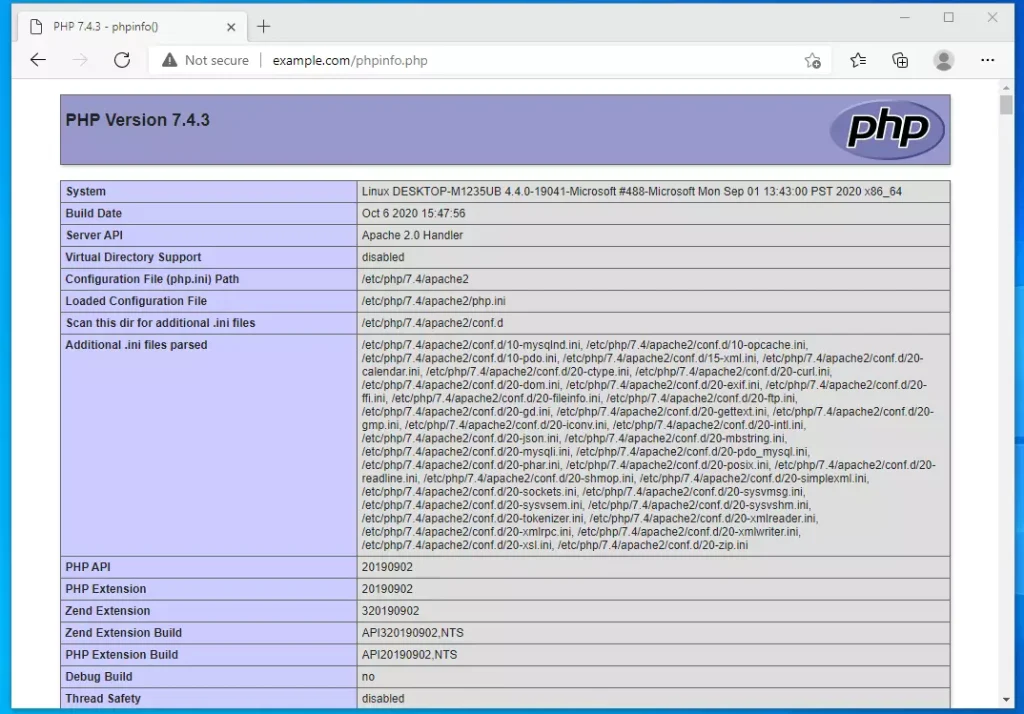
Open your browser and browse to your server hostname followed by phpinfo.php
Restart Apache, then type the address and browse the file.
http://example.com/phpinfo.php
You should see the PHP default test page.
At this stage, all required components that ownCloud needs are installed above. Continue below to download and configure ownCloud settings.
Create ownCloud Database
Before installing ownCloud itself, you need to create a dedicated database for it within MariaDB. You’ll log into the MariaDB server using a command and then create a new, blank database named ‘owncloud’.
To log on to the MariaDB database server, run the commands below.
sudo mysql -u root -p
Then create a database called owncloud
CREATE DATABASE owncloud;Create a database user called ownclouduser with a new password
CREATE USER 'ownclouduser'@'localhost' IDENTIFIED BY 'new_password_here';
Then grant the user full access to the Database.
GRANT ALL ON owncloud.* TO 'ownclouduser'@'localhost' WITH GRANT OPTION;
Finally, save your changes and exit.
FLUSH PRIVILEGES;
EXIT;
Download ownCloud
Now it’s time to download the latest stable version of ownCloud to your server. You can check the official ownCloud download page for the newest release, and then use a command to download the files directly to a temporary location.
When writing this article, the latest stable version of ownCloud is version 10.7. Before continuing with the next step, visit the ownCloud download page and check if a new version of ownCloud is available.
wget https://download.owncloud.org/community/owncloud-complete-20210326.zip -P /tmp
sudo unzip /tmp/owncloud-complete-20210326.zip  -d /var/www
Then run the commands below to set the correct permissions for OwnCloud to function.
sudo chown -R www-data:www-data /var/www/owncloud/
sudo chmod -R 755 /var/www/owncloud/
Configure ownCloud Site
The final step is to configure Apache to serve your ownCloud installation correctly. You’ll create a new configuration file for ownCloud and add specific settings that tell Apache how to handle requests for your cloud service.
sudo nano /etc/apache2/sites-available/owncloud.conf
Then copy and paste the content below into the file and save it. Replace the highlighted line with your domain name and directory root location.
<VirtualHost *:80>
     ServerAdmin admin@example.com
     DocumentRoot /var/www/owncloud/
     ServerName example.com
     ServerAlias www.example.com

     Alias /owncloud "/var/www/owncloud/"

     <Directory /var/www/owncloud/>
        Options +FollowSymlinks
        AllowOverride All
        Require all granted
          <IfModule mod_dav.c>
            Dav off
          </IfModule>
        SetEnv HOME /var/www/owncloud
        SetEnv HTTP_HOME /var/www/owncloud
     </Directory>

     ErrorLog ${APACHE_LOG_DIR}/error.log
     CustomLog ${APACHE_LOG_DIR}/access.log combined

</VirtualHost>
Save the file and exit.
After configuring the VirtualHost above, please enable it by running the commands below, including other modules.
sudo a2ensite owncloud.conf
sudo a2enmod rewrite
sudo a2enmod headers
sudo a2enmod env
sudo a2enmod dir
sudo a2enmod mime
When you’re done, restart Apache.
sudo service apache2 restart
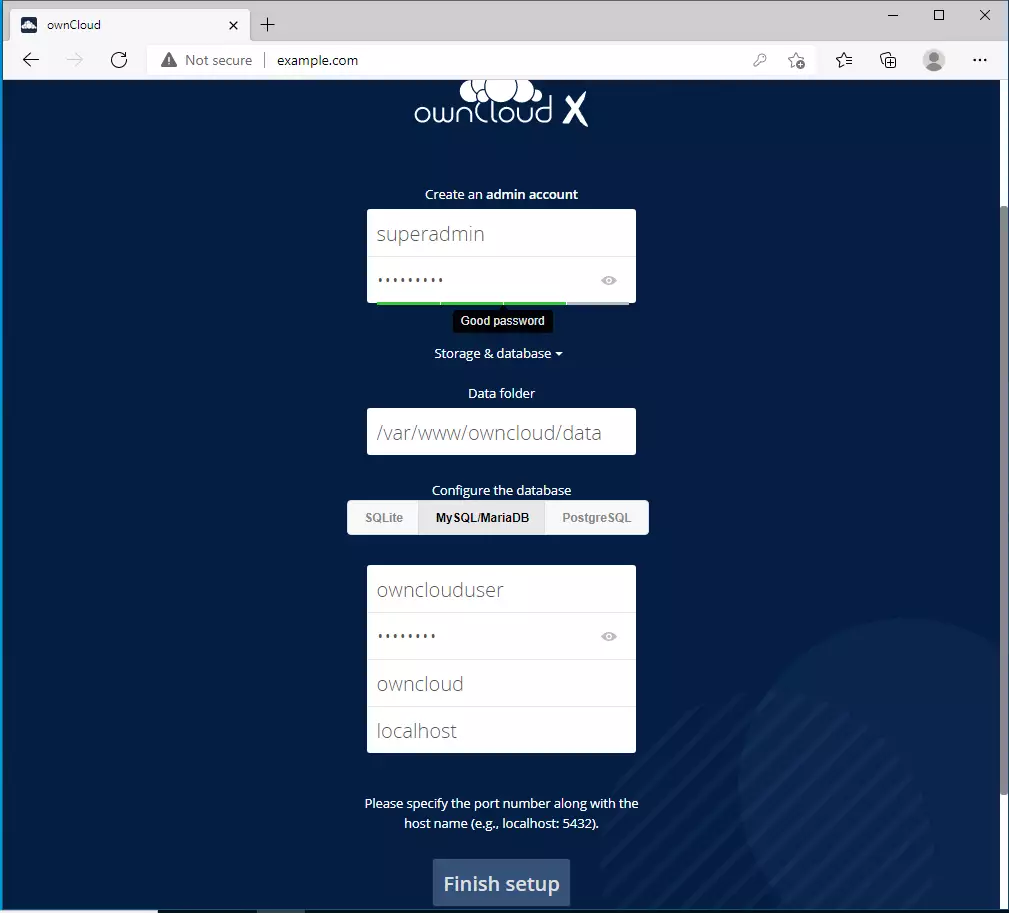
Now browse the server hostname or IP address and set up the ownCloud platform.
http://example.com
Create an admin account, enter the database details, and finish the installation.
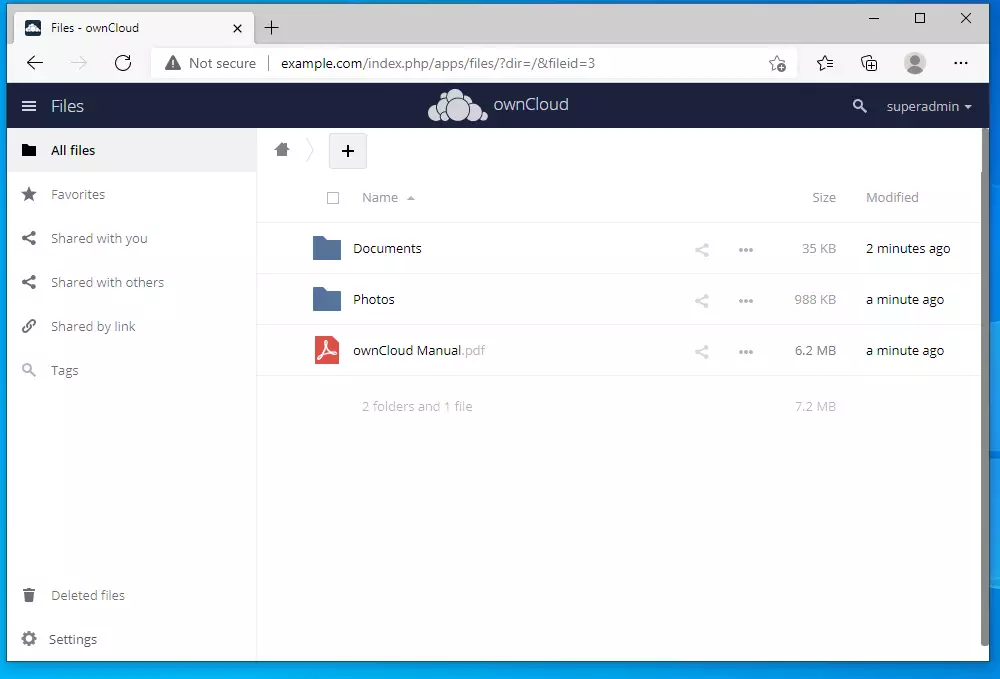
Log in with the account you create above and start building your environment.
Conclusion:
This post showed you how to install ownCloud in Windows 11 WSL. If you find any error above, please use the comment form below to report.
Was this guide helpful?

About the Author
Richard
Tech Writer, IT Professional
Richard, a writer for Geek Rewind, is a tech enthusiast who loves breaking down complex IT topics into simple, easy-to-understand ideas. With years of hands-on experience in system administration and enterprise IT operations, he’s developed a knack for offering practical tips and solutions. Richard aims to make technology more accessible and actionable. He's deeply committed to the Geek Rewind community, always ready to answer questions and engage in discussions.



so far I have completed all the steps but when it comes to the last step to begin setting up ownCloud platform, my browser shows my ip-address refused to connect, please help me solve this issue.
did you ever solve this? i am having the same issue
I have installed as for as the mariadb, but if I try run or stop I get mysql: unrecognized service