

This guide shows you how to install ownCloud with Apache on Windows 10 WSL (Windows Subsystem for Linux) 2 using Ubuntu. It’s perfect for beginners and students.
What is ownCloud? It’s a free, open-source file storage and sharing platform. Think of it like Dropbox, OneDrive, or Google Drive. But instead of storing your files on someone else’s server, you control everything on your own computer.
Why use ownCloud on Windows WSL? WSL lets you run Linux inside Windows without needing a separate computer. You get a complete Linux operating system running right on your Windows machine. WSL 2 is even faster and works better than the first version.
What you’ll need: A Windows 10 machine with enough space for Ubuntu and ownCloud.
Step 1: Turn On WSL in Windows
Why this step matters: You need to enable WSL before you can use Linux on Windows.
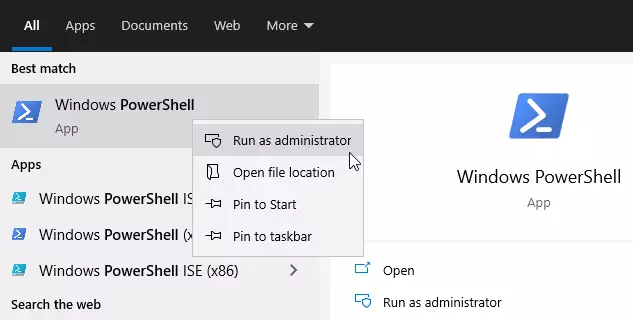
First, open PowerShell as an administrator. Click the Start button and type “PowerShell.”
Right-click on “Windows PowerShell” and choose “Run as administrator.”
Copy and paste this command into PowerShell:
dism.exe /online /enable-feature /featurename:Microsoft-Windows-Subsystem-Linux /all /norestart
What happens: Windows will enable WSL. You should see a message saying “The operation completed successfully.”
Step 2: Enable Virtual Machine Platform
Why this step matters: WSL 2 needs this feature to run properly.
Keep PowerShell open and run this command:
dism.exe /online /enable-feature /featurename:VirtualMachinePlatform /all /norestart
Note: If you’re using an older version of Windows 10 (before version 2004), use this command instead:
Enable-WindowsOptionalFeature -Online -FeatureName VirtualMachinePlatform -NoRestart
What happens next: After running the command, restart your computer. This is important or the next step won’t work.
After your computer restarts, open PowerShell as administrator again and run this command:
wsl --set-default-version 2
What this does: It sets WSL 2 as your default version.
Step 3: Install Ubuntu on Windows
Why this step matters: Ubuntu is the Linux system you’ll run inside Windows.
Open this link to download Ubuntu from the Windows Store:
Get Ubuntu 20.04 LTS – Microsoft Store
What is Ubuntu? It’s a free Linux operating system. Ubuntu 20.04 LTS gives you access to the Linux terminal and tools like bash, ssh, and git.
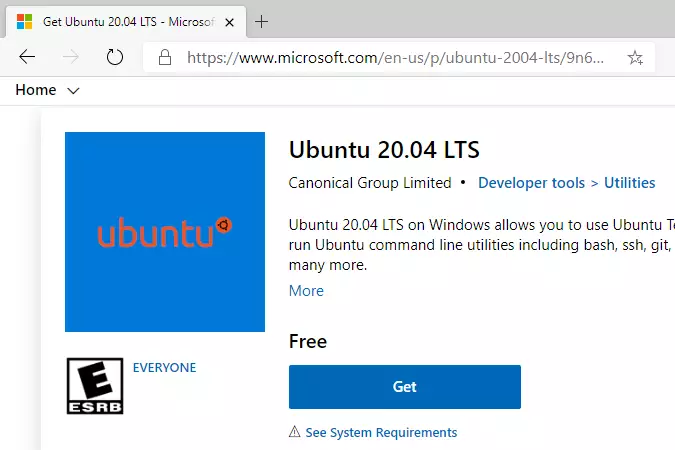
Click “Get” to install it. Once installed, launch Ubuntu.
What happens: Ubuntu will ask you to create a username and password. This is your Linux account (it doesn’t have to match your Windows username).
Example:
Enter new UNIX username: user

New password: (type your password)

Retype new password: (type it again)

passwd: password updated successfully
If you run into problems: Try these troubleshooting commands:
wsl --set-default-version 1

bcdedit /set hypervisorlaunchtype auto start
Step 4: Install Apache Web Server
Why Apache? ownCloud needs a web server to run. Apache is the most popular one used by websites around the world.
In your Ubuntu terminal, run these commands:
sudo apt update

sudo apt install apache2
Flag: These commands require admin privileges (that’s what sudo means).
Useful Apache commands:
sudo service apache2 stop (stops Apache)
sudo service apache2 start (starts Apache)
sudo service apache2 restart (restarts Apache)
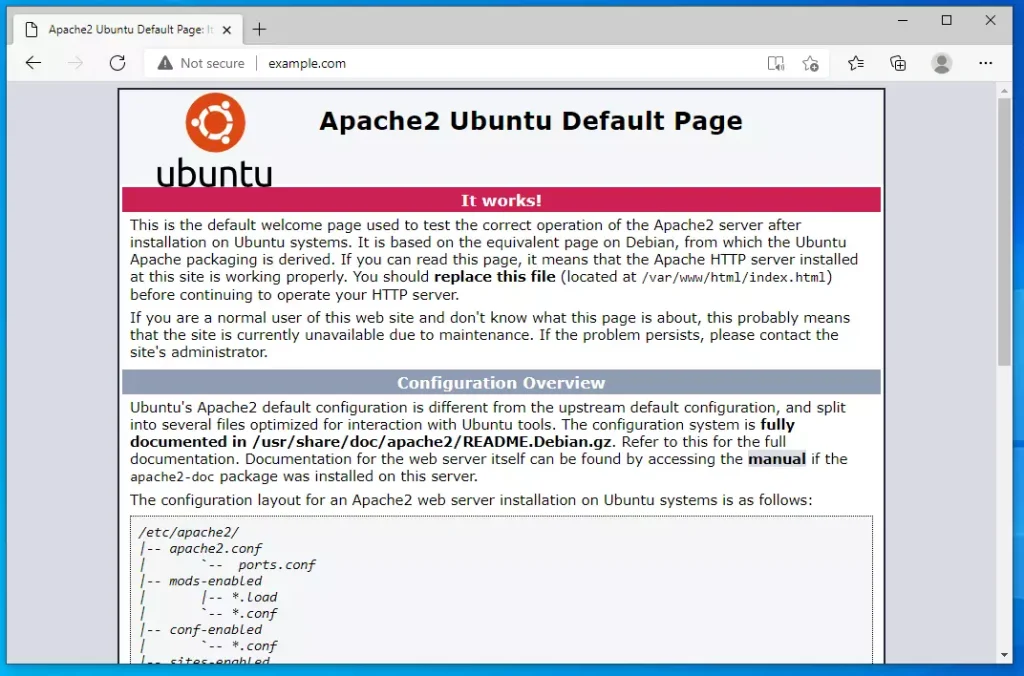
Test if Apache works: Open your web browser and go to:
http://localhost
What you should see: The Apache test page appears. This means Apache is working.
Step 5: Install MariaDB Database
Why MariaDB? ownCloud stores all your files and settings in a database. MariaDB is a free, fast database that works great with Linux.
Run these commands:
sudo apt-get install mariadb-server mariadb-client
Flag: This command requires admin privileges.
Useful MariaDB commands:
sudo service mysql stop (stops the database)
sudo service mysql start (starts the database)
sudo service mysql restart (restarts the database)
Secure your database: Now protect your database with a password by running:
sudo mysql_secure_installation
Flag: This command requires admin privileges.
Answer the questions like this:
Enter current password for root (press Enter): (just press Enter)

Set root password? [Y/n]: Y

New password: (type a strong password)

Re-enter new password: (type it again)

Remove anonymous users? [Y/n]: Y

Disallow root login remotely? [Y/n]: Y

Remove test database and access to it? [Y/n]: Y

Reload privilege tables now? [Y/n]: Y
Test MariaDB: Log in to see if it works:
sudo mysql -u root -p
Type your root password when asked. You should see the MariaDB prompt if everything works.
Type EXIT; to exit.
Step 6: Install PHP
Why PHP? PHP is the programming language that makes ownCloud work. It connects all the pieces together.
Run this command to install PHP and all the extra parts ownCloud needs:
sudo apt install php libapache2-mod-php php-imagick php-imap php-json php-ldap php-common php-pgsql php-ssh2 php-sqlite3 php-xml php-mysql php-gmp php-curl php-intl php7.4-mbstring php-xmlrpc php-gd php-xml php-cli php-zip
Flag: This command requires admin privileges.
Check if PHP installed correctly: Run this command:
php -v
What you should see: The PHP version number and details. If you see this, PHP is working.
Test PHP with a test page: Create a test file:
sudo nano /var/www/html/phpinfo.php
Copy and paste this into the file:
<?php phpinfo( ); ?>
Save the file by pressing Ctrl+X, then Y, then Enter.
Now restart Apache:
sudo service apache2 restart
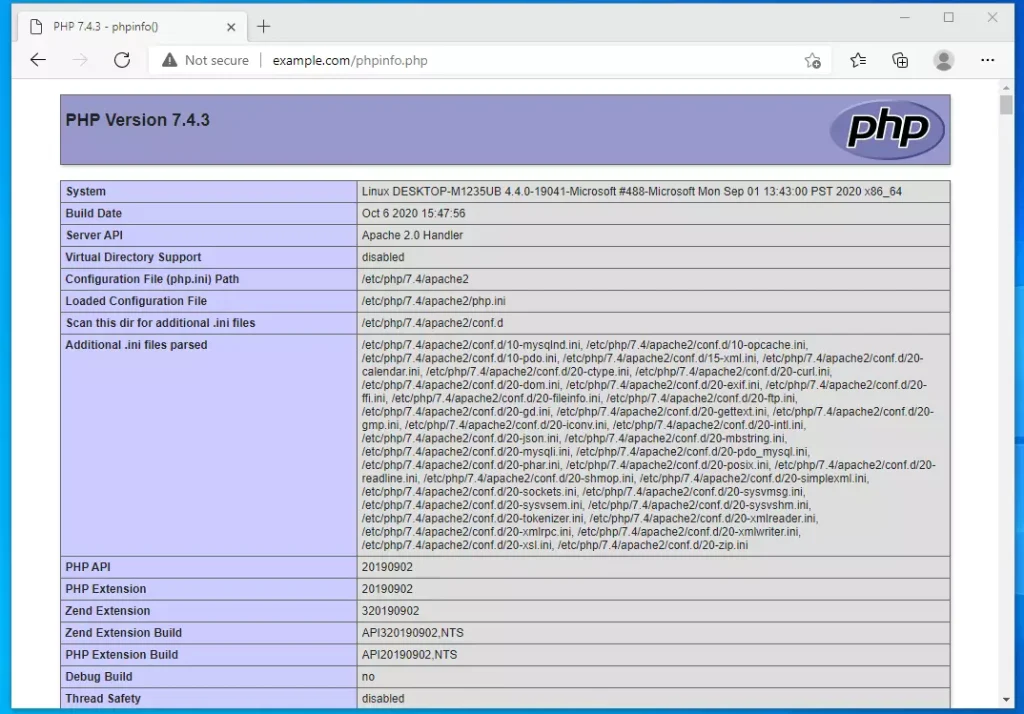
Open your browser and go to:
http://localhost/phpinfo.php
What you should see: A page showing all your PHP information and installed modules.
Step 7: Create the ownCloud Database
What this does: This sets up a place for ownCloud to store your files and settings.
Log into MariaDB:
sudo mysql -u root -p
Type your root password.
Create a new database for ownCloud:
CREATE DATABASE owncloud;
Create a user for ownCloud (replace “new_password_here” with a real password):
CREATE USER 'ownclouduser'@'localhost' IDENTIFIED BY 'new_password_here';
Give this user permission to use the ownCloud database:
GRANT ALL ON owncloud.* TO 'ownclouduser'@'localhost' WITH GRANT OPTION;
Save and exit:
FLUSH PRIVILEGES;

EXIT;
Step 8: Download ownCloud
What this does: This gets the ownCloud software and puts it on your computer.
First, check ownCloud download page to see if there’s a newer version than the one used in this guide.
Download ownCloud:
wget https://download.owncloud.org/community/owncloud-complete-20210326.zip -P /tmp

sudo unzip /tmp/owncloud-complete-20210326.zip -d /var/www
Flag: These commands require admin privileges.
Set the correct permissions so ownCloud can work properly:
sudo chown -R www-data:www-data /var/www/owncloud/

sudo chmod -R 755 /var/www/owncloud/
Flag: These commands require admin privileges.
Step 9: Configure Apache for ownCloud
What this does: This tells Apache how to run ownCloud and where to find it.
Create a new configuration file:
sudo nano /etc/apache2/sites-available/owncloud.conf
Flag: This command requires admin privileges.
Copy and paste this into the file. Replace “example.com” with your real domain name or IP address:
<VirtualHost *:80>

ServerAdmin [email protected]

DocumentRoot /var/www/owncloud/

ServerName example.com

ServerAlias www.example.com
Alias /owncloud "/var/www/owncloud/"
<Directory /var/www/owncloud/>
Options +FollowSymlinks
AllowOverride All
Require all granted
<IfModule mod_dav.c>
Dav off
</IfModule>
SetEnv HOME /var/www/owncloud
SetEnv HTTP_HOME /var/www/owncloud
</Directory>
ErrorLog ${APACHE_LOG_DIR}/error.log
CustomLog ${APACHE_LOG_DIR}/access.log combined
</VirtualHost>
Save the file.
Enable ownCloud and required Apache features:
sudo a2ensite owncloud.conf

sudo a2enmod rewrite

sudo a2enmod headers

sudo a2enmod env

sudo a2enmod dir

sudo a2enmod mime
Flag: These commands require admin privileges.
Restart Apache to apply the changes:
sudo service apache2 restart
Step 10: Finish Setting Up ownCloud
What happens: Now you can access ownCloud and create your first account.
Open your web browser and go to (replace with your IP or domain):
http://example.com
What you’ll see: The ownCloud setup page.
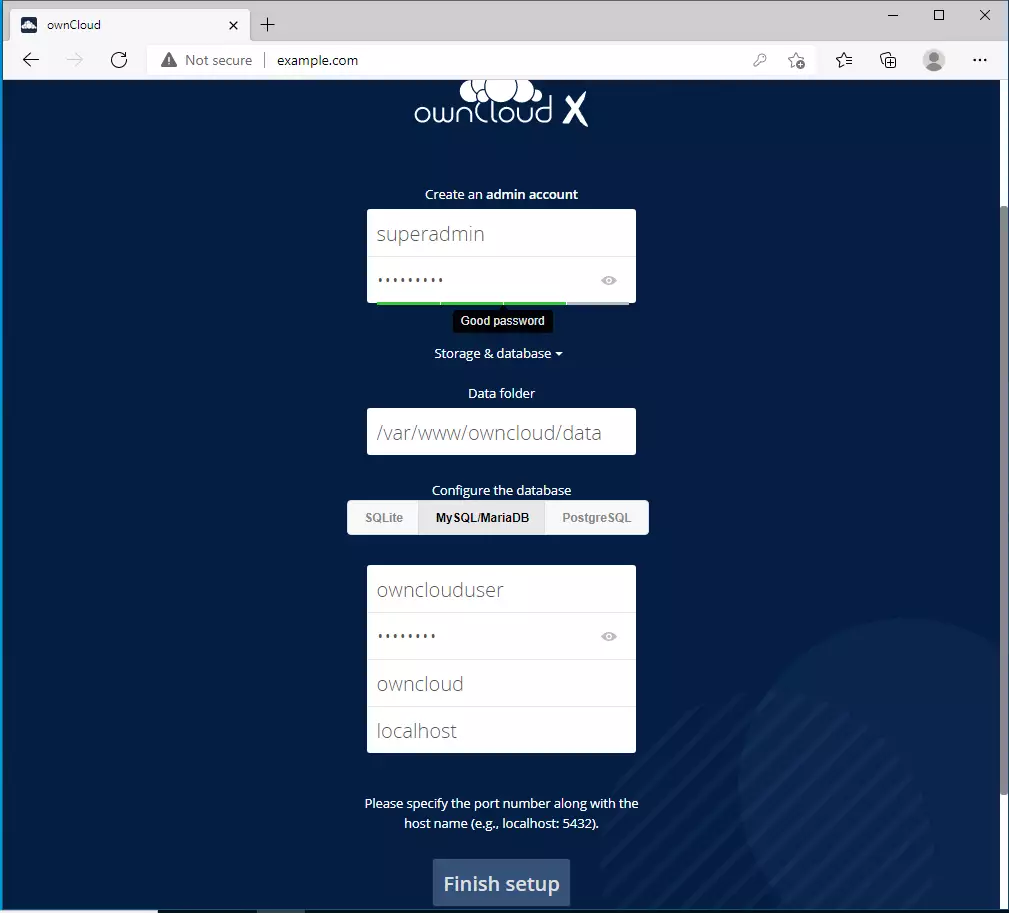
What to do:
- Create an admin username and password
- Enter the database details (username: ownclouduser, password: the one you created earlier, database name: owncloud)
- Click “Finish Setup”
Log in with your admin account and start using your cloud!
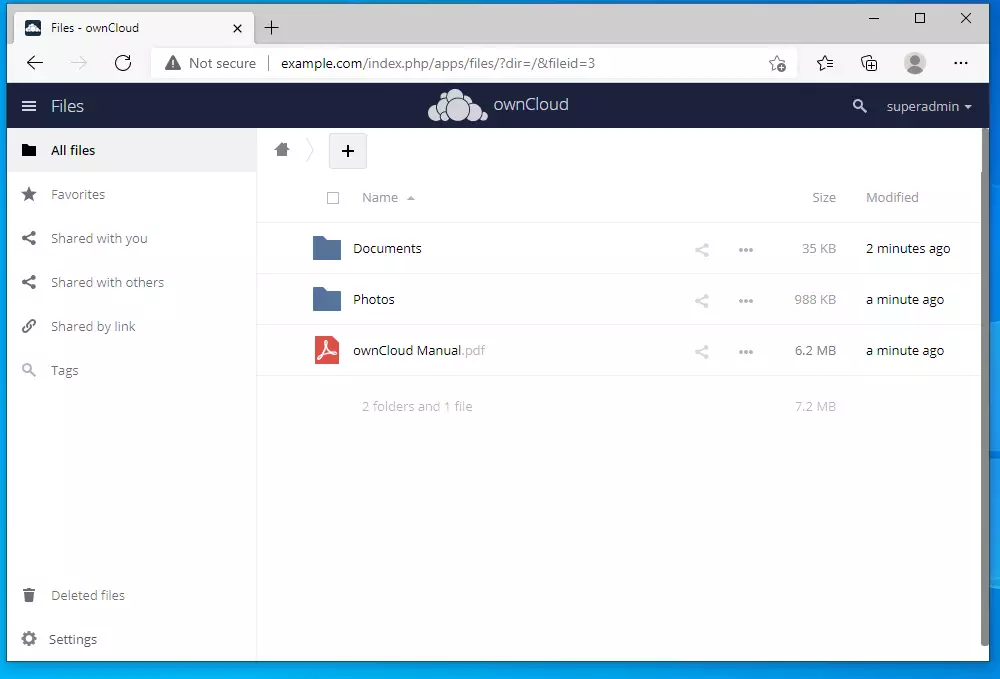
Summary
What you’ve done: You’ve installed a complete file storage system called ownCloud on your Windows computer using Linux (WSL). Here’s what you set up:
- WSL 2 — a Linux system that runs inside Windows
- Ubuntu — a version of Linux
- Apache — the web server that delivers ownCloud to your browser
- MariaDB — the database that stores your files and settings
- PHP — the programming language that makes ownCloud work
- ownCloud — your personal cloud storage system
Why this matters: Now you control your own cloud storage. Your files stay on your computer, not on someone else’s servers. You can access your files from any computer on your network.
Troubleshooting: If something doesn’t work, check that all the steps were completed in order. Make sure you ran all commands with admin privileges (sudo). If you still have problems, use the comment form below.



Leave a Reply