
Microsoft Edge Game Assist lets you access browser features without leaving your game in Windows 11.
It’s a browser overlay designed to provide quick access to content like game guides or chat directly within your gaming session. This feature integrates with the Windows Game Bar, appearing on top of your running applications.
Originally launched as a dedicated gaming mode within Microsoft Edge, Game Assist aims to minimize distractions. You can access its full functionality directly through the Windows 11 Game Bar interface.
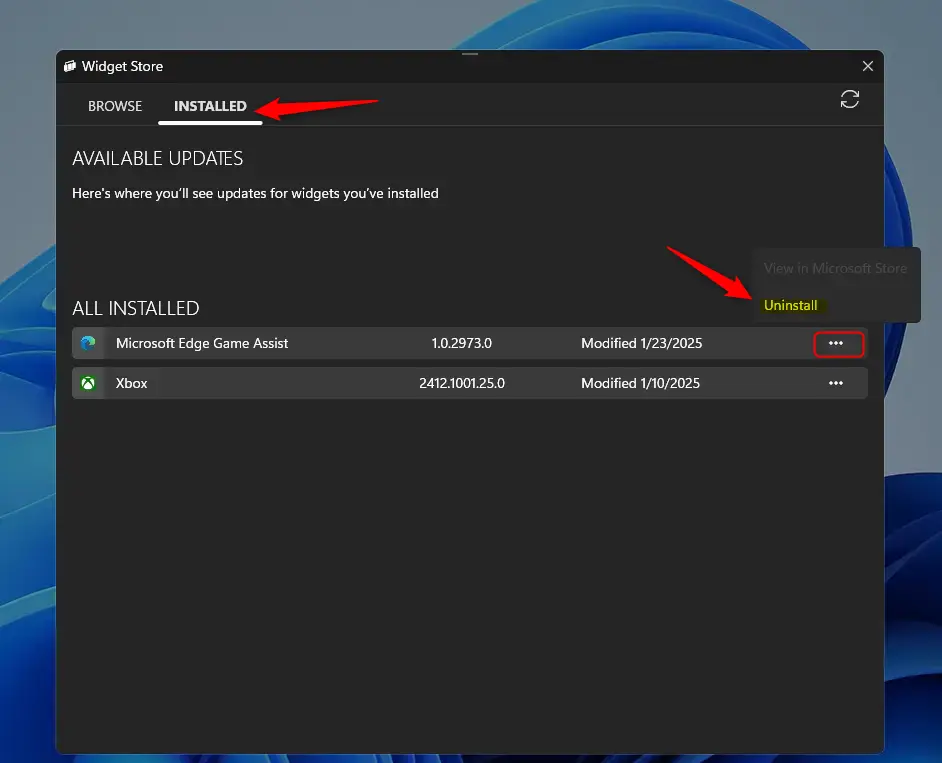
Open the Game Bar with Windows key + G. Click the Widget Menu, select Widget Store, then the Installed tab. Find Microsoft Edge Game Assist, click the three dots, and choose Uninstall.
Managing Game Assist
Managing Game Assist has changed. Since 2026, you no longer need to use browser settings to add this feature. All Game Bar functionality is now managed directly through the Microsoft Store or the Game Bar Widget Store.
Uninstall “Microsoft Edge Game Assist” Widget
If you don’t need the Microsoft Edge Game Assist widget anymore, you can easily remove it from your Windows Game Bar. Just open the Game Bar, click the Widget Menu, and then go to the Widget Store to find and uninstall the app.
- Open the Game Bar by pressing the Windows key + G on your keyboard.
- Click the Widget Menu icon located on the top navigation bar.
- Select Widget Store from the dropdown list.
- In the Widget Store window, click the Installed tab.
- Find Microsoft Edge Game Assist in your list of apps.
- Click the More options (three dots) button next to the widget.
- Select Uninstall to remove it.
When prompted, click Yes to confirm. Your Game Bar overlay will immediately remove the widget.
Conclusion
The Microsoft Edge Game Assist widget is a helpful tool that lets you access your browser while you’re playing games. You can manage all your widgets, including uninstalling this one, right from the Game Bar’s Widget Store.
- Centralized Management: All widgets are now handled through the dedicated Widget Store within the Game Bar.
- Seamless Removal: You can quickly clean up your overlay by uninstalling unused widgets via the Widget Store settings.
- Gaming Optimization: The tool remains a great way to access web-based guides and social features without exiting your game.
Is it okay to uninstall game Assist?
The Game Assist widget is quite small, but if you want to uninstall it, you can do so from the Apps page in Windows Settings. You can reinstall Game Assist at any time by going to the Settings and more (…) in Microsoft Edge and searching for Game Assist.
Was this guide helpful?

About the Author
Richard
Tech Writer, IT Professional
Richard, a writer for Geek Rewind, is a tech enthusiast who loves breaking down complex IT topics into simple, easy-to-understand ideas. With years of hands-on experience in system administration and enterprise IT operations, he’s developed a knack for offering practical tips and solutions. Richard aims to make technology more accessible and actionable. He's deeply committed to the Geek Rewind community, always ready to answer questions and engage in discussions.

No comments yet — be the first to share your thoughts!