How to Install Display Languages in Ubuntu Linux

You install display languages in Ubuntu Linux by adding new language packs through the GNOME Settings application.
A display language determines the primary language your Ubuntu desktop environment and installed applications use. Ubuntu 23.10, for instance, offers comprehensive support for over 100 different languages.
Typically, your Ubuntu system is set up with English and the language you chose during installation. You have the flexibility to add more languages, allowing you to switch between them whenever you need.
If the language you want isn’t available by default, you must download and install its corresponding language pack first.
Open Settings, navigate to Region & Language, and click Manage Installed Languages. Select Install/Remove Languages, check the desired languages, and click Apply. Log out and back in for the changes to take effect.
How to add display language in Ubuntu Linux
Adding a new display language in Ubuntu Linux is simple and lets you change the language of menus, messages, and applications.
Here’s how to add more display languages in Ubuntu Linux:
Ubuntu Linux keeps most of its settings in one place. You can manage everything from system configurations to user accounts and updates right within the System Settings panel.
To find it, open the Activities overview and start typing ‘Settings’.
You can also click the System menu in the top-right corner of your desktop’s top bar.
On the System menu, select Settings, as highlighted below.

In the Settings app, click on the Region & Language tile.
Select the Manage Installed Languages button. This opens Language Support within the System Settings -> Region & Language settings pane.
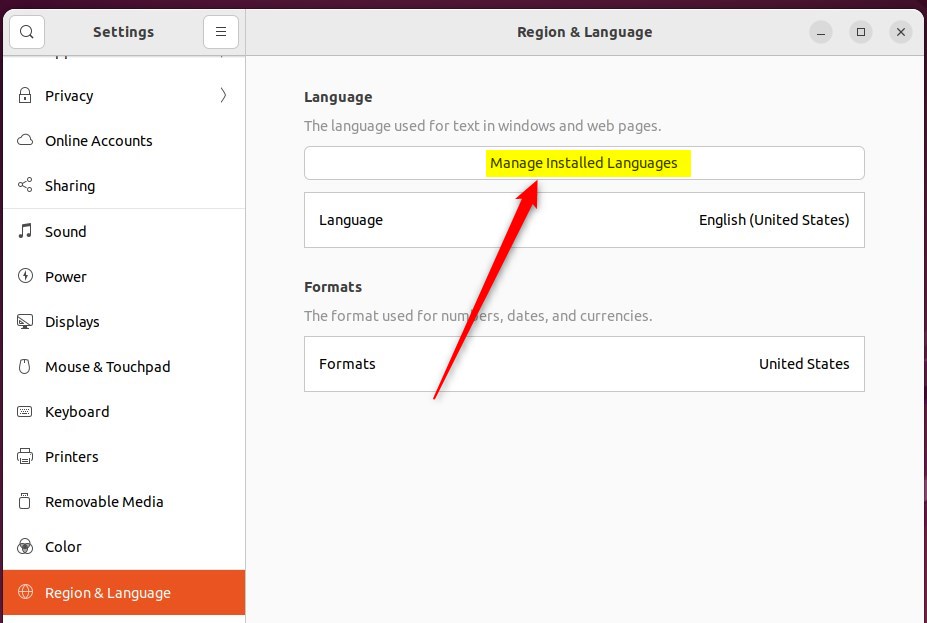
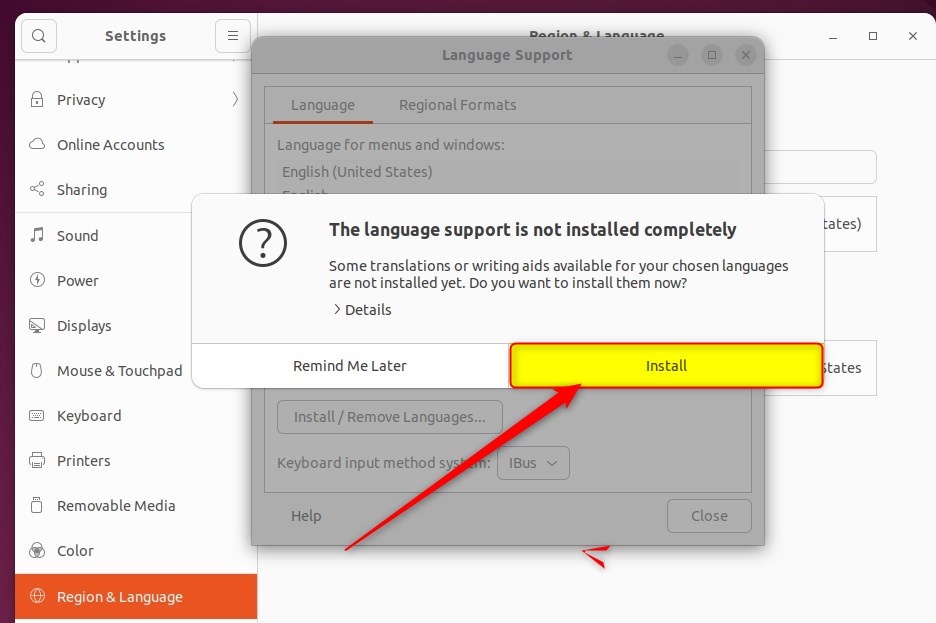
When prompted to install language support that isn’t installed, click Install.
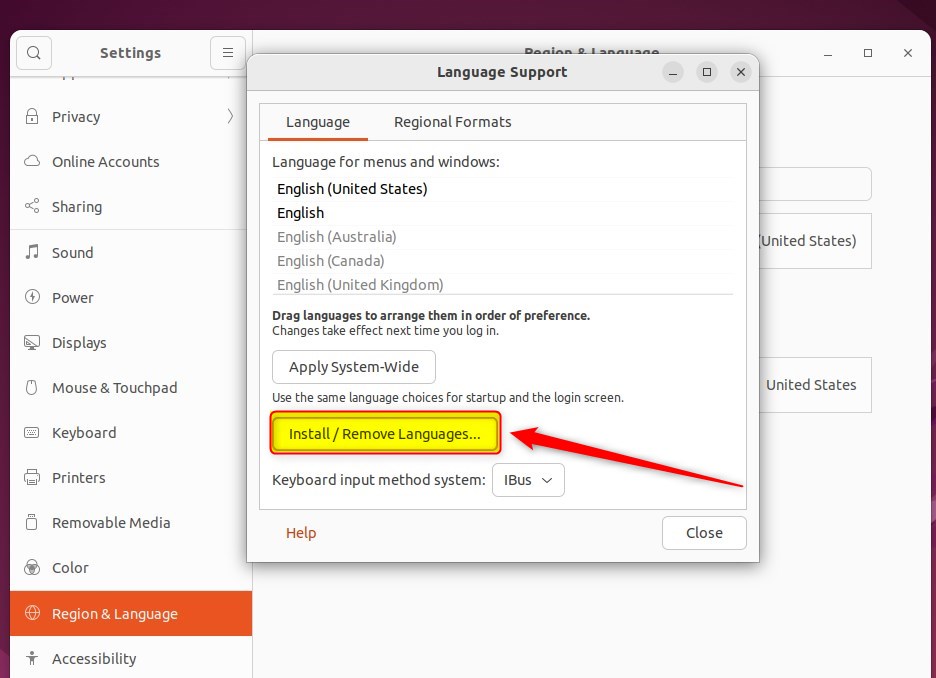
After installing the language support, click Install / Remove Languages…
The Installed Languages window lists all the available languages. Currently installed languages are marked with a checkmark.
Check the boxes next to the languages you want to install, and uncheck any you no longer need.
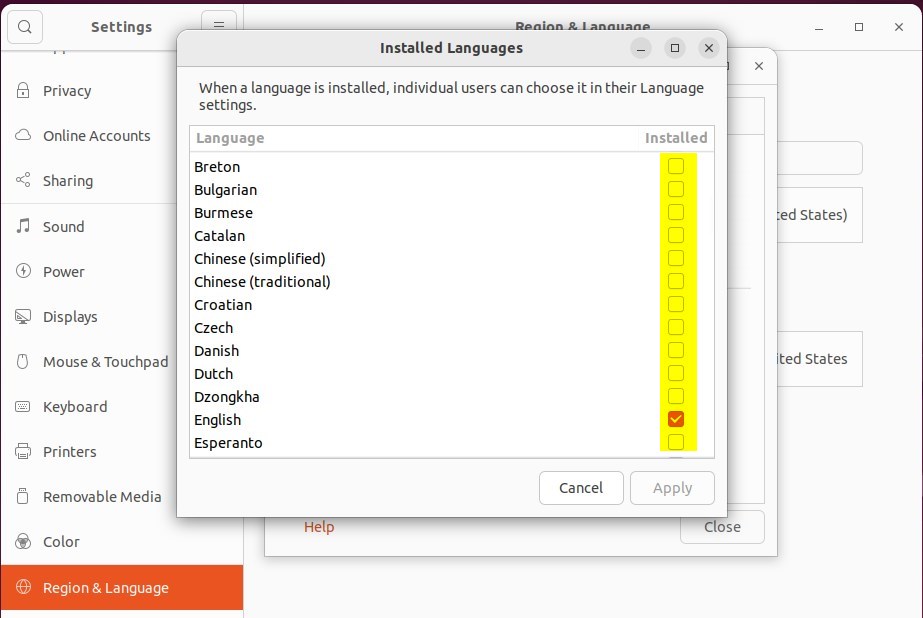
When you’re done, click Apply to Changes.
After the language(s) you’ve selected are installed, you’ll need to log out or restart your computer for the changes to take effect.
Once you log back in, you’ll see your new display language options.
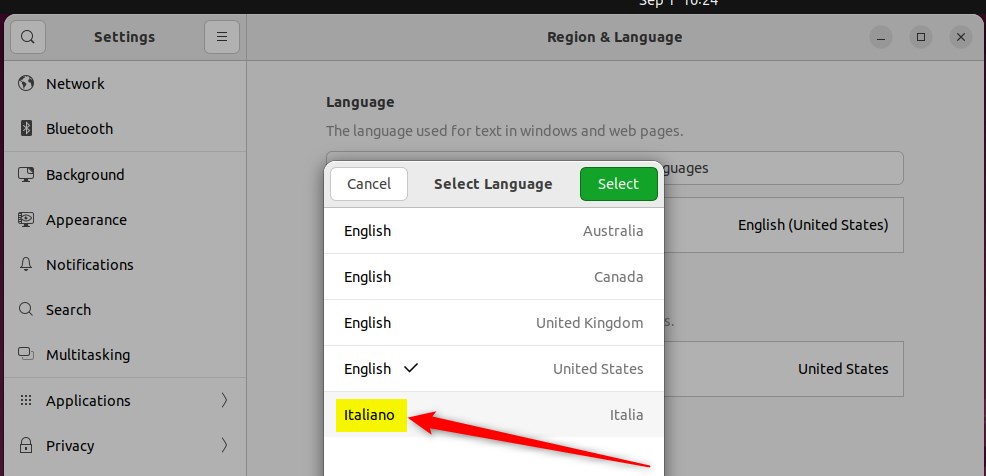
Want to know how to switch your display language after installing it? Here’s a guide for that:
How to change display language in Ubuntu Linux
That should do it! You can now close the settings app.
Conclusion:
- Adding a display language in Ubuntu Linux is a straightforward process, allowing you to easily switch between multiple languages.
- The System Settings panel provides a centralized location for managing installed languages, making it convenient for users to customize their language preferences.
- It’s important to note that although Ubuntu Linux supports various display languages, some translations may be incomplete and certain applications may not fully support non-English languages.
- Following the outlined steps, users can seamlessly install additional display languages, providing a more tailored and user-friendly experience within Ubuntu Linux.
How to change Ubuntu display language?
Change the language of your computer In the Ubuntu Desktop, click System Settings. Click Language Support. The Language Support window is displayed. Use the down arrow key to scroll through the Language for menus and windows list.
How do I add display language?
Select Start and then select Settings > Time & language > Language . In the Language window, under Windows display language, select the desired Windows display language from the drop-down menu.
Was this guide helpful?

About the Author
Richard
Tech Writer, IT Professional
Richard, a writer for Geek Rewind, is a tech enthusiast who loves breaking down complex IT topics into simple, easy-to-understand ideas. With years of hands-on experience in system administration and enterprise IT operations, he’s developed a knack for offering practical tips and solutions. Richard aims to make technology more accessible and actionable. He's deeply committed to the Geek Rewind community, always ready to answer questions and engage in discussions.



[…] How to change display language in Ubuntu Linux […]
[…] Linux also allows users to install additional languages and keyboards to support these languages for language-specific key layouts and input options. For […]