Change Keyboard Layout in Ubuntu Linux: A Quick Guide

You change your keyboard layout in Ubuntu Linux by navigating to the Settings app and selecting your preferred input source.
A keyboard layout dictates the characters produced by your keys, essential for typing in various languages or using specific symbols.
Ubuntu 22.04 LTS, for instance, allows you to easily add and switch between multiple layouts, with Super+Space serving as a common shortcut.
This customization ensures you can type efficiently, whether you need characters for French, Japanese, or programming symbols.
Access System Settings, then navigate to Keyboard and click the ‘+’ button under Input Sources to add a new layout. Press Super+Space to cycle through your installed keyboard layouts.
How to switch keyboard layout in Ubuntu Linux
You can quickly change your keyboard layout in Ubuntu Linux using simple keyboard shortcuts. Press and hold the Super key, then tap the Spacebar to cycle through your installed keyboard layouts.
Below are shortcuts and steps to change the keyboard layout in Ubuntu Linux.
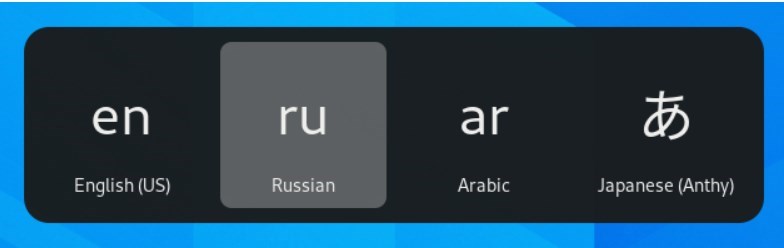
By default, you can press the Super+Space keys to the nest keyboard and Shift+Super+Space to cycle through all your installed keyboards.
Install alternative keyboard layouts:
Adding new keyboard layouts in Ubuntu Linux is simple and done through the main System Settings. You can find this by opening the Activities overview and typing ‘Settings’.
To get to System Settings, open the Activities overview and start typing Settings.
Alternatively, click on the System menu at the top-right corner of the top bar on your desktop.
On the System menu, select Settings, as highlighted below.

In the Settings app, click on the Keyboard tile.
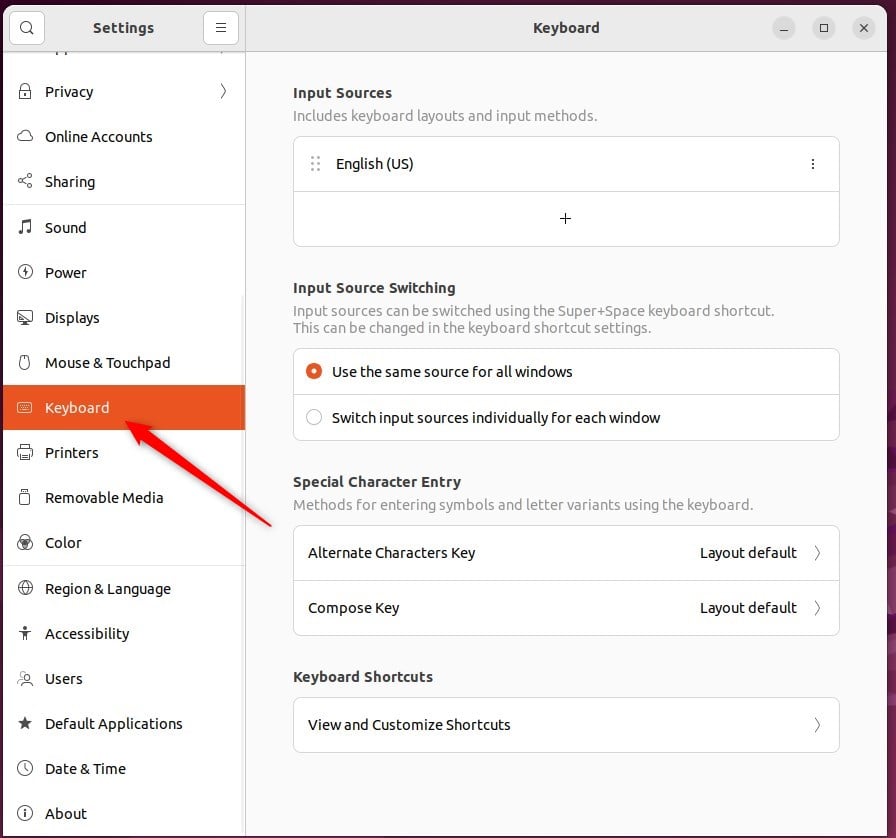
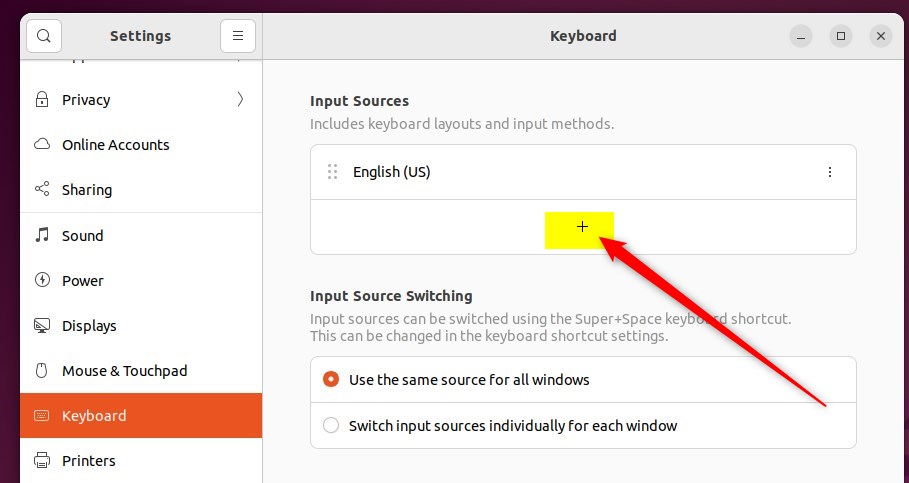
In the System Settings -> Keyboard settings pane, click the + button in the Input Sources section.
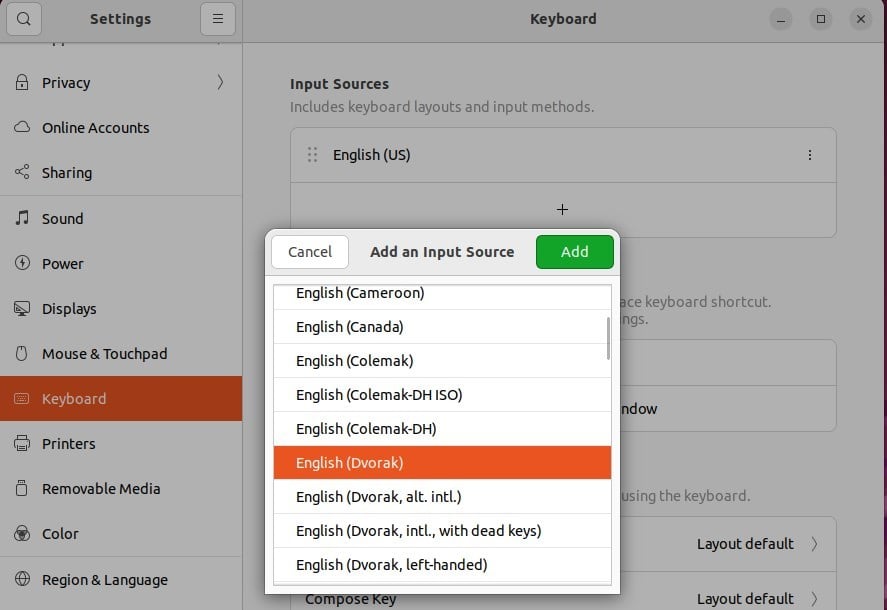
Select the language associated with the layout, then select a layout and press Add.
If you don’t see a keyboard layout on the list provided, click the vertical ellipses highlighted below.
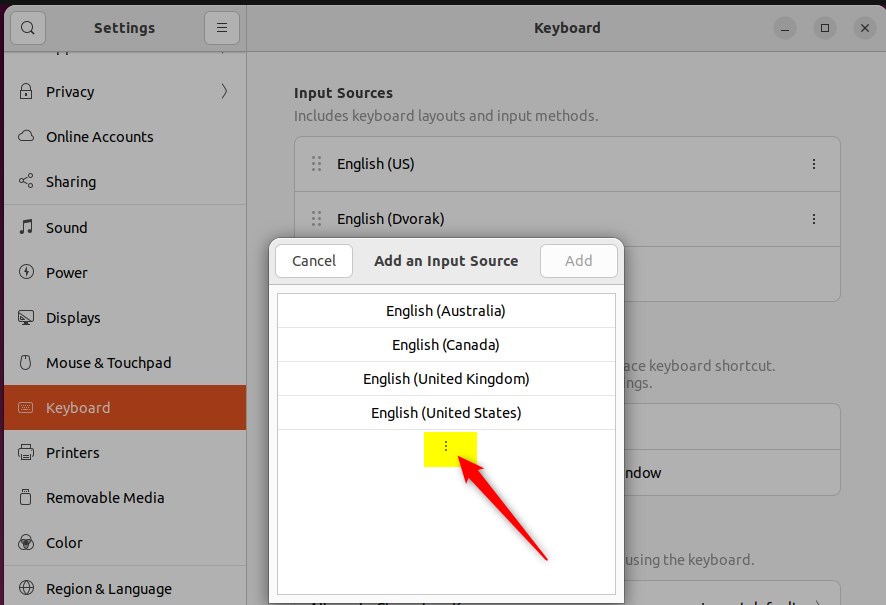
Choose the keyboard layout that you want to use.
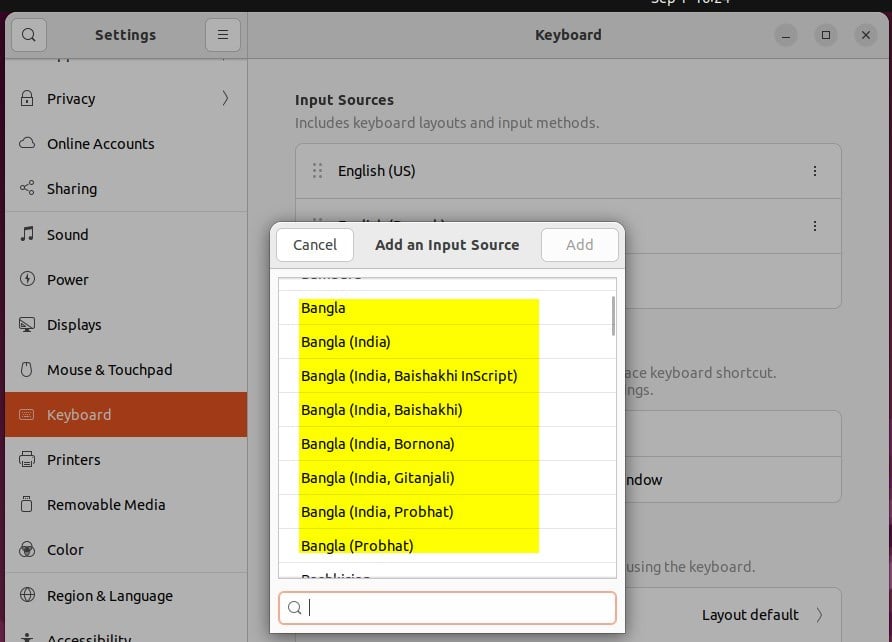
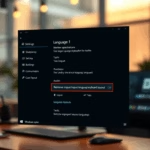
You should then be able to switch between input language layouts using the language bar on the top of your screen.
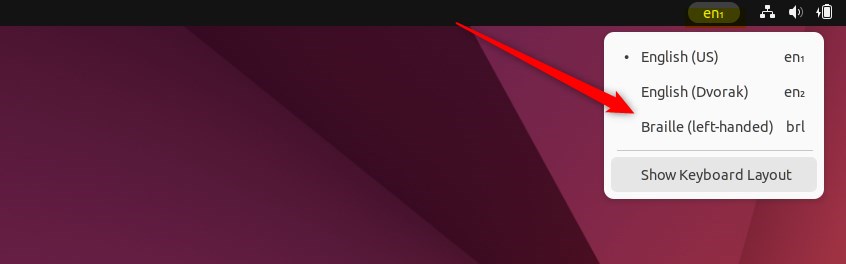
Press the Super+Space keys to go to the following keyboard layout and Shift+Super+Space to cycle through all your installed keyboards.
That should do it!
Conclusion:
- Switching the keyboard layout in Ubuntu Linux is a simple process allowing efficient multi-language input.
- Users can effortlessly add, select, and cycle through different keyboard layouts to accommodate diverse language preferences.
- The centralized System Settings in Ubuntu Linux provides easy access to configuring and adding keyboard layouts, enhancing user experience.
- Switching between input language layouts using the language bar on the top of the screen ensures convenient and flexible keyboard usage.
How do you switch keyboard layouts in Linux?
Switching keyboard layouts in Linux is fastest using keyboard shortcuts, which open a menu to choose your input source. The default shortcuts let you cycle forward with Super + Space and backward with Shift + Super + Space.
How do I swap my keyboard layout?
In the system tray area of the taskbar, select the input language icon. A pop-up menu is displayed with the available keyboard layouts. Select the desired keyboard layout. The input language icon changes to the selected keyboard layout.
Was this guide helpful?

About the Author
Richard
Tech Writer, IT Professional
Richard, a writer for Geek Rewind, is a tech enthusiast who loves breaking down complex IT topics into simple, easy-to-understand ideas. With years of hands-on experience in system administration and enterprise IT operations, he’s developed a knack for offering practical tips and solutions. Richard aims to make technology more accessible and actionable. He's deeply committed to the Geek Rewind community, always ready to answer questions and engage in discussions.


No comments yet — be the first to share your thoughts!