How to Install Discord on Ubuntu 24.04: Step-by-Step Guide

Discord on Ubuntu 24.04 gives you free voice, video, and text chat through your Linux desktop. The app runs using either a standard installer package or a containerized app system called Flatpak.
You can set up the program with a downloaded .deb file through the terminal or install it via Flatpak for a secure sandbox setup that keeps the software separate from the rest of your system.
Install Discord on Ubuntu 24.04 by downloading the DEB package and installing it with `sudo apt install ./discord.deb` in the terminal, or use `sudo snap install discord` for a Snap package. You can also use the Software Center for a graphical installation.
Install Discord using the DEB package
To install Discord on Ubuntu 24.04 using the official DEB package, you download the installation file through the terminal with a single wget command and then run a dpkg command to set it up. This method keeps the app updated alongside your system packages and works reliably without needing extra software stores.
Run this command in your terminal to download the Discord DEB package.
wget -O discord.deb "https://discord.com/api/download?platform=linux&format=deb"
Then, run the command below to install the downloaded package.
After installing Discord, launching the application happens by typing `discord` in your terminal or opening the Discord app icon from your desktop apps center.
Installing Discord on Ubuntu 24.04 with Snap provides an alternative route for anyone preferring it over the DEB package. Snap packages bundle dependencies (required files) together, letting the application run through a single terminal command.
To do that, run the command below in your terminal.
sudo snap install discord
Once installed, launch the program using the command below or open the app in the desktop apps center.
Flatpak offers another installation route. This utility isolates applications in a secure sandbox (a secure, isolated environment), keeping them separate from the rest of the operating system. Flatpak does not ship with Ubuntu by default, requiring manual setup beforehand.
This third-party system for distributing applications requires installing the Flatpak manager before the Discord deployment can proceed.
Setting up the Flatpak manager must happen first, followed by the Discord installation.
First, update and install Flatpak.
sudo apt update && sudo apt upgrade
sudo apt install flatpak
Next, add the Flatpak repository to Ubuntu.
flatpak remote-add --if-not-exists flathub https://flathub.org/repo/flathub.flatpakrepo
Finally, install Discord.
flatpak install flathub com.discordapp.Discord
Once installed, launch the program using the command below or open the app in the desktop apps center.
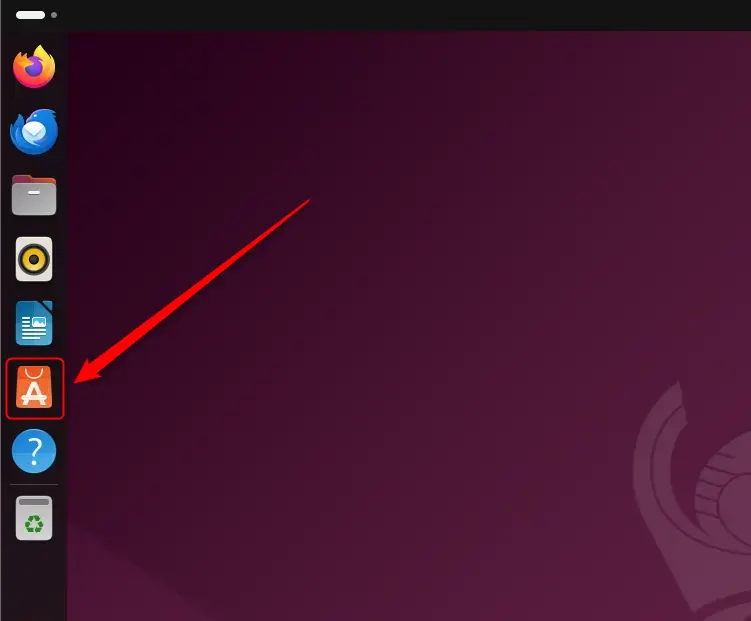
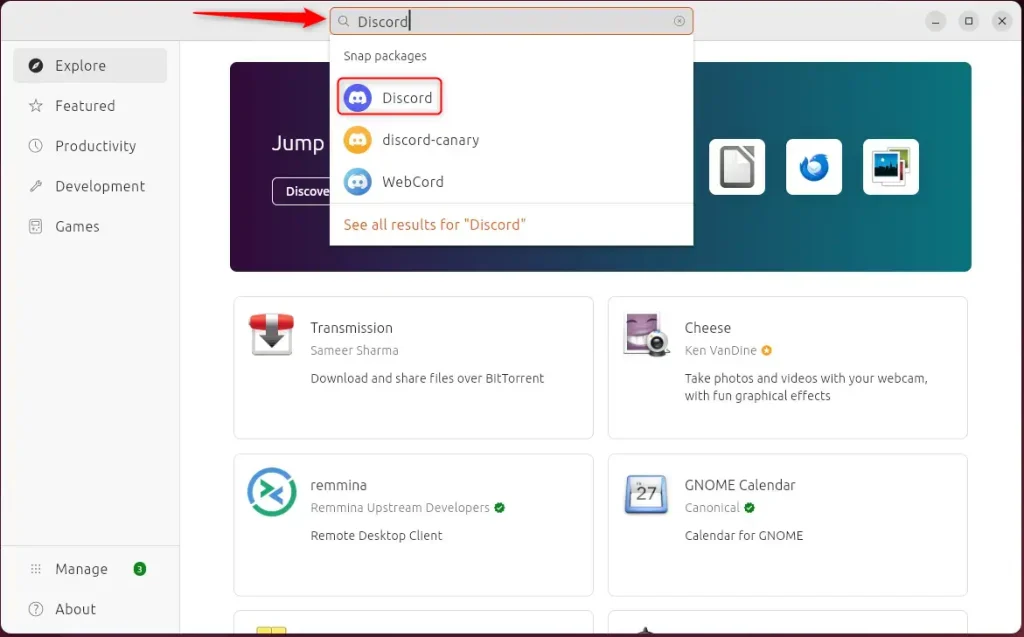
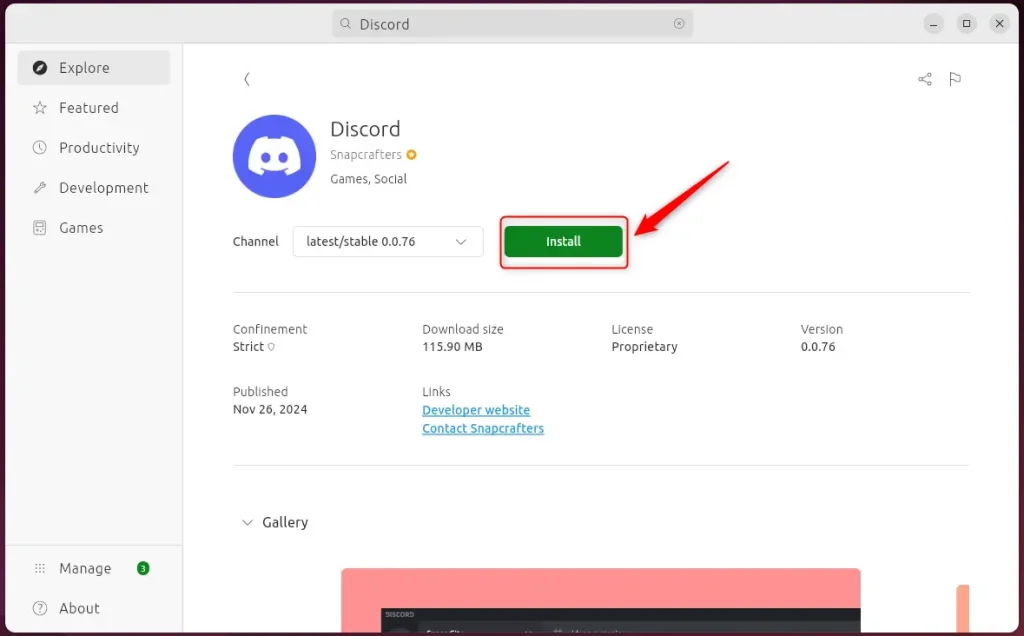
The Ubuntu Software Center functions as a graphical application store that streamlines adding software. Open the Software Center application. Search for "Discord" within the Software Center interface. Click the install button to add Discord to your computer.
Click on the Software Center icon on the sidebar to open it.
Search for Discord and install it.
Click Install.
Use the app launcher and launch it.
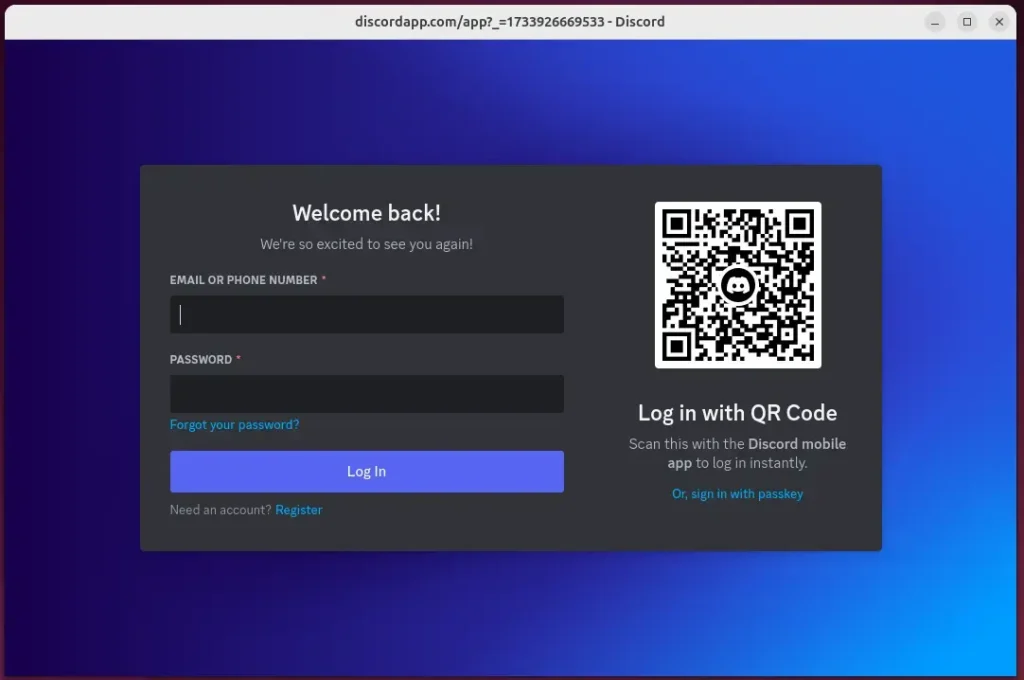
That completes the setup process.
Getting Discord installed on Ubuntu 24.04 offers multiple routes to match different preferences. Review these key points before proceeding:
- Multiple Installation Methods: You can choose between DEB package, Snap, Flatpak, or the Software Center.
- User-Friendly: Most methods can be executed through the terminal, but the Software Center offers a graphical interface for ease of use.
- Secure and Updated: Flatpak enhances security with its sandboxing approach and allows easy updates.
- Accessibility: Once installed, launching Discord is straightforward, whether from the terminal or desktop apps center.
- Community and Collaboration: Discord provides a robust platform for gamers, communities, and teams to communicate effectively.
Select the installation method matching your workflow preferences and enjoy connecting with others on Discord.
```Was this guide helpful?

About the Author
Richard
Tech Writer, IT Professional
Richard is a writer at Geek Rewind who turns complex IT tasks into clear, step-by-step guides. He draws on years of hands-on experience in system administration and enterprise IT operations, focusing on Windows, Linux and WordPress: the problems people actually run into, and the fixes that work. His server and WordPress guides come from systems he runs himself. Richard builds and maintains the platform behind Geek Rewind, from its Ubuntu servers and Nginx configuration to its custom WordPress plugins. Many new tutorials start with readers' questions, and he's always glad to answer them in the comments.

No comments yet — be the first to share your thoughts!