Want to turn your paper documents or photos into digital files on your computer? Installing a scanner on Windows 11 is easy and helps you save and organize things digitally.
Windows 11 has built-in tools that let you scan documents quickly once your scanner is connected.
How to Set Up a Scanner Connected by USB (Local Scanner)
Most scanners connect directly to your computer using a USB cable. Here’s how to set it up:
- Plug in the scanner: Connect the scanner’s USB cable to a free USB port on your computer.
- Turn on the scanner.
- Windows 11 usually installs the scanner automatically. You might see a message saying it’s setting up the device.
If Windows doesn’t install it automatically, follow these steps to add it manually:
- Open Settings by clicking the Start button and then the gear icon, or press Windows key + I on your keyboard.
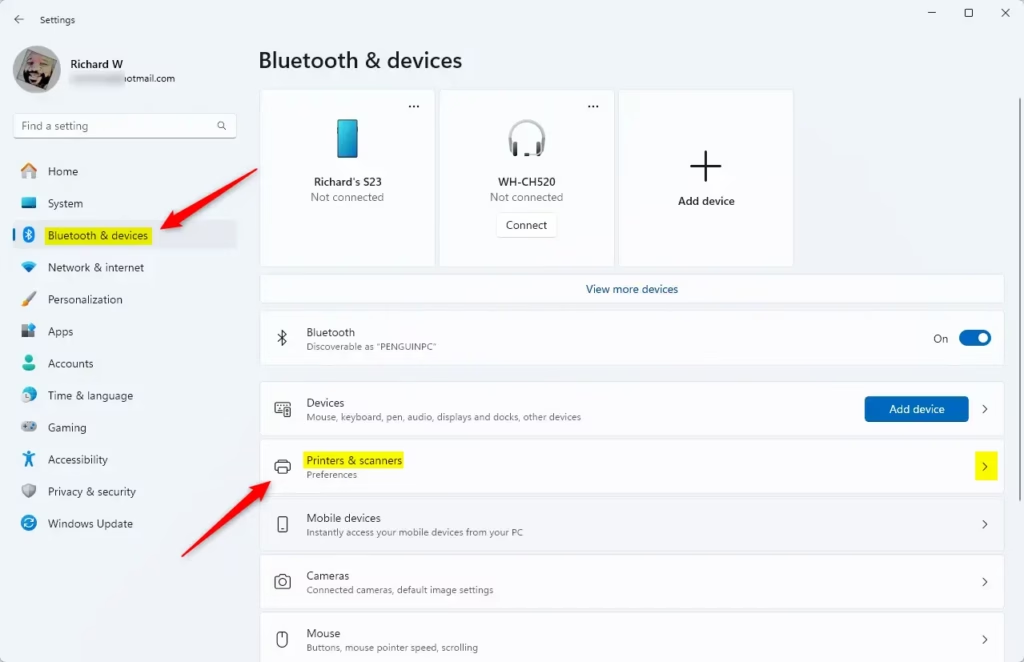
- Click Bluetooth & devices on the left side.
- Click Printers & scanners.
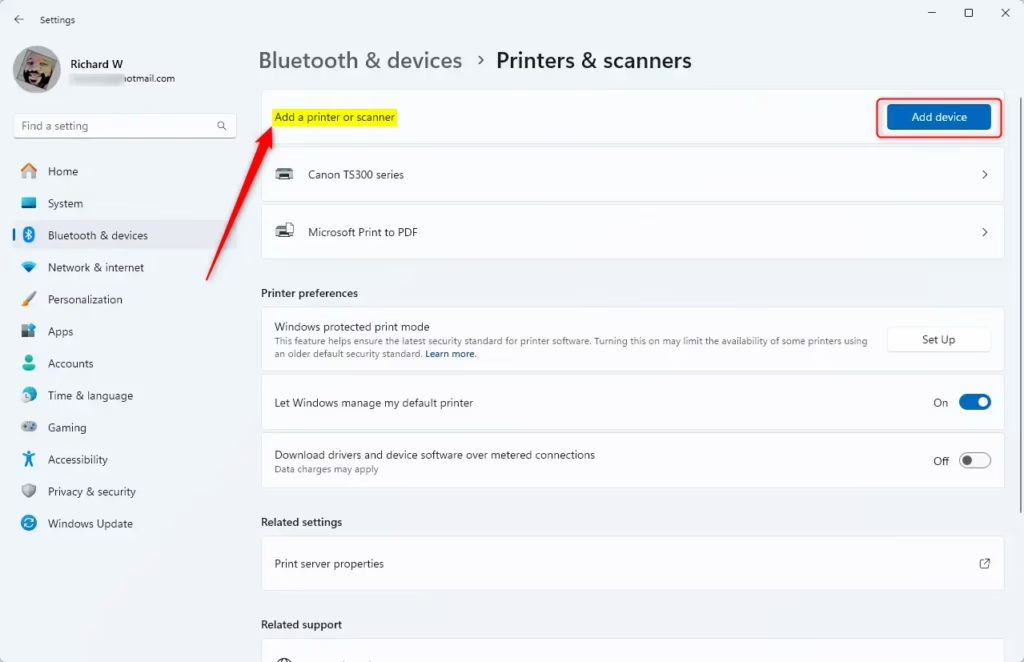
- Click the button that says Add device.
Windows will search for your scanner. When you see it listed, click on it and then click Add device.
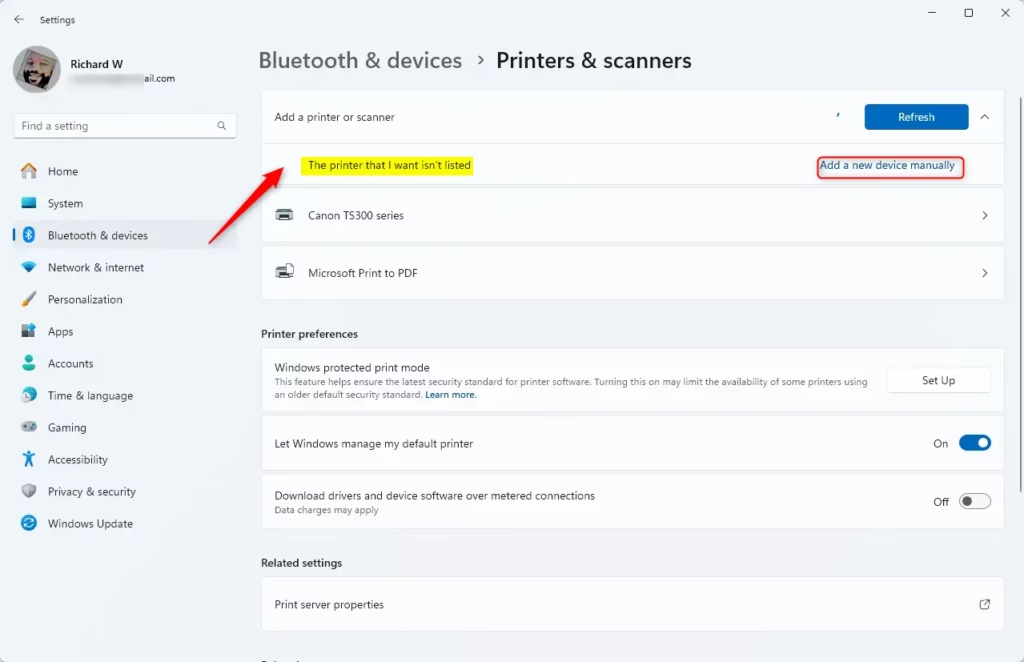
If you don’t see your scanner, click The printer that I want isn’t listed (this also works for scanners).
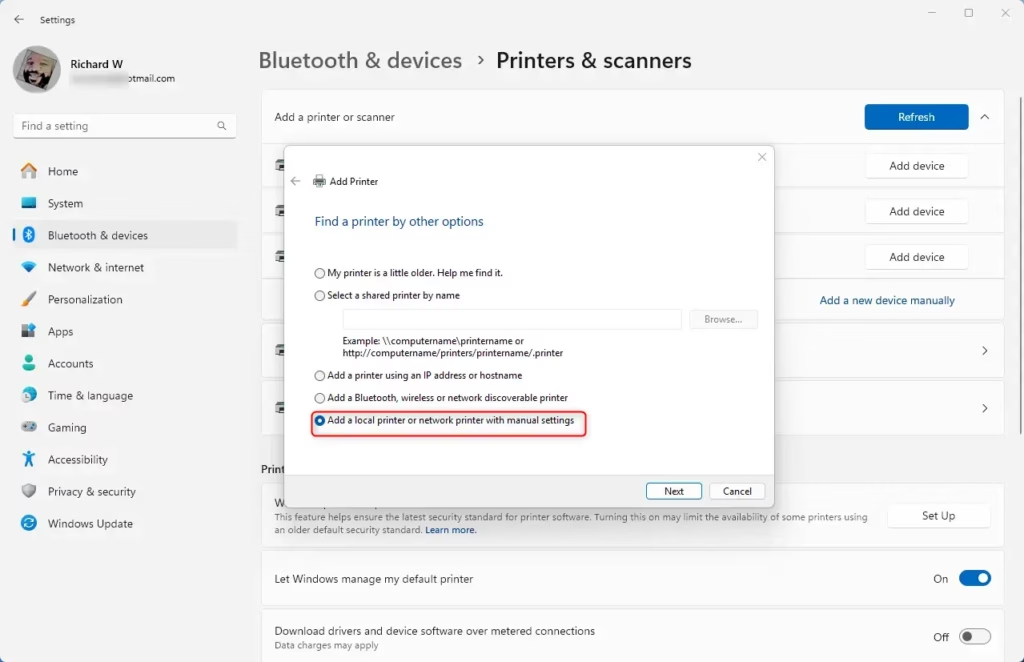
Choose Add a local printer or network printer with manual settings and click Next.
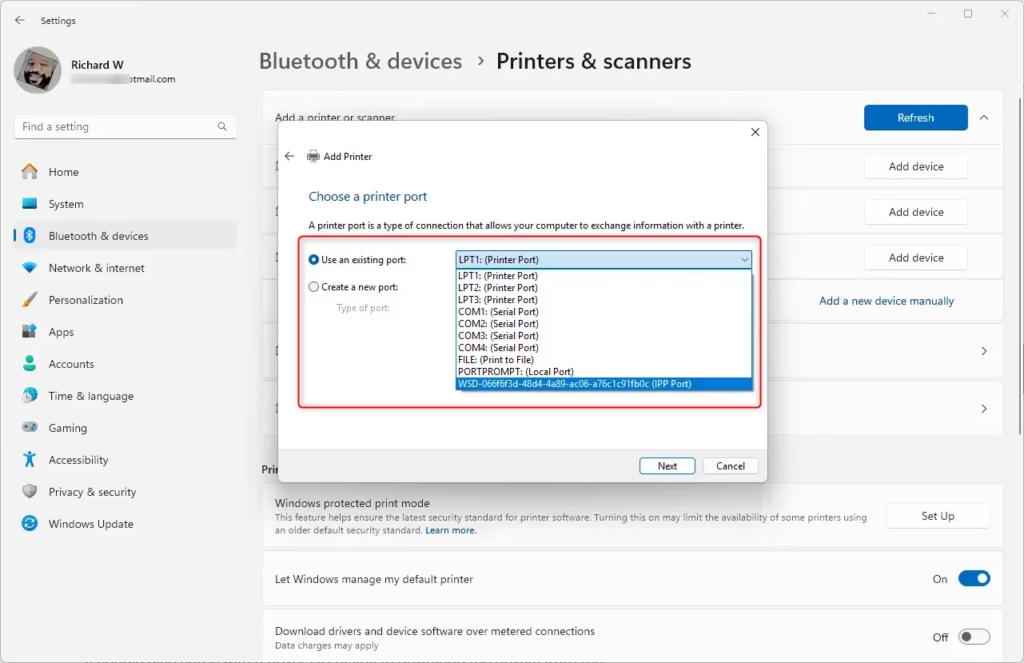
Select the port your scanner uses (usually USB001 or similar), then click Next.
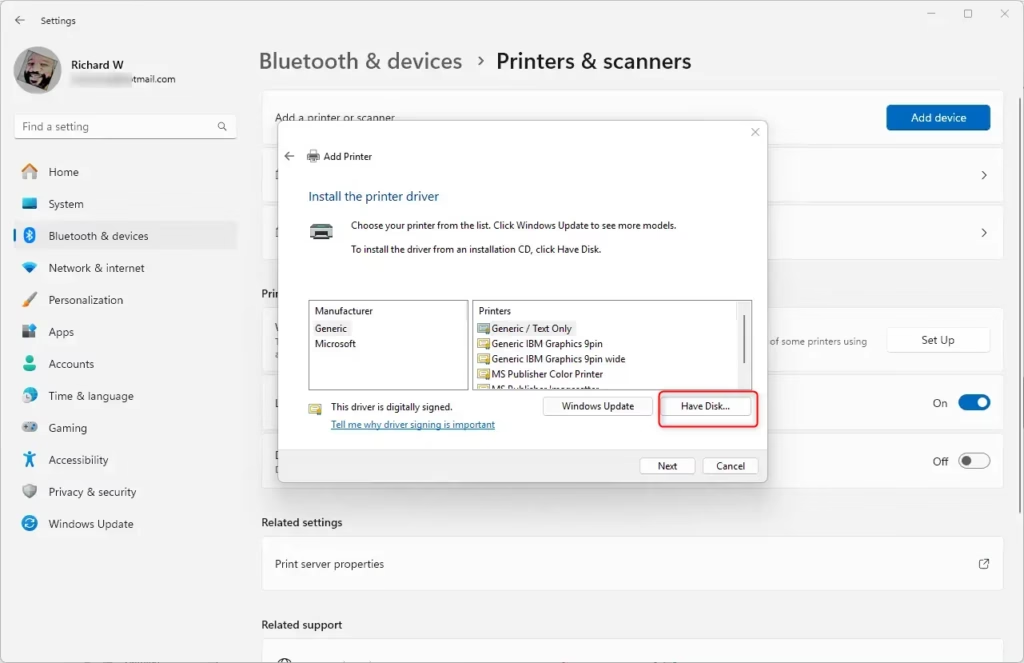
If your scanner came with a CD or a website link for drivers (special software), insert the CD or download the drivers from the manufacturer’s website.
Click Have Disk and browse to where you saved the driver files.
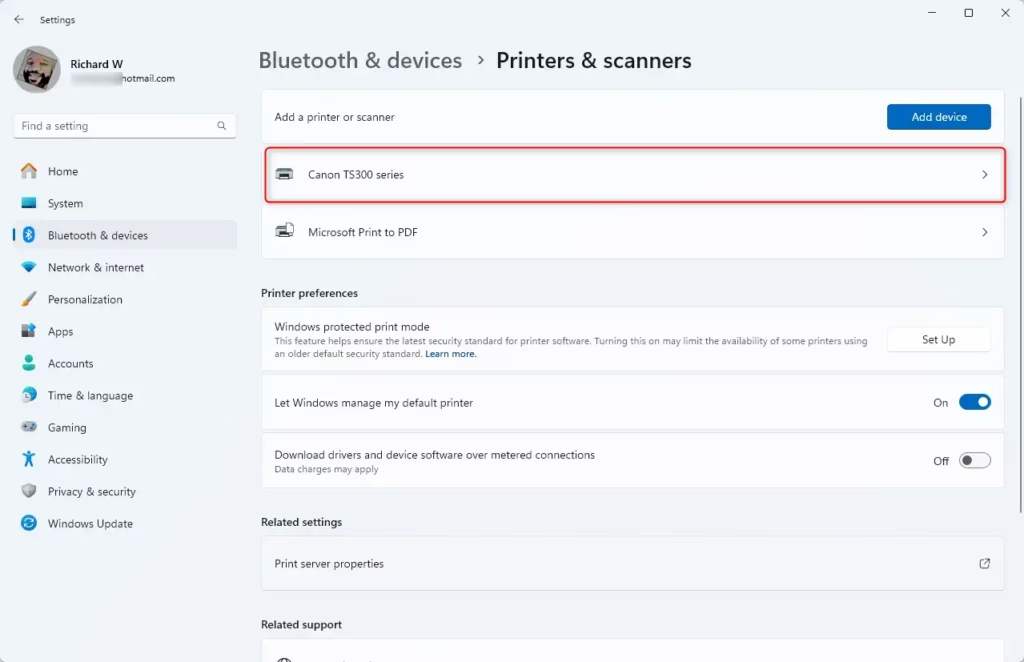
Follow the on-screen instructions to finish installing the driver. When done, you can test your scanner.
How to Add a Wireless Scanner
Some scanners connect to your Wi-Fi instead of using a cable. Here’s how to add a wireless scanner:
- Make sure your scanner is turned on and connected to your home Wi-Fi network. (Check your scanner’s manual if you’re not sure how to do this.)
- Open Settings by clicking the Start button and the gear icon, or press Windows key + I.
- Go to Bluetooth & devices > Printers & scanners.
- Click Add device and wait while Windows searches for nearby wireless scanners.
- When you see your scanner’s name, click it and select Add device.
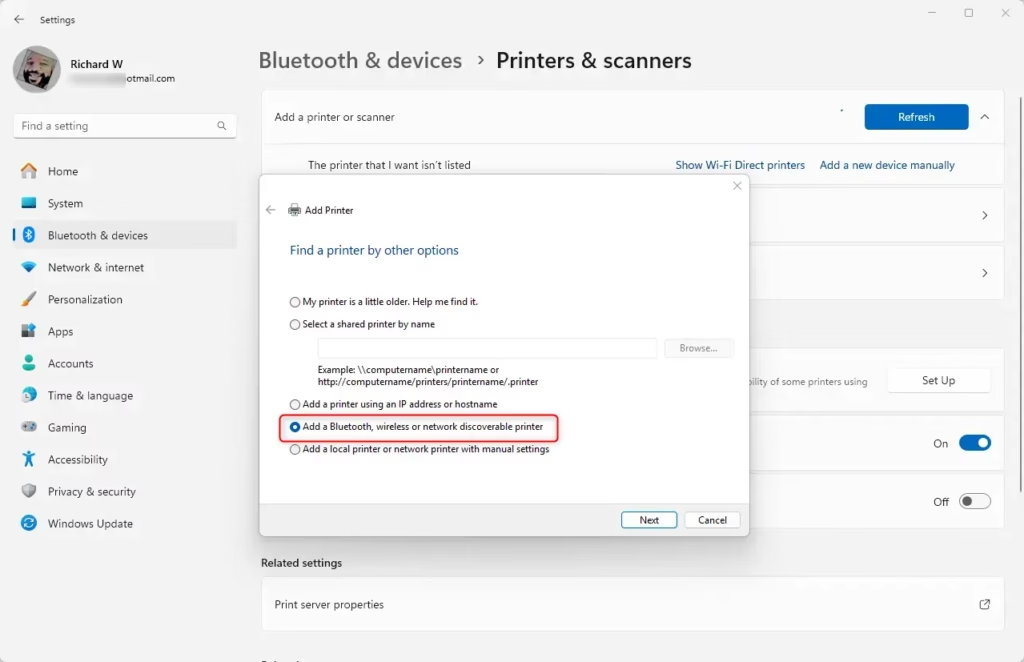
If you don’t see your scanner, click The printer that I want isn’t listed and follow the steps to add it manually.
If you have trouble, check your scanner’s manual or visit the manufacturer’s website for help connecting it to Windows.
Quick Tips
- Always keep your scanner’s drivers updated for best performance.
- Use the built-in Windows Scan app to scan documents easily. You can find it by typing Scan in the Start menu search box.
- If you don’t have the Scan app, you can download it for free from the Microsoft Store.
Summary
- Connecting and installing a scanner on Windows 11 is simple, whether it’s USB or wireless.
- You can add your scanner through Windows Settings in just a few steps.
- installing the correct drivers helps your scanner work properly.
- Once set up, you can easily scan and save your documents and pictures.
If you want more help or troubleshooting tips, check out the official Microsoft support page for scanning.
Leave a Reply