How to Find Your IP Address on Windows 11

You find your IP address on Windows 11 by using the Settings app or the Command Prompt.
Your IP address is a unique numerical label assigned to your device when it connects to a network, serving as your digital street address.
On Windows 11, your public IPv4 address is often a four-part number like 203.0.113.45. Knowing this helps you troubleshoot network issues or set up remote access.
For instance, you might need it to configure port forwarding on your router.
You can find your IP address on Windows 11 through the Settings app by navigating to Network & internet, or via the Command Prompt by typing “ipconfig”. Both methods will display your IPv4 and IPv6 addresses.
Find your IP address using Settings
You can find your IP address on Windows 11 directly in the Settings app. Just go to Network & internet, then pick your connection type like Wi-Fi or Ethernet to see your IP.
Once inside Settings, click on Network & internet. From there, select either Wi-Fi or Ethernet depending on how you are connected to the internet.
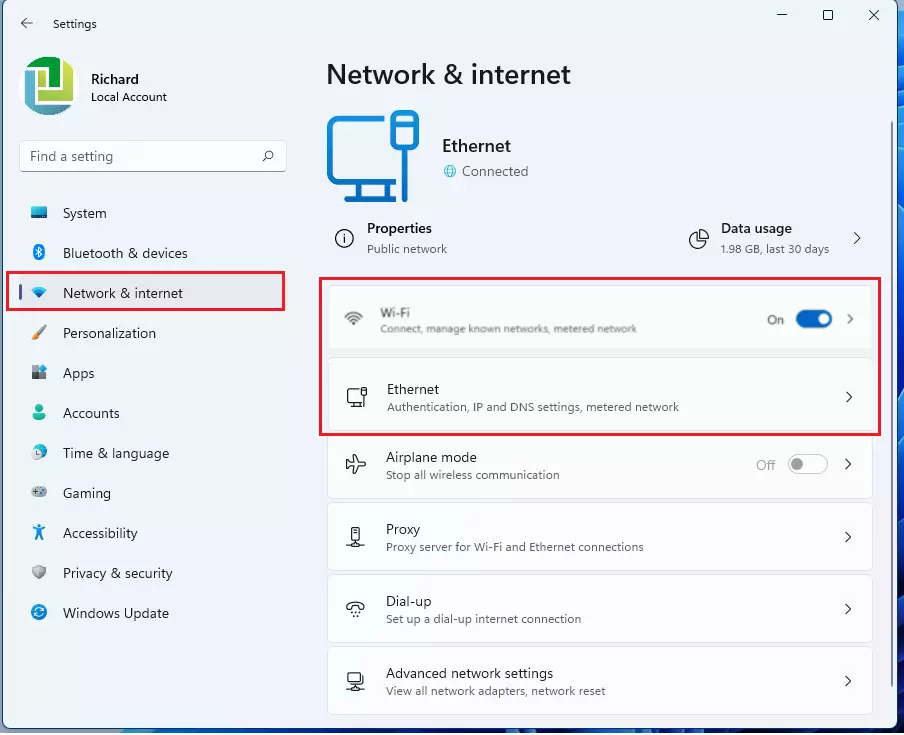
Click on the connection you are currently using. Scroll down to see your IP address information. You will see both IPv4 and IPv6 numbers. For most tasks, you only need the IPv4 address.
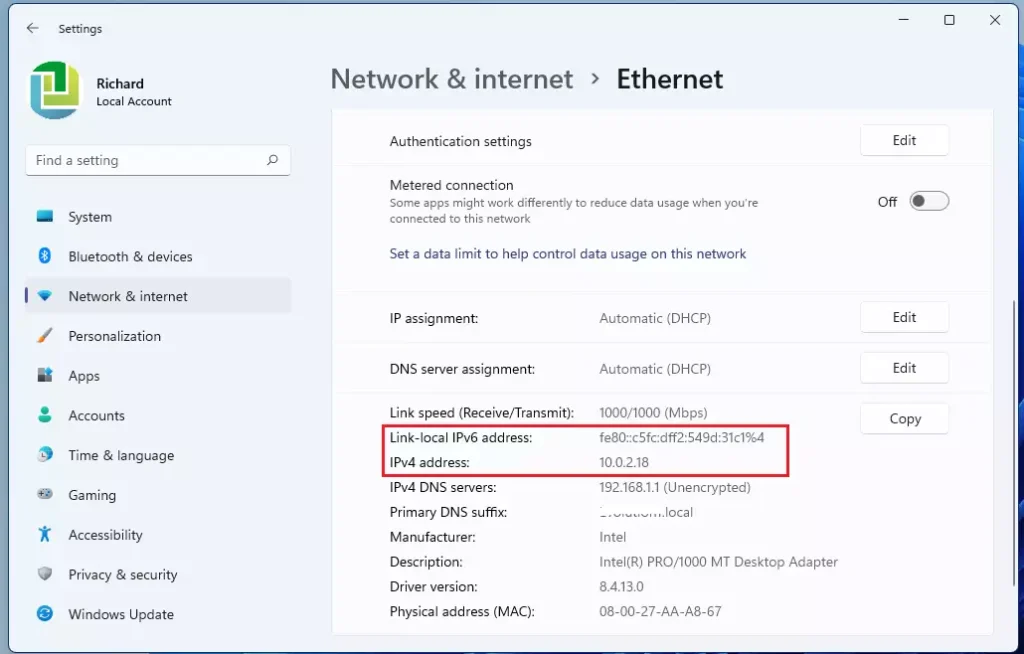
View advanced network details
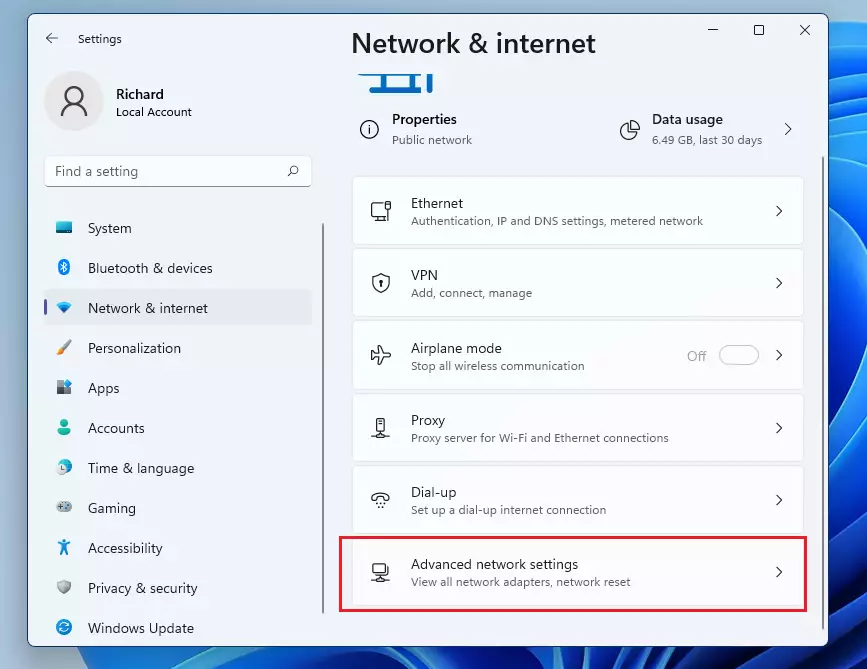
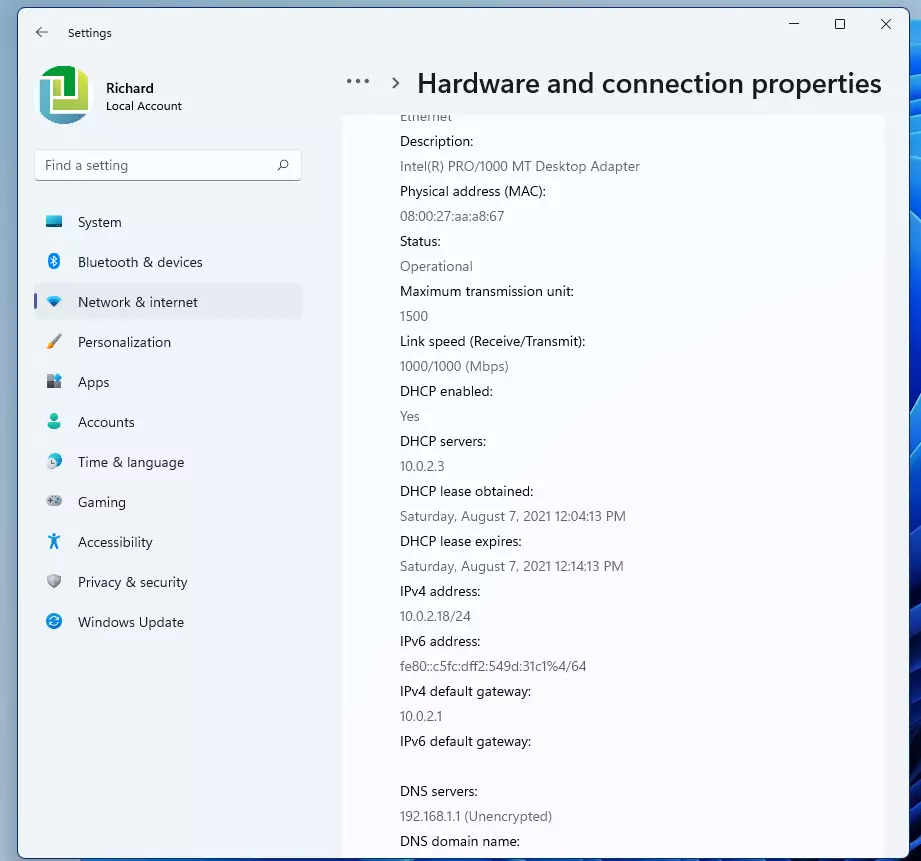
To see more detailed information about your network connection on Windows 11, you can go to Advanced network settings. From there, select Hardware and connection properties to view all your adapter’s details.
Next, click on Hardware and connection properties.
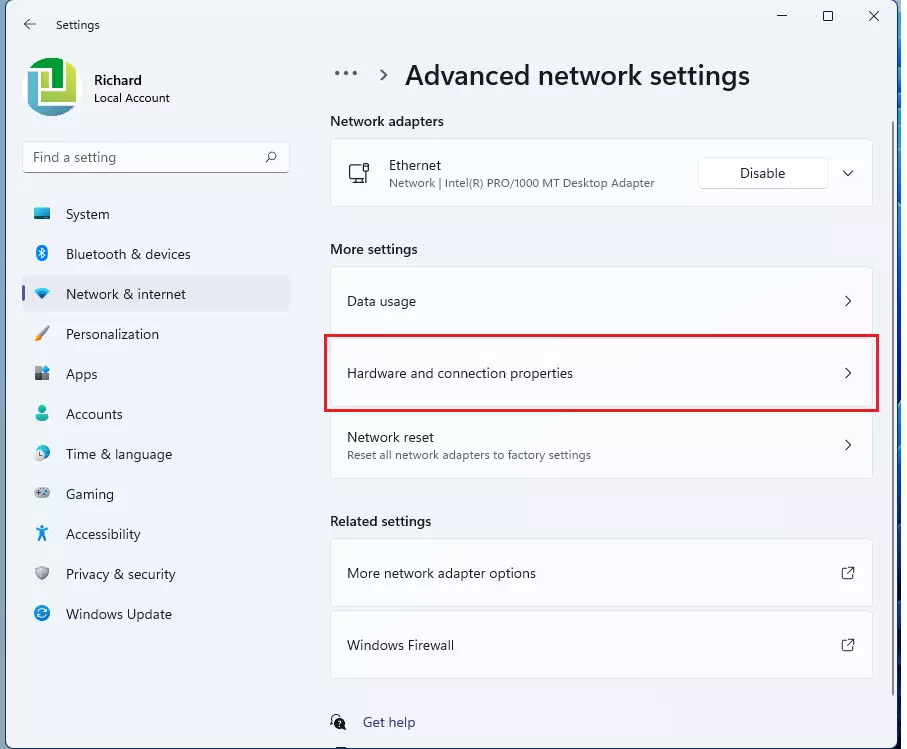
Select your network adapter from the list to see a full list of your connection details, including your subnet mask, default gateway, and DNS server settings.
Find your IP address using the Command Prompt
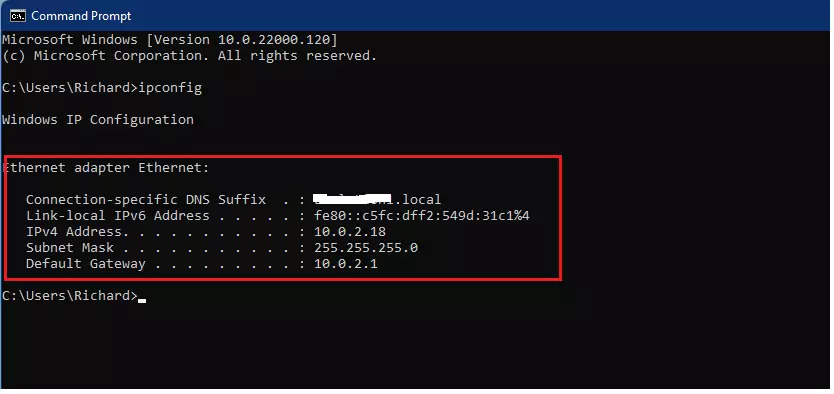
Finding your IP address on Windows 11 using the Command Prompt is quick. Just open the Command Prompt and type the ‘ipconfig’ command to see your network information.
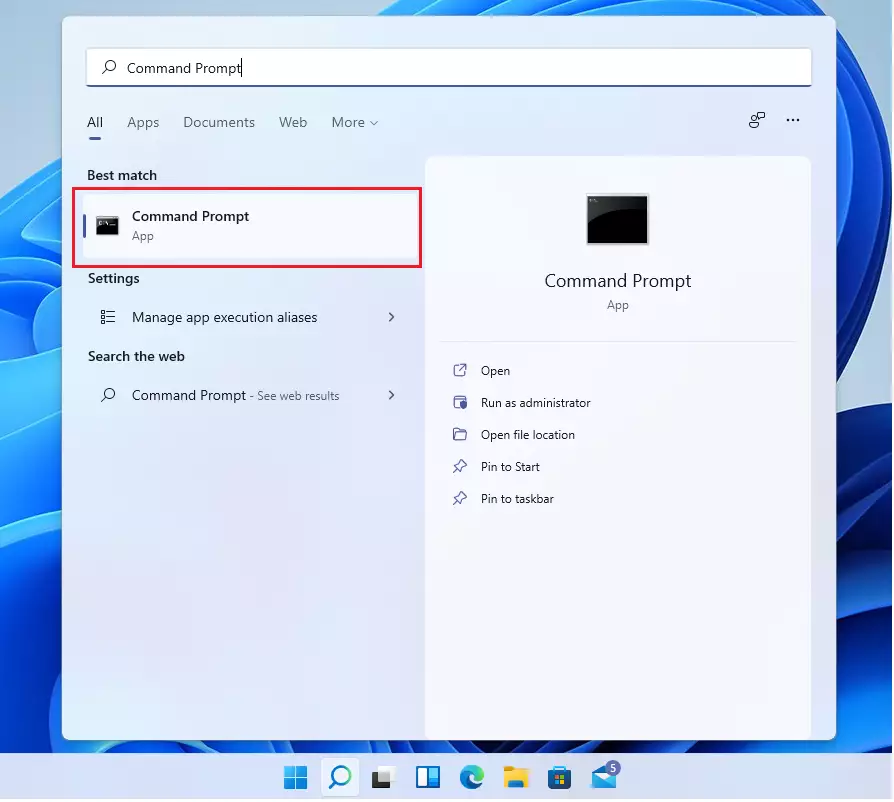
Type the following command and press Enter:
ipconfigTo copy your IP address directly to the clipboard, use: ipconfig | clip. This saves the text to your memory so you can paste it into a document.
Understanding Network Entities
Understanding your network means knowing what your IPv4 address, Subnet Mask, Default Gateway, DNS Server, and DHCP are and what they do for your connection.
Troubleshooting Connectivity
If your IP address shows as 169.254.x.x, your computer is failing to get an address from your router. This is often a DHCP issue. Try restarting your router or resetting your network adapter. For more help, visit the official Microsoft Network troubleshooting documentation.
Manual IP Configuration (Admin Required)
To set a static IP, go to Settings > Network & internet > Ethernet/Wi-Fi > IP assignment. Click Edit and change it from Automatic (DHCP) to Manual. You will need administrative privileges to save these changes.
Summary
Finding your IP address on Windows 11 is simple, whether you use the Settings menu or the Command Prompt, and knowing this helps manage your network and fix connection problems.
Related Searches
- How to change IP address Windows 11
- What is my local IP address
- Check network adapter settings Windows 11
- How to release and renew IP address
What is the difference between a public and private IP address?
A private IP address is used for communication within your home network between your devices and your router. A public IP address is assigned by your internet service provider and acts as your identity on the global internet, allowing external servers to find your home connection.
Why does my IP address change frequently?
Most home networks use DHCP to assign IP addresses dynamically. This means your router periodically reassigns addresses to devices. If you need a permanent address for a specific device, you must configure a static IP address in your network adapter settings or reserve the address in your router.
How do I find my IP address if I am connected via VPN?
When using a VPN, your public IP address will reflect the location of the VPN server rather than your actual physical location. To see your VPN IP, simply search for your IP on Google while the VPN is active. Your local private IP remains unchanged on your computer.
Was this guide helpful?

About the Author
Richard
Tech Writer, IT Professional
Richard, a writer for Geek Rewind, is a tech enthusiast who loves breaking down complex IT topics into simple, easy-to-understand ideas. With years of hands-on experience in system administration and enterprise IT operations, he’s developed a knack for offering practical tips and solutions. Richard aims to make technology more accessible and actionable. He's deeply committed to the Geek Rewind community, always ready to answer questions and engage in discussions.



No comments yet — be the first to share your thoughts!