

BitLocker is a security tool built into Windows 11 that helps protect your files by locking your hard drive. If something unusual happens, Windows might ask you to enter a special code called the BitLocker recovery key to unlock your computer.
This guide will help you find that recovery key if you need it.
What is a BitLocker Recovery Key?
The BitLocker recovery key is a long 48-digit number that works like a backup password. You use it if Windows can’t verify that you’re allowed to access your computer the normal way.
If you use a Microsoft account to sign in to your Windows 11 PC, your recovery key may be saved online, so you can find it on another device.
Where to Find Your BitLocker Recovery Key
When you first set up BitLocker, Windows asks you to save your recovery key. You might have saved it in one of these places:
- Microsoft Account: If saved online, you can view your key by logging in to your Microsoft account.
- Printed Paper: You might have printed the key and kept it somewhere safe.
- USB Flash Drive: The key could be saved on a USB drive you plugged in during setup.
- Work or School Account: If your device is connected to your workplace or school, the recovery key might be stored in their system (Azure Active Directory) or held by your system administrator.
How to Check Each Location
1. Find Your Recovery Key Online with Your Microsoft Account
If you saved the key online, follow these steps on any device:
- Go to https://account.microsoft.com/devices/recoverykey
- Sign in with the same Microsoft account you use on your locked device.
- Look for the recovery key listed under your device name.
2. Find Your Printed Recovery Key
You may have printed your recovery key on paper. It looks like this:
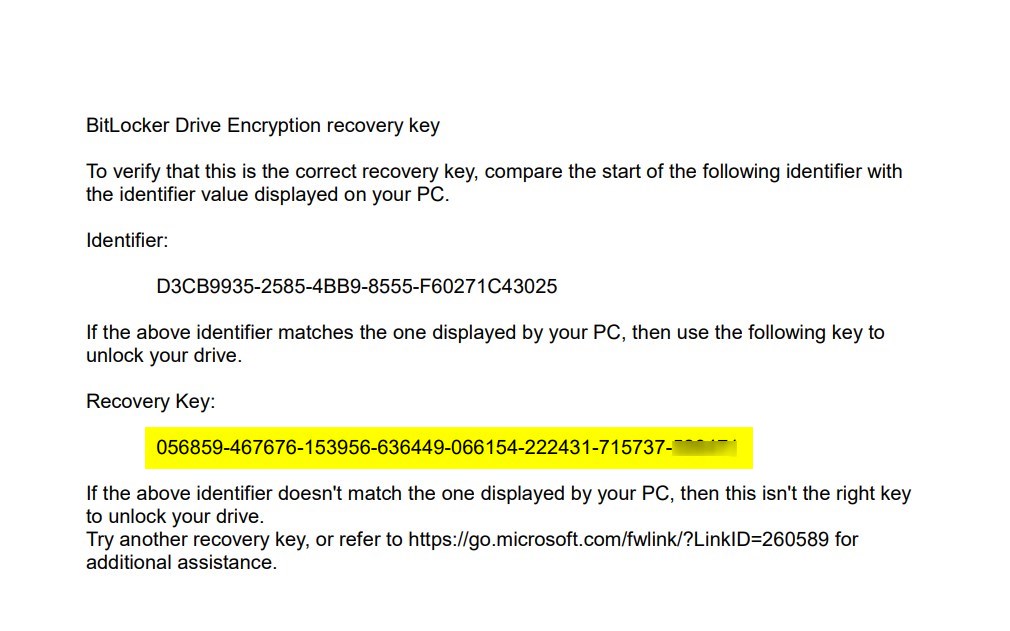
Check places where you keep important documents, like a filing cabinet or a safe spot at home.
3. Find Your Recovery Key on a USB Flash Drive
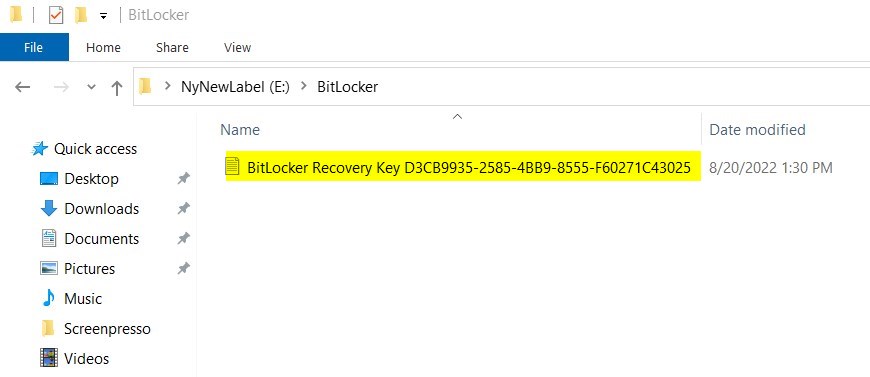
If you saved the key on a USB drive, insert the USB into any working computer and open the drive. You should see a file named something like BitLocker Recovery Key.txt containing your 48-digit key.
4. Check with Your Work or School
If your computer is managed by a workplace or school, your recovery key might be saved on their system or held by your IT administrator. Contact them to get help.
What if You Can’t Find Your Recovery Key?
If you don’t have your BitLocker recovery key and Windows keeps asking for it, you may need to reset your PC to factory settings. This will erase all your files and apps, so only do this if you have no other options.
Learn how to reset your PC here: How to Factory Reset Windows 11
Summary
- The BitLocker recovery key is very important to unlock your computer if there are sign-in problems.
- You can save this key in your Microsoft account, on paper, on a USB drive, or with your organization if it’s a work or school device.
- Always keep your recovery key safe and easy to find in case you need it.
- If you lose the key and can’t unlock your PC, resetting Windows may be your last option.
- Remember: Keep your BitLocker recovery key somewhere safe to avoid being locked out of your computer!


Leave a Reply