How to Find Shared Printer Name in Windows 11

Let’s find your shared printer name in Windows 11 by looking at its properties. Think of the shared printer name as its unique ID. Other devices on your network use this ID to connect to it.
Knowing this name is crucial for successfully connecting a secondary PC, especially if you’re setting up a new workstation for the first time. For instance, when you share a printer from a computer running Windows 11 Pro, you’ll need its shared name to get it recognized.
You locate this vital information by navigating through your device’s settings. You can find it quickly without needing complex commands.
Access the printer’s properties via Settings > Bluetooth & devices > Printers & scanners, then click Printer properties. The shared name is listed on the Sharing tab. Alternatively, use the command Get-Printer | Format-List Name,ShareName,Shared in PowerShell.
Why Do You Need the Shared Printer Name?
- It helps other devices locate and connect to your printer on the network.
- You save money by not buying multiple printers.
- It makes troubleshooting printing problems much easier.
Method 1Using the Settings App
- Open the Settings app. Click the Start button and select Settings, or press Windows key + I on your keyboard.
- Click Bluetooth & devices in the left menu.
- Click Printers & scanners on the right side.
- Find your printer in the list and click it to open its details.
- Click Printer properties.
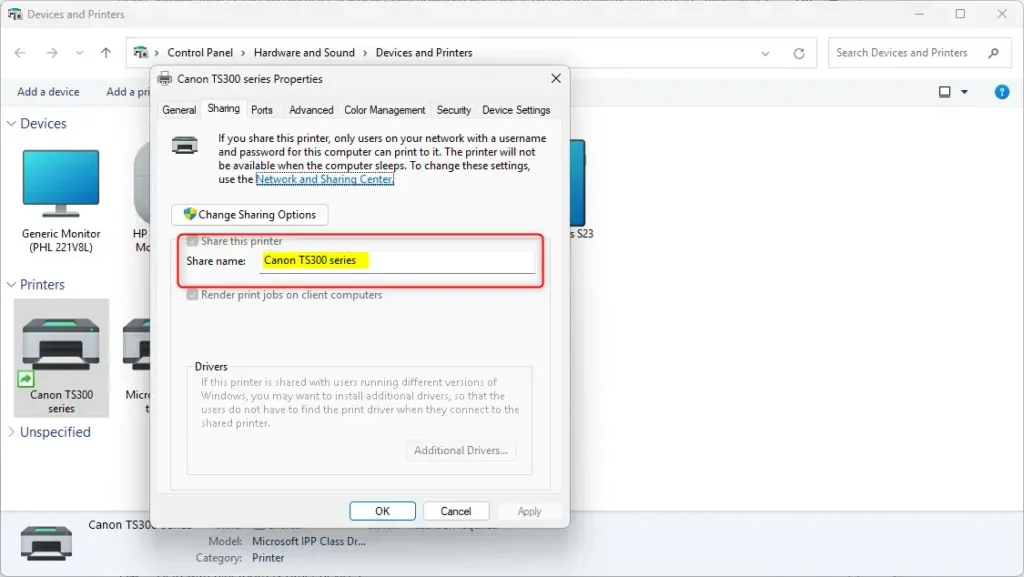
- Go to the Sharing tab. You will see the Shared name of the printer here.
You can easily find the shared printer name in Windows 11 using the Settings app by checking your printer’s properties.
Method 2Using Devices and Printers
- Open the Devices and Printers window. Press Windows key + R, type
control printers, and press Enter. - Right-click your printer and choose Printer properties.
- Click the Sharing tab.
- Look for the Shared name listed on this tab.
Method 3Using PowerShell
For those who prefer commands, PowerShell can quickly show you the shared printer name in Windows 11 with a simple command.
- ⚠️ Requires admin privileges: Right-click the Start button and select Windows Terminal (Admin).
- Make sure the tab shows PowerShell. You can select it from the dropdown menu if needed.
- Type this command and press Enter:
Get-Printer | Format-List Name,ShareName,Shared - Look at the results. Find the ShareName value. This is your printer’s shared name.

Summary
Finding your shared printer name in Windows 11 is straightforward using methods like the Settings app, Devices and Printers, or PowerShell commands.
What is 0x00000709 shared printer 🪟 Windows 11?
Error 0x00000709 in Windows 11 often stems from a corrupted default printer entry in the registry. To fix it, open regedit, navigate to 🗝️HKEY_CURRENT_USER\Software\Microsoft\Windows NT\CurrentVersion\Windows, and then clear or correct the ‘Device’ value to match your shared printer name.
How do I change the name of a shared printer?
Changing the name of a shared printer in Windows 11 is simple and can be done through the ‘Devices and Printers’ window by adjusting the printer properties.
How to add printer by shared name?
Choose the printer you want to add, then select the ‘Add Device’ button. If your desired printer isn’t showing up, select ‘The printer that I want isn’t listed.’ In the Add printer window that appears, choose ‘Select a shared printer by name.’
Was this guide helpful?

About the Author
Richard
Tech Writer, IT Professional
Richard, a writer for Geek Rewind, is a tech enthusiast who loves breaking down complex IT topics into simple, easy-to-understand ideas. With years of hands-on experience in system administration and enterprise IT operations, he’s developed a knack for offering practical tips and solutions. Richard aims to make technology more accessible and actionable. He's deeply committed to the Geek Rewind community, always ready to answer questions and engage in discussions.



No comments yet — be the first to share your thoughts!