How to Find and Use Notepad in Windows 11


Notepad in Windows 11 is a built-in text editor that lets you open, create, and change plain text files without any hidden formatting or styles. Included with Windows since its first version, this lightweight app runs on almost every PC and opens instantly for quick notes or minor code edits.
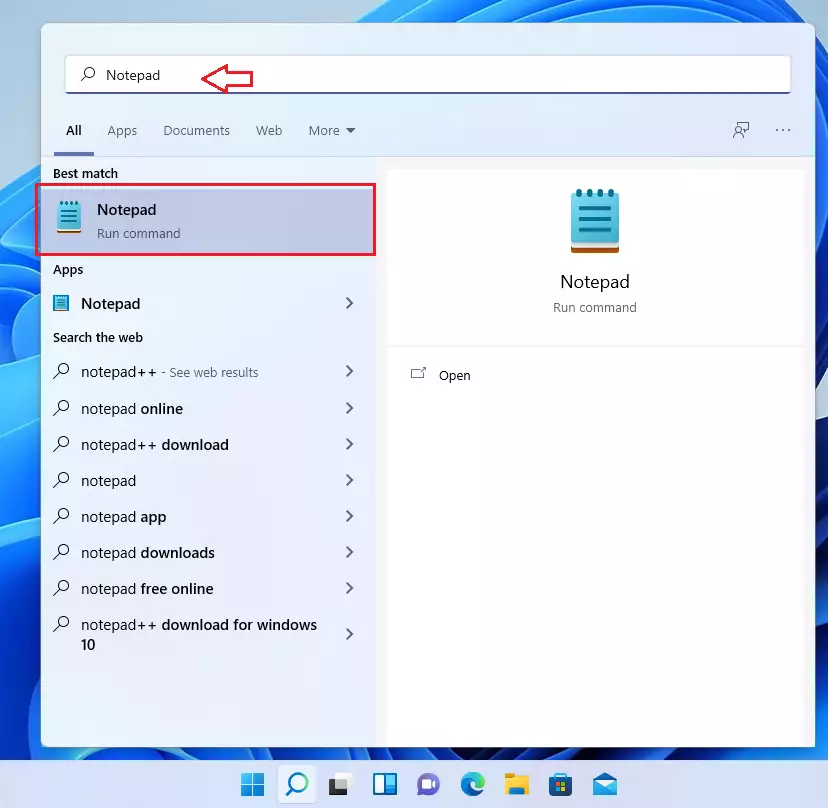
You can launch Notepad by typing its name into the Windows search bar . Unlike Microsoft Word, Notepad only handles raw text so you never have to worry about unwanted fonts, bold text, or colors carrying over when you paste words from the web.
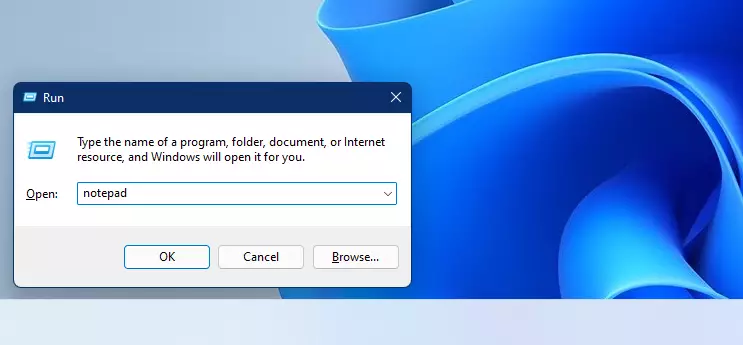
Find Notepad in Windows 11 by clicking the Start button and typing “Notepad” in the search bar. Click the Notepad app from the search results to open the text editor. You can also use the Run command by pressing Win+R and typing “notepad”.
How to open Notepad on 🪟 Windows 11
Opening Notepad in Windows 11 takes just a few seconds using either the Start menu search bar or the Run command. Press the Win, type Notepad into the search box , and press Enter to launch the app instantly. This built-in text editor lets you write and edit plain text files without needing to install extra software.
Method 1: The Start Menu
Click the Start button. Type “Notepad” into the search box. Click the Notepad app in the results.
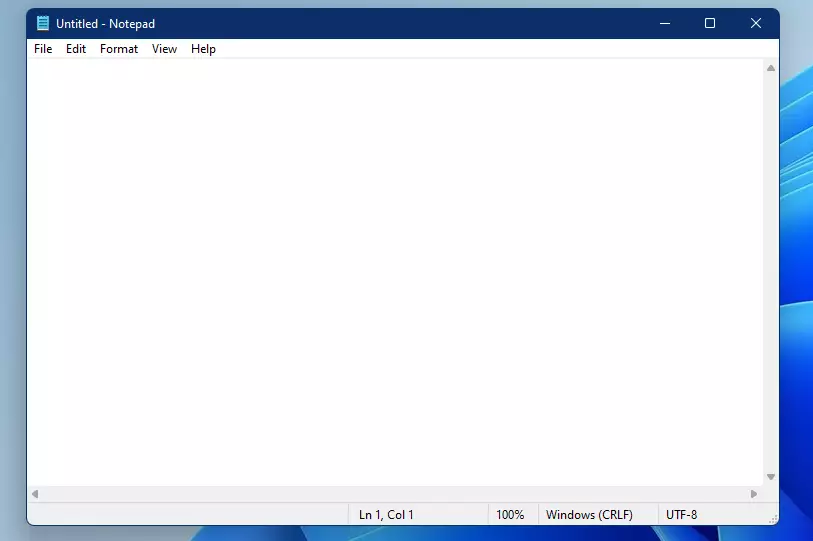
The Notepad window will then appear on your screen.
Method 2: The Run Command
Press the Windows key + R on your keyboard. Type 'notepad' in the box and press Enter.
Method 3: File Explorer
You can find the Notepad program file within File Explorer. Open File Explorer and go to C:\Program Files\Windows NT\Accessories. Finding the executable file directly in this folder lets you launch the program.
C:\Windows\notepad.exe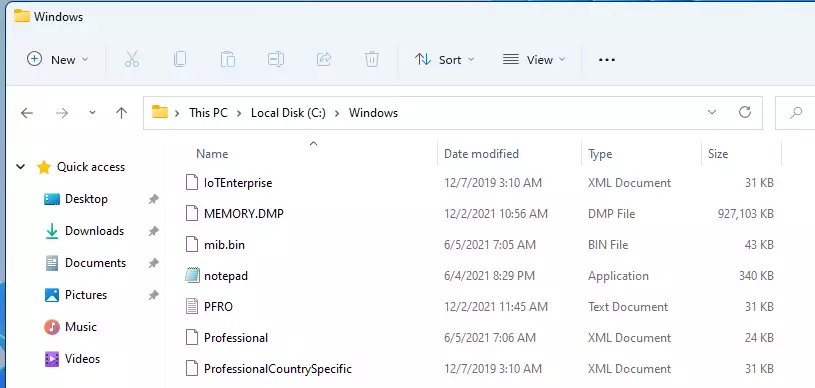
Managing your files
Use this table to handle your documents:
- Create a new file: Click File, then select New.
- Open a file: Click File, then select Open.
- Save a file: Click File, then select Save.
- Save with a new name: Click File, then select Save as.
Summary
Notepad in Windows 11 offers quick text editing, accessible via the Start menu, Run command, or File Explorer. Lacking advanced features such as spellcheck or complex formatting, Notepad is ideal for quick tasks. For more demanding needs, users can consider WordPad or Notepad++.
Was this guide helpful?

About the Author
Richard
Tech Writer, IT Professional
Richard is a writer at Geek Rewind who turns complex IT tasks into clear, step-by-step guides. He draws on years of hands-on experience in system administration and enterprise IT operations, focusing on Windows, Linux and WordPress: the problems people actually run into, and the fixes that work. His server and WordPress guides come from systems he runs himself. Richard builds and maintains the platform behind Geek Rewind, from its Ubuntu servers and Nginx configuration to its custom WordPress plugins. Many new tutorials start with readers' questions, and he's always glad to answer them in the comments.




No comments yet — be the first to share your thoughts!