How to Export Your Mailbox in Outlook for Windows 11

You export your Outlook mailbox in Windows 11 using the Import/Export Wizard for the Classic Outlook desktop application.
The New Outlook, being web-based, handles data differently and may not offer a direct PST export like its predecessor. This article focuses on exporting from the Classic Outlook version, which is still widely used by many.
You’ll typically export your mailbox to a .pst file. This process allows you to create a backup of your emails, contacts, and calendar items from your Outlook data file.
Using the Import/Export Wizard is a straightforward process for Classic Outlook users. It’s a critical tool if you need to transfer your data or create an archive before switching versions or PCs.
In New Outlook, go to Settings, then General, Privacy and data, select your account, and click Export mailbox. For Classic Outlook, use the Import/Export Wizard via File > Open & Export > Import/Export, choose Export to a file, select Outlook Data File (.pst), and follow the prompts.
Why export your mailbox?
Exporting your Outlook mailbox creates a secure backup of your emails, contacts, and calendar. This is important if your account gets corrupted, you lose access, or you want to move to a new email service or computer. It also helps free up server space by clearing out old messages.
What happens when you are done?
After you export your mailbox in New Outlook, the system prepares your data, which can take up to four days, and sends you an email with a download link. In Classic Outlook, the export happens right away on your computer and is saved locally.
How to export your mailbox in New Outlook
To export your mailbox in the New Outlook app, first open Outlook and click the gear icon for Settings. Then, go to General, followed by Privacy and data. Select the email account you wish to export and click the ‘Export mailbox’ button.
- Open the Outlook app on your computer.
Open the new Outlook app in Windows 11 - Click the Settings button, which looks like a gear icon in the top right corner.

Add Gmail to Outlook app in Windows 11 - Click the General tab on the left. Then, click Privacy and data on the right.
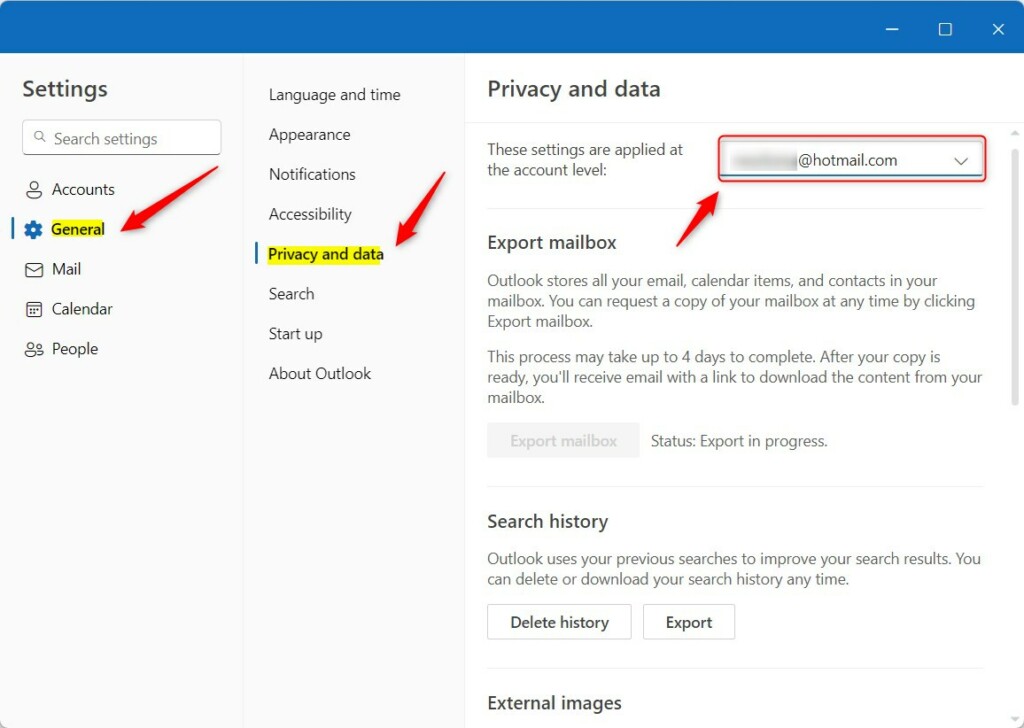
Export your mailbox in Outlook - Pick the email account you want to export.
- Click the Export mailbox button.
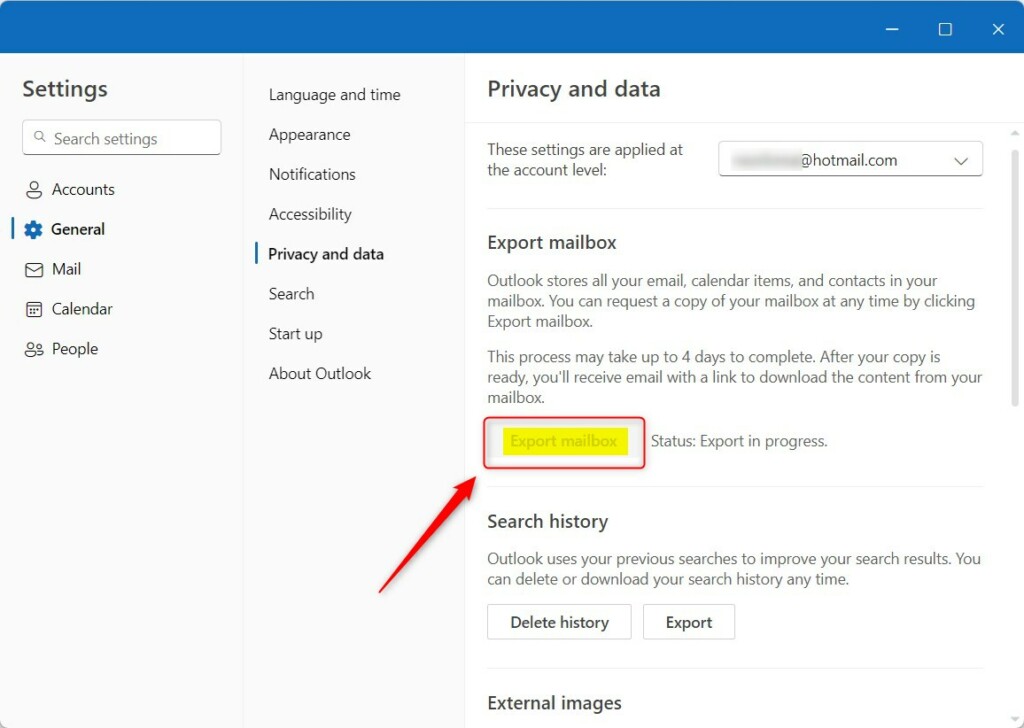
Export your mailbox in Outlook - Wait for the email notification from Microsoft with your download link.
Note: These steps do not require admin privileges.
How to export your mailbox in Classic Outlook
For Classic Outlook, you’ll use the Import/Export Wizard to create a .pst file. Click ‘File’, then ‘Open & Export’, and choose ‘Import/Export’. Select ‘Export to a file’, then ‘Outlook Data File (.pst)’, choose your folder, and pick a save location.
- Click File in the top left corner.
- Select Open & Export, then click Import/Export.
- Choose Export to a file and click Next.
- Select Outlook Data File (.pst) and click Next.
- Select the folder you want to export and ensure Include subfolders is checked.
- Choose a location to save your file, such as 📁C:\Users\GenericUser\Documents\OutlookBackup.pst.
Note: This process does not require admin privileges.
Troubleshooting and Common Errors
If your export fails, check for data corruption. Large files can sometimes cause performance issues. Microsoft recommends keeping your .pst file under 50GB to ensure stability. If you encounter errors, try running the Inbox Repair tool located at 📁C:\Program Files\Microsoft Office\root\Office16\SCANPST.EXE.
Summary
Exporting your Outlook mailbox is crucial for keeping your emails, contacts, and calendar safe, whether you use the New or Classic version. Backing up your data protects it and helps manage storage. Always save your exported .pst file securely, and consider adding a password for extra protection.
Can I export my mailbox from Outlook Web (OWA)?
Yes, the process for the web version is identical to the New Outlook for Windows. You navigate to Settings, select Privacy and data, and initiate the export. Microsoft will process your request and send a download link to your inbox once the archive is ready.
Does exporting delete the emails from the server?
No, exporting your mailbox creates a copy of your data. It does not remove, delete, or move any emails from your server. Your original messages remain safely in your account, allowing you to access them as you normally would after the backup is complete.
Was this guide helpful?

About the Author
Richard
Tech Writer, IT Professional
Richard, a writer for Geek Rewind, is a tech enthusiast who loves breaking down complex IT topics into simple, easy-to-understand ideas. With years of hands-on experience in system administration and enterprise IT operations, he’s developed a knack for offering practical tips and solutions. Richard aims to make technology more accessible and actionable. He's deeply committed to the Geek Rewind community, always ready to answer questions and engage in discussions.



[…] for subscription management, email forwarding, setting default From address, backing up your mailbox, changing the reading pane, opening a new window for a message, language […]
[…] for subscription management, email forwarding, setting default From address, backing up your mailbox, changing the reading pane, opening a new window for a message, language […]
[…] including support for subscription management, email forwarding, setting default From address, backing up your mailbox, changing the reading pane, opening a new window for a message, language translations, turning […]
[…] including support for subscription management, email forwarding, setting default From address, backing up your mailbox, changing the reading pane, opening a new window for a message, language translations, turning […]
[…] many features like subscription management, email forwarding, setting default From address, backing up your mailbox, changing the reading pane, opening a new window for a message, language translations, turning text […]
[…] app supports subscription management, email forwarding, setting default From address, backing up your mailbox, changing the reading pane, opening a new window for a message, language translations, turning text […]