How to Exclude Files from OneDrive in Windows 11

To exclude files from OneDrive in Windows 11, you’ll use the OneDrive settings to tell it which file types to ignore.
This process prevents OneDrive from uploading or syncing specific files or folders. That way, they remain exclusively on your local device, meaning your computer.
For instance, you might want to exclude large video files or system configuration files that don’t need cloud backup. OneDrive lets you manage these exclusions through its dedicated settings interface.
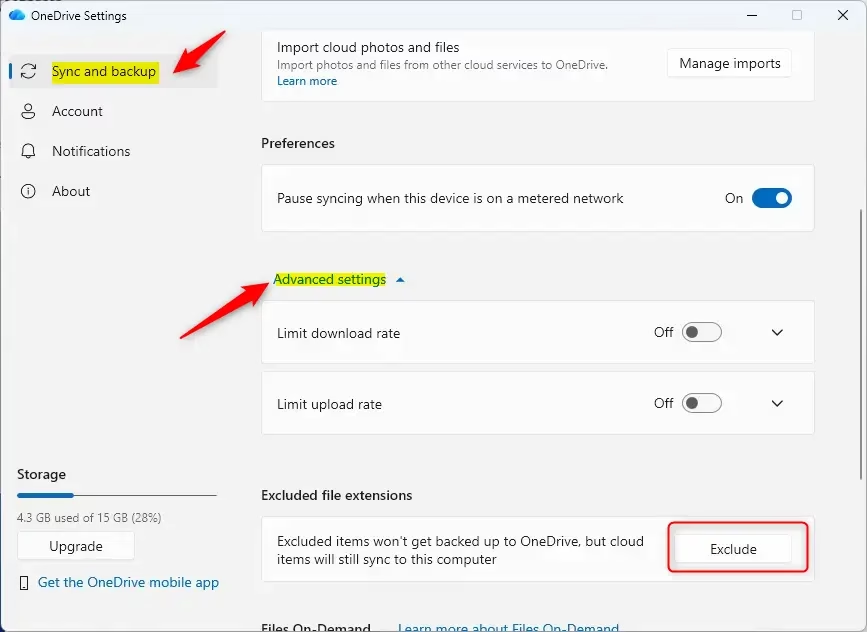
Right-click the OneDrive icon, go to Settings, then Sync and backup. Under Advanced settings, find Excluded file extensions and click Exclude to add file types you don’t want to sync. This stops OneDrive from uploading new files of the specified types.
Why exclude files from OneDrive?
You might have large files or temporary files that you do not need to access from your phone or other computers. By excluding them, you save space in your cloud storage and keep your synced folders clean.
What happens when you are done?
Once you add an extension to the exclusion list, OneDrive stops uploading new files of that type to the cloud. Please note that files already in your cloud storage won’t be automatically deleted; this setting only prevents new ones from being added.
How to exclude file types
You can stop OneDrive from syncing specific file types, like pictures or videos, by telling it which file extensions to ignore.- Click the OneDrive icon in your taskbar.
- Select the Help & Settings (gear) icon and choose Settings.
- Click Sync and backup on the left side, then click the Advanced settings link.
- Find the Excluded file extensions section and click Exclude.
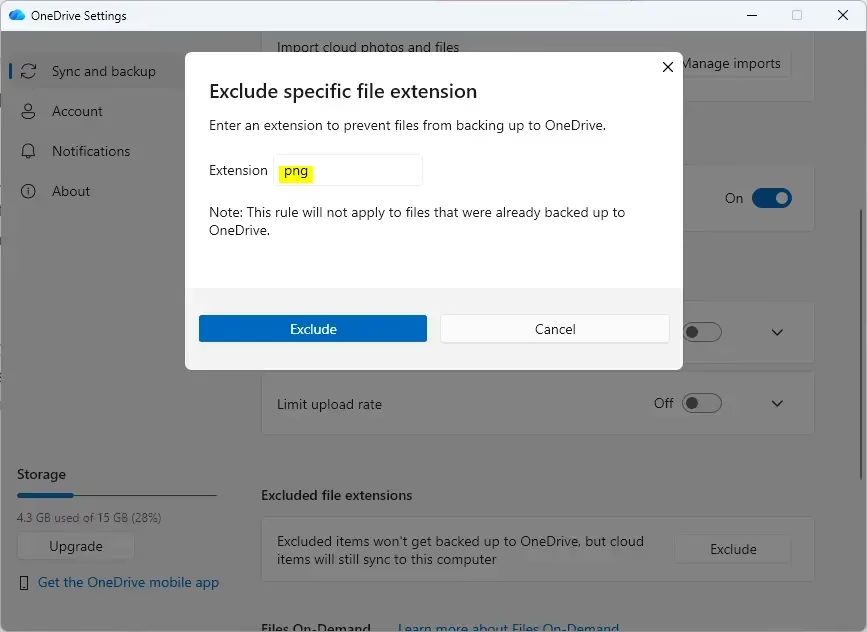
- Type the file extension you want to block (for example: “png”) into the box and click Exclude.
How to stop excluding file types
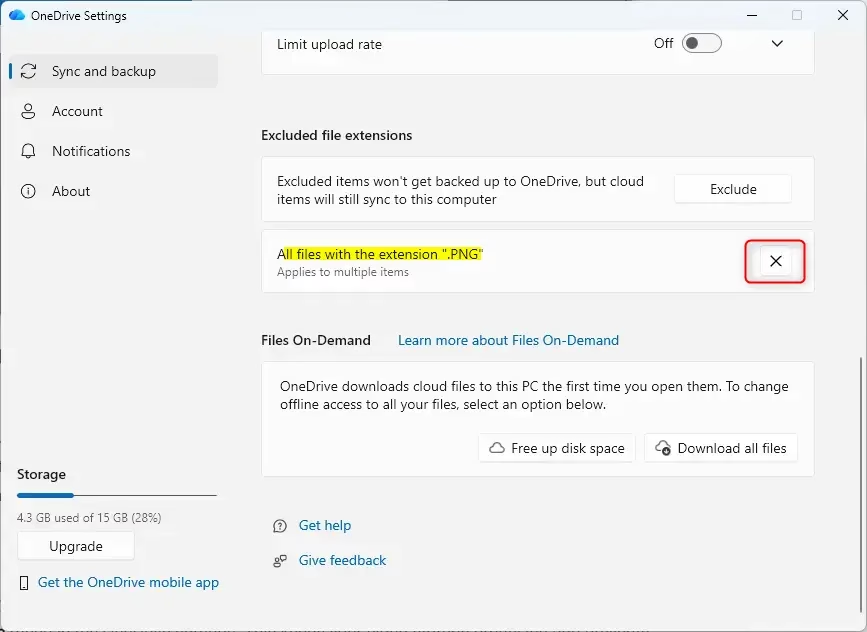
- Follow the steps above to return to the Excluded file extensions section.
- Look for the extension you want to allow again.
- Click the X button next to that extension.
- Click Ok to save your changes.
Summary
OneDrive usually syncs all your files to the cloud, but you can choose to keep certain files only on your computer by excluding them.
Can I exclude a specific file from OneDrive?
You can’t tell OneDrive to ignore just one single file by its name, but you can stop it from syncing entire folders or specific file types.
How do I exclude a documents folder from OneDrive?
Excluding your Documents folder from OneDrive means it will stay on your PC and won’t be saved to the cloud, which you can set up in the OneDrive sync settings.
How do I unlink OneDrive from certain files?
Unlinking OneDrive from certain files is as simple as moving them out of your OneDrive folder to another spot on your computer, or you can stop syncing whole subfolders.
How do I exclude folders from everything?
You can stop OneDrive from syncing any folder you choose by going into its settings and unchecking the folders you don’t want backed up to the cloud.
Was this guide helpful?

About the Author
Richard
Tech Writer, IT Professional
Richard, a writer for Geek Rewind, is a tech enthusiast who loves breaking down complex IT topics into simple, easy-to-understand ideas. With years of hands-on experience in system administration and enterprise IT operations, he’s developed a knack for offering practical tips and solutions. Richard aims to make technology more accessible and actionable. He's deeply committed to the Geek Rewind community, always ready to answer questions and engage in discussions.




No comments yet — be the first to share your thoughts!