How to End Unresponsive Apps in Windows 11

Is your computer acting slow because an app is frozen? You do not need to restart your whole computer. You can use the Task Manager to close just the app that is causing trouble.
Why use Task Manager?
When an app stops responding, it can eat up your computer’s memory and processor power. Using Task Manager lets you stop that specific app without losing work in other programs.
What happens when done?
Once you end the task, the frozen app will close immediately. Your computer will likely run much faster because the app is no longer using your system’s resources.
How to force quit an app in Windows 11
If you have an app that keeps freezing, you can use Windows Task Manager to stop it.
First, open Windows Task Manager. You can do this by pressing CTRL + SHIFT + Esc on your keyboard. You can also press CTRL + ALT + DELETE and select Task Manager from the list.
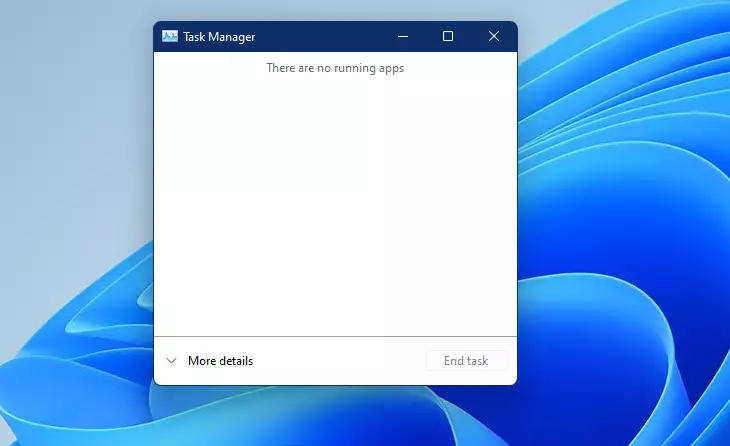
If the window looks small, click More details to see the full list of apps.
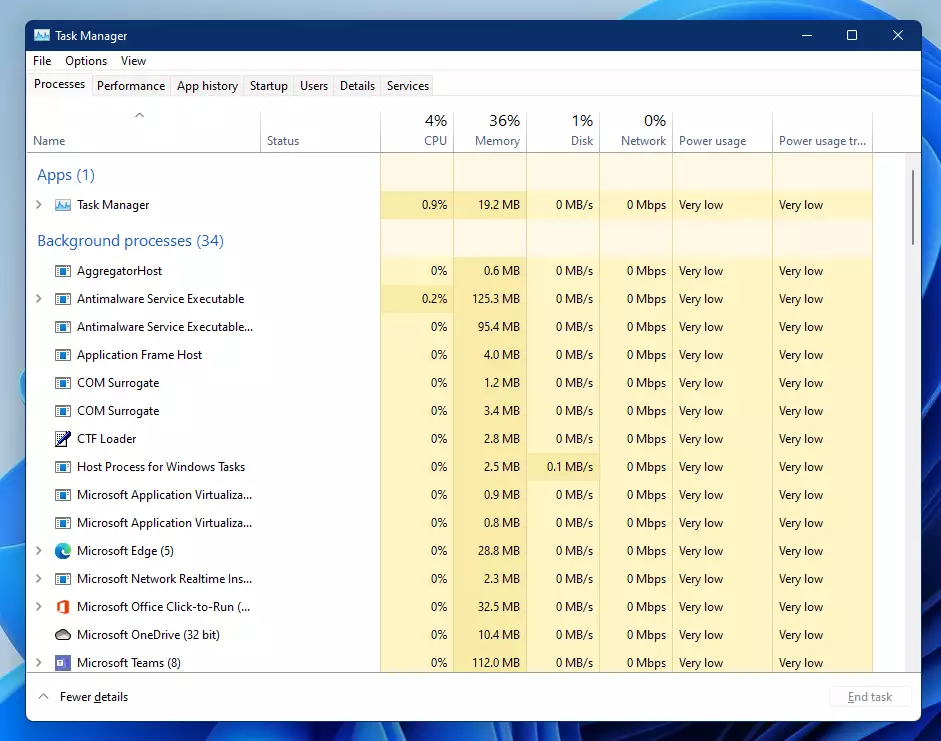
You will see a list of everything currently running. Look for the app that is frozen. It might be highlighted in red or labeled as “Not Responding.”
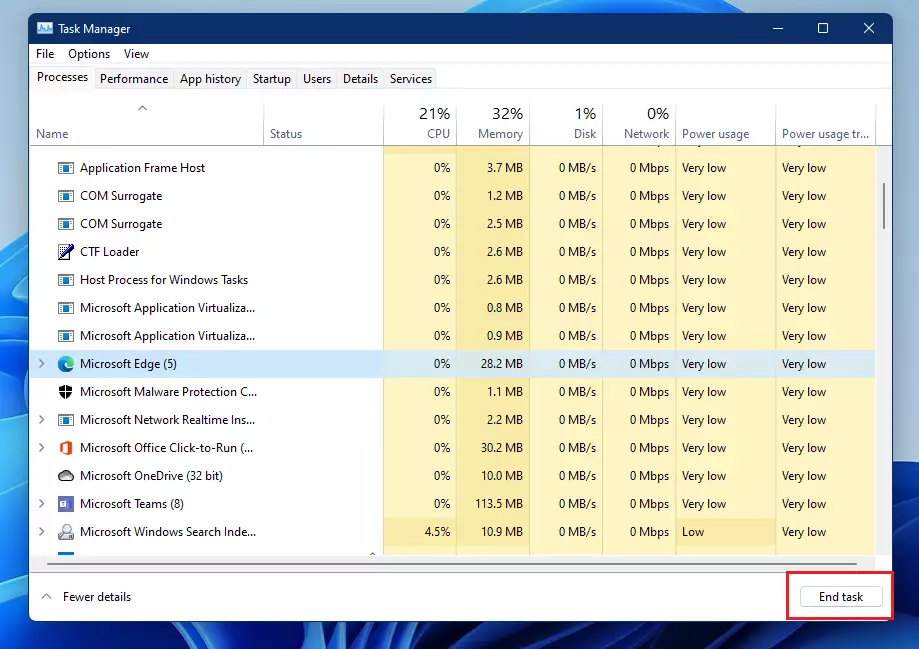
Click on the app name, then click the End task button at the top of the window.
Note: If you are running a command line tool as an administrator, you may need to use the following command in a terminal to force a process to close:
taskkill /F /IM "appname.exe"Note: Running commands that affect system-level processes may require admin privileges.
Summary
Task Manager is a built-in tool that helps you manage your computer’s performance. By ending unresponsive apps, you can keep your system running smoothly without needing to reboot. Always remember that any unsaved work in the frozen app will be lost when you force it to close.
Was this guide helpful?



Leave a Reply Cancel reply