

This article explains how to enable Win32 Long Paths in Windows 11.
What Are Win32 Long Paths?
Win32 Long Paths is a Windows feature. It lets apps work with file paths that are longer than the old 260-character limit.
Starting with Windows 10 version 1607 and later, Microsoft added support for long paths. Now apps can access paths up to about 32,767 characters long.
Why does this matter? If you work with deeply nested folders or very long file names, you hit that old 260-character wall. This feature removes that barrier.
What happens when you enable it? Only apps that are designed to use this feature will benefit. Developers have to update their apps to support long paths.
Method 1: Enable Win32 Long Paths Using Settings
This is the easiest way.
- Open the Settings app. Click the Start menu and select Settings. Or press Windows key + I.
- Click System on the left side.
- Select Advanced on the right to expand it.
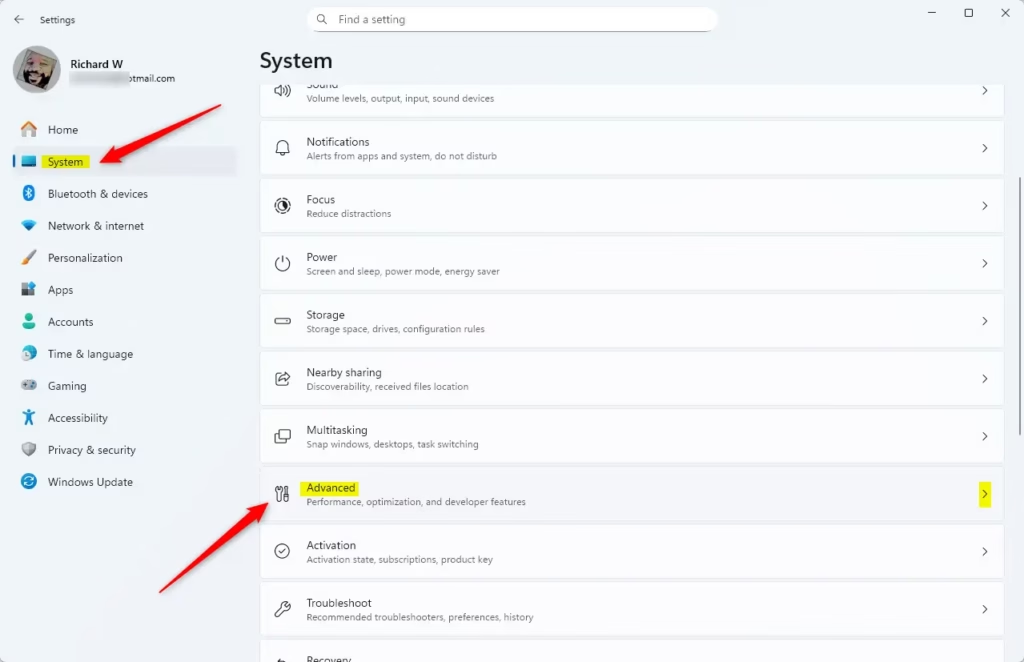
- Find the Enable long paths tile.
- Toggle the button on to enable it or off to disable it.
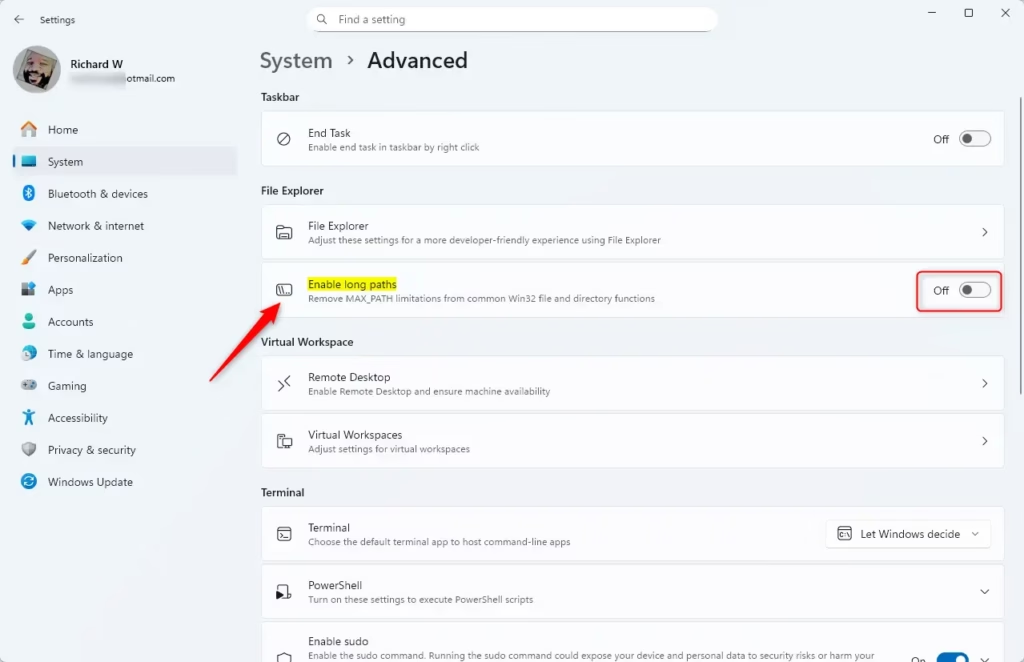
- Close Settings when you’re done.
Method 2: Enable Win32 Long Paths in Group Policy Editor
This method works if you have admin access. Windows Settings if you don’t see these options.
- [ADMIN] Open the Local Group Policy Editor. Search for
gpedit.mscin the Start menu. - Navigate to this folder path:
Computer Configuration > Administrative Templates > System > Filesystem - In the right panel, find Enable Win32 long paths and double-click it.
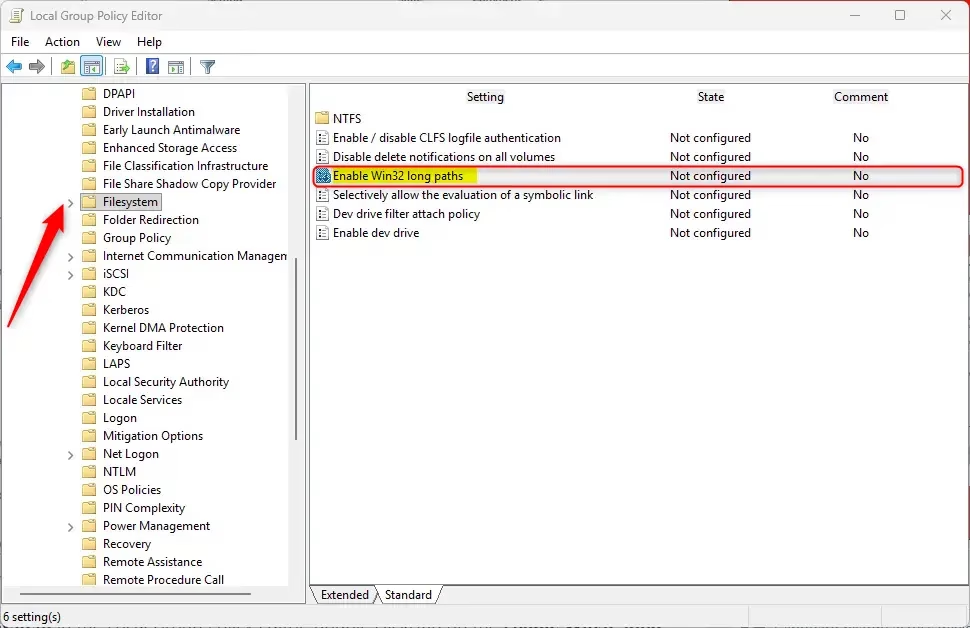
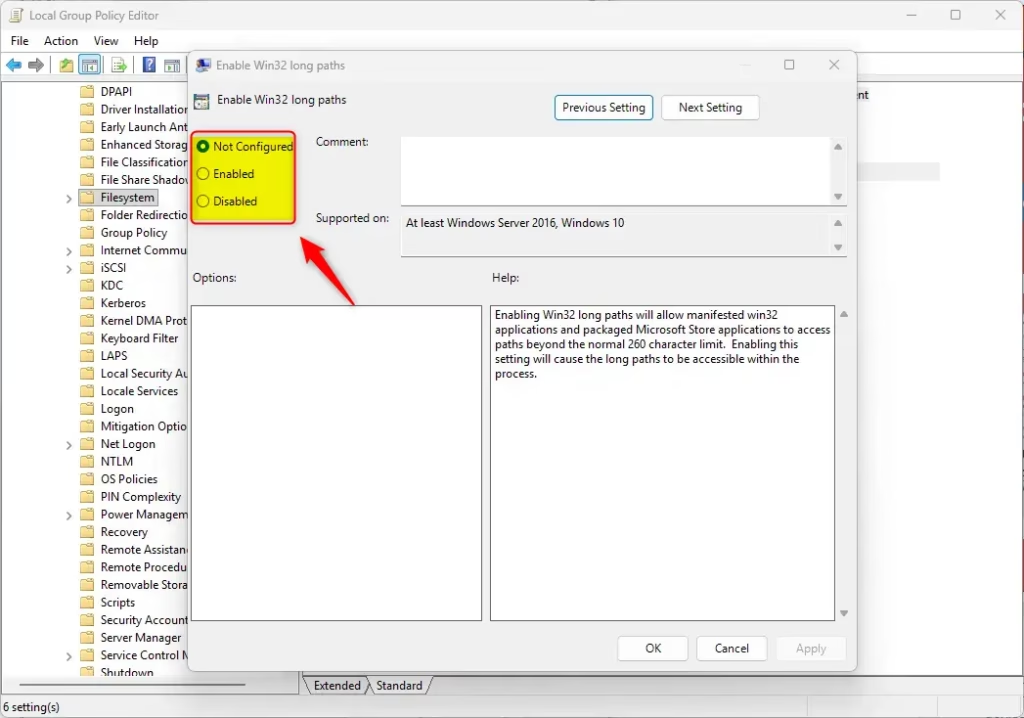
- Choose one of these options:
- Not Configured (default) — The feature is not set.
- Enabled — Long paths will work in apps that support them.
- Disabled — Turn off Win32 Long Paths.
- Click OK to save.
Method 3: Enable Win32 Long Paths Using Registry Editor
This is the advanced method. Be careful when editing the registry.
Important: [ADMIN] Settings app before you make any changes. Or create a System Restore point to be safe.
- [ADMIN] Open the Registry Editor. Search for
regeditin the Start menu. - Navigate to this path:
Computer\HKEY_LOCAL_MACHINE\SYSTEM\CurrentControlSet\Control\FileSystem - Right-click the FileSystem folder on the left.
- Select New > DWORD (32-bit) Value.
- Name it
LongPathsEnabled. - Double-click the new value to open it.
- Set it to 1 to enable long paths for all users. Or set it to 0 to disable it.
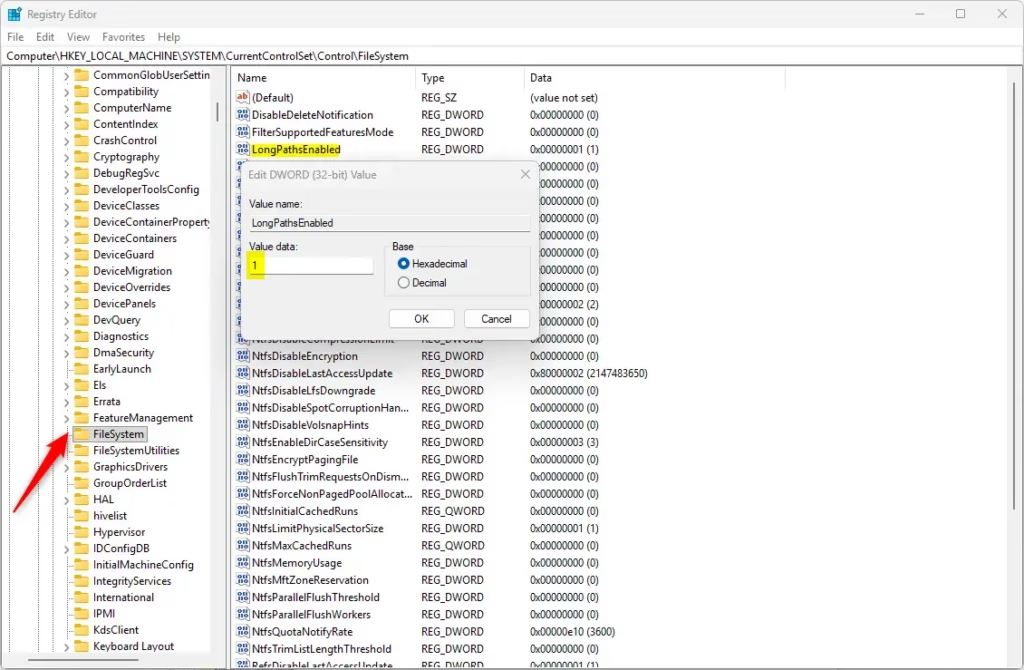
- Click OK.
- You may need to restart your computer for the changes to take effect.
Summary
What is Win32 Long Paths? It’s a Windows feature that lets apps handle file paths much longer than 260 characters—up to 32,767 characters.
Why enable it? If you work with complex folder structures or long file names, you’ll avoid hitting the old character limit.
What happens when enabled? Only apps designed to support long paths will use this feature. Regular apps won’t be affected.
How to enable it? You have three choices:
- Settings app — Easiest method. Just toggle a switch.
- Group Policy Editor — For advanced users with admin access.
- Registry Editor — Most technical method. Always back up first.
Key tips to remember:
- Always back up the registry before making changes.
- You may need to restart your computer after making changes.
- Only apps coded to support long paths will benefit from this feature.



Leave a Reply