How to Enable or Disable USB Selective Suspend Windows 11

This tutorial will show you how to turn on or off USB selective suspend for a power plan in Windows 10 and Windows 11.
What Is USB Selective Suspend?
USB selective suspend is a feature that powers down USB devices when they are not in use. The devices can turn back on when you need them. This happens while your computer stays running normally.
Why should you care? Here are the main benefits:
- Selective suspend saves battery power.
- It reduces heat and fan noise from your computer.
The USB selective suspend feature lets the hub driver pause one USB port. Other ports keep working normally. This is especially helpful on laptops. Devices like fingerprint readers only need power sometimes. When they are sleeping, your computer uses less power. Even better, a device that is not suspended can prevent your USB controller from sleeping. This means your processor cannot enter deeper sleep modes either.
USB Selective Suspend – Windows drivers – This article provides information about choosing the correct mechanism for the selective suspend feature.
Demystifying USB Selective Suspend | Microsoft Community Hub – First published on MSDN on May 10, 2011. Hi, I am Vivek Gupta, a software developer on the USB team.
Selective Suspend in USB Drivers (WDF) – Windows drivers – A USB function driver supports runtime idle detection by implementing USB selective suspend.
USB devices may stop functioning correctly when multiple devices connected to the same USB hub go into selective suspend – Microsoft Support – This article provides methods for working around slow or unresponsive USB devices attached to the same hub.
Option 1Use Power Options Settings
You can enable or disable USB selective suspend in Windows 11 through the Power Options settings in Control Panel by accessing advanced power settings, finding the USB settings section, and toggling the selective suspend option for both battery and plugged-in modes. This graphical method is the simplest approach for most users.
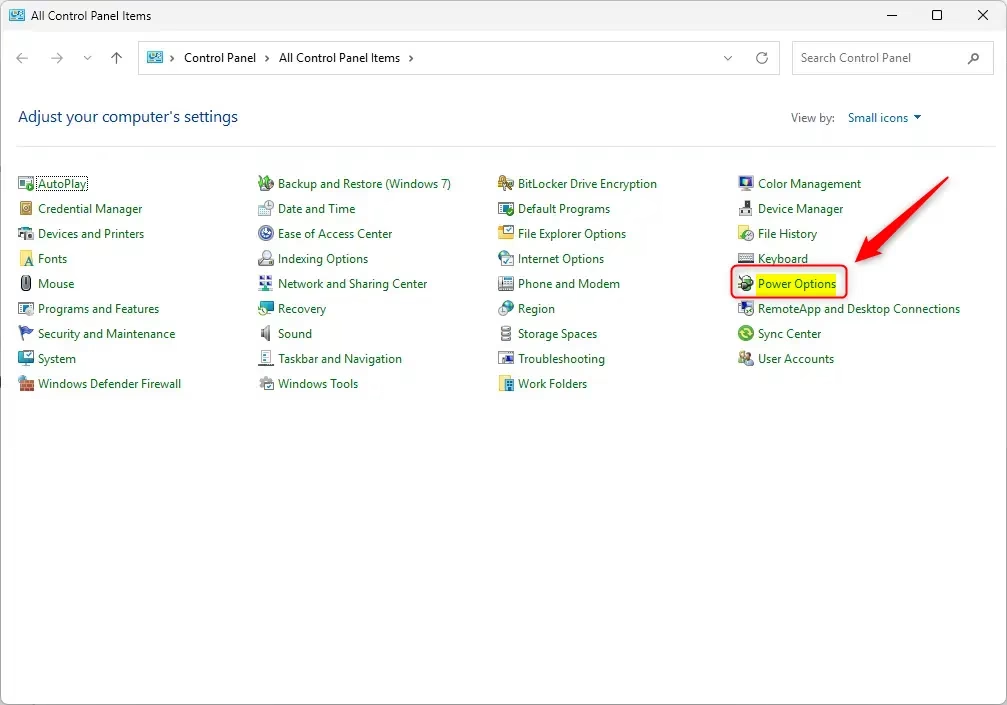
- Open the Control Panel in icons view. Click on the Power Options icon.
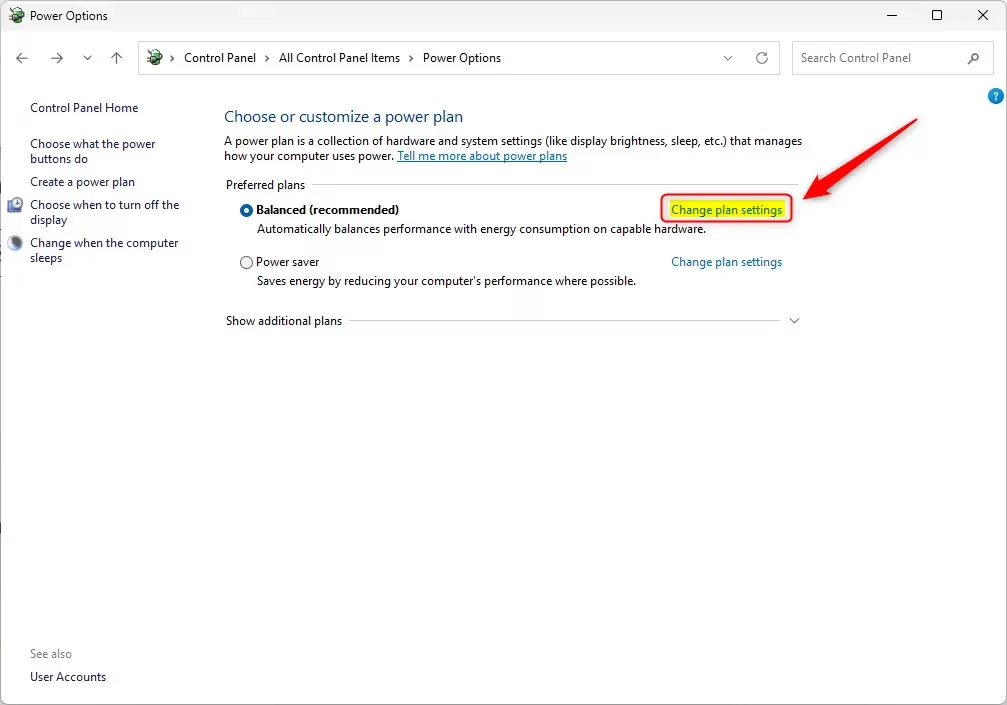
- Find your power plan (like “Balanced”). Click Change plan settings next to it.
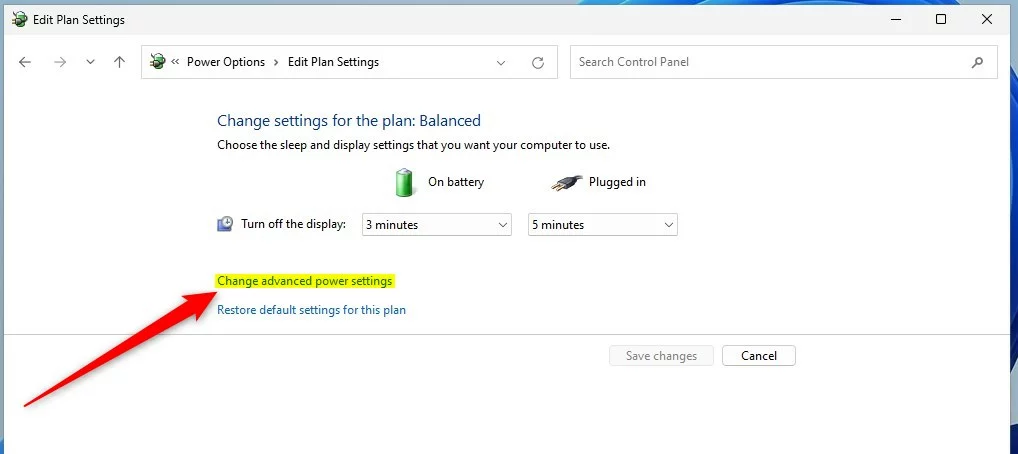
- Click Change advanced power settings.
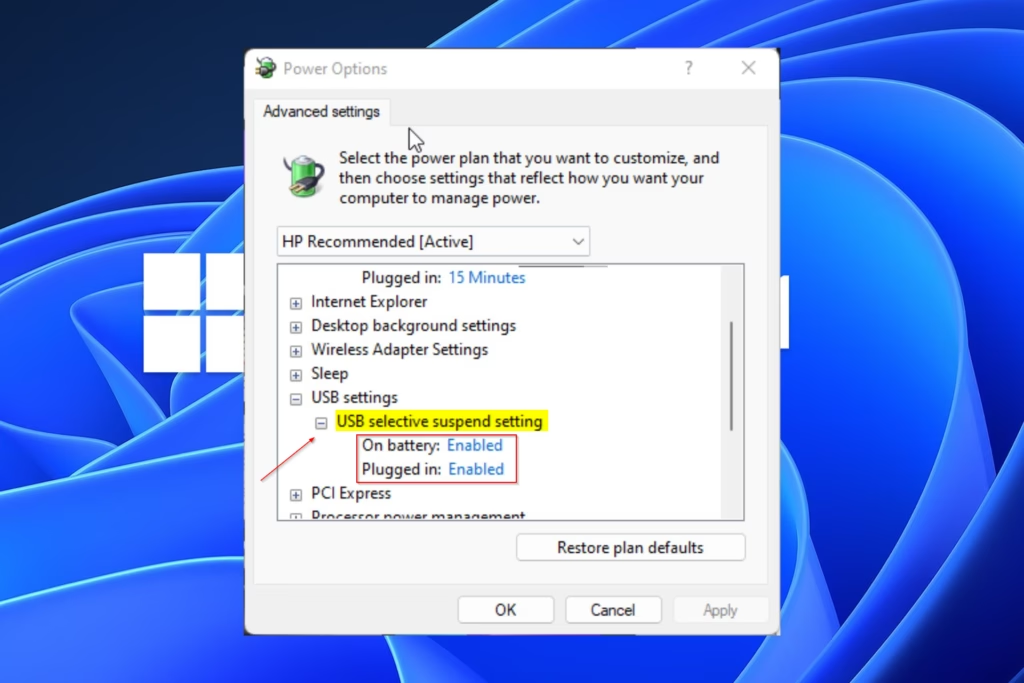
- Find USB settings. Expand it to see USB selective suspend setting.
- Choose Enabled (the default) or Disabled for both On battery and Plugged in. Then click OK.
Note: You will only see separate On battery and Plugged in settings if your device has a battery or is connected to a UPS.
Option 2Use Command Line
This option applies to your current active power plan.
- Open Windows Terminal. Choose either Windows PowerShell or Command Prompt.
- Copy and paste one of the commands below into Windows Terminal. Press Enter.
On Battery
On battery: Enabled (Default)powercfg /SETDCVALUEINDEX SCHEME_CURRENT 2a737441-1930-4402-8d77-b2bebba308a3 48e6b7a6-50f5-4782-a5d4-53bb8f07e226 1
OR
On battery: Disabledpowercfg /SETDCVALUEINDEX SCHEME_CURRENT 2a737441-1930-4402-8d77-b2bebba308a3 48e6b7a6-50f5-4782-a5d4-53bb8f07e226 0
Plugged InUse this option for a desktop computer. Desktop computers usually do not have separate On battery and Plugged in options unless connected to a UPS.
Plugged in: Enabled (Default)
ORpowercfg /SETACVALUEINDEX SCHEME_CURRENT 2a737441-1930-4402-8d77-b2bebba308a3 48e6b7a6-50f5-4782-a5d4-53bb8f07e226 1
Plugged in: Disabledpowercfg /SETACVALUEINDEX SCHEME_CURRENT 2a737441-1930-4402-8d77-b2bebba308a3 48e6b7a6-50f5-4782-a5d4-53bb8f07e226 0
That’s it!
Summary
USB selective suspend lets your computer power down USB devices when they sit idle. This saves battery power and reduces heat and noise. You can enable or disable this feature in two ways. The easiest way is through Power Options in Control Panel. You can also use command line commands in Windows Terminal if you prefer. Choose the method that works best for you.
What is USB selective suspend setting 🪟 Windows 11?
USB selective suspend is a Windows power management feature that allows the system to automatically power down individual USB devices when they are not in active use. By suspending idle ports, Windows reduces overall power consumption and heat generation while ensuring the device remains ready to resume operation when needed.
Is USB selective suspend good or bad?
USB selective suspend is generally good for laptops as it significantly extends battery life and reduces thermal output. However, it can be problematic for certain peripherals, such as external hard drives or audio interfaces, which may experience connectivity drops or latency issues if the system incorrectly suspends their power during active use.
How to turn on USB selective suspend?
To enable this feature, open the Control Panel, navigate to Power Options, and select 'Change plan settings' for your active plan. Click 'Change advanced power settings,' expand the 'USB settings' section, and set the 'USB selective suspend setting' to 'Enabled.' Finally, click 'Apply' and 'OK' to save your changes.
What is the function of USB selective suspend?
The primary function of USB selective suspend is to conserve energy by allowing the hub driver to pause power to specific USB ports without affecting the entire controller. This enables individual devices to enter a low-power state while the rest of the computer continues to function normally, optimizing overall system efficiency.
Was this guide helpful?

About the Author
Richard
Tech Writer, IT Professional
Richard, a writer for Geek Rewind, is a tech enthusiast who loves breaking down complex IT topics into simple, easy-to-understand ideas. With years of hands-on experience in system administration and enterprise IT operations, he’s developed a knack for offering practical tips and solutions. Richard aims to make technology more accessible and actionable. He's deeply committed to the Geek Rewind community, always ready to answer questions and engage in discussions.




No comments yet — be the first to share your thoughts!