How to Enable or Disable Windows 11 Touch Keyboard Sounds

You enable or disable Windows 11 touch keyboard sounds to control auditory feedback when using the on-screen keyboard.
Touch keyboard sounds are audio cues that play a click with each virtual key press, confirming your input on your Windows 11 device.
This tutorial shows you how to toggle these sounds on or off, a useful customization for tablets or 2-in-1s like the Microsoft Surface Pro 8.
Turning them off can create a quieter, more focused typing environment.
Enabling them mimics the tactile feedback of a physical keyboard.
Go to Settings > Time & language > Typing > Touch keyboard and toggle “Play key sounds as I type.” Uncheck the box to disable sounds, or check it to enable them.
Change Keyboard Sounds via Settings
You can turn the Windows 11 touch keyboard sounds on or off using the Settings app.
- Open the Windows Settings app by pressing Windows key + I.
- Click on Time & language in the left menu.
Windows 11 Time and language button in the Settings app - Click the Typing tile on the right.
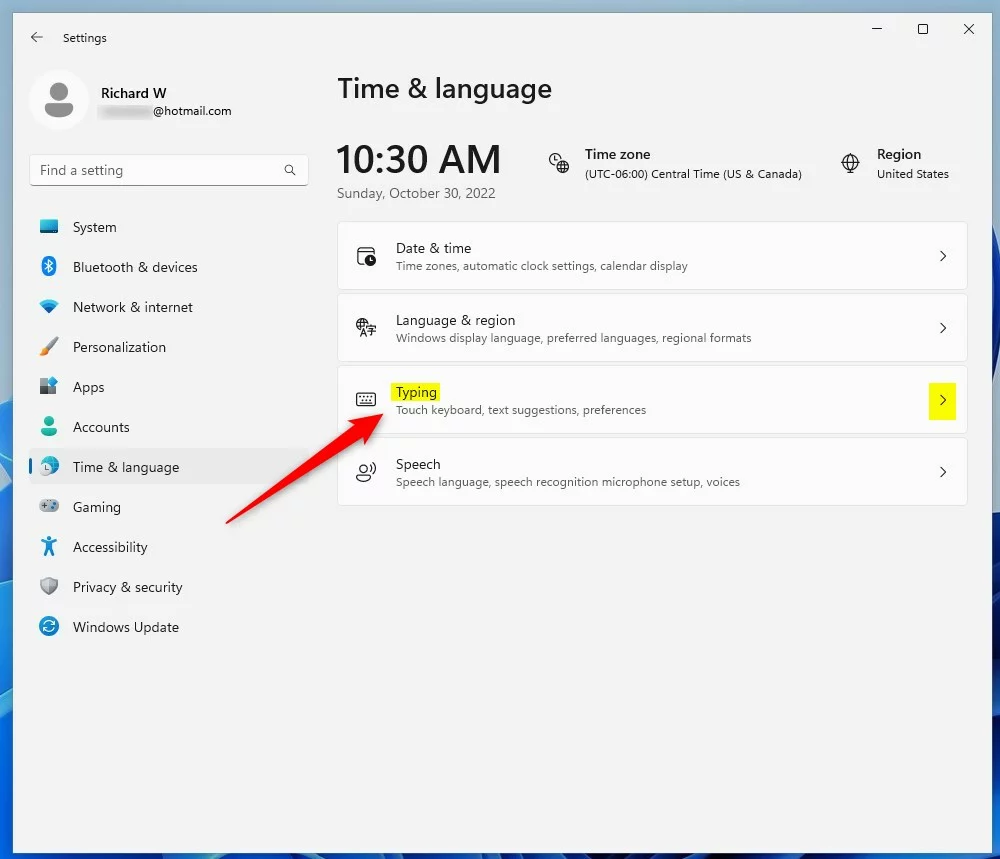
windows 11 time and language typing tile - Click on the Touch keyboard section to expand it.
- Check the box for Play key sounds as I type to turn the sound on. Uncheck it to turn the sound off.
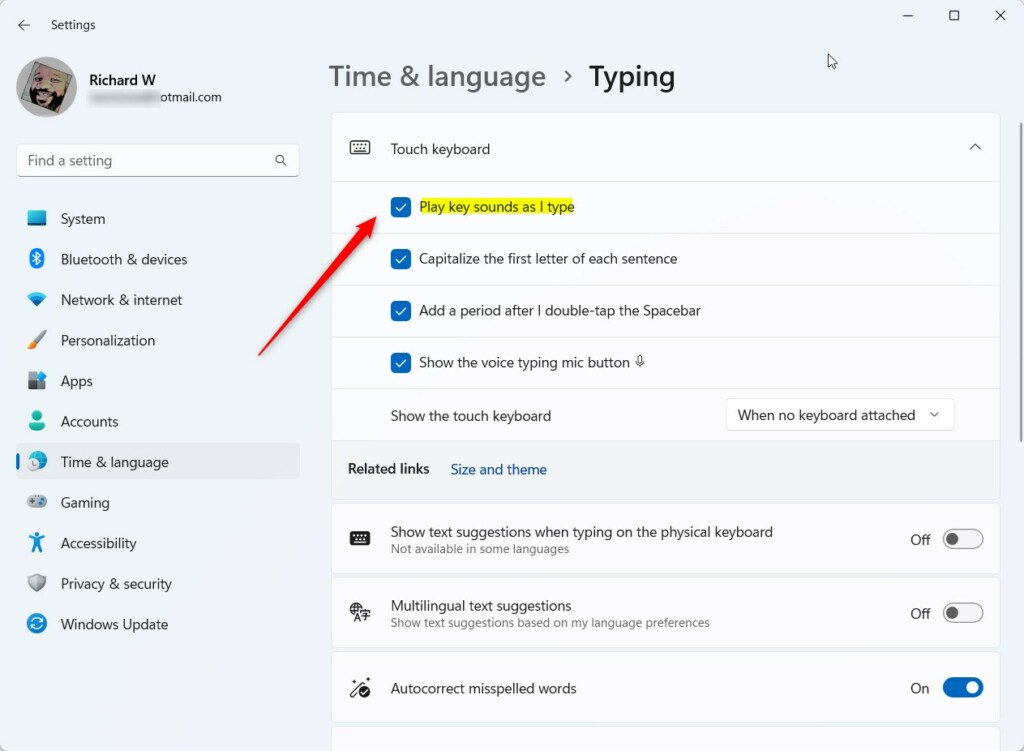
Windows 11 play key sounds as I type.
Change Keyboard Sounds via Registry Editor
You can turn Windows 11 touch keyboard sounds off using the Registry Editor, but this method is more advanced and requires caution.
- Press Windows key + R, type
regedit, and press Enter. - Navigate to:
HKEY_CURRENT_USER\Software\Microsoft\TabletTip\1.0 - Right-click in the empty space, select New, then DWORD (32-bit) Value.
- Name it
EnableKeyAudioFeedback. - Double-click it and set the value to
1for on or0for off.
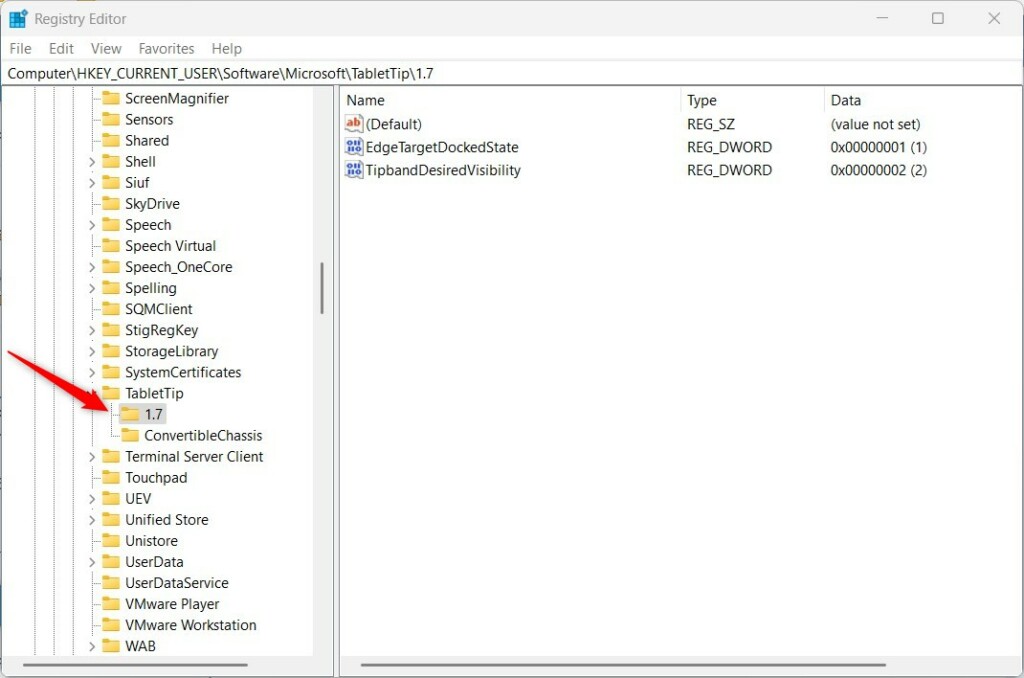
Automation via PowerShell
Note: This process requires admin privileges. You can automate this for multiple users using PowerShell.
Set-ItemProperty -Path "HKCU:\Software\Microsoft\TabletTip\1.0" -Name "EnableKeyAudioFeedback" -Value 0
For more information on accessibility, visit the official Microsoft accessibility documentation.
Summary
You have learned how to enable or disable Windows 11 touch keyboard sounds using Settings, the Registry, and PowerShell. Whether you prefer a silent workspace or audible feedback, these methods provide full control over your typing experience. Always remember to use caution when editing the registry.
Why does my touch keyboard sound persist after disabling it in settings?
If the sound persists, your system sound scheme might be overriding the setting. Check your Windows Sound Control Panel to ensure no custom sound schemes are active. Additionally, ensure your TabletTip registry key is correctly set to 0, as some hardware drivers may ignore the standard Windows UI toggle.
Does disabling touch keyboard sound affect physical keyboard clicks?
No. Disabling the touch keyboard sound only affects the virtual on-screen keyboard. It does not change the mechanical sound or haptic feedback of a physical keyboard connected to your device. These are controlled by separate hardware drivers and system settings independent of the TabletTip service.
How do I reset keyboard sound settings to default in 🪟 Windows 11?
To reset to default, simply delete the EnableKeyAudioFeedback DWORD entry in the Registry Editor at HKEY_CURRENT_USER\Software\Microsoft\TabletTip\1.0. Once removed, Windows will revert to its default behavior based on your current system sound scheme and accessibility settings.
Was this guide helpful?

About the Author
Richard
Tech Writer, IT Professional
Richard, a writer for Geek Rewind, is a tech enthusiast who loves breaking down complex IT topics into simple, easy-to-understand ideas. With years of hands-on experience in system administration and enterprise IT operations, he’s developed a knack for offering practical tips and solutions. Richard aims to make technology more accessible and actionable. He's deeply committed to the Geek Rewind community, always ready to answer questions and engage in discussions.



[…] Touch keyboard is fully customizable, including enabling or disabling sound, capitalizing the first letter, enabling or disabling shift lock, adjusting the size, and many […]