How to Enable or Disable Suggested People in Outlook

You can enable or disable suggested people in the new Outlook for Windows to control which contacts appear as you start typing an email address.
Suggested people are a helpful feature in Outlook that offers contact suggestions to speed up your email composition. The new Outlook application provides granular control over these suggestions, distinguishing between basic and expanded contact lists.
Basic suggestions pull from your organization’s directory and your personal contacts. Expanded suggestions additionally show people you’ve recently interacted with, ensuring you can quickly find frequent recipients.
By disabling expanded suggestions, you can simplify the contact list to include only your core contacts. This offers a tidier experience if you prefer fewer automatic prompts when addressing emails.
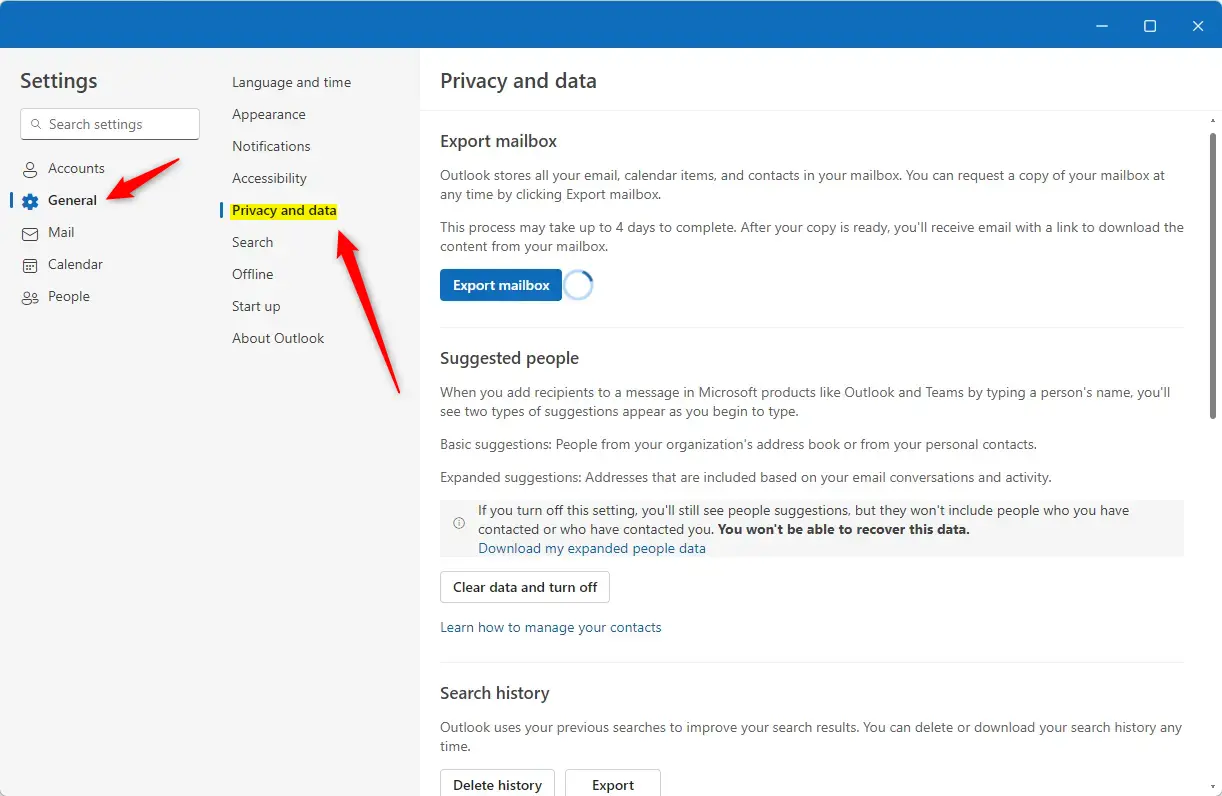
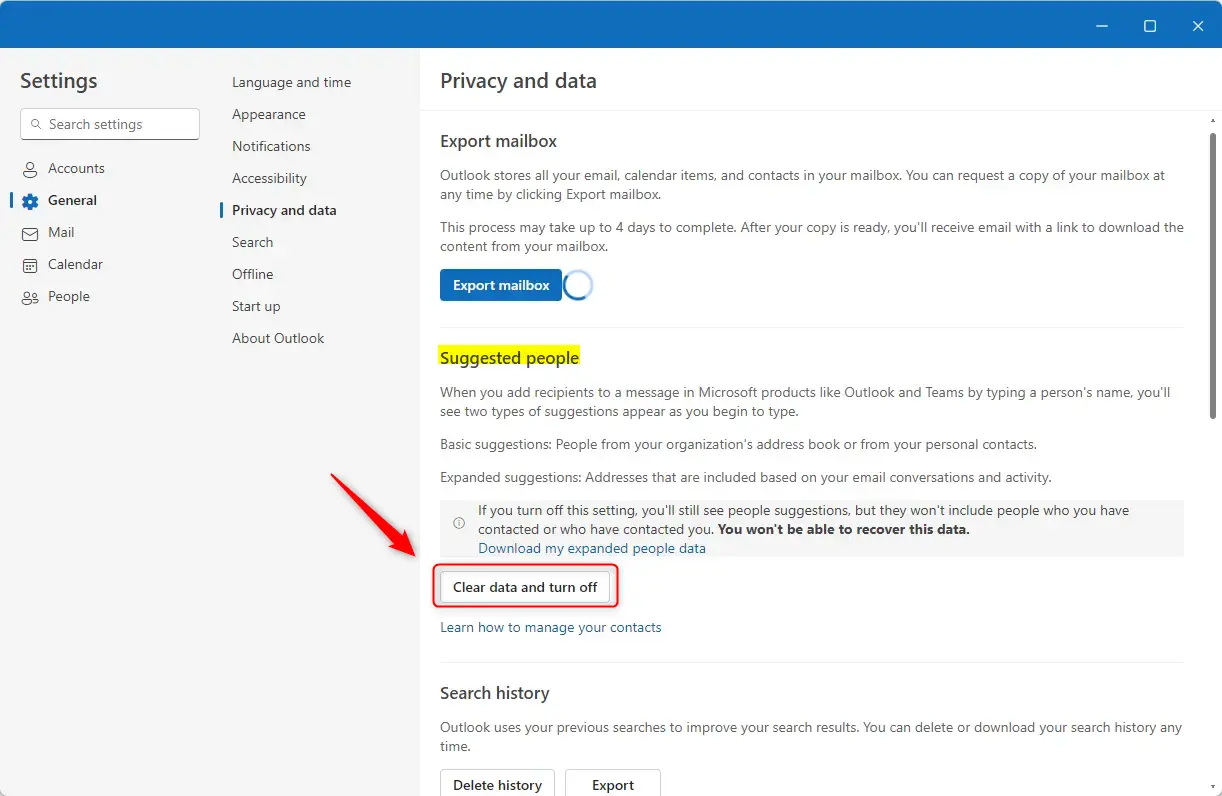
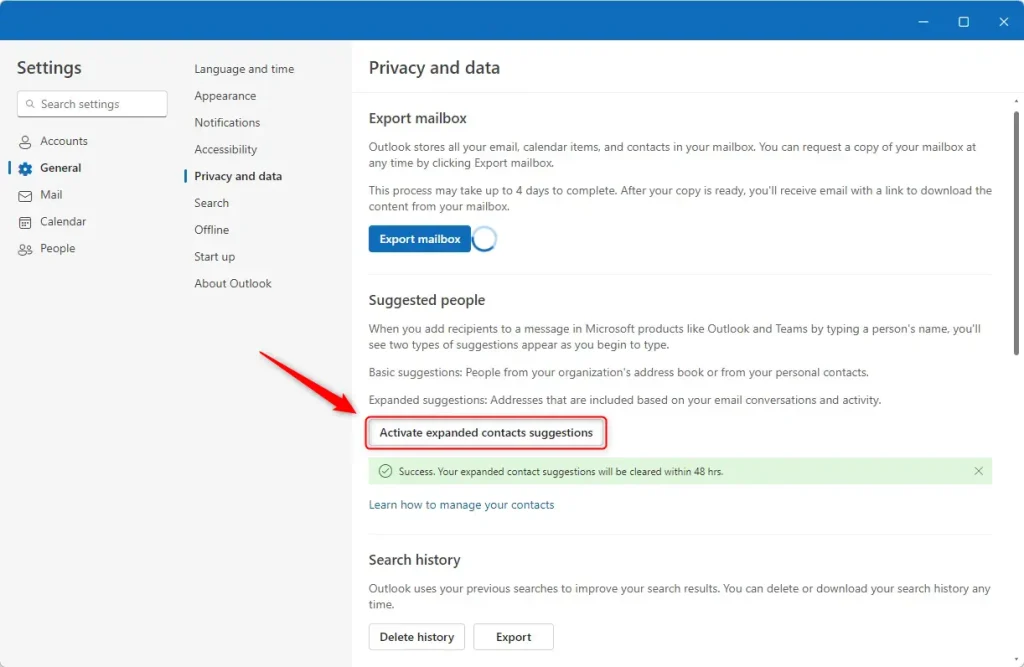
Open Outlook settings, navigate to General, then Privacy and data. Under “Suggested people,” click “Clear data and turn off” to disable, or “Activate expanded contacts suggestions” to enable.
Enable or disable suggested people in Outlook
You can easily turn the “Suggested people” feature on or off in the new Outlook app right from the settings menu.
Here’s how to make that happen.
First, open the Outlook app by clicking on its icon in the Start menu or searching for it in the taskbar search box.
Once Outlook is open, click on the Settings gear icon at the top right of the menu bar.

In the Settings sidebar, click “General” to open a sub-menu, then select “Privacy and data” to open the settings.
Under the “Suggested people” section, click the “Clear data and turn off” button to disable this feature.
Click the Save button after making your changes and exit.
If this feature is off, click the “Activate expanded contacts suggestions” to enable it.
That’s it!
Conclusion:
- The new Outlook app for Windows 11 enhances user experience with features like suggested people.
- Users can easily enable or disable the suggested people feature to customize their interaction.
- Accessing the settings is straightforward, ensuring a user-friendly approach to managing privacy.
- The ability to clear data and activate suggestions provides flexibility in how users handle their contacts.
- The Outlook app offers robust functionalities for efficient email and calendar management.
How do I turn on suggested recipients in Outlook?
For Microsoft accounts, do the following: Go to the Privacy page for your Microsoft account, and if prompted sign in with your Microsoft account. Scroll down to Improve your productivity and select People suggestions.
How to activate suggested replies in Outlook?
Keep that checked or unchecked based on what you prefer. Then, select OK to save the change.
Why did Outlook stop suggesting email addresses?
Open MS Outlook and navigate to the File menu. Choose Options, then head to the Mail tab. Locate the Send Messages section by scrolling down. Check the boxes ‘Use Auto-Complete List to suggest names when typing in the To, Bcc, and Cc lines’.
Was this guide helpful?
0% of readers found this helpful (1 votes)

About the Author
Richard
Tech Writer, IT Professional
Richard, a writer for Geek Rewind, is a tech enthusiast who loves breaking down complex IT topics into simple, easy-to-understand ideas. With years of hands-on experience in system administration and enterprise IT operations, he’s developed a knack for offering practical tips and solutions. Richard aims to make technology more accessible and actionable. He's deeply committed to the Geek Rewind community, always ready to answer questions and engage in discussions.



No comments yet — be the first to share your thoughts!