How to Enable Respect Power Settings when Indexing in Windows 11

You enable ‘Respect power settings when indexing’ in Windows 11 to conserve battery life by pausing search indexing when your PC is in power-saving modes.
This setting determines if Windows stops indexing new files to save energy when your PC is on battery, in Battery Saver mode, or using other power-saving features.
Enabling this option means Windows prioritizes battery conservation, temporarily halting indexing when power is low. For instance, on many Windows 11 laptops, this significantly extends usage time on a single charge by reducing background CPU activity.
Disabling it allows Windows to continue indexing regardless of your power state, potentially draining your battery faster but ensuring your search index remains constantly updated.
Enable “Respect power settings when indexing” in Windows 11 Settings under Privacy & security > Searching Windows. This prevents the search indexer from draining your battery by pausing when your PC is in a power-saving mode.
Method 1Using the Settings App
You can turn on the option to respect power settings when Windows 11 is indexing by using the simple Settings app.
- Open the Windows Settings app. You can click the Start menu and select Settings, or press the Windows key + I on your keyboard.
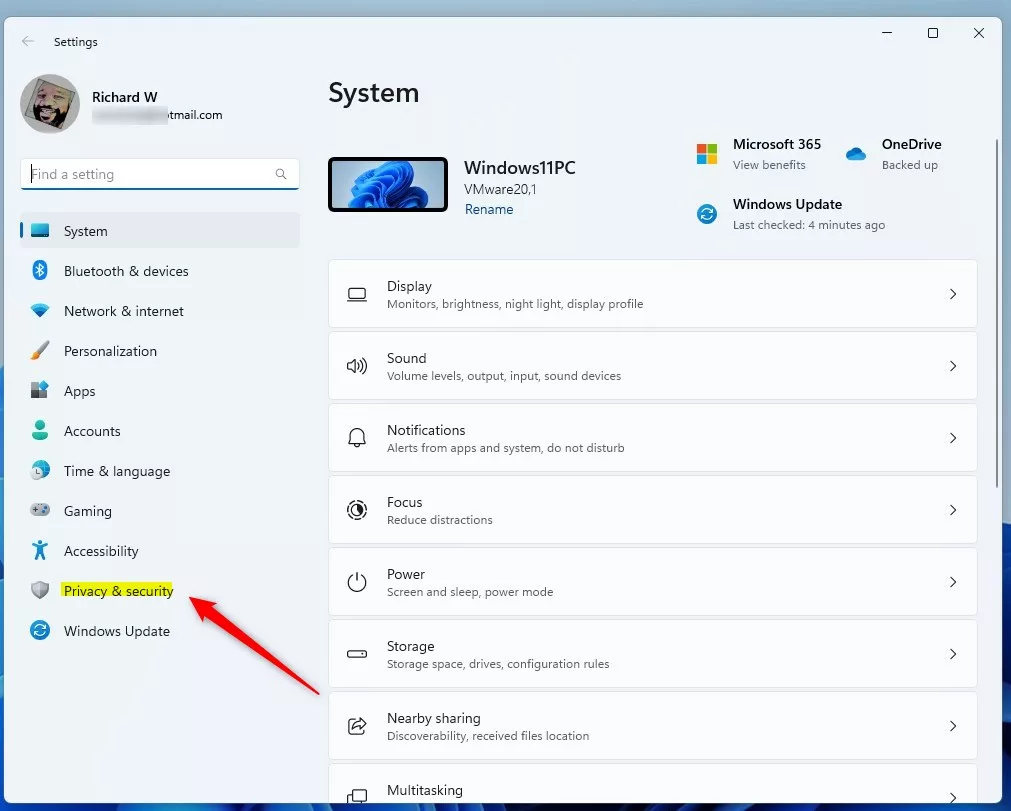
- Click Privacy & security on the left sidebar.
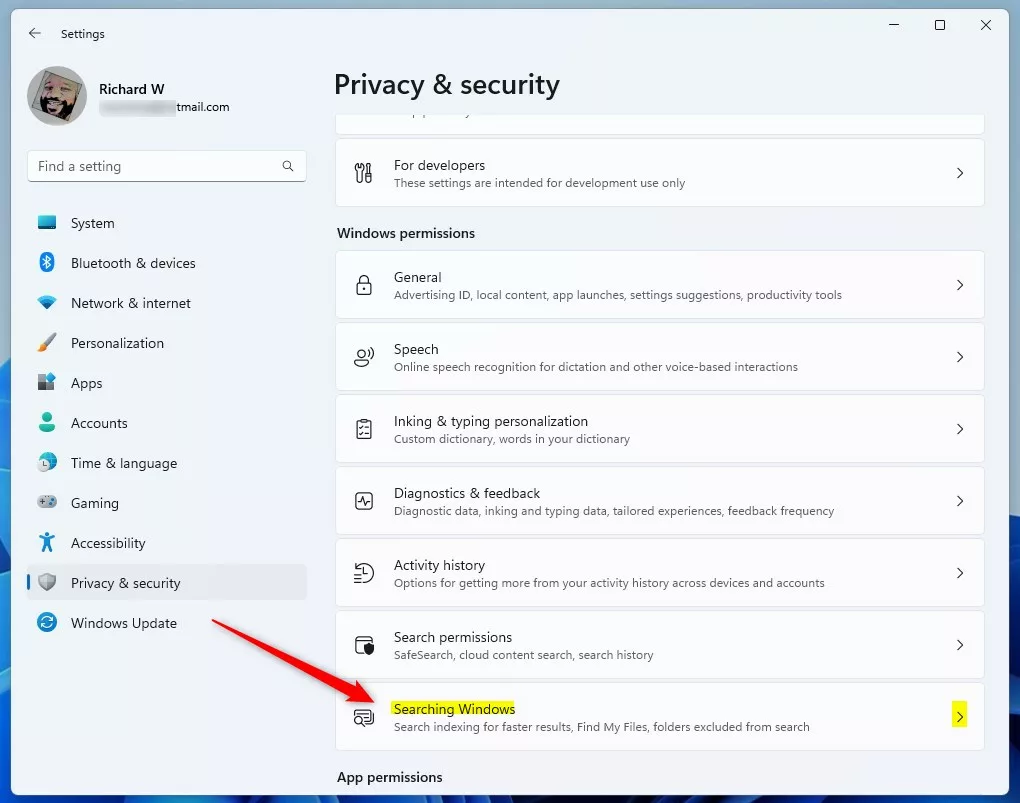
- Click the Searching Windows tile on the right.
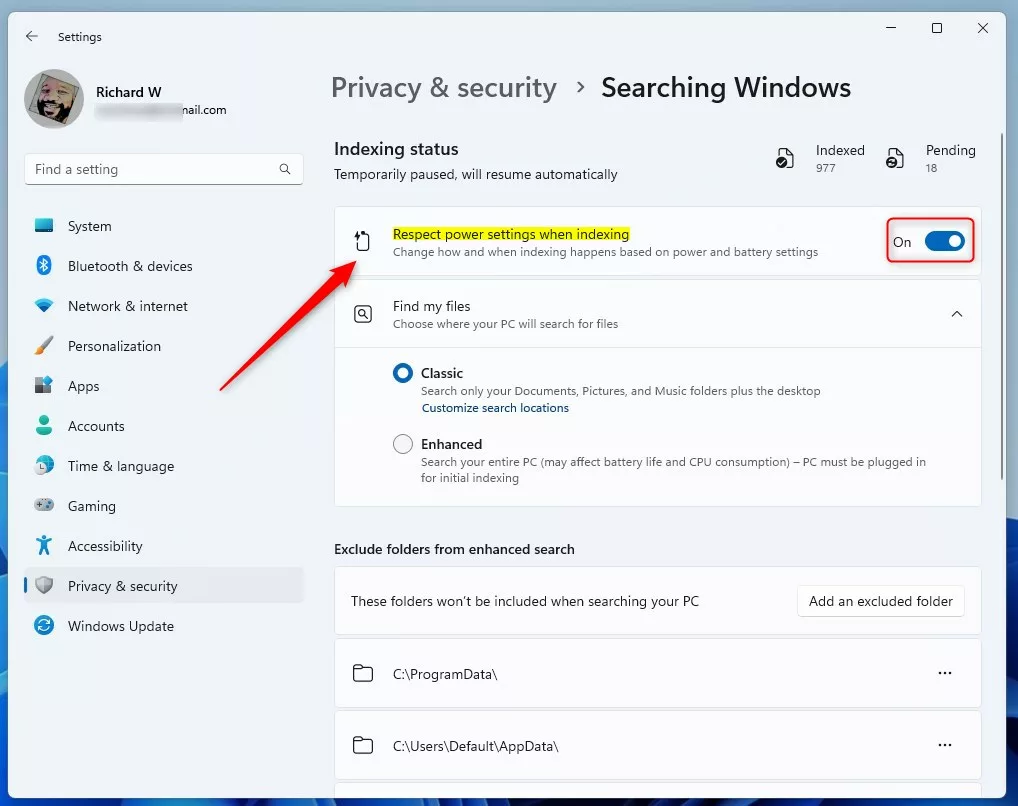
- Look for Respect power settings when indexing. Toggle the switch to On to enable it , or Off to disable it .
Method 2Using the Windows Registry Editor
If you’re comfortable with more advanced computer settings, you can tell Windows 11 to respect power settings during indexing by making a change in the Registry Editor.
- Open the Windows Registry.
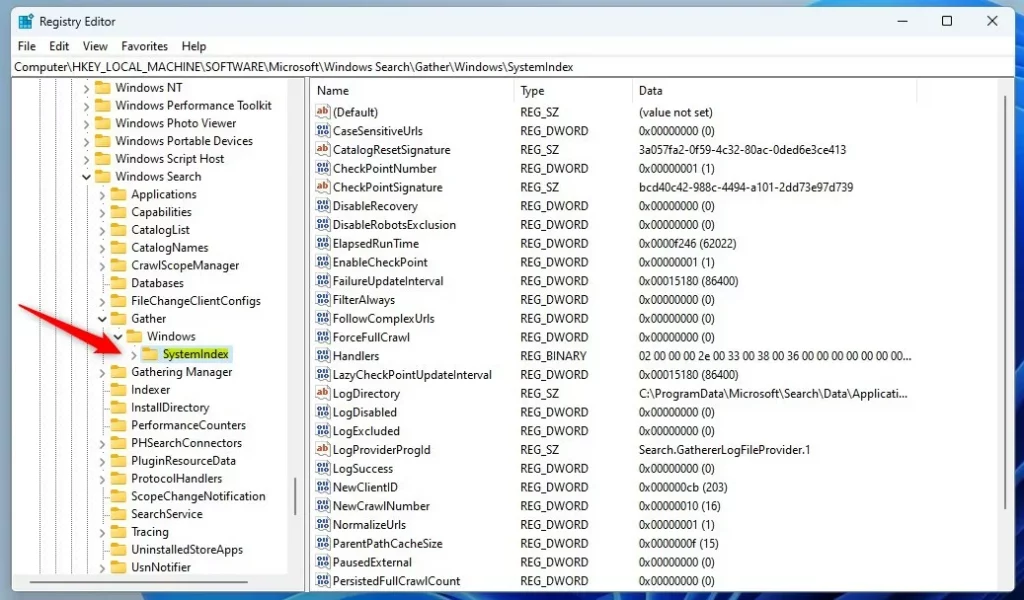
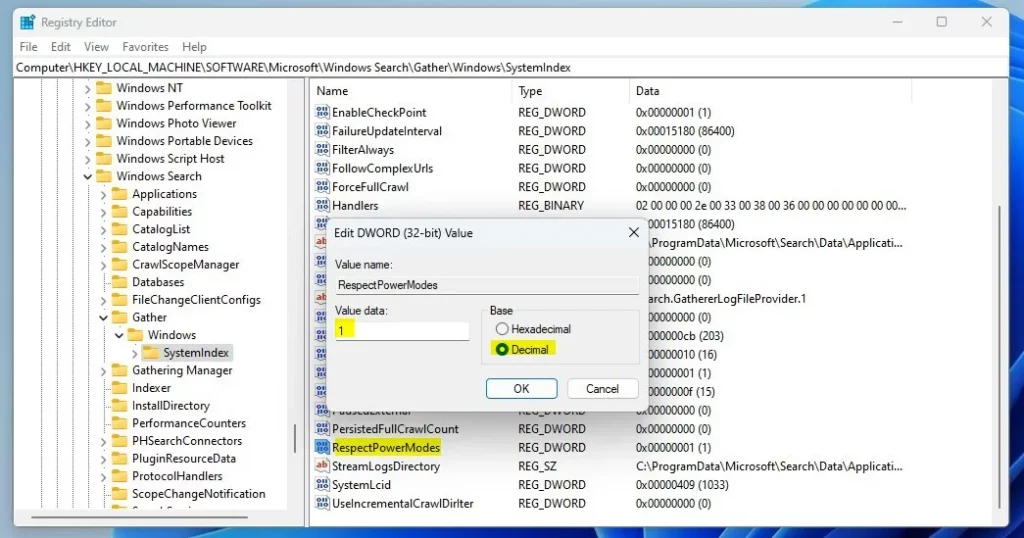
- Navigate to this path:
HKEY_LOCAL_MACHINE\SOFTWARE\Microsoft\Windows Search\Gather\Windows\SystemIndex - If you do not see the SystemIndex folder, right-click the Windows folder, select New, and create a subkey named SystemIndex.
- Right-click in the empty space on the right side and select New > DWORD (32-bit) Value. Name it
RespectPowerModes. - Double-click
RespectPowerModesand change the Value data to1to turn the feature on. Set it to0to turn it off.
- Restart your computer to apply the changes.
Troubleshooting Power Plan Overrides
If Windows 11 seems to ignore your power settings, especially after an update, it might be overriding them during indexing.
Summary
Windows 11 lets you control how your computer uses power when it’s organizing files for searching, and you can choose to respect power settings to save battery.
Why does 🪟 Windows 11 reset my power plan to 100%?
Windows 11 might reset your power plan to high performance after updates to keep things running smoothly.
Does indexing affect battery life on 🪟 Windows 11?
Yes, the background indexing service consumes CPU cycles to scan and catalog files. When indexing runs constantly, it prevents your processor from entering low-power states, which increases battery consumption. Enabling power-aware indexing helps mitigate this by pausing the service during periods of low battery or when using power-saving modes.
Was this guide helpful?

About the Author
Richard
Tech Writer, IT Professional
Richard, a writer for Geek Rewind, is a tech enthusiast who loves breaking down complex IT topics into simple, easy-to-understand ideas. With years of hands-on experience in system administration and enterprise IT operations, he’s developed a knack for offering practical tips and solutions. Richard aims to make technology more accessible and actionable. He's deeply committed to the Geek Rewind community, always ready to answer questions and engage in discussions.



No comments yet — be the first to share your thoughts!