How to Enable or Disable Reserved Storage in Windows 11

You can enable or disable Reserved Storage in Windows 11 to manage disk space and update performance.
Reserved Storage is a dedicated partition on your hard drive that Windows 11 uses to automatically download and prepare important updates, keeping them ready for installation.
This feature, first introduced in Windows 10 version 1903, can occupy up to 7 GB of your storage. It helps ensure updates install smoothly and reduces issues caused by low disk space during these critical processes.
By managing Reserved Storage, you can optimize your drive’s available space and ensure your system remains up-to-date without interruption.
You can enable or disable Reserved Storage in Windows 11 using Command Prompt or PowerShell. Open Windows Terminal as an administrator and use DISM commands for Command Prompt or Set-WindowsReservedStorageState for PowerShell.
What is Reserved Storage?
Windows saves about 7 GB of your hard drive space for temporary files, system updates, and caches. Here’s why this matters:
- Keeps temporary files from using up your personal storage
- Lets Windows install updates without asking you to free up space first
- Makes your storage usage more predictable and stable
If you run low on space, Windows will try to clear some of this reserved storage automatically.
Should You Disable Reserved Storage?
You can turn off Reserved Storage if you want to free up disk space. But here’s what happens:
- Windows might need you to manually free up space before updates install
- Updates might not install as smoothly
How Much Space Does Reserved Storage Use?
Reserved Storage usually starts at about 7 GB, but it can grow depending on:
- Optional Features: Extra Windows features might make Reserved Storage larger
- Installed Languages: Using multiple languages might increase the reserved space
You can reduce space by removing optional features or languages you don’t use:
- Remove optional features: Settings > Apps > Optional Features
- Remove languages: How Reserved Storage Works in Windows – Microsoft Support How to remove languages in Windows 11
Before You Start
⚠️ Admin Privileges Required: You need to be signed in as an Administrator to change Reserved Storage settings.
How to Check if Reserved Storage is On or Off
- Right-click the Start button and choose Windows Terminal (Admin)
- If you see a dropdown at the top, pick Windows PowerShell or Command Prompt
- Type one of the following commands and press Enter:
Using PowerShell:
Get-WindowsReservedStorageStateUsing Command Prompt:
DISM /Online /Get-ReservedStorageStateYou will see if Reserved Storage is Enabled or Disabled.
How to Enable or Disable Reserved Storage
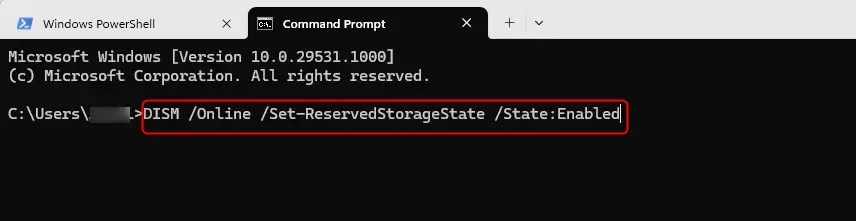
Option 1Using Command Prompt
- Open Windows Terminal (Admin) and select Command Prompt
- To enable Reserved Storage, type and press Enter:
DISM /Online /Set-ReservedStorageState /State:Enabled- To disable Reserved Storage, type and press Enter:
DISM /Online /Set-ReservedStorageState /State:Disabled- Close the terminal when done
Option 2Using PowerShell
- Open Windows Terminal (Admin) and select Windows PowerShell
- To enable Reserved Storage, type and press Enter:
Set-WindowsReservedStorageState -State Enabled- To disable Reserved Storage, type and press Enter:
Set-WindowsReservedStorageState -State Disabled- Close the terminal when done
Option 3Using Registry Files
⚠️ Warning: Editing the registry can cause system issues if done incorrectly. Back up your registry before making changes.
To Enable Reserved Storage (default):
reg add "HKEY_LOCAL_MACHINE\SOFTWARE\Microsoft\Windows\CurrentVersion\ReserveManager" /v ActiveScenario /t REG_DWORD /d 0 /f
reg add "HKEY_LOCAL_MACHINE\SOFTWARE\Microsoft\Windows\CurrentVersion\ReserveManager" /v MiscPolicyInfo /t REG_DWORD /d 1 /f
reg add "HKEY_LOCAL_MACHINE\SOFTWARE\Microsoft\Windows\CurrentVersion\ReserveManager" /v PassedPolicy /t REG_DWORD /d 1 /f
reg add "HKEY_LOCAL_MACHINE\SOFTWARE\Microsoft\Windows\CurrentVersion\ReserveManager" /v ShippedWithReserves /t REG_DWORD /d 1 /f
To Disable Reserved Storage:
reg add "HKEY_LOCAL_MACHINE\SOFTWARE\Microsoft\Windows\CurrentVersion\ReserveManager" /v ActiveScenario /t REG_DWORD /d 0 /f
reg add "HKEY_LOCAL_MACHINE\SOFTWARE\Microsoft\Windows\CurrentVersion\ReserveManager" /v MiscPolicyInfo /t REG_DWORD /d 2 /f
reg add "HKEY_LOCAL_MACHINE\SOFTWARE\Microsoft\Windows\CurrentVersion\ReserveManager" /v PassedPolicy /t REG_DWORD /d 0 /f
reg add "HKEY_LOCAL_MACHINE\SOFTWARE\Microsoft\Windows\CurrentVersion\ReserveManager" /v ShippedWithReserves /t REG_DWORD /d 0 /f
Summary
- Keeps your PC stable: Temporary files don’t fill up your personal storage
- Makes updates easier: Windows uses reserved space first for updates
- You control it: You can turn Reserved Storage on or off if you want
- Requires admin rights: Only administrators can change these settings
Managing Reserved Storage well can help your Windows run smoothly and keep your updates hassle-free.
Learn More from Microsoft
Windows 10 and Reserved Storage | Microsoft Community
Managing Reserved Storage in Windows 10 | Microsoft Community

Can I delete reserved storage in 🪟 Windows 11?
Reserved Storage in Windows 11 safeguards updates but consumes 7GB or more of disk space. You can disable reserved storage via DISM (/State:Disabled), Registry (ShippedWithReserves=0), or scripts to free space. Always reboot afterward and run Disk Cleanup (cleanmgr) to reclaim storage.
What is 🪟 Windows 11 reserved storage?
System reserved storage To make sure your device can successfully update and that it runs its best, Windows reserves a portion of storage space on your device for use by temporary files, caches, and other files.
Is reserved storage needed?
Reserved Storage keeps some disk space for Windows Update, apps, temporary files, and system caches because without enough disk space, Windows processes can become unstable, causing the OS and applications to stop working properly.
Can you delete reserved storage?
In order to turn off reserved storage, just set MiscPolicyInfo to 2 and set PassedPolicy to 0. Whenever you need to turn on reserved storage, set the values of both MiscPolicyInfo and PassedPolicy to 1. Close Registry Editor and reboot your computer to see the changes.
Was this guide helpful?

About the Author
Richard
Tech Writer, IT Professional
Richard, a writer for Geek Rewind, is a tech enthusiast who loves breaking down complex IT topics into simple, easy-to-understand ideas. With years of hands-on experience in system administration and enterprise IT operations, he’s developed a knack for offering practical tips and solutions. Richard aims to make technology more accessible and actionable. He's deeply committed to the Geek Rewind community, always ready to answer questions and engage in discussions.


No comments yet — be the first to share your thoughts!