

This article explains how to enable or disable a setting that will open the Controller Bar using the Xbox Controller button in Windows 11.
The Xbox Game Bar on Windows devices has a Controller Bar feature that allows you to quickly access games and apps using any Xbox controller, including standard controllers, the Elite Controller Series 2, and the Xbox Adaptive Controller.
There are multiple ways one can open the Xbox Game Bar in Windows. For example, while playing a game and you press the Xbox button on the controller, the Xbox Game Bar will open,
If you are not playing and press the Xbox button, the Controller Bar will open instead.
If you always want to open the Xbox Game Bar while playing or not, you can disable the Windows “Open Controller Bar setting using the Xbox button on a controller not over a game.”
Turn on or off open Controller Bar using the Xbox Controller Button in Windows 11
As mentioned above, you can always open the Xbox Game Bar by disabling the “Open Controller Bar setting using the Xbox button on a controller not over a game” setting.
When you disable it, the Controller Bar will open instead of the Game Bar when you are not actively playing a game.
Note: A wireless controller must be connected to your Windows device to access the Controller Bar.
Here’s how to do it.
First, Open the Xbox Game Bar (Window key + G ).
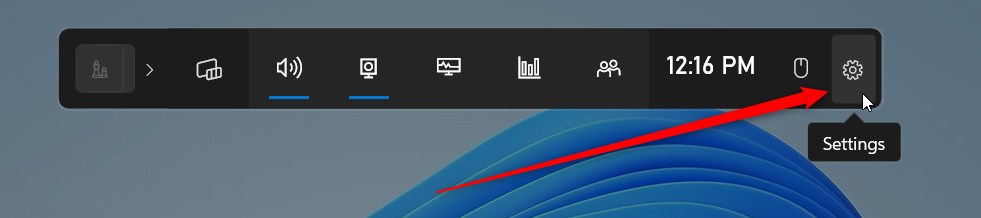
Then click on the Settings (gear) button on the Game Bar.
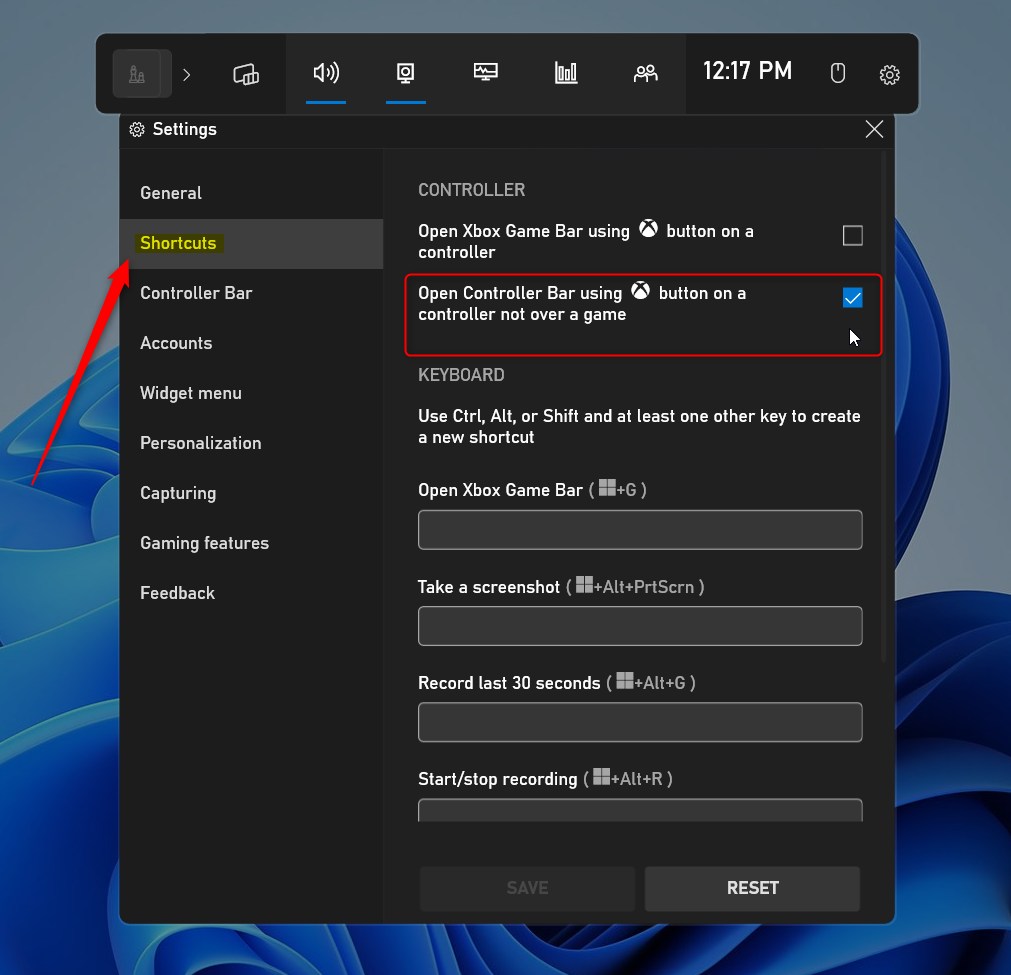
On the Settings window, select the Shortcuts tab and check the box for “Open Controller Bar using the Xbox button on a controller not over a game” to enable.
To disable it, uncheck the box.
That should do it!
Reference:
https://support.xbox.com/en-US/help/games-apps/apps-help/xbox-controller-bar-for-windows
Conclusion:
- Enabling or disabling the setting to open the Xbox Game Bar or Controller Bar using the Xbox controller button in Windows 11 provides flexibility based on user preference.
- Accessing the Xbox Game Bar settings through the Windows key + G shortcut allows for easy customization of the Controller Bar feature.
- A wireless controller must be connected to the Windows device to access the Controller Bar, enhancing the gaming experience for users.
- Users are encouraged to utilize the comments section below the post for further assistance or to contribute to the information provided.



Leave a Reply