How to Enable or Disable Outlook Alerts When App is Closed

You can enable or disable Outlook alerts when the app is closed by adjusting a specific setting within the application’s notification preferences.
This feature allows you to control whether you receive pop-up notifications for new emails and calendar events even when Outlook isn’t actively running on your Windows PC. For instance, you might want to keep alerts on to ensure you don’t miss urgent messages, or turn them off for better focus during work sessions.
To manage these notifications, you’ll navigate to the ‘Notifications’ section under ‘General’ settings in Outlook. Ensure that “Show an alert when new email arrives” and “Show an alert when a calendar event occurs” are toggled according to your preference for when the app is closed.
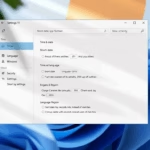
Open Outlook, click the Settings gear, select General, then Notifications. Find “Notifications in Outlook” and check “Send notifications when Outlook is closed” to enable alerts. Uncheck it to disable them.
How to turn Outlook new message alert pop up on or off?
Turn alerts on or off Select File. Select Options, then Mail. Under Message arrival, select to check or clear the Display a Desktop Alert check box, and then select OK.
Was this guide helpful?

About the Author
Richard
Tech Writer, IT Professional
Richard, a writer for Geek Rewind, is a tech enthusiast who loves breaking down complex IT topics into simple, easy-to-understand ideas. With years of hands-on experience in system administration and enterprise IT operations, he’s developed a knack for offering practical tips and solutions. Richard aims to make technology more accessible and actionable. He's deeply committed to the Geek Rewind community, always ready to answer questions and engage in discussions.


[…] Calendar, switch to dark mode, link preview, sound alerts for notifications, turn on or off notifications when Outlook is closed, alerts for emails and mentions, and […]
[…] to your Calendar, switch to dark mode, link preview, sound alerts for notifications, turn on or off notifications when Outlook is closed, and […]
Too bad Outlook won’t save ‘Notifications When Closed’. It’s listed as an option but is non-functional. Simply put, Outlook (Win11) does not send notifications when closed… Which is uselessly substandard.