Manage Microsoft Teams Notifications During Calls

Microsoft Teams notifications during calls can be managed to prevent distractions.
Microsoft Teams is a program from Microsoft that lets people chat, have video meetings, and share files.
You can choose to silence notifications, like chat messages and alerts, when you are on a call or in a meeting. This keeps your focus on the important conversation.
On Windows, this setting helps you control what pops up while you’re talking or presenting, ensuring a smoother experience.
To enable or disable notification sounds during calls in Microsoft Teams, go to Settings, then Notifications and activity, and check or uncheck “Play sound with incoming calls, requests to join, and meeting start notifications.” This setting controls alert sounds for calls and meetings.
Turn on or off notifications during calls and meetings in Teams
Microsoft Teams lets you control notifications during calls and meetings so you aren’t interrupted.
Here’s how to do it.
First, launch the app by clicking the Start menu and selecting it on the All Apps list.

You can also launch the app from the Taskbar or Taskbar overflow.

When you first launch the Teams app, the mini window will open. Click the expansion button on the menu bar to open the full Teams window.

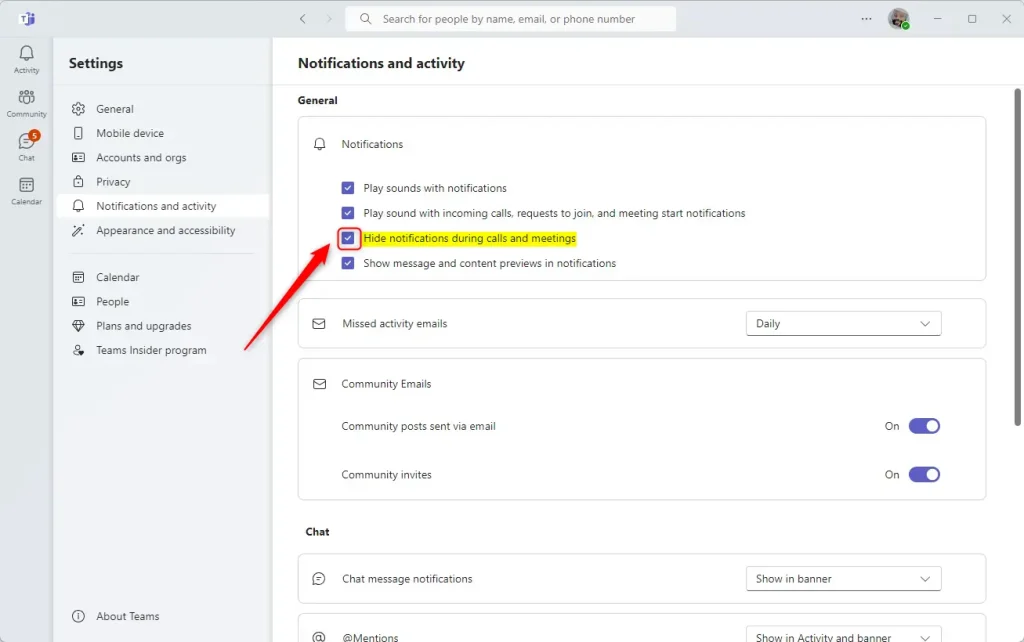
In the full Teams window, click the Settings and more ( …) button next to your profile picture and select Settings from the menu.

Next, select the Notifications and activity tab on the left of the Settings page. Then, under “General” on the right, check the box next to “Play sound with incoming calls, requests to join, and meeting start notifications” to enable sounds with incoming calls, requests to join, and meeting start notifications.
To disable sound, uncheck the box.
That should do it!
Conclusion:
- Enabling notifications can keep you informed of essential messages during calls and meetings
- Disabling notifications can help avoid distractions and interruptions during important conversations
- Following the provided steps, you can easily manage your notification settings in the Microsoft Teams app
Was this guide helpful?

About the Author
Richard
Tech Writer, IT Professional
Richard, a writer for Geek Rewind, is a tech enthusiast who loves breaking down complex IT topics into simple, easy-to-understand ideas. With years of hands-on experience in system administration and enterprise IT operations, he’s developed a knack for offering practical tips and solutions. Richard aims to make technology more accessible and actionable. He's deeply committed to the Geek Rewind community, always ready to answer questions and engage in discussions.



[…] disable sound notifications, enable or disable notifications for incoming calls and meetings, enable or disable notifications during calls and meetings, and […]
[…] to Google Calendar, link your mobile device, turning message preview on or off, manage teams notifications during calls, set default speakers, set default microphone, enable high fidelity […]
[…] to Google Calendar, link your mobile device, turning message preview on or off, manage teams notifications during calls, set default speakers, set default microphone, enable high fidelity […]
[…] Teams, connect to Google Calendar, link your mobile device, turn message preview on or off, manage teams notifications during calls, set default speakers, set default microphone, enable high fidelity sound, change mic […]
[…] sound notifications, enable or disable notifications for incoming calls and meetings, enable or disable notifications during calls and meetings, enable or disable chat message notifications, turn @mentions notifications banners on or […]
[…] sound notifications, enable or disable notifications for incoming calls and meetings, enable or disable notifications during calls and meetings, enable or disable chat message notifications, turn @mentions notifications banners on or […]