How to Enable or Disable Fullscreen Optimizations for Games in Windows 11

You enable or disable fullscreen optimizations for games in Windows 11 by adjusting a specific compatibility setting for each executable file.
Fullscreen optimizations are a Windows feature that aims to boost game performance by cutting down on system latency (the delay between your actions and the game’s response). Turning them off can sometimes help if your games are running poorly or stuttering.
You can find this setting within the Properties window of a game’s executable (.exe) file, usually on the Compatibility tab. This lets you adjust performance for individual applications. For instance, on a system running Windows 11 version 22H2, you might find this option helps resolve certain graphical glitches.
To enable or disable fullscreen optimizations for a game, right-click its executable file and select Properties. Navigate to the Compatibility tab and check or uncheck the “Disable fullscreen optimizations” box. Click OK to apply the changes.
Why Fullscreen Optimizations Matter
Fullscreen optimizations in Windows 11 help games run better by balancing speed and features.
There are two main ways games can run: Fullscreen Exclusive (FSE) mode (where a game takes over your entire screen) for top speed, but you can’t easily use overlays or switch apps. Or borderless windowed mode, which lets you switch windows and use overlays smoothly, but might slightly reduce performance. Fullscreen optimizations try to give you the best of both.
Your game thinks it’s running in fullscreen exclusive mode, but Windows actually runs it in borderless windowed mode behind the scenes. This lets you get:
- Full screen display
- Fast performance
- Quick alt-tab switching
- Support for overlays like the Game Bar
How It Works
Fullscreen optimizations work by letting Windows give your game more power when it’s the only app running.
Fullscreen optimizations are turned on by default. They usually help games run better. However, some people find that turning them off helps their specific games perform better.
Reference: Demystifying Fullscreen Optimizations – DirectX Developer Blog
We wrote this article to explain the difference between Fullscreen Exclusive and Fullscreen Optimizations.
Option 1
Enable or Disable Fullscreen Optimizations for One App or Game (Your Account Only)
You can turn fullscreen optimizations on or off for a specific game on your account by changing its properties.
- Right click or press and hold on the EXE file of the app or game. Click on Properties.
- Click on the Compatibility tab. (see screenshot below)
- Check the box (to disable) or uncheck the box (to enable – default) next to Disable fullscreen optimizations.
- Click on OK.
Option 2
Enable or Disable Fullscreen Optimizations for One App or Game (All Users)
To change fullscreen optimizations for every user on your PC, you’ll need administrator rights and can adjust settings through the game’s file properties.
Follow these steps to change fullscreen optimizations for everyone on your computer:
- Right click or press and hold on the EXE file of the app or game. Click on Properties.
- Click on the Compatibility tab. Then click on Change settings for all users.
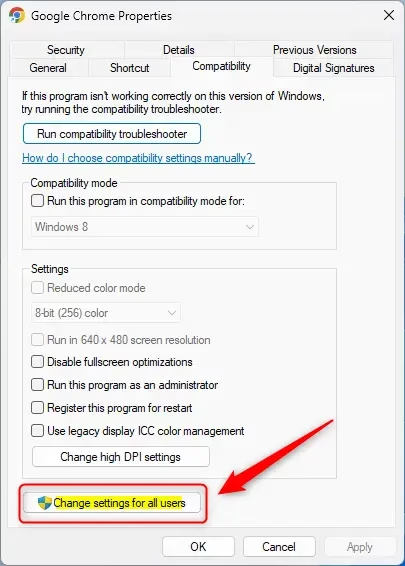
- Check the box (to disable) or uncheck the box (to enable – default) next to Disable fullscreen optimizations. Then click on OK.
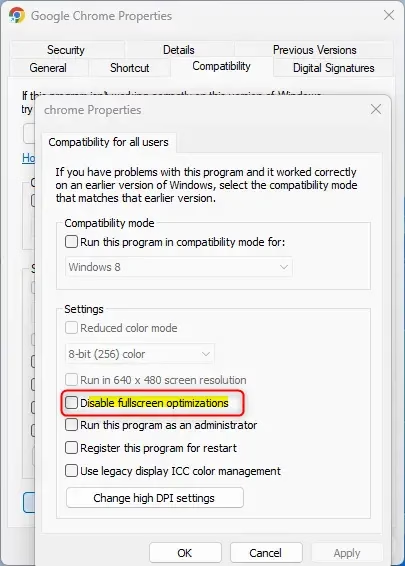
- Click on OK.
Summary
Fullscreen optimizations help games run faster and keep features like overlays working, but you can turn them off for specific games if needed.
What does disable fullscreen optimizations do in 🪟 Windows 11?
Disabling fullscreen optimizations forces your game to run in traditional Fullscreen Exclusive (FSE) mode. This bypasses Windows’ hybrid display management, which can resolve compatibility issues, stuttering, or input lag in certain titles. However, you will lose the ability to use overlays or alt-tab between windows as quickly.
What do fullscreen optimizations do?
Fullscreen optimizations combine the benefits of Fullscreen Exclusive mode and borderless windowed mode. They allow games to run with the performance and low latency of exclusive fullscreen while maintaining the convenience of borderless windows, such as faster alt-tab switching and seamless support for overlays like the Windows Game Bar.
Should I tick disable fullscreen optimizations?
You should only turn off fullscreen optimizations if you’re having problems like screen tearing or stuttering in a specific game.
Does disabling full screen optimization increase FPS?
Disabling fullscreen optimization does not inherently increase FPS for most users. In some cases, it may actually decrease performance or cause instability. You should only disable it if you encounter specific technical glitches or input latency, as the feature is designed to optimize performance while maintaining system responsiveness.
Was this guide helpful?

About the Author
Richard
Tech Writer, IT Professional
Richard, a writer for Geek Rewind, is a tech enthusiast who loves breaking down complex IT topics into simple, easy-to-understand ideas. With years of hands-on experience in system administration and enterprise IT operations, he’s developed a knack for offering practical tips and solutions. Richard aims to make technology more accessible and actionable. He's deeply committed to the Geek Rewind community, always ready to answer questions and engage in discussions.


No comments yet — be the first to share your thoughts!