
This guide explains how to turn the Developer Mode setting on or off in Microsoft Edge for Windows 11. Extensions Extensions: These are small tools that add new features to your web browser. Developer Mode is a special setting programmers use to test their own tools before they are officially released.
Open Microsoft Edge, click the Extensions button or the three-dot menu, and select Manage extensions. Toggle the Developer mode switch to On or Off on the left side of the screen.
Why use Developer Mode?
Developers use this mode to load, test, and fix their own browser extensions. This lets them see how their tools work in the browser without needing to go through the official Microsoft store.
What happens when you turn it on?
Turning on Edge developer mode lets you install extensions directly from files on your computer, but it’s mainly for developers because it can allow unsafe tools to run.
References:
- Sideload an extension to install and test it locally – Microsoft Edge Developer documentation
- Developer mode extension notification – Microsoft Support
- Microsoft Edge extensions documentation – Microsoft Edge Developer documentation
Option 1Use the Edge Settings Menu
You can easily turn Edge developer mode on or off for your personal account right from the browser’s settings menu.
- Open the Microsoft Edge browser.
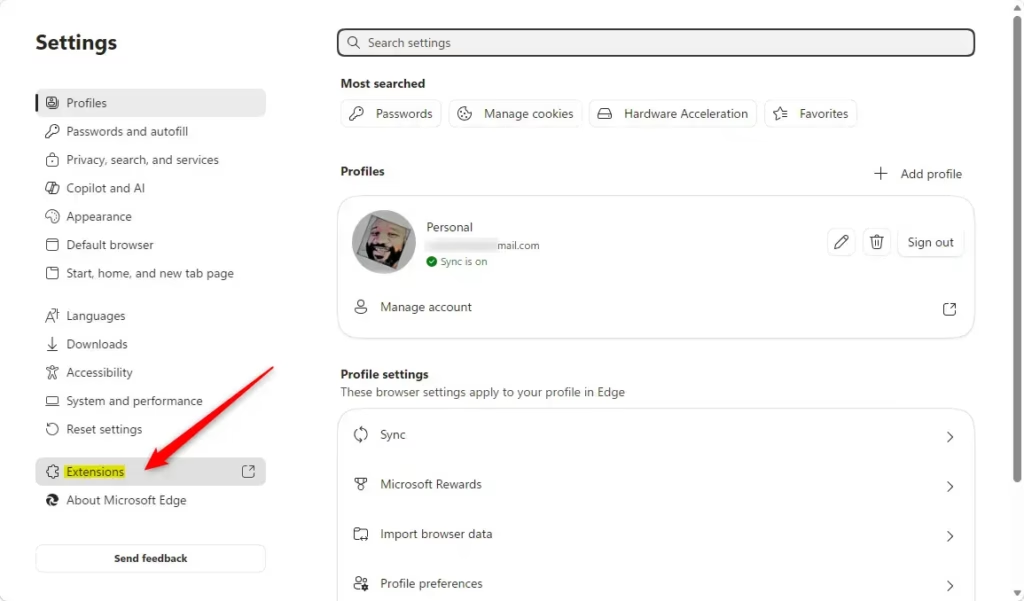
- Click the Extensions button on the toolbar or click the Settings and more (three-dot) menu and select Extensions.
- Click on Manage extensions.
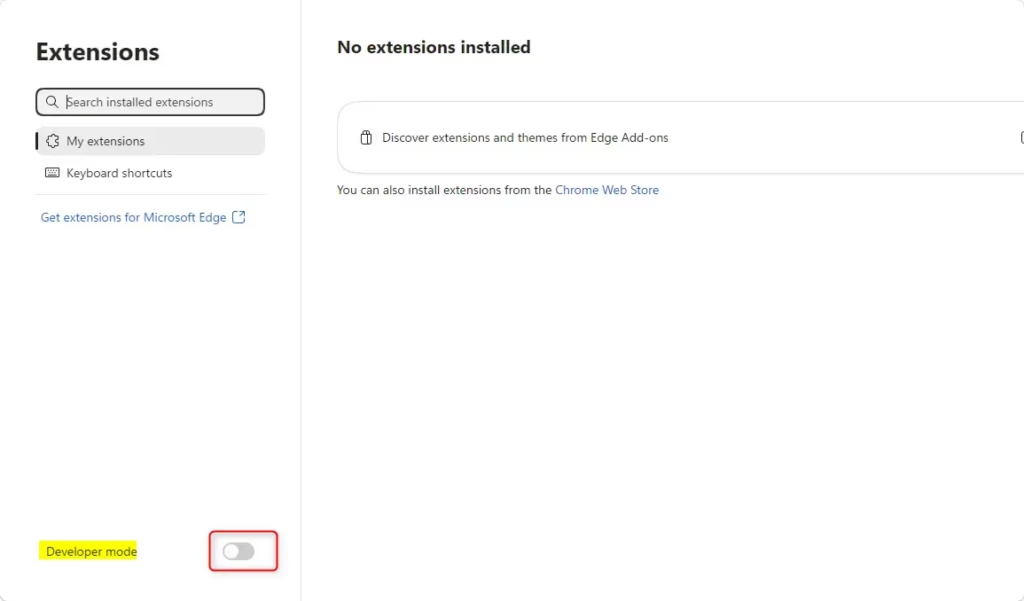
- On the left side of the screen, toggle the Developer mode switch to On or Off.
Option 2Use the Registry for All Users
If you’re an administrator, you can use the Windows Registry to disable Edge developer mode for all users on the computer with a system policy.
Open the Windows Terminal app as an administrator and run the command below:
To Disable Developer Mode for All Users:
This will lock the setting and grey it out so it cannot be changed in the browser menu.
reg add "HKEY_LOCAL_MACHINE\SOFTWARE\Policies\Microsoft\Edge" /v ExtensionDeveloperModeSettings /t REG_DWORD /d 1 /f
To Enable Developer Mode for All Users:
This resets the setting to the default, allowing individual users to choose their own preference.
reg delete "HKEY_LOCAL_MACHINE\SOFTWARE\Policies\Microsoft\Edge" /v ExtensionDeveloperModeSettings /f
Summary
Edge developer mode is best kept off for regular users to keep your browser safe from unverified software, but you can turn it on yourself via settings or for all users as an admin.
How do I put an extension on developer mode?
To put an extension into developer mode in Edge, open the ‘Manage extensions’ page and flip the ‘Developer mode’ switch to ‘On’ to load unpacked extensions from your computer.
How do I enable developer mode in edge extensions?
You can enable developer mode in Edge extensions by going to ‘edge://extensions’ and toggling the ‘Developer mode’ switch on the bottom left.
How to use extensions in private mode in Edge?
To use extensions in Edge’s private mode, go to ‘Manage extensions,’ click ‘Details’ for the extension, and turn on the ‘Allow in InPrivate’ switch.
How to get rid of extensions on Microsoft Edge?
To get rid of extensions on Microsoft Edge, click the puzzle icon, choose ‘Manage extensions,’ find the one you want to remove, and click the ‘Remove’ button.
Was this guide helpful?
100% of readers found this helpful (1 votes)

About the Author
Richard
Tech Writer, IT Professional
Richard, a writer for Geek Rewind, is a tech enthusiast who loves breaking down complex IT topics into simple, easy-to-understand ideas. With years of hands-on experience in system administration and enterprise IT operations, he’s developed a knack for offering practical tips and solutions. Richard aims to make technology more accessible and actionable. He's deeply committed to the Geek Rewind community, always ready to answer questions and engage in discussions.



[…] How to Enable or Disable Extension Developer Mode in Microsoft Edge on Windows 11 […]