How to Enable or Disable Access to Removable Storage Devices in Windows 11

This tutorial will show you how to turn on or turn off read and write access to removable storage devices like USB drives, SD cards, and CD/DVDs. You can control access for all users or just specific users in Windows 10 and Windows 11.
By default, Windows allows all users to read and write files on removable storage devices they plug into the computer.
⚠️ Admin privileges required: You must be signed in as an administrator to change these settings.
Option One
Enable or Disable Removable Storage Access for All Users Using Group Policy
Note: This tool is only available in Windows 10/11 Pro, Enterprise, and Education editions. If you have Home edition, use Option Three instead.
- Open the Local Group Policy Editor. Press the Windows key and R together, type
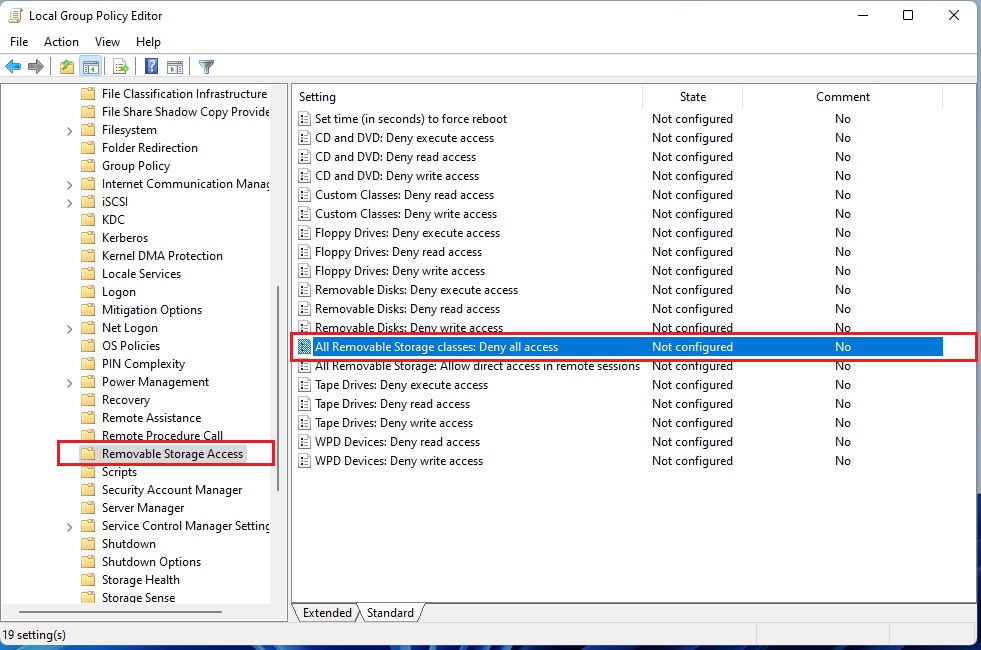
gpedit.msc, and press Enter. ⚠️ Admin privileges required - In the left pane, navigate to:
Computer Configuration > Administrative Templates > System > Removable Storage Access - In the right pane, find and double-click the policy called All Removable Storage classes: Deny all access
To Allow Access to Removable Storage Devices
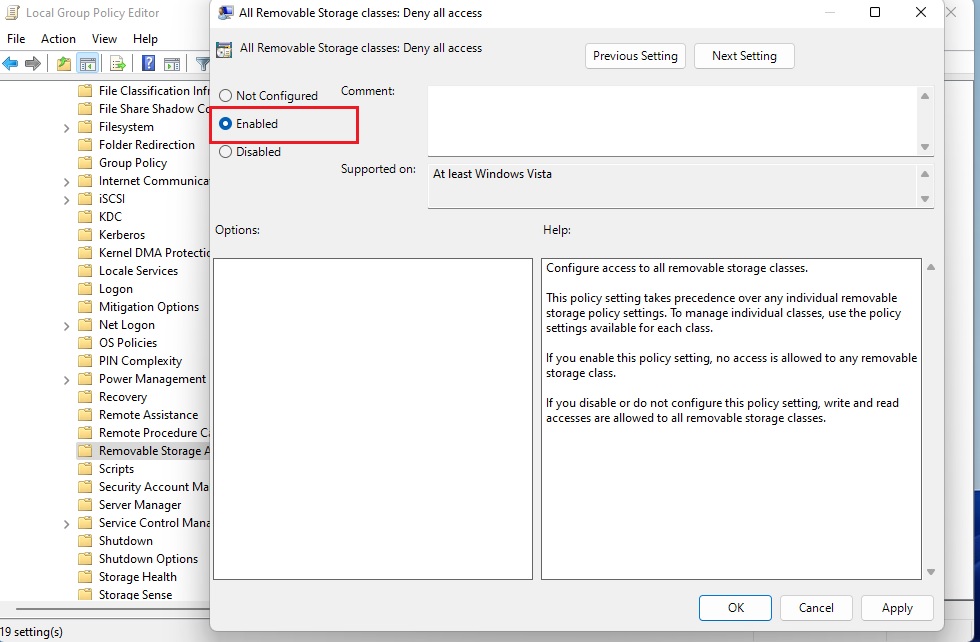
This is the default setting.
- Select the Not Configured option (click the dot next to it)
- Click OK
- Close the Group Policy Editor
To Block Access to Removable Storage Devices
- Select the Enabled option (click the dot next to it)
- Click OK
- Close the Group Policy Editor
Option Two
Enable or Disable Removable Storage Access for Specific Users Using Group Policy
Note: This tool is only available in Windows 10/11 Pro, Enterprise, and Education editions.
- Open the Local Group Policy Editor for the user or group you want to control. ⚠️ Admin privileges required
- In the left pane, navigate to:
User Configuration > Administrative Templates > System > Removable Storage Access - In the right pane, find and double-click the policy called All Removable Storage classes: Deny all access
To Allow Access
This is the default setting.
- Select the Not Configured option
- Click OK
- Close the Group Policy Editor
To Block Access
- Select the Enabled option
- Click OK
- Close the Group Policy Editor
Option Three
Enable or Disable Removable Storage Access for All Users Using the Registry
⚠️ Admin privileges required
To Allow Access to Removable Storage Devices
This is the default setting. Use this command:
reg delete "HKCU\Software\Policies\Microsoft\Windows\RemovableStorageDevices" /v Deny_All /f
reg delete "HKLM\SOFTWARE\Policies\Microsoft\Windows\RemovableStorageDevices" /v Deny_All /f
To Block Access to Removable Storage Devices
Use this command:
reg add "HKLM\SOFTWARE\Policies\Microsoft\Windows\RemovableStorageDevices" /v Deny_All /t REG_DWORD /d 1 /f
Summary
You now know how to control access to removable storage devices like USB drives in Windows 10 and Windows 11. You have three options to choose from. Option One and Two use the Group Policy Editor and work best for Pro, Enterprise, and Education editions. Option Three uses the Registry and works for all Windows editions. Choose the method that works best for your version of Windows and your needs.
Was this guide helpful?

About the Author
Richard
Tech Writer, IT Professional
Richard, a writer for Geek Rewind, is a tech enthusiast who loves breaking down complex IT topics into simple, easy-to-understand ideas. With years of hands-on experience in system administration and enterprise IT operations, he’s developed a knack for offering practical tips and solutions. Richard aims to make technology more accessible and actionable. He's deeply committed to the Geek Rewind community, always ready to answer questions and engage in discussions.


No comments yet — be the first to share your thoughts!