How to Enable Hidden Education Themes in Windows 11

You can enable hidden education themes in Windows 11 to access unique backgrounds and color schemes not typically available on standard installations.
These “education themes” are special customization sets, originally designed for Windows 11 SE or educational institutions, and are hidden within your operating system’s files.
Accessing them allows you to personalize your Windows 11 desktop with these distinct visual styles, adding a fresh look to your PC.
This guide shows you how to locate and activate these themes, enhancing your desktop experience.
Enable hidden education themes by editing the registry. Open regedit, navigate to 🗝️HKEY_LOCAL_MACHINE\SOFTWARE\Microsoft\PolicyManager\current\device\Education, create a new DWORD value named EnableEduThemes, and set its data to 1. Restart your PC to see the new themes.
Why use these themes?
You might want these themes to give your desktop a fresh, professional look. They offer a minimalist style that differs from standard Windows options. It’s a fun way to customize your computer and experience the interface used in classrooms.
What happens when you are done?
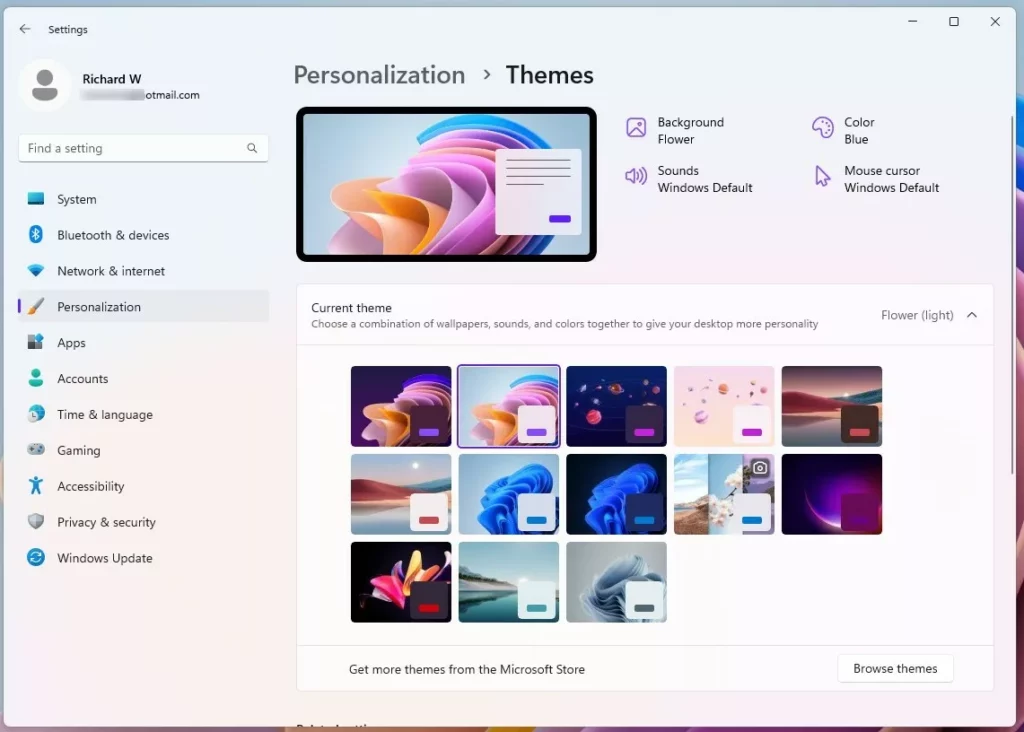
Once you’ve finished these steps and restarted your PC, new theme options will pop up in your personalization settings. You can then select them like any other theme. Your computer will apply the education-specific wallpaper and color accents.
Method 1Using the Registry Editor (Most Common)
You can enable hidden education themes in Windows 11 using the Registry Editor, a powerful tool for changing system settings.
- Press ⊞ Win+R, type
regedit, and hit Enter. - Navigate to:
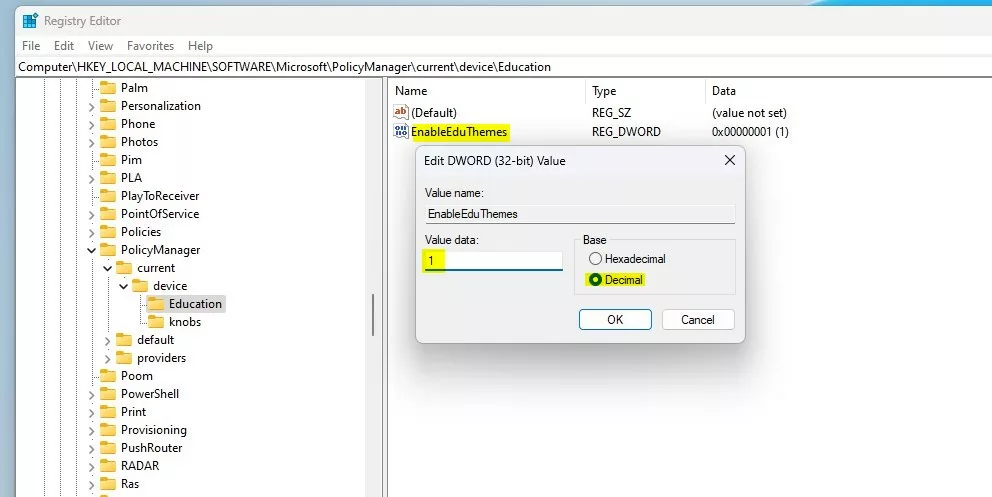
HKEY_LOCAL_MACHINE\SOFTWARE\Microsoft\PolicyManager\current\device\Education - If the Education folder is missing, right-click device, select New > Key, and name it
Education. - Right-click in the right pane, select New > DWORD (32-bit) Value.
- Name it
EnableEduThemes. - Double-click
EnableEduThemesand set the Value data to1.
Method 2Using PowerShell for IT Admins
If you prefer command-line tools, you can enable these themes using PowerShell. This requires administrator privileges.
New-Item -Path "HKLM:\\SOFTWARE\\Microsoft\\PolicyManager\\current\\device\\Education" -Force
Set-ItemProperty -Path "HKLM:\\SOFTWARE\\Microsoft\\PolicyManager\\current\\device\\Education" -Name "EnableEduThemes" -Value 1
Method 3OMA-URI for Enterprise Deployment
For IT administrators managing multiple machines, you can use Microsoft Intune to deploy these settings via OMA-URI. Use the following configuration:
- Name: Enable Education Themes
- OMA-URI:
./Device/Vendor/MSFT/Policy/Config/Education/EnableEduThemes - Data Type: Integer
- Value: 1
Summary
You can easily enable hidden education themes on your Windows 11 computer using a few different methods, including the Registry Editor or PowerShell.
Are education themes available on 🪟 Windows 11 Home edition?
Yes, the registry method works on Windows 11 Home, Pro, and Enterprise editions. While these themes are built into Windows 11 SE, the settings that control them are available in all versions of Windows 11. This means you can enable them manually, no matter which edition you’re running.
Do I need an active school account to use these themes?
No, you do not need a school or work account. By manually modifying the registry, you are telling Windows to treat your device as if it were part of an education environment. This bypasses the need for official school account credentials to access the hidden theme files.
Can I revert to standard themes after enabling education themes?
Yes, you can easily revert. Return to the registry path and change the EnableEduThemes value back to 0 or delete the key entirely. After a quick restart, your system will return to its original state, and you can select any standard Windows theme.
Was this guide helpful?

About the Author
Richard
Tech Writer, IT Professional
Richard, a writer for Geek Rewind, is a tech enthusiast who loves breaking down complex IT topics into simple, easy-to-understand ideas. With years of hands-on experience in system administration and enterprise IT operations, he’s developed a knack for offering practical tips and solutions. Richard aims to make technology more accessible and actionable. He's deeply committed to the Geek Rewind community, always ready to answer questions and engage in discussions.




No comments yet — be the first to share your thoughts!